Absences
Watch this video to get a quick overview of Absence Management with PrevailHQ.
Please Note: Different features will be visible depending on the product purchased.
Team Absences Dashboard
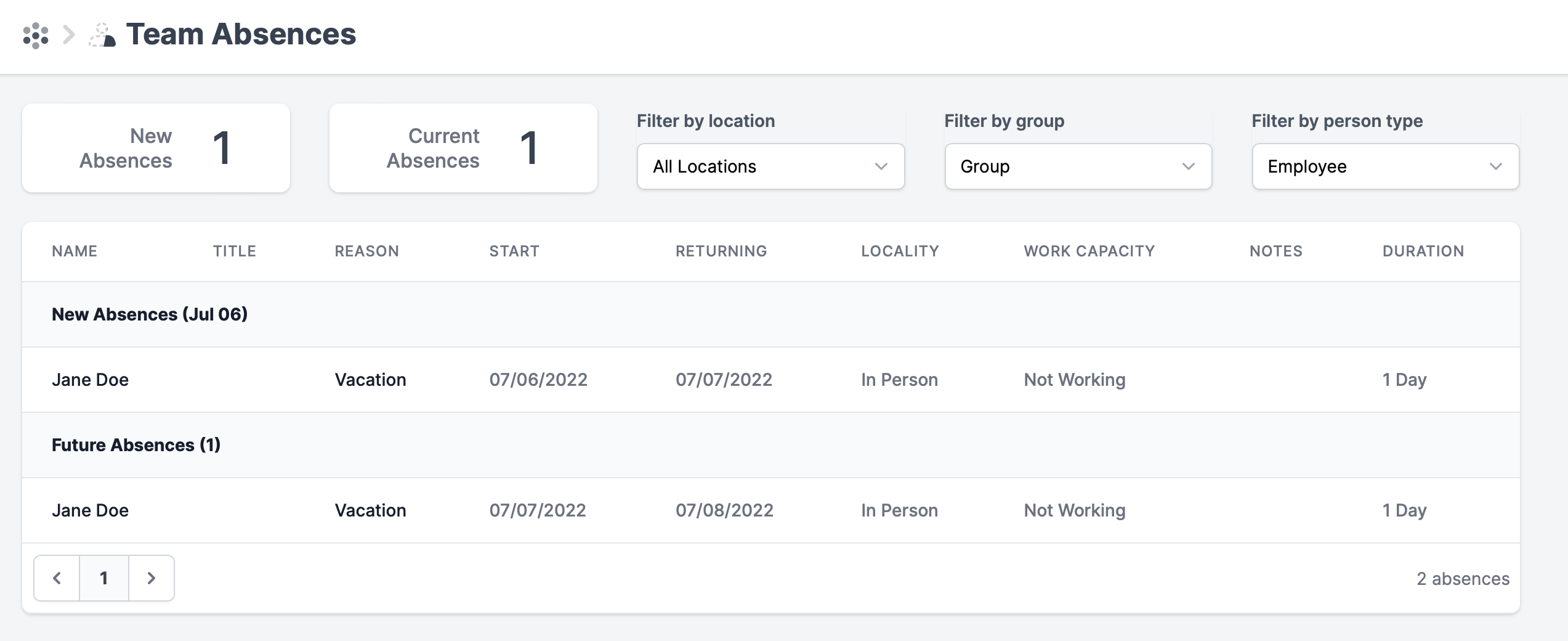
Go to Workforce > Team Absences. Here you will be able to overview all your organization's absences.
This dashboard can be used for the designated individuals to overview team absence information without having access to the case's personal data. Specific role permissions are required to allow or restrict access to the data.
 ---
---
Creating Absences
There are multiple ways to submit an employee being absent, whether it is for illness, vacation, etc.:
Via an Open Case
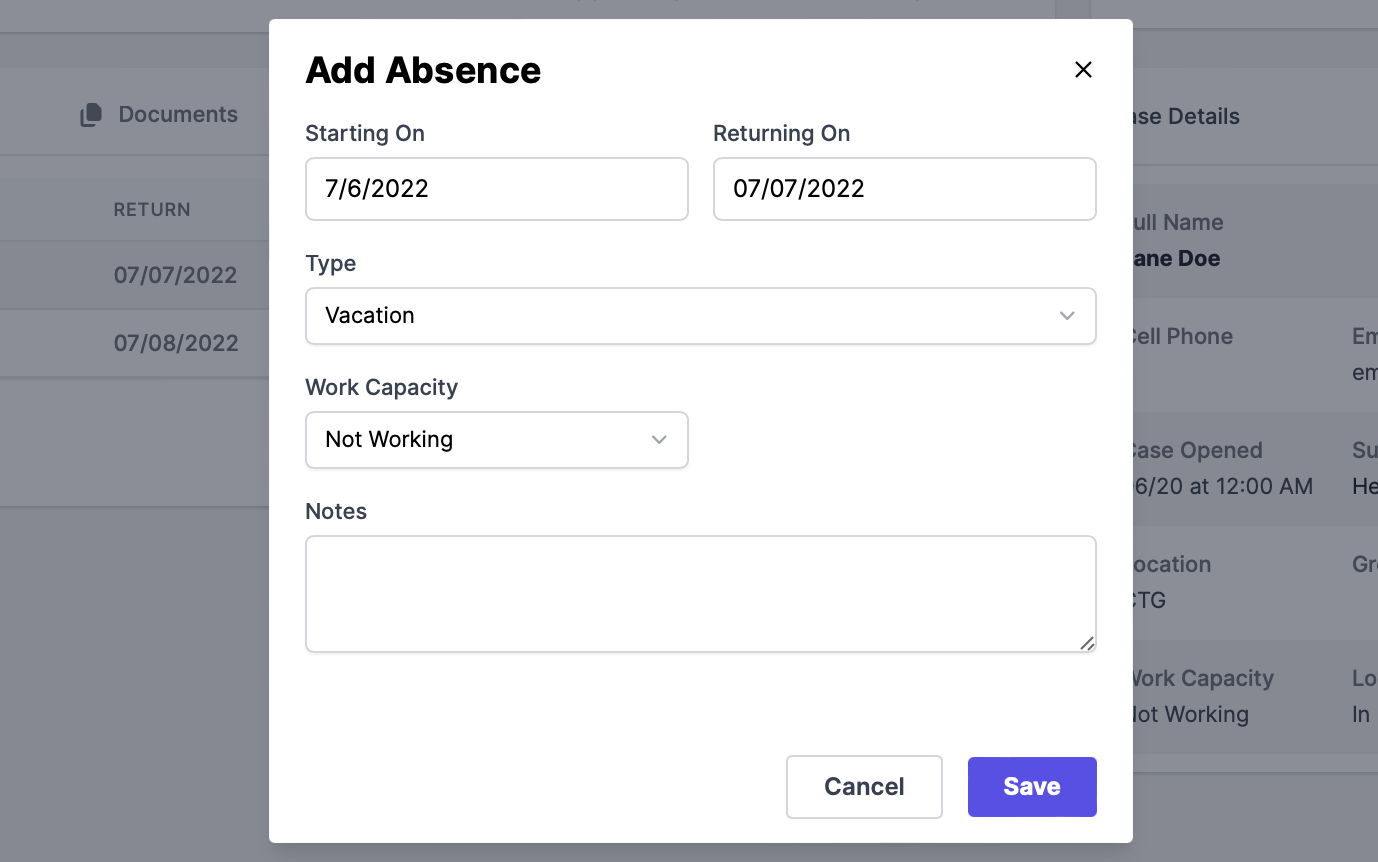
If a user has a case open against them, and you need to mark days they will be out of the office, you can add days and see existing days absent.
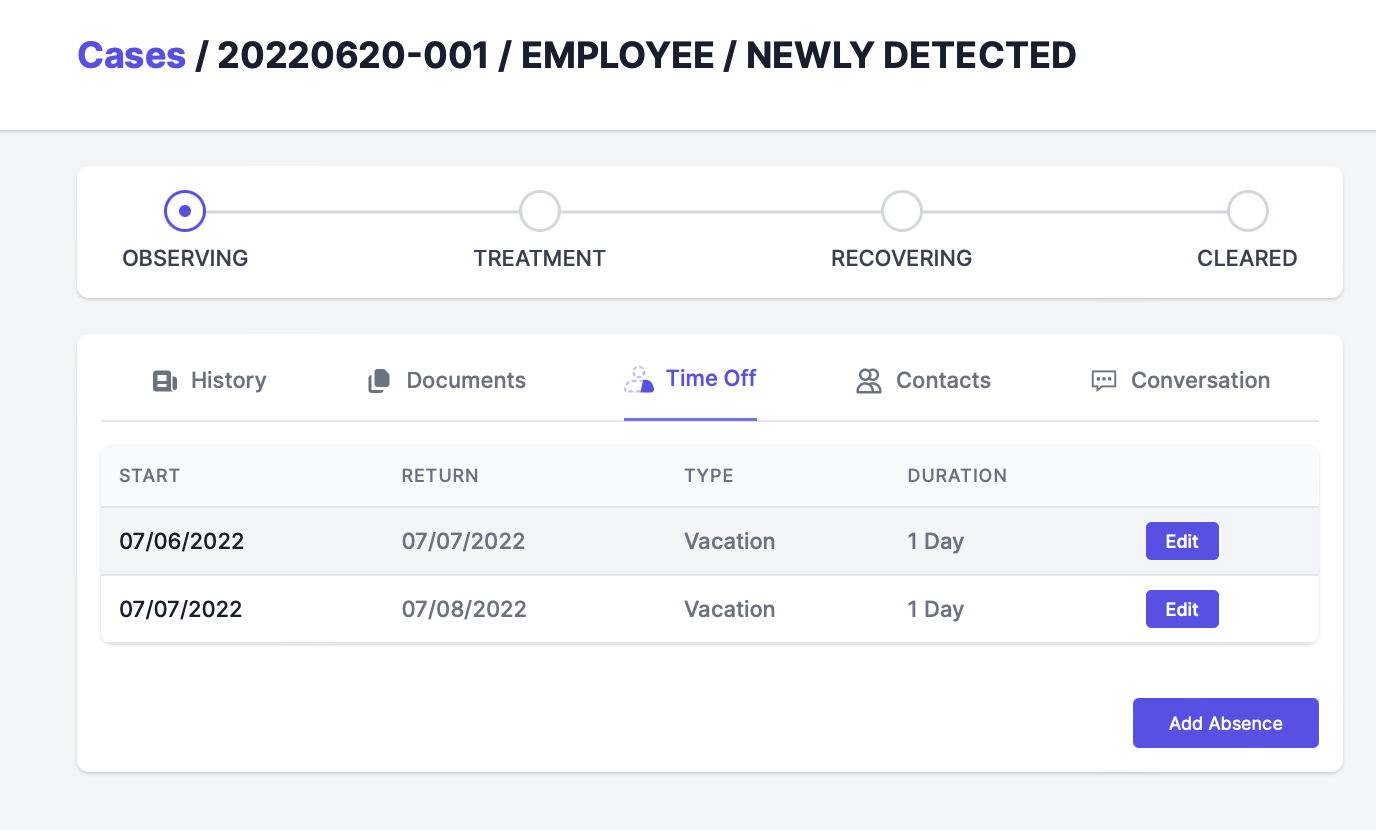
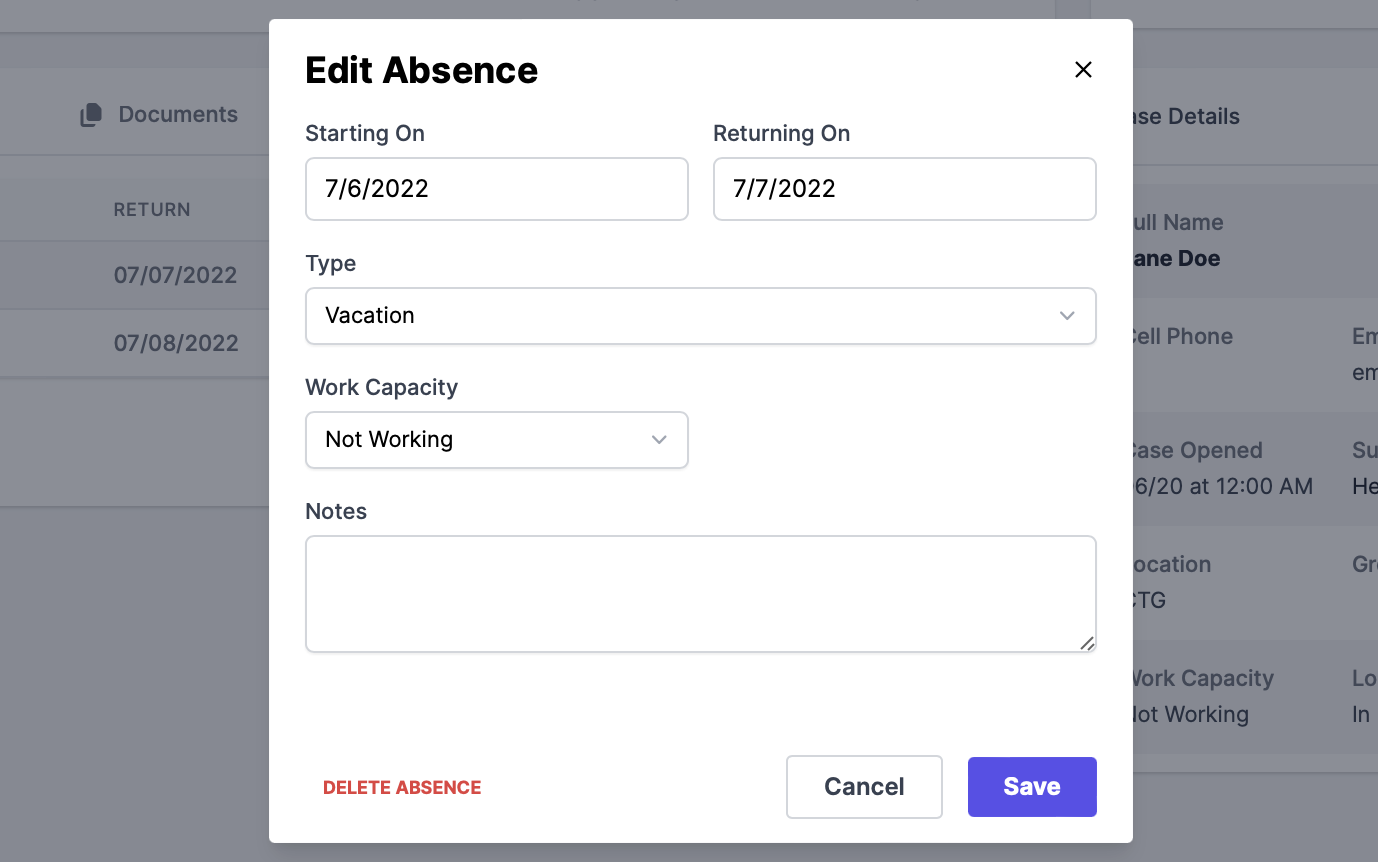
From inside the case, click on the "Time Off" tab, and you'll see any existing time off requests. You can then edit those absences or enter new ones.
Adding a Single Absence
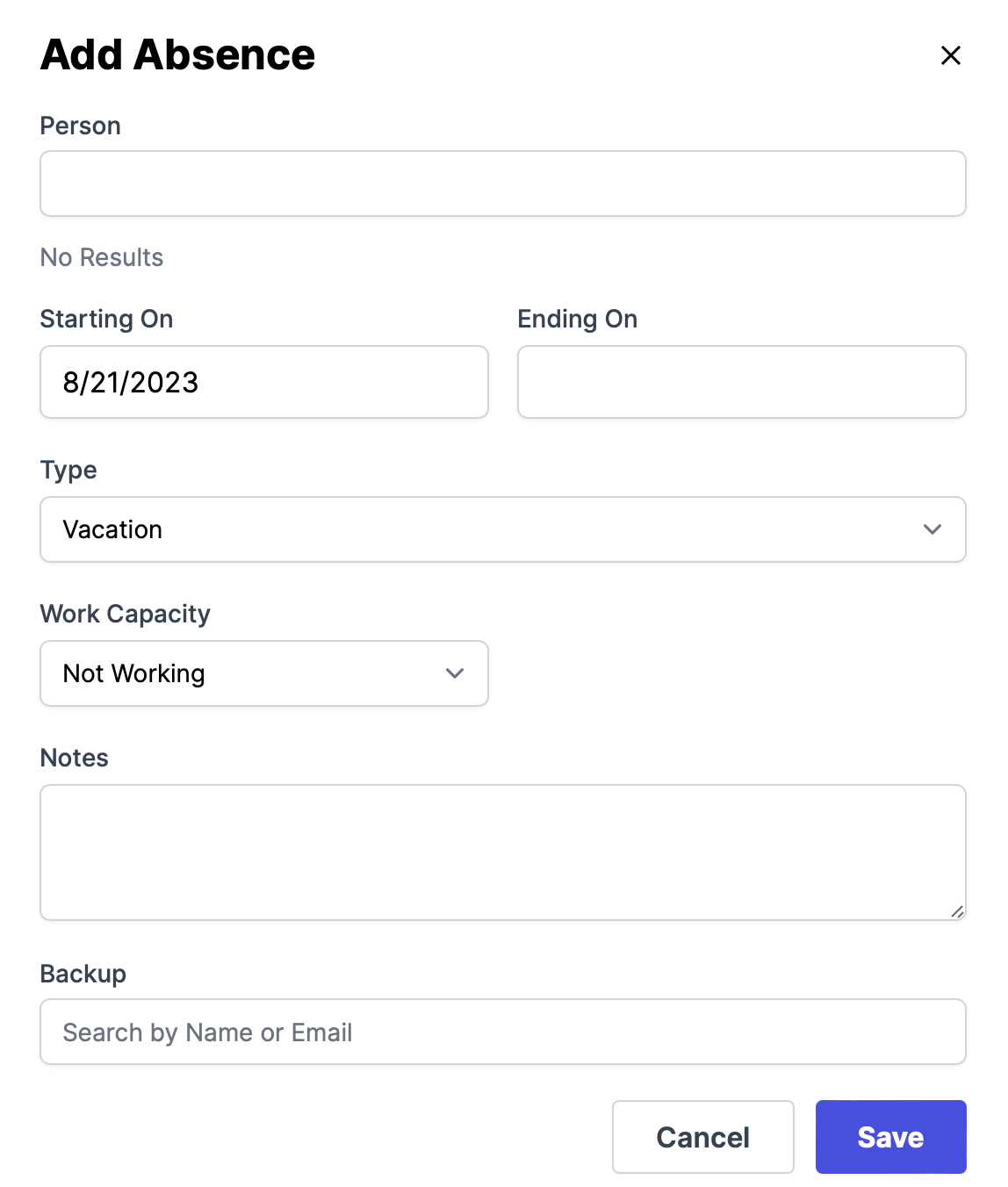
Sometimes you might need to track a time off request that employees did not enter themselves. To add a single absence click on the Add Absence button in the top right corner of the Team Absence Dashboard.
Please Note: Only users with Manage Absence role permission will have access to the Add Absence Button.

Enter the information related to the employees' absence and click SAVE to create an absence.
Via CSV bulk import
This option can be used to import a large number of absences via manual or automated (STFP or Merge) file import.

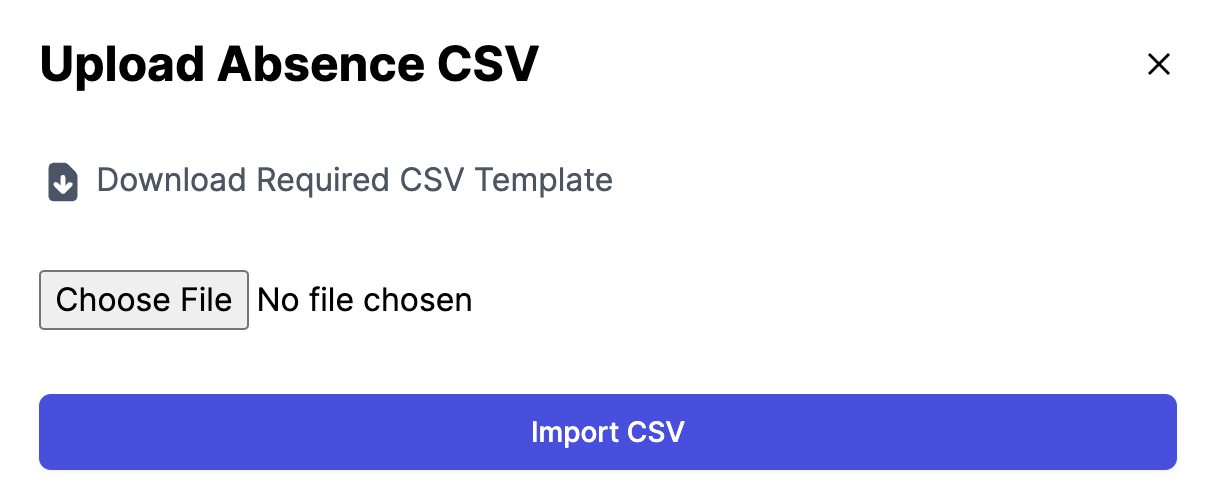
Go to Your Name > Reports > Absences Report>Import Absences. Here you can download an Absence CSV template, add the required information to the template, save it in CSV format, Choose
File from your computer, and click Import CSV.
Please Note: Only users with Manage Absence role permission will have access to the Import Absences button.
Absence CSV fields
| Column | Required | Description |
| yes | One of email, Employee ID, Contractor ID, or Student ID must be entered. | |
| employee_id | ||
| contractor_id | ||
| student_id | ||
| start_date | yes | (MM/DD/YYYY) |
| end_date | yes | (MM/DD/YYYY)Either the end_date or return_date must be entered. |
| return_date | ||
| type | yes | Vacation, Personal or Sick |
| notes | no | Enter the requester’s stated reason for the request. |
| status | no | pending, approved, rejected, canceled -> No value entered defaults to approved. |
| comment | no | Enter any absence-related approver comments here. |
Via the In/Out Board
With Who's In/Out enabled in your Organization Settings, users can submit their absence(s) from the job site for vacation, personal days, and sick days. There, users will also see who at their location is at work on particular days.
For more information on submissions and how to use this feature, see our In/Out Board document.
Via the Request Time Off feature on the ConnectHQ mobile app.
Learn more about how to request time off via the ConnectHQ mobile app here.
My Backup
When you have duties to perform daily, you can assign someone to back you up while you are absent.
There are two ways to assign someone to back you up while you are absent.
Permanent Assignment
Go to Your Name> Personal Settings> My Back Up.
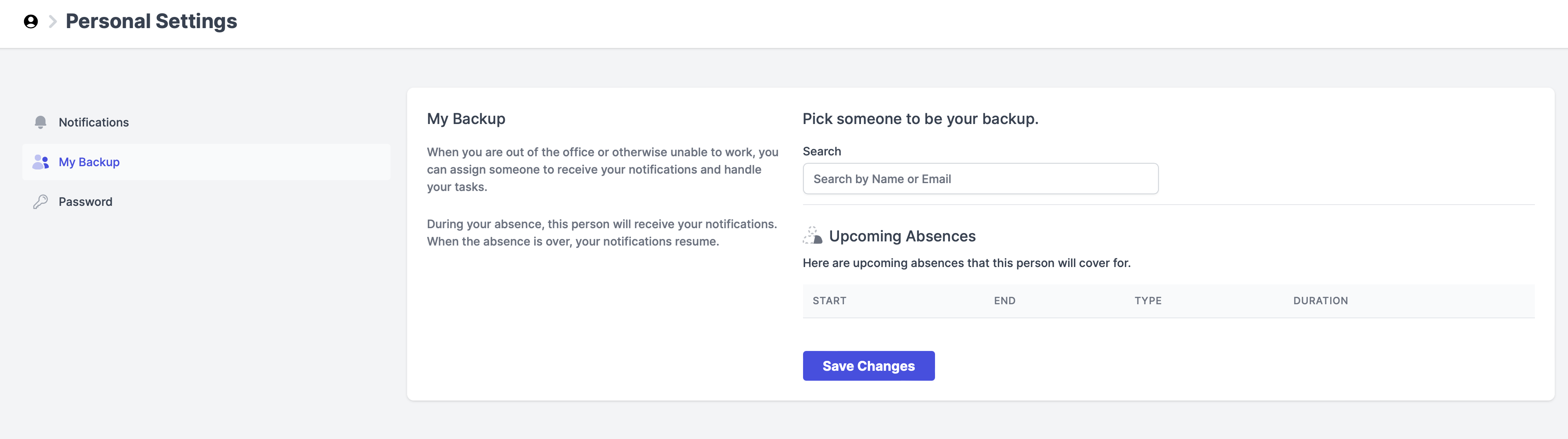
This person will receive your notifications every time you are absent. You can change the backup person here at any time.
Note: The person acting as your backup, must have similar permissions as you. Assigning a backup does not guarantee they can see what you see.
One-Time Assignment
When an absence is created for the users with Manage Staffing, Manage Team Absences, or Manage Cases Role Permission, the system will prompt you to enter a backup user for them.
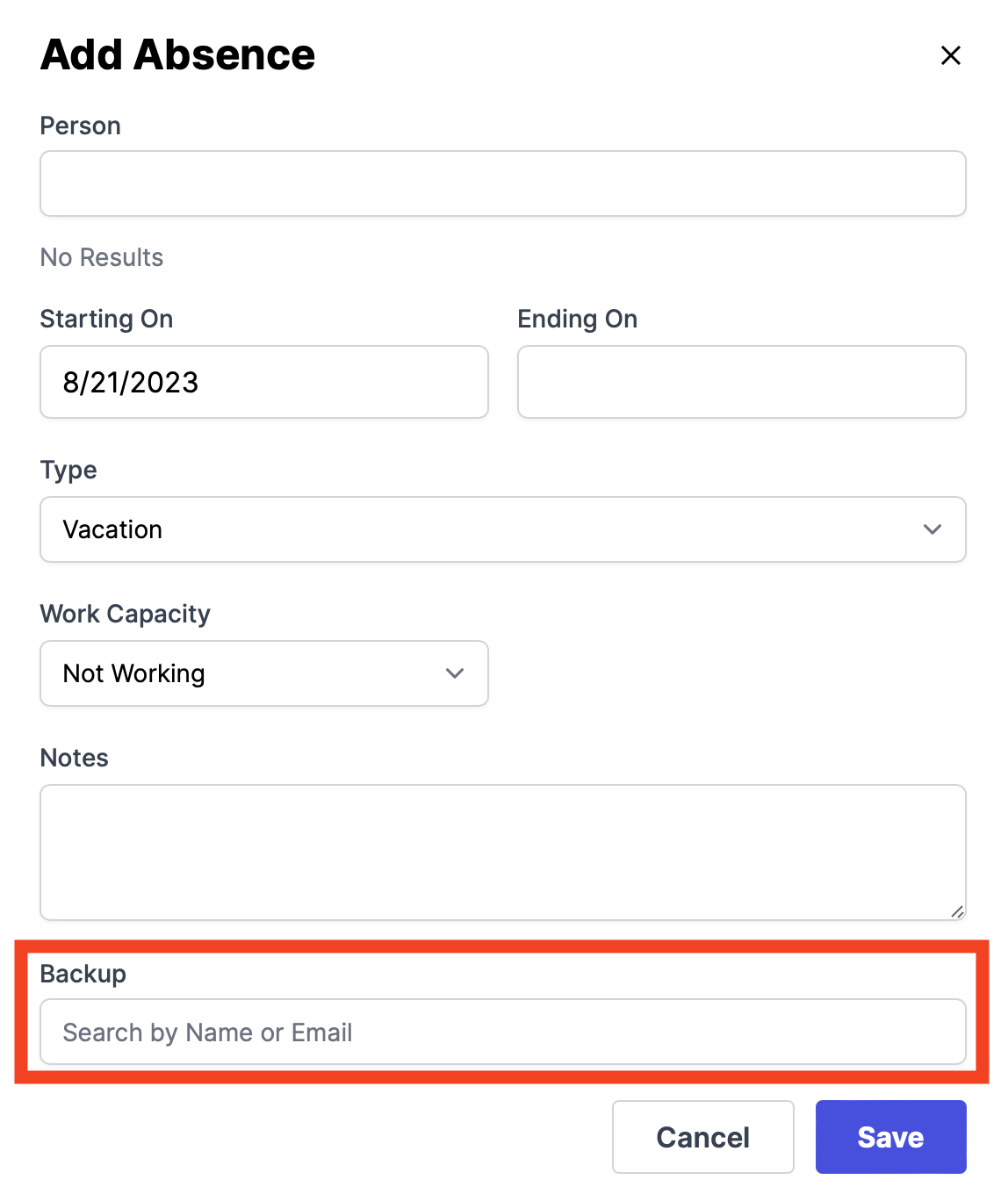
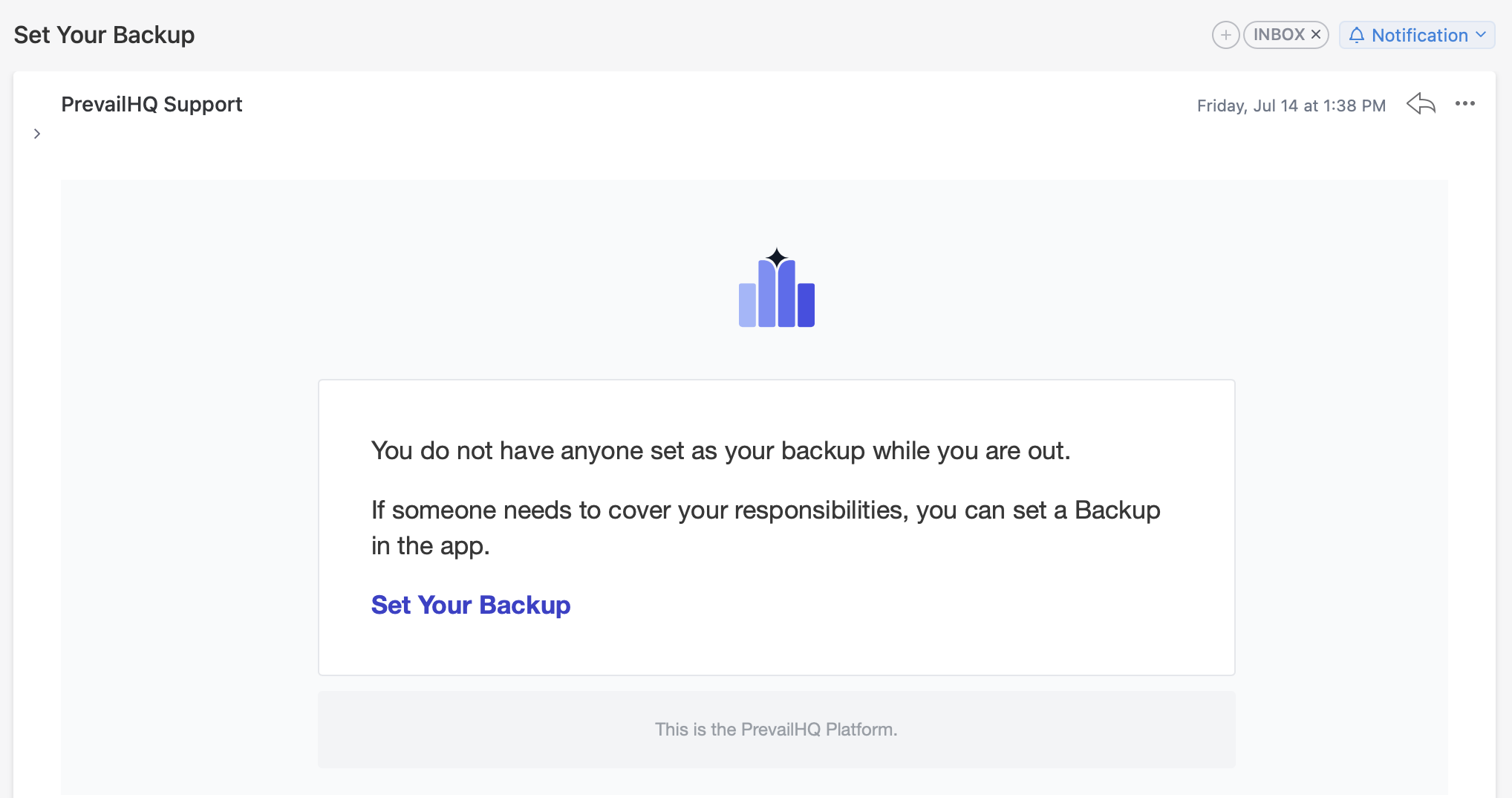
If the backup is not set, you will receive an email notification with a reminder to do so.
Absence Report
Go to Your Name > Reports > Absences Report. Here, you can see all expected absences, the reason, duration, location, etc. of a user. This report can also be exported via a CSV from the lower right corner of the report.

Absences Weekly Digest
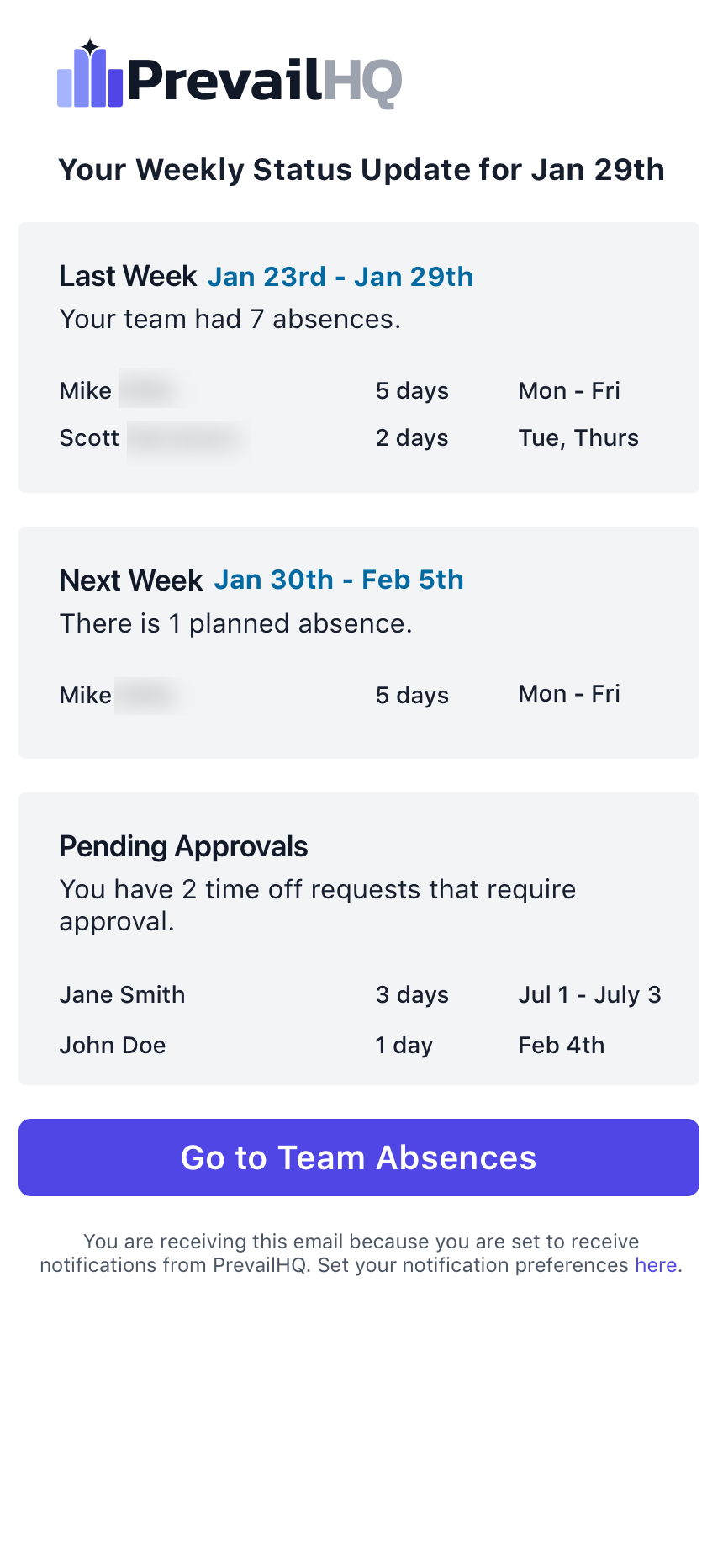
**Weekly email example for managers with role permission: Manage Team Absences + Is a Manager of at least one other person.**
These emails help managers to see absences in the company.