Understanding Staffing Levels
Apex Vision provides a single view of what’s happening with your staffing levels, enriched with incoming data 24/7. Keep operations on track with active management of your staffing levels. Unify all your absence and HR data, plus data gathered from PrevailHQ’s workforce management apps.
Executives and managers can instantly access the information they need to prioritize, plan, and troubleshoot.
Staffing Levels Dashboard
Go to Threats > Staffing Levels.
Here managers can see staffing levels data for your organization's employees and contractors. You can filter it by location and group or search by job title name. You can also sort it by availability today, availability this month, or job title.
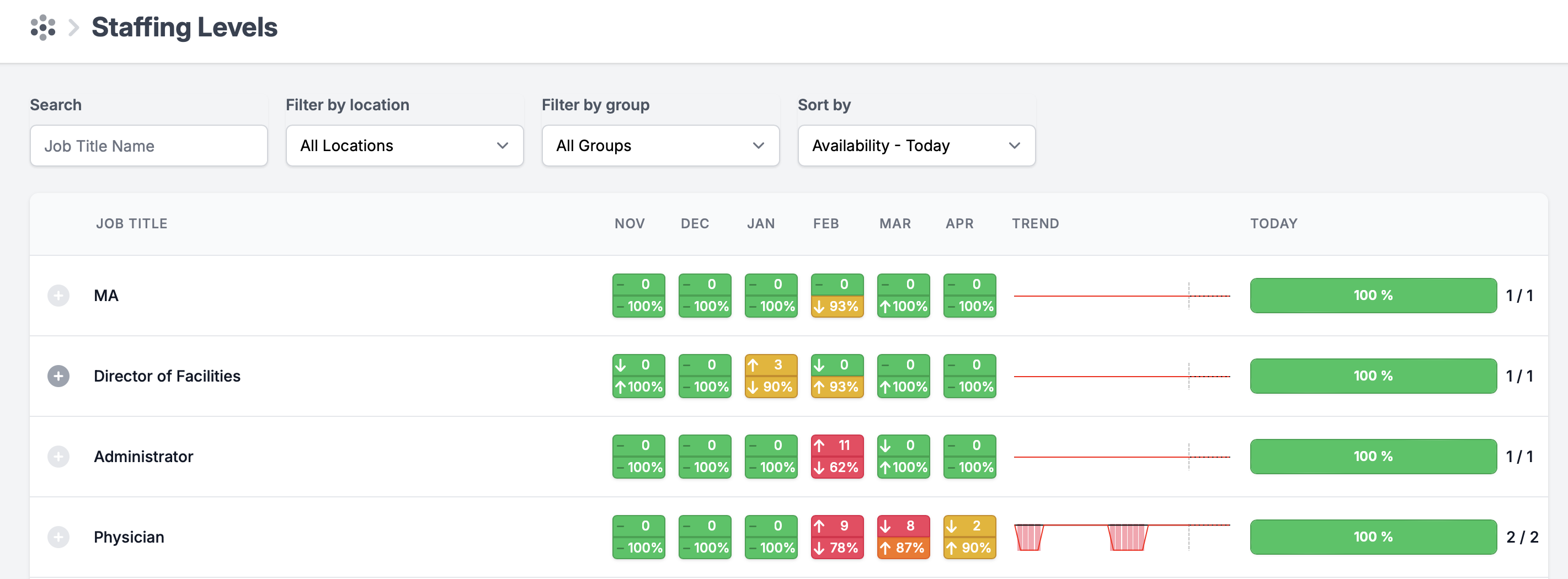
You can review staffing level data for each title in your organization for the past six months. The top window next to each month indicates detrimental days, bottom window - is workforce availability.

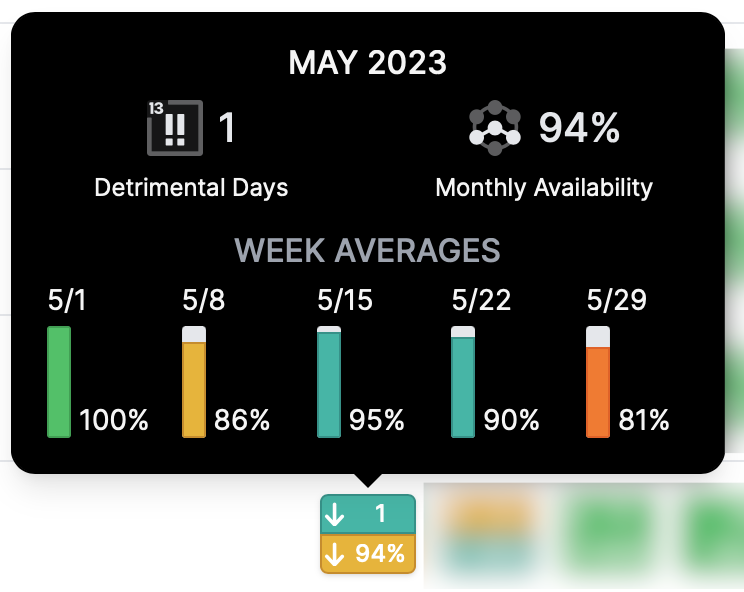
Hover the mouse over the data for the month to see additional details. Here you can see the number of detrimental days, monthly availability, and weekly averages for that month.
Click anywhere along the title line to see additional details around that title absence history for the past 90 days and the next 7 days' planned absence forecasts. Absences get populated into the system via the absence management process or absence import.
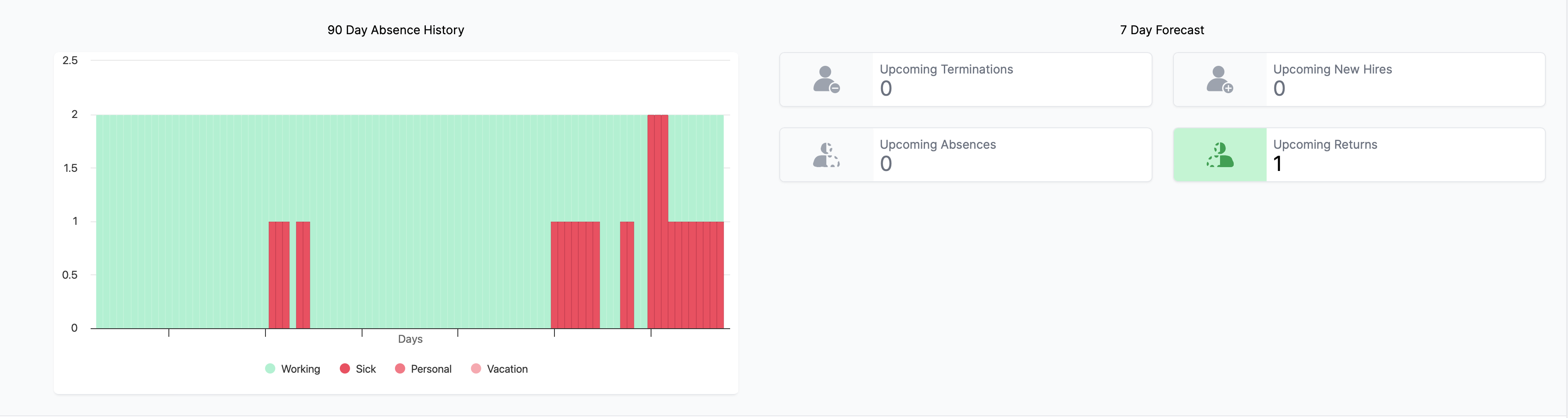 Non-working categories (sick, personal, vacation, etc. ) can be customized. Contact our support team for assistance with this.
Trend Sparkline
Staffing Levels Trend Sparkline shows dynamics in workforce staffing levels based on the detrimental days.
The black line illustrates how many employees you have employed, and the red line - how many employees you have available on that day. The vertical gray line indicates the current day. The trend sparkline shows the history of staffing levels for the past 4 weeks and predicted data for 7 days into the future.
Fluctuations in the sparkline warn managers about staffing level problems and can be used to evaluate the issue and make executive decisions.
Two images below illustrate a difference in between sparline with staffing levels issues ( image 1) and normal staffing levels sparkline ( image 2).
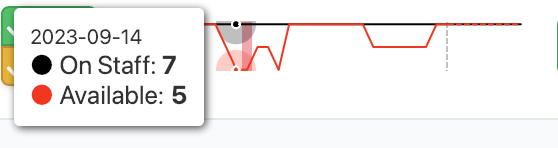
image 1 ( sparkline with staffing levels issues)
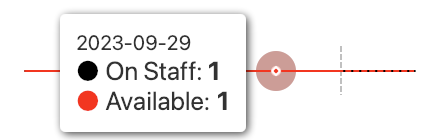
image 2 (normal staffing levels sparkline)
Notifications
Managers and executives receive weekly email notifications with staffing level updates.
To activate/deactivate the staffing level weekly digest on the organizational level go to Your Name> Organization Settings> Apex Vision> Staffing Levels> Weekly Digest.
Each user with the Managing Staffing Levels role permission can also modify these notifications for themselves under Personal Settings. Go to Your Name> Personal Settings> Notifications.
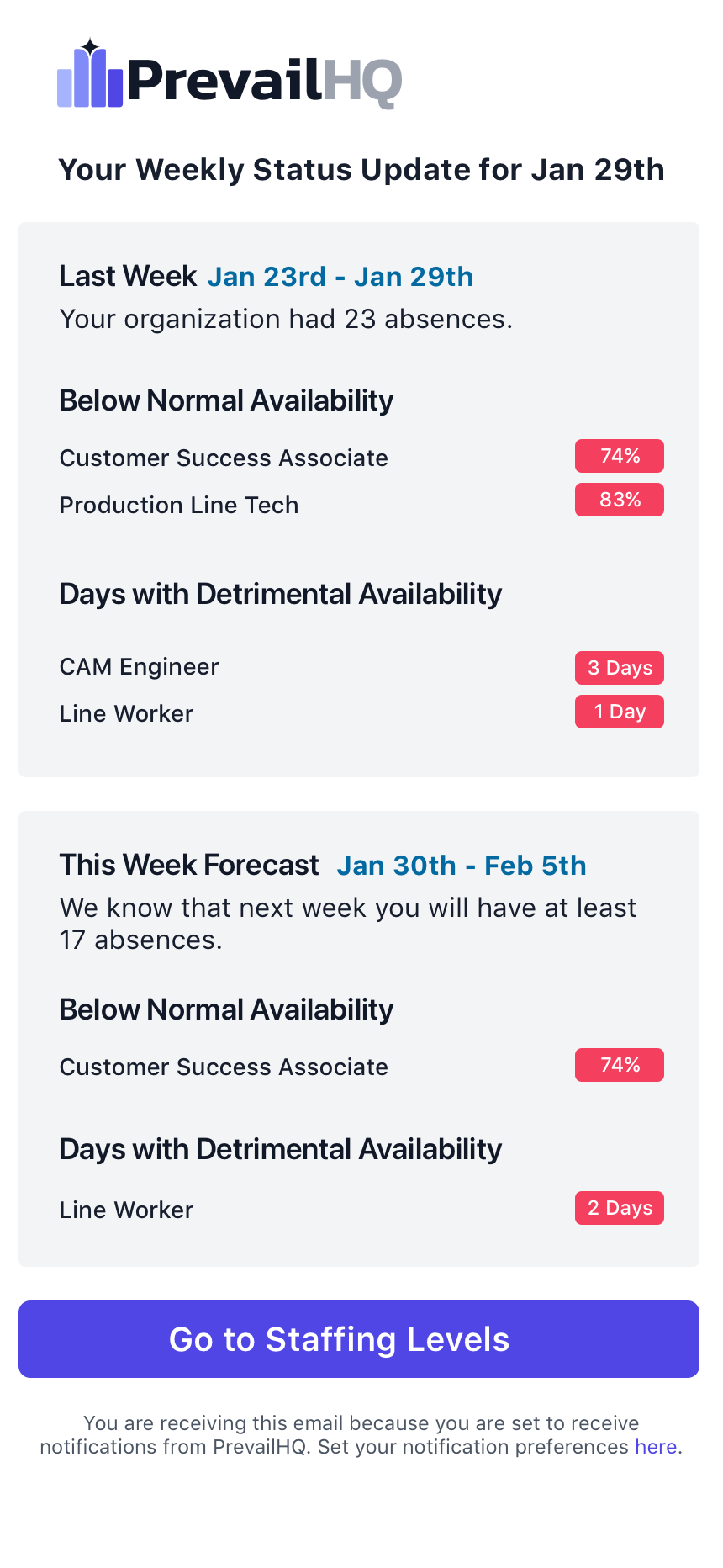
**Weekly email example for executives with role permission: Manage Staffing Levels.**
These emails notify executives about weekly staffing level updates and the upcoming week's forecast.
Job Titles
Staffing levels are calculated in the system based on the absence data around employees' and contractors' job titles. Job titles are populated from the user's profile TITLE field automatically into the staffing levels dashboard.
Titles can be imported into the system in two ways:
-automatically with all the employee data via HRIS system integration (contact us for the integration)
CleanShot 2023-10-05 at 16.34.51@2x.png
Setting Threshold
It is essential to set up job title thresholds for your organization. The system calculates staffing levels based on the thresholds that are set.
Go to Your name > Settings> Job Titles
Here you can set a threshold for each job title within your organization.
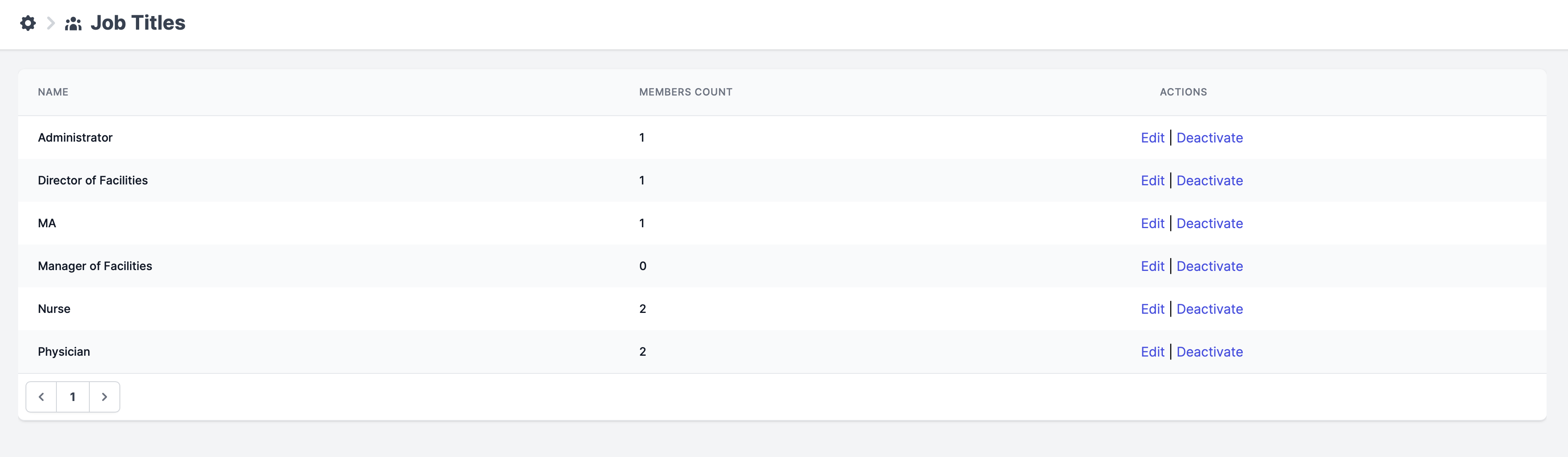
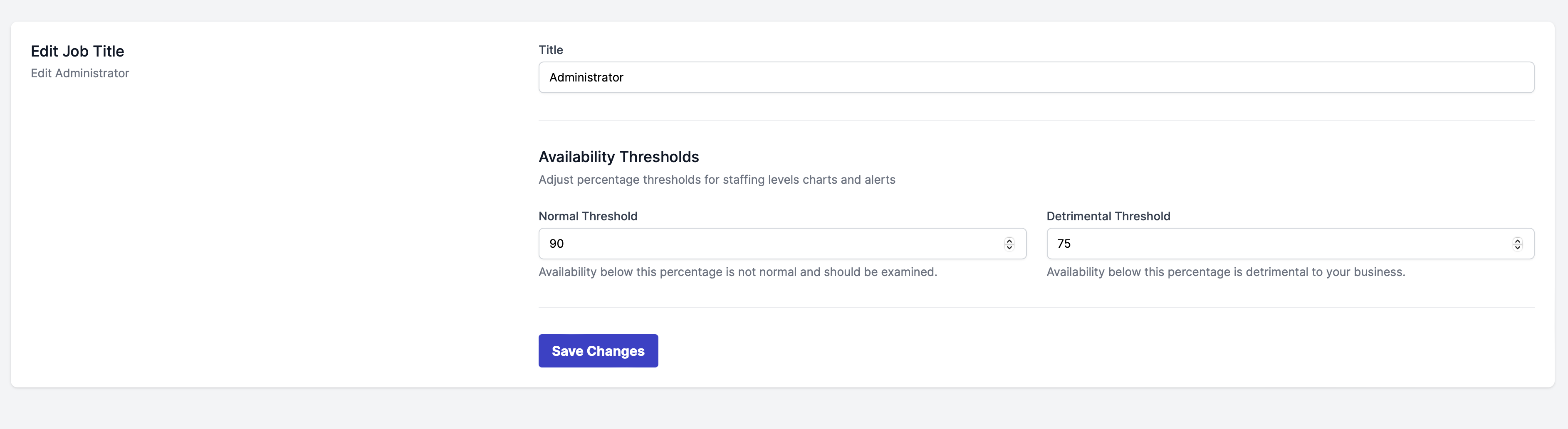
Click edit to set the availability thresholds for a job title.
Here you can edit the job title name and set normal and detrimental threshold percentages for this title. As shown in the example below, the system will consider any percentage above 90 - a normal staffing level for the administrator title and any percentage below 75 will be considered detrimental and indicate a staffing level problem.