
Roles and Permissions
To find this page: Your Name > Settings > Roles
We provide six roles that can be manipulated to suit your needs at any time:
- Admin (recommended for users managing the company's use of the system). Permissions for this role cannot be modified.
- Case Manager (recommended for site managers at specific locations or users that are going to only need to access the Case Management system).
- Climate Manager - (recommended for executive-level team members that will manage work climate organization or department-wide).
- Incident Responder - (recommended for people who will be receiving alerts from Threat Radar and managing Incident Response).
- Manager (recommended for the team, group, or shift managers to have access to their team information).
- Basic (Users who are only using the ConnectHQ mobile app, and submit information to the organization. These users do not have access to the PrevailHQ app.)
Please note: Different preset roles might be visible depending on the products purchased.
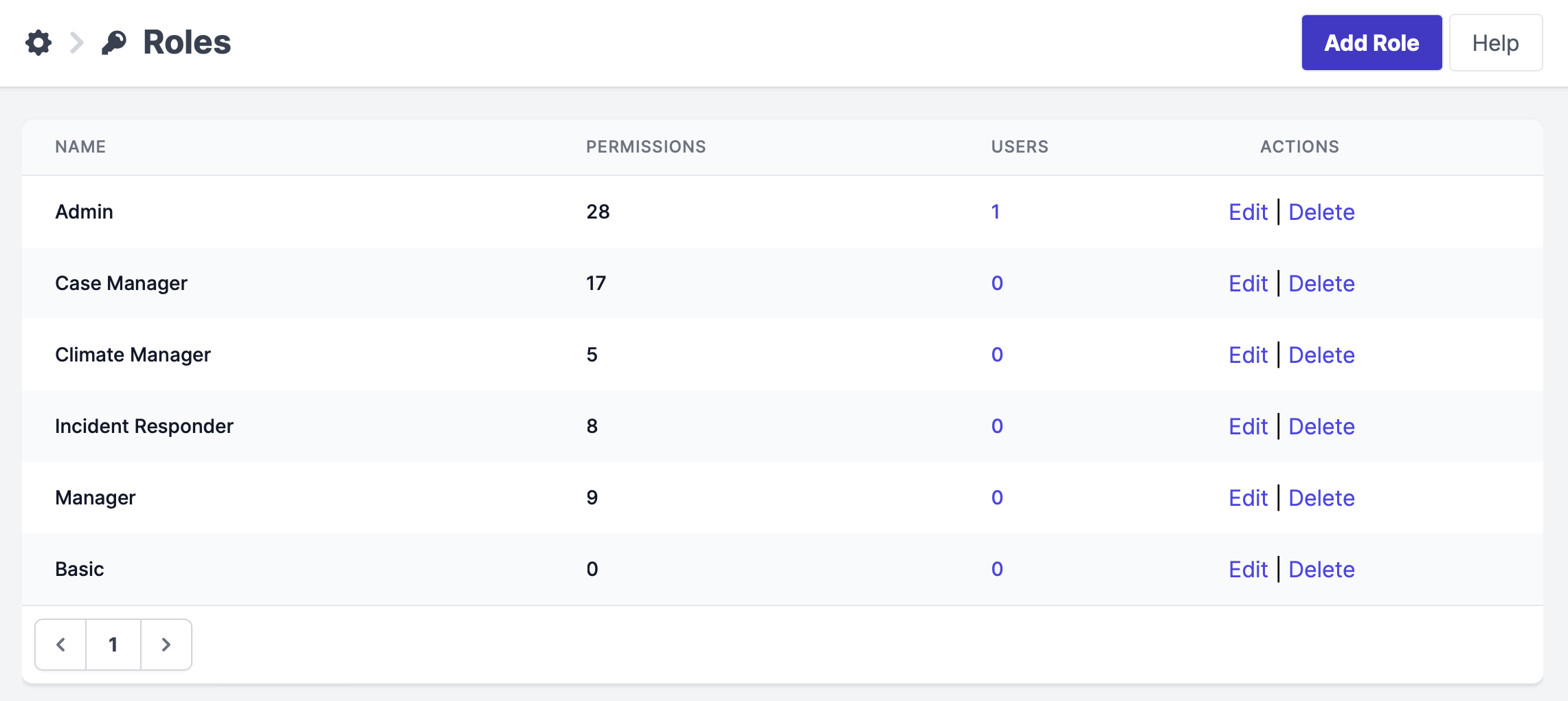
Alternatively, you can create new roles for your organization, by going clicking the Add Role Button.
Then, name your role and select the permissions based on your needs.
Please Note: A role that does not have any of the "All" permissions selected will (by default) only be able to see the users that share a common location/group.
Permissions
Please Note: different permissions will be visible depending on the product purchased.
Absence Management:
- Manage Absences: allows the role to create, edit, delete, and import absences.
- Manage Staffing: Users with this role permission will be notified about case and absence updates of users assigned to the same location and group.
- Manage Staffing Levels: gives the role access to the Staffing Levels Dashboard.
- Manage Team Absences: gives the role access to the Team Absences Page. Manage Absences role permission must be active for the Add Absence button to be visible on the Team Absences page.
Case Management:
- Case Dashboard: gives the role access to the Case Dashboard.
- Case Totals Dashboard: gives access to the Case Totals page
- Manage Cases: gives the role access to the Cases page
Core:
- All Contractors: gives the role the ability to see every contractor at their assigned locations
- All Employees: gives the role the ability to see every employee at their assigned locations
- All Students: gives the role the ability to see every student at their assigned location
- All Groups: gives the role the ability to see all the groups in the system, even if you are not assigned to them.
- All Locations: gives the role the ability to see employees, contractors, and students at every location, regardless of the assigned locations
- Log In: gives the role the ability to log in to the website to access the system
- Manage Audit Logs: gives the role access to audit logs( records of the organization changes made in the system)
- Manage Billing: gives the role access to the Billing page
- Manage Contractors: gives the role access to the Contractors page
- Manage Data Retention: gives the role access to change the Data Retention policies
- Manage Employees: gives the role access to the Employees page
- Manage Groups: gives the role access to the Groups settings page
- Manage Locations: gives the role access to the Locations settings page
- Manage Roles: gives the role access to the Roles and Visitor Types pages
- Manage Students: gives the role access to the Students page
- Reporting: gives the role access to manage the Data Links page
- View Group Members: allows the role to see the members of the group that you are assigned to.
Employee Engagement:
- Manage Announcements: gives the role the ability to send/edit announcements
- Manage Questions: gives the role access to the Questions page
- Manage Team Climate: gives the role access to the Team Climate Page. It allows you to view subordinates’ feelings about their work environment and record actions and conversations taken to improve that (“Climate Journal”).
- Manage Team Status: Enables access to the Team Status Dashboard. Additionally, enables viewing of intents marked as hidden.
- Manage Work Climate gives the role access to the Woek Climate Page. It allows executives to see a global view of their organization’s work climate.
Incident Management:
- Manage Incidents: gives the role access to the Incidents page
- Monitor Disruptions: Enables access to Radar.
- Notify of Disruptions: Enables notifications around new disruptions found in Radar.
On-site Compliance:
- Employee Roll Call: gives the role access to the Employee Roll Call page
- Executive Dashboard: gives the role access to the full dashboard
- Invite: gives the role the ability to add users to the system and invite users
- Manage Compliance Checklists: Enables access to make changes around on-site compliance. Gives access to create and modify compliance checklists. Access the Checklist Log.
- Manage Kiosks: gives the role access to manage the Temperature Scanner Kiosks
- Manage Reservations: gives the role access to view/approve/reject reservations
- Manage Schedules: gives the role access to the Screening Schedules page
- Manage Screenings: gives the role access to the Screening Questions page and access to Screenings via Case Management
- Manage Test Results: enables the ability to manage test results
- Manage Vaccinations: gives the role access to manage vaccine types and vaccination records
- Manage Visitors: gives role access to the Visitor Management Page
- Notify of Noncompliant Check-In: Users with this permission receive notifications when people check-in without being compliant with the location’s policies and procedures.
- Notify of Visitor Failures: Users with this permission receive notifications of visitors' failed screenings.
- Notify of Visitor Registration: Enables notifications when a visitor registers to come on-site.
- Student Roll Call: gives the role access to the Student Roll Call page
- Team Lead Dashboard: gives access to only the Team Leaders dashboard
- Verify Compliance: Enables the compliance verification tool for determining what workforce will pass a compliance check.
After determining your roles' permissions, you can assign the role to employees either using an import or editing an employee's information and selecting the role from the Role drop-down menu.