
Case Management
Case Management can be utilized to track various case types within your organization. It helps support your organization’s custom workflows, including those related to HR, operations, compliance, and security.
How cases are created
Cases can be initiated by employees through any available case type in the ConnectHQ mobile app. Additionally, case managers or admins can create cases manually on the Cases page of the PrevailHQ web or mobile app.
CleanShot 2024-10-14 at 17.34.52@2x.png
Screenshot 2024-10-14 at 5.32.00 PM.jpeg
End User experience
Once the case is created, the employee will be notified via one of the following methods: push notification, SMS, or email. Employees can access their case at any time using the ConnectHQ mobile app or through the link provided in the SMS or email notification. They can review case instructions, use the messaging feature for communication, and upload required documents related to the case. Learn more about these features below.
IMG_1052.pngIMG_1053.PNG
Case Management
The Case Management page is for keeping track of all your past and current cases.
Click on: Response > Cases
*Visibility settings control which information is accessible to each user on this page.*
You can navigate between your New, Active, and Closed cases. Cases can also be filtered within these sections, and details can be viewed by clicking on the case.
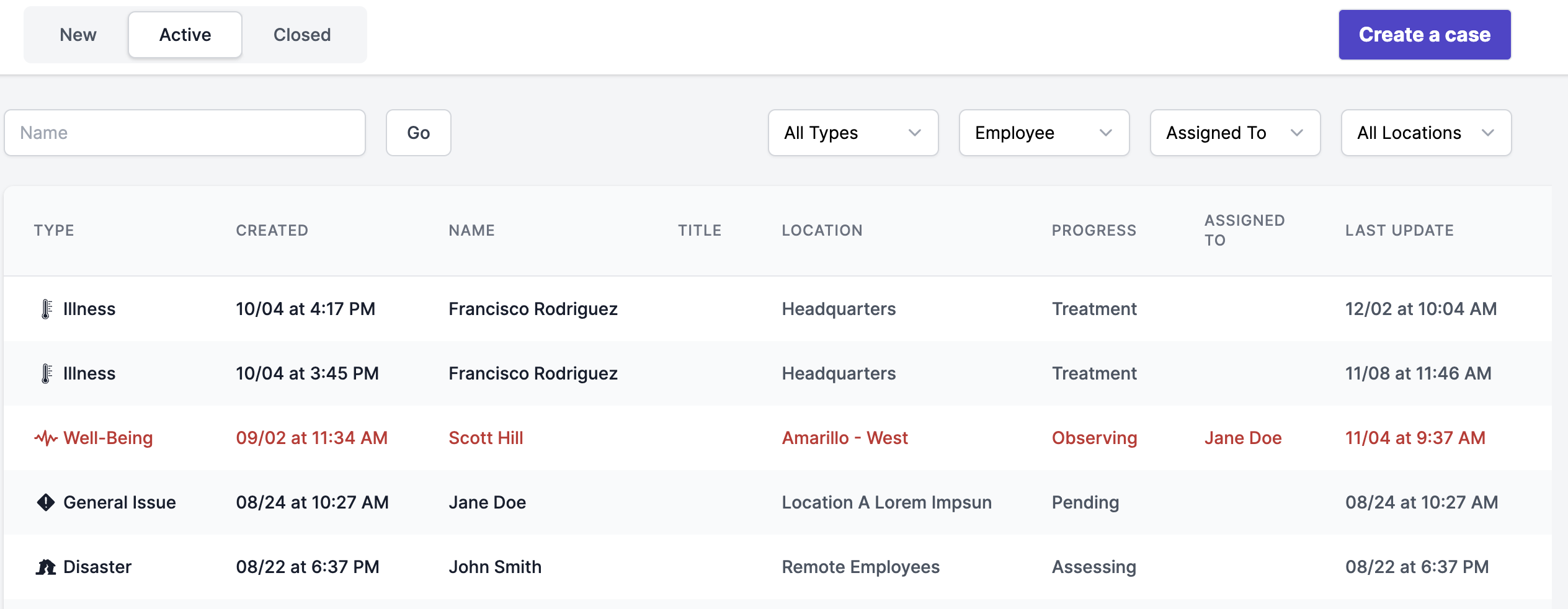
Note: If a case has red text, that indicates that there needs an update or it needs to be followed up on.
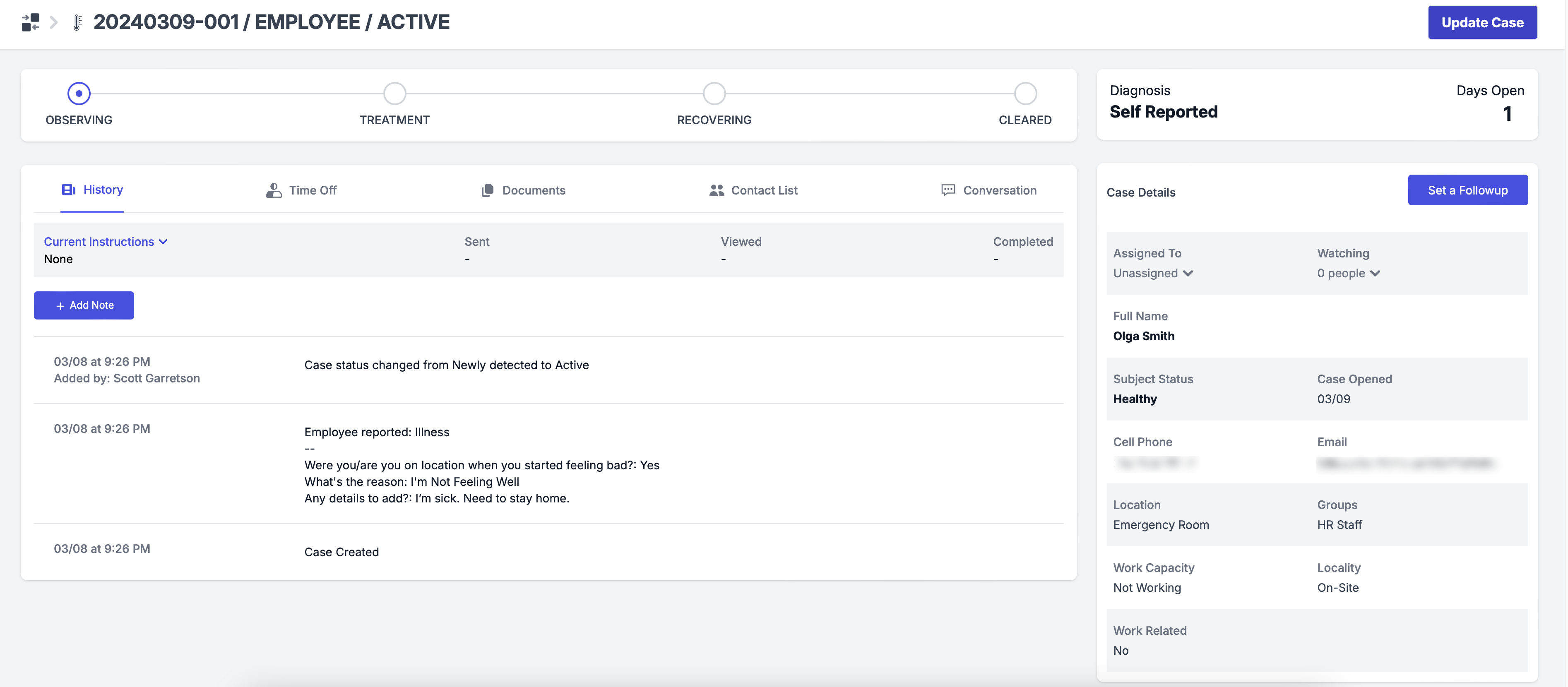
After going into a specific case, you can see an overview of the case information:
- How far along the case is (Observing, Treatment, Recovering, Cleared)
- History, Time Off, Documents, Contact List, and Conversation sections (more below)
- Case Details
Tabs
History
Here, you can see the history of the case; when it was created, when notes were made, when it was closed, etc. You can also add additional notes here for the team collaboration on the case.
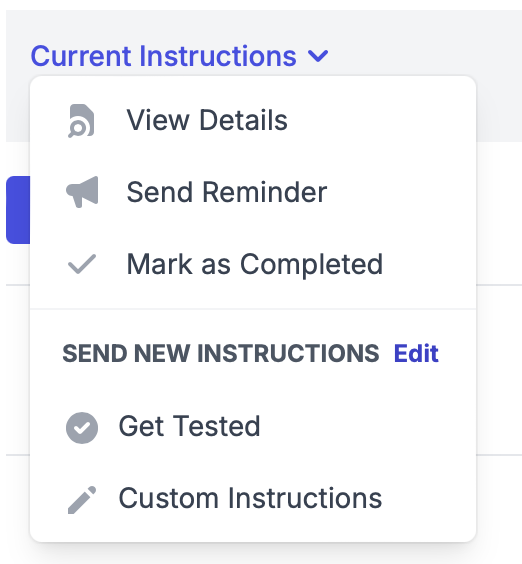
In addition, you have the option to share instructions with the user. You can either choose instructions from the existing list for that particular case type or create custom instructions for that particular case.
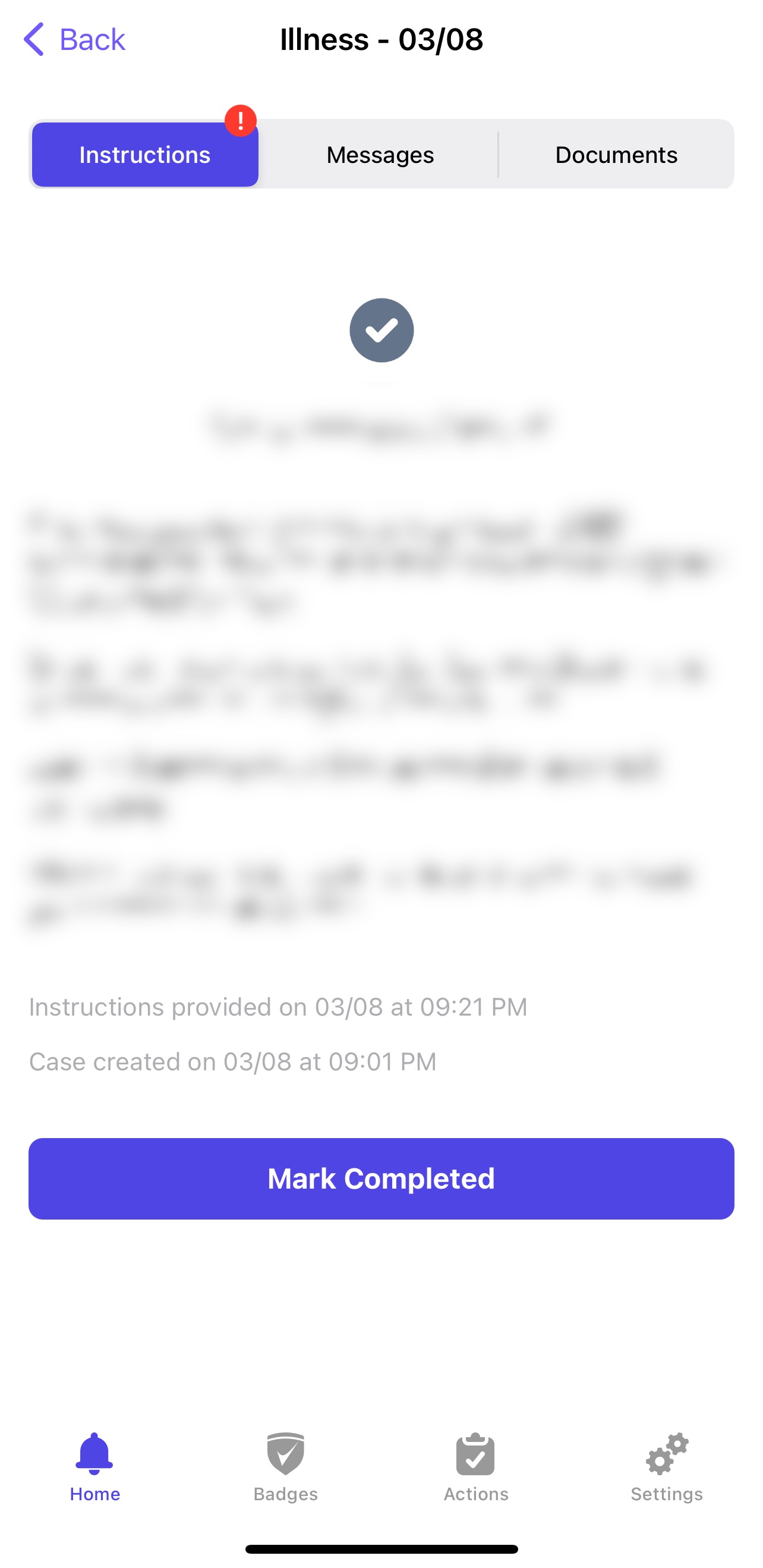
After reviewing the instructions, the user can mark them as complete by clicking the "Mark Complete". Alternatively, the case manager can also mark the instructions as complete.
You can view the current instruction details at any time and send a reminder to the user to review them.
Time Off
Here, you can enter any time/days the user is going to be out of work, due to their case. If you wish to submit an absence for someone with an open case, please see our Absences guide.
To view all the absences navigate to Workforce > Team Absences.
Documents
In this tab, you can view any documents submitted by the user about their case or upload documents to the case yourself.
Contact List
Here, you can add contact information for any users from the system who may be affected by this case as well. This can be a useful tool for contact tracing.
Conversation
You can communicate directly with employees about their open cases using a real-time messaging feature.
Case Details
Here, you can view the details of the individual case, including who the case is assigned to, who is watching the case, the name of the employee (that, if clicked, should take you to the employee profile), and other employee information. Also here you can Set a Followup.
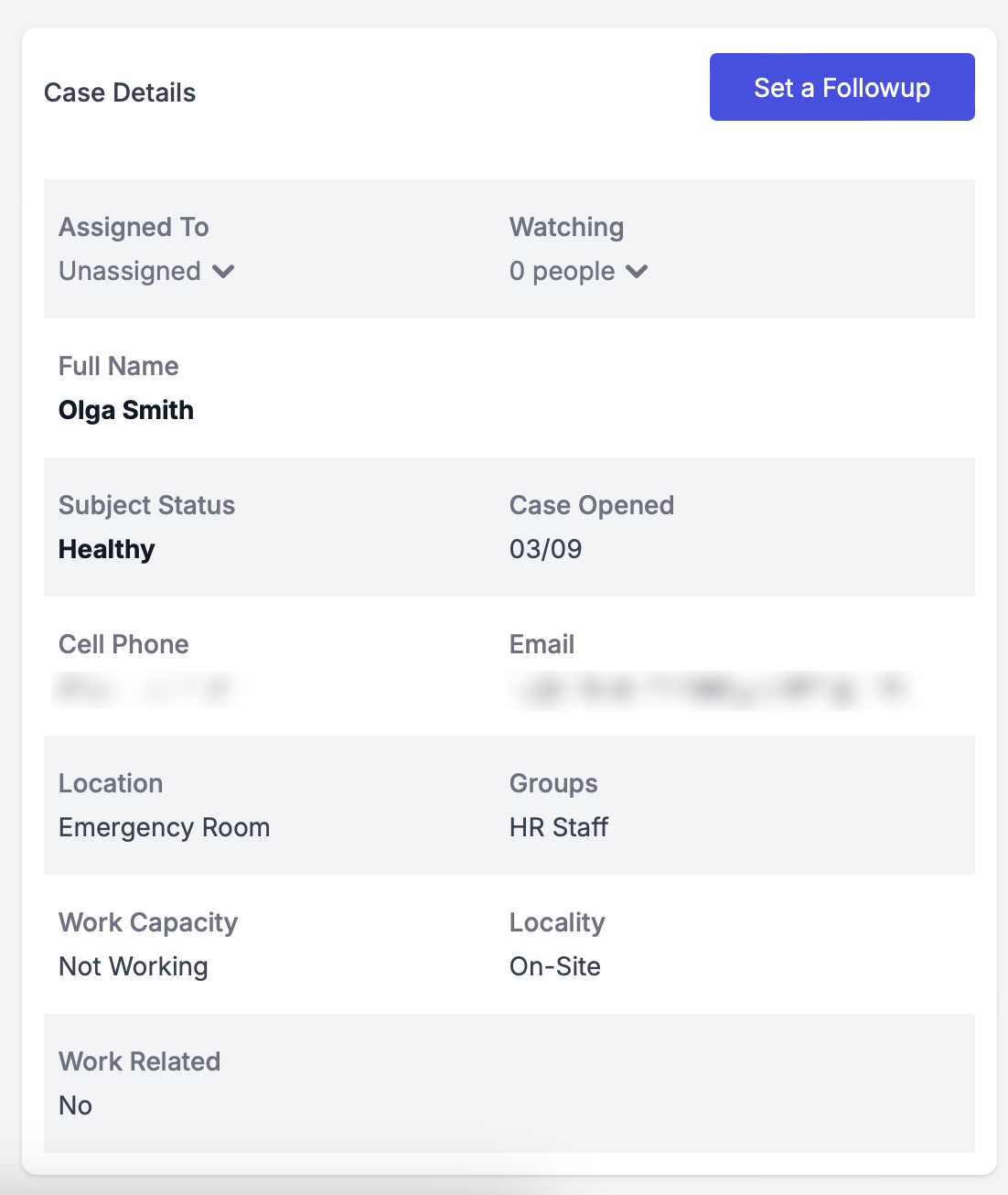
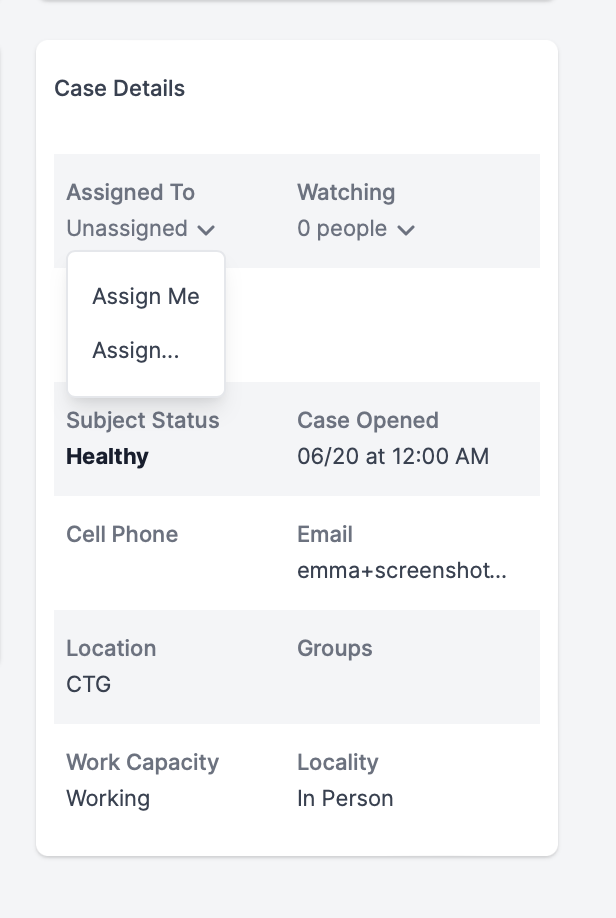
If you'd like to assign a Case Manager (or yourself) to a case in particular, simply click "unassigned" under "Assigned To" to see the drop-down of who is available to take this case. This is also where you can assign an alternate person to the case - just click the existing name and assign a new user.
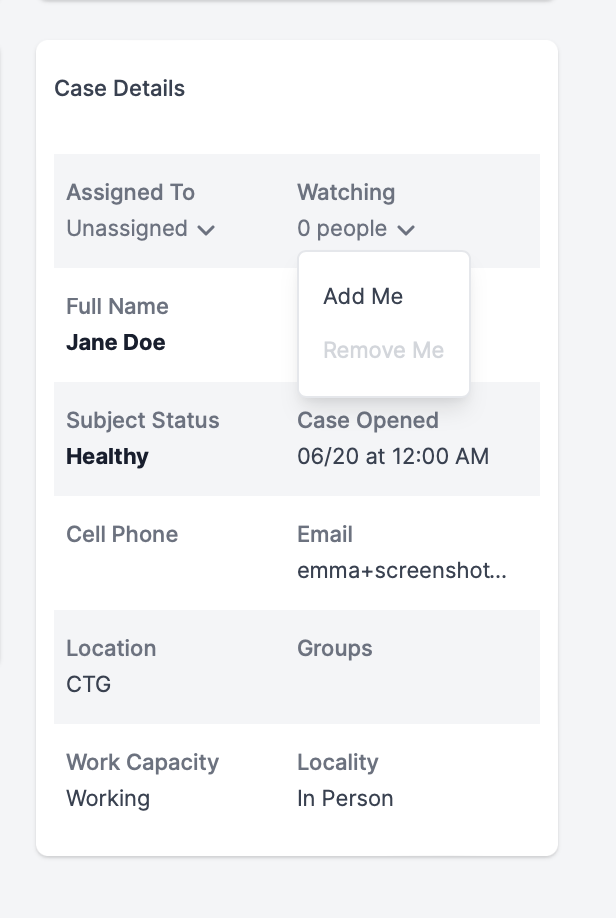
If you'd like to watch the case, simply click the "X People" drop-down menu under "Watching" and select "Add Me."
You'll only be able to add yourself, rather than others, but anyone with enabled permissions to see this page will be able to add themselves to the number listed.
Here, you'll also be able to remove yourself from watching the case, by selecting "Remove Me."
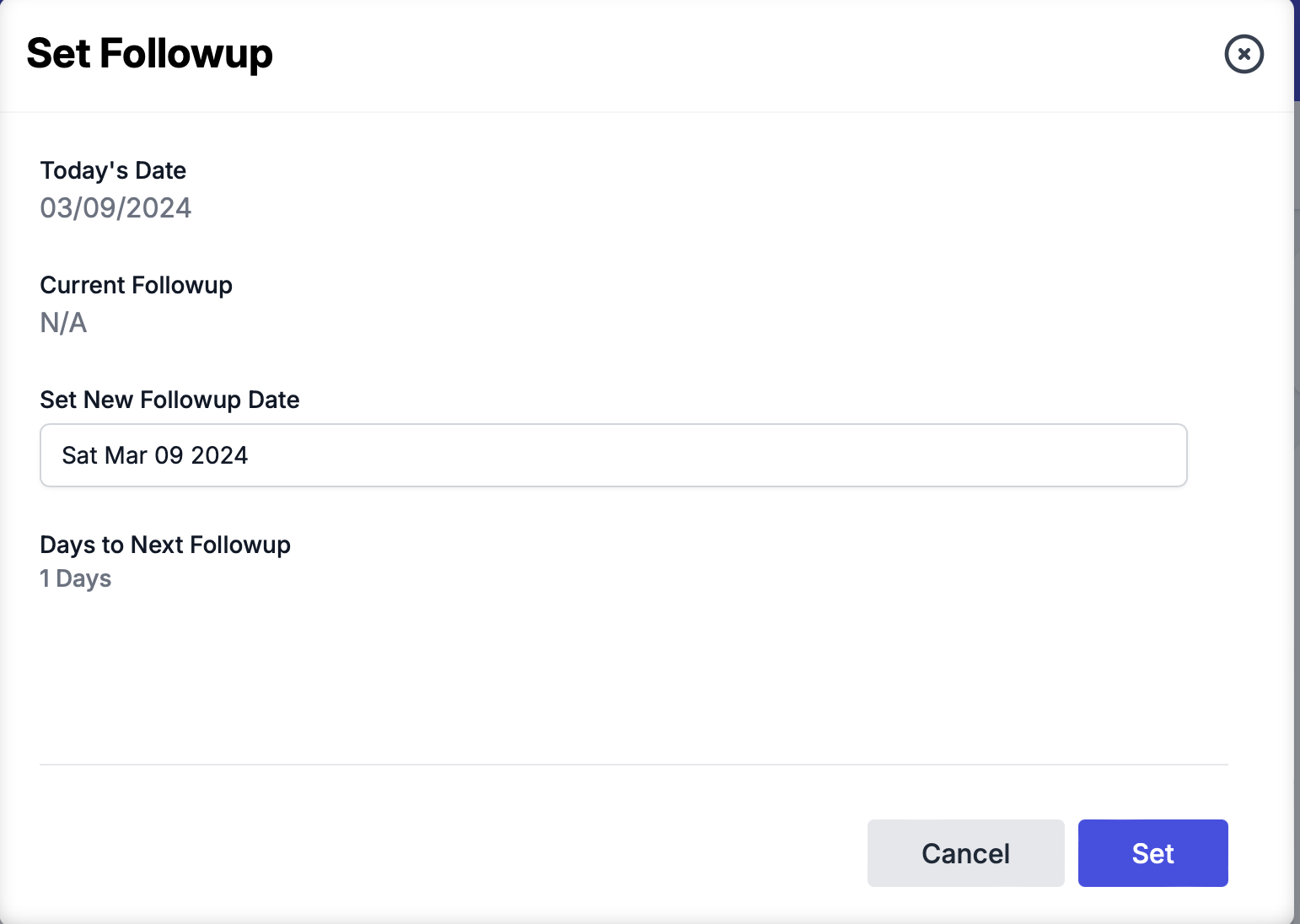
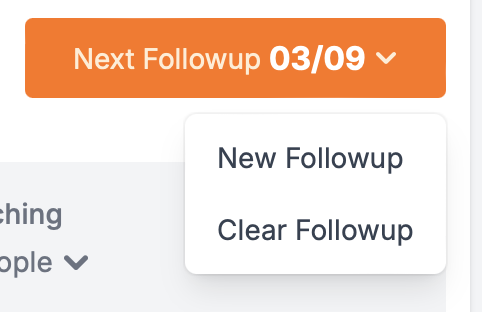
Click "Set Follow-up" to schedule a follow-up reminder for the case. You can add, edit, or clear follow-ups anytime.
Update Case
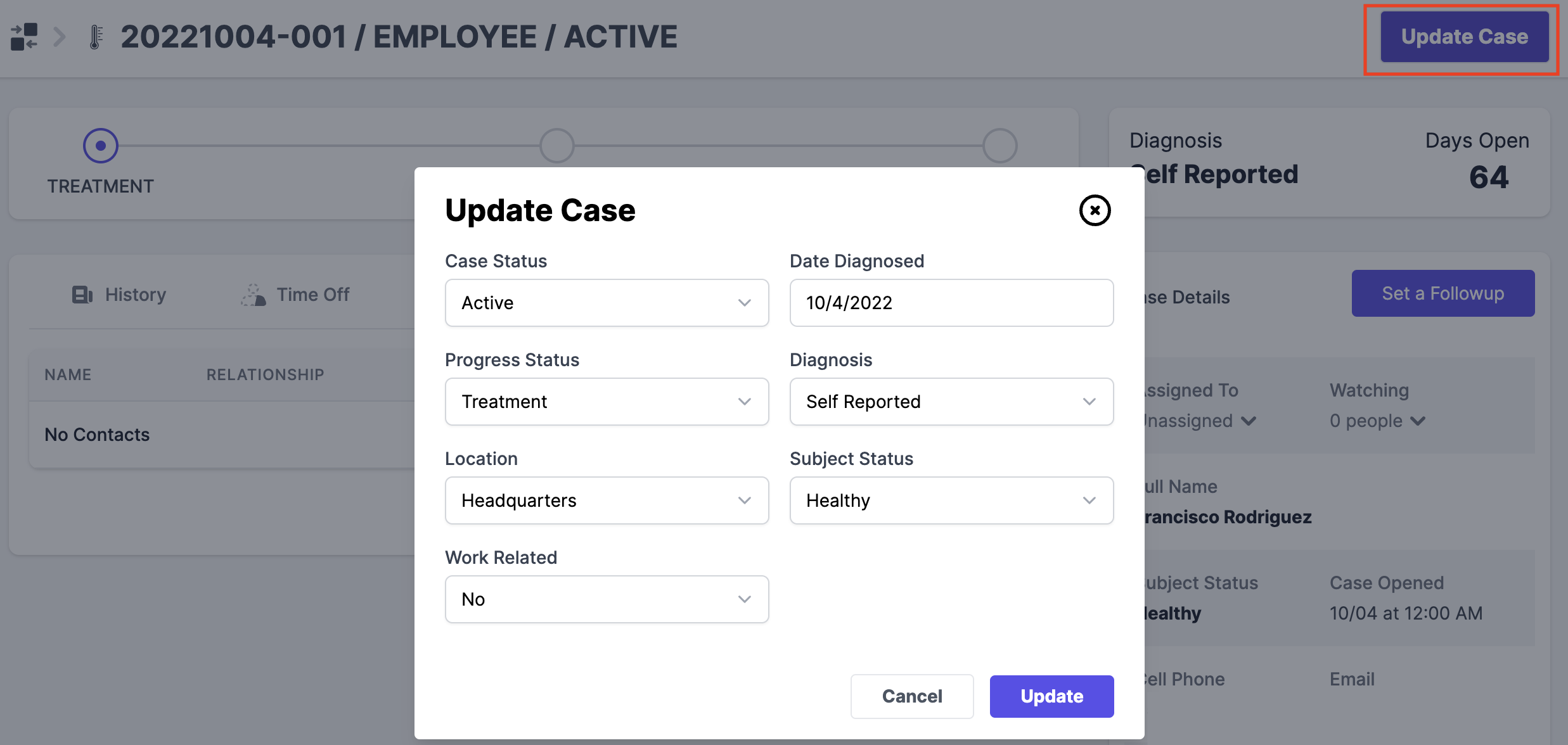
In the upper right-hand corner, you'll be able to update the case how you see fit. Clicking on the "Update Case" button will allow you to update several fields:
- Case Status
- Date Diagnosed
- Progress Status
- Diagnosis
- Location
- Subject Status
- Work Related
Notes about Updating:
- The Case Status tracker determines where the case shows up in the system. Cases all start as "Newly Detected," and move to "Active" when an update is made on the case.
- You can Close/Close Invalid a case at my time, and "Closed Invalid" will remove them from the closed record, as this is recommended for those cases made in error or for testing purposes.
- Progress Status allows a user to adjust the blue bar at the top of the page and moves closer to being cleared.
- Diagnosis can be adjusted to reflect how the case was created.
- Location is adjusted to reflect which location might be affected by the case.
- Subject Status can be adjusted to reflect how the user is feeling
- Work-related reflects if this case is work-related.
Viewing Screenings
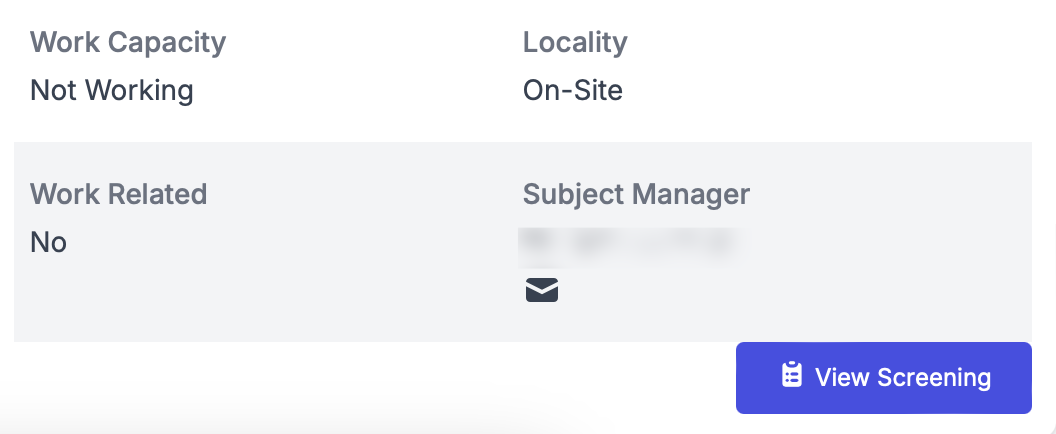
Also within a case, you can view the screening a user submitted to create the case (if the case was opened via screening). You do this by clicking on the "Screenings" button within a case.
You can see and download the full screening report from the Reports.
Case Notifications
| Users with "All Groups and " All locations" Role permission. | Users without "All Groups and " All locations" Role permission. | |
| The case was created for someone else. | You will be notified about all the cases systemwide. | You will be notified about all the cases of the user whose PRIMARY group/location matches your groups and locations. |
| The case was created for you. | Everyone with these permissions will be notified about your case. | Only users assigned to the same group/location as your PRIMARY group/location will be notified about your case. |
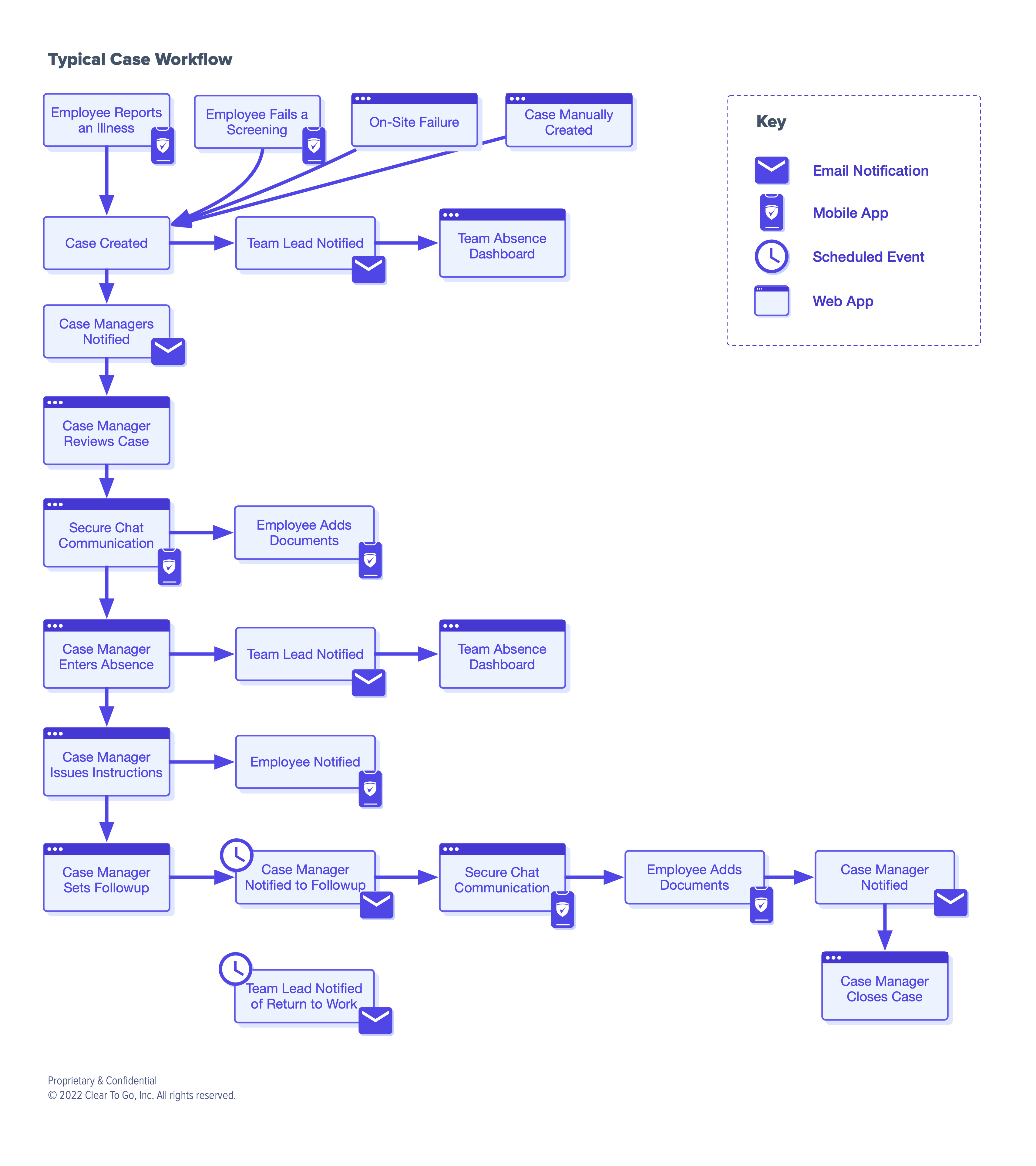
Case Workflow Diagram
Case-related Reports
Case-related reports and dashboards can be used to overview the case statistics and generate required reports for your organization.
| Case Report | Get a list of all cases for a time period. Apply various filters to get the required view. Export the report in CSV. | Go to Your name> Reports |
| Case Totals | Shows a total count of cases with the counts of active cases and the diagnosis method. This page is updated every three hours. You can apply a filter in the right top corner to select a specific case type. | |
| Case Dashboard | Shows your organization's case and participation statistics for the past 30 days. Learn more here. |