
Case Instructions
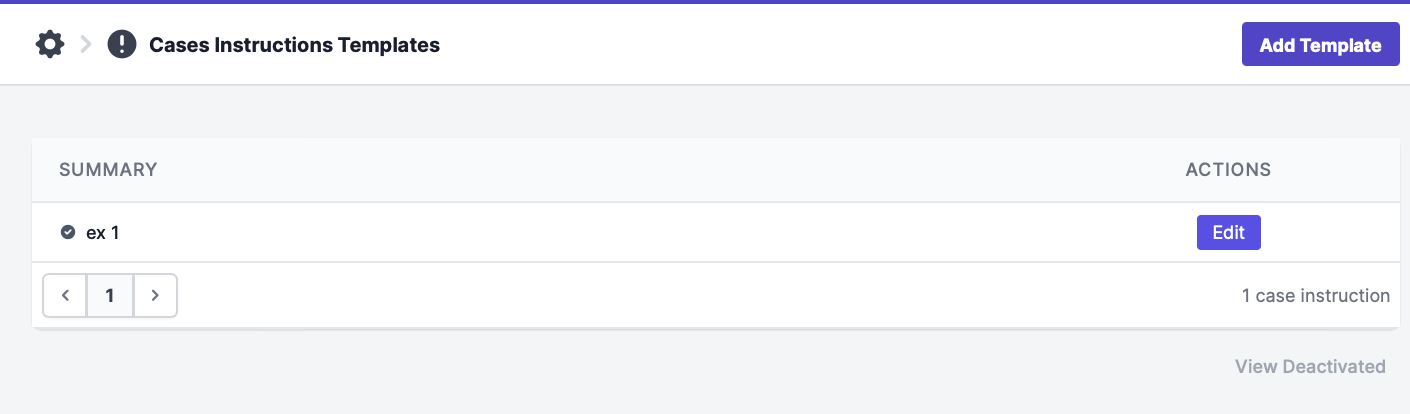
Via the Case Management system, you can send instructions to all of your users who open cases or custom instructions to users who need specific care instructions. They can be found via Your Name > Settings > Case Types.
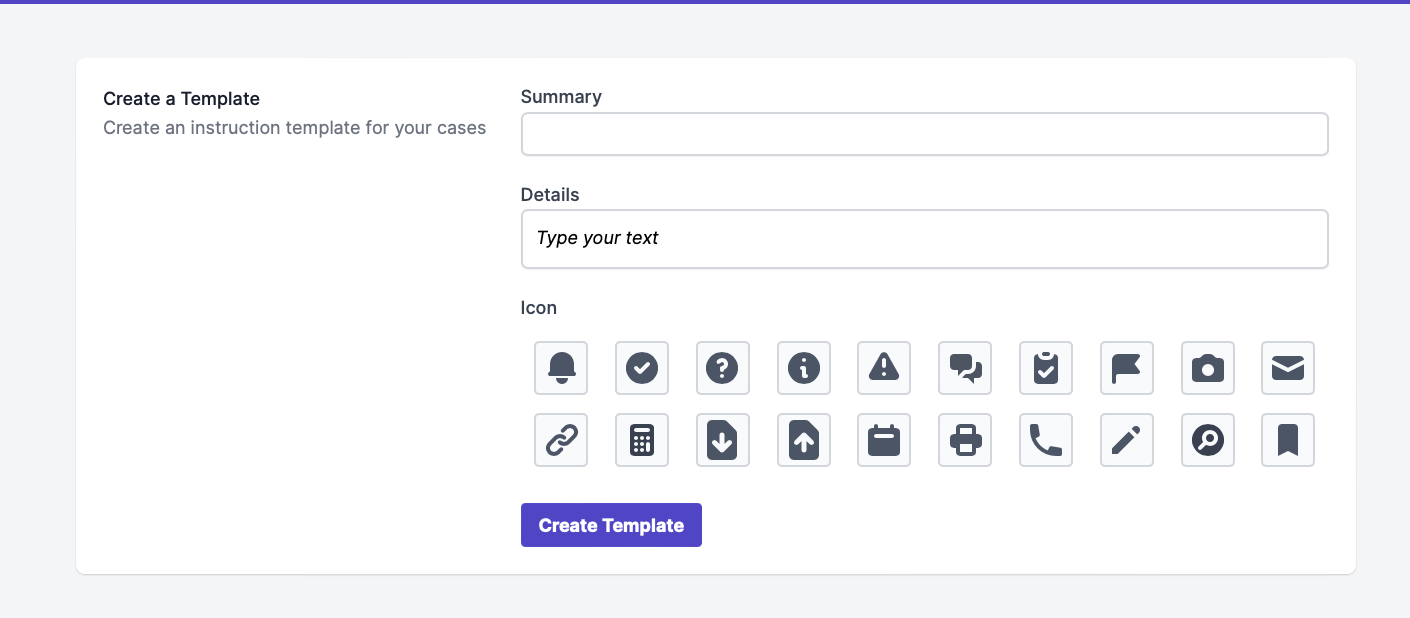
To create general instructions:
- Click "Add Template"
- Enter a name for the template
- Enter any relevant details in the "details" text box
- Select an icon that will appear in the app and in the case via the Case Management tab
To edit instructions:
- Click "Edit" on a template
+ Change the name of the template + Change the details of the template + Change the icon of the template
- Click "Update Template" to save, or "Deactivate This Template" to remove the template from the list
Please Note: By default, when a screening is failed, the End State Instructions are sent to the user as Case Instructions. Case Instructions can be received via the mobile app, email, or SMS (depending on how the user is getting screening notifications). Currently, only Mobile App users can mark instructions as viewed and complete from their end.
To manipulate custom and general instructions:
- Head to a specific case and click "Edit"
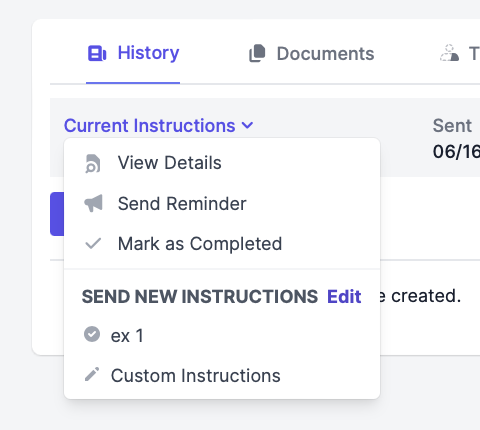
- Click "Current Instructions"
- To create custom instructions, click "Custom Instructions"
- To view details, send a reminder to the user, or mark the instructions as completed, click the corresponding buttons
- To reference the current instructions, click the template name listed just above "custom instructions"
The Case Manager can view the details of the instructions, send a reminder to complete them, or mark them as complete on the user's behalf.
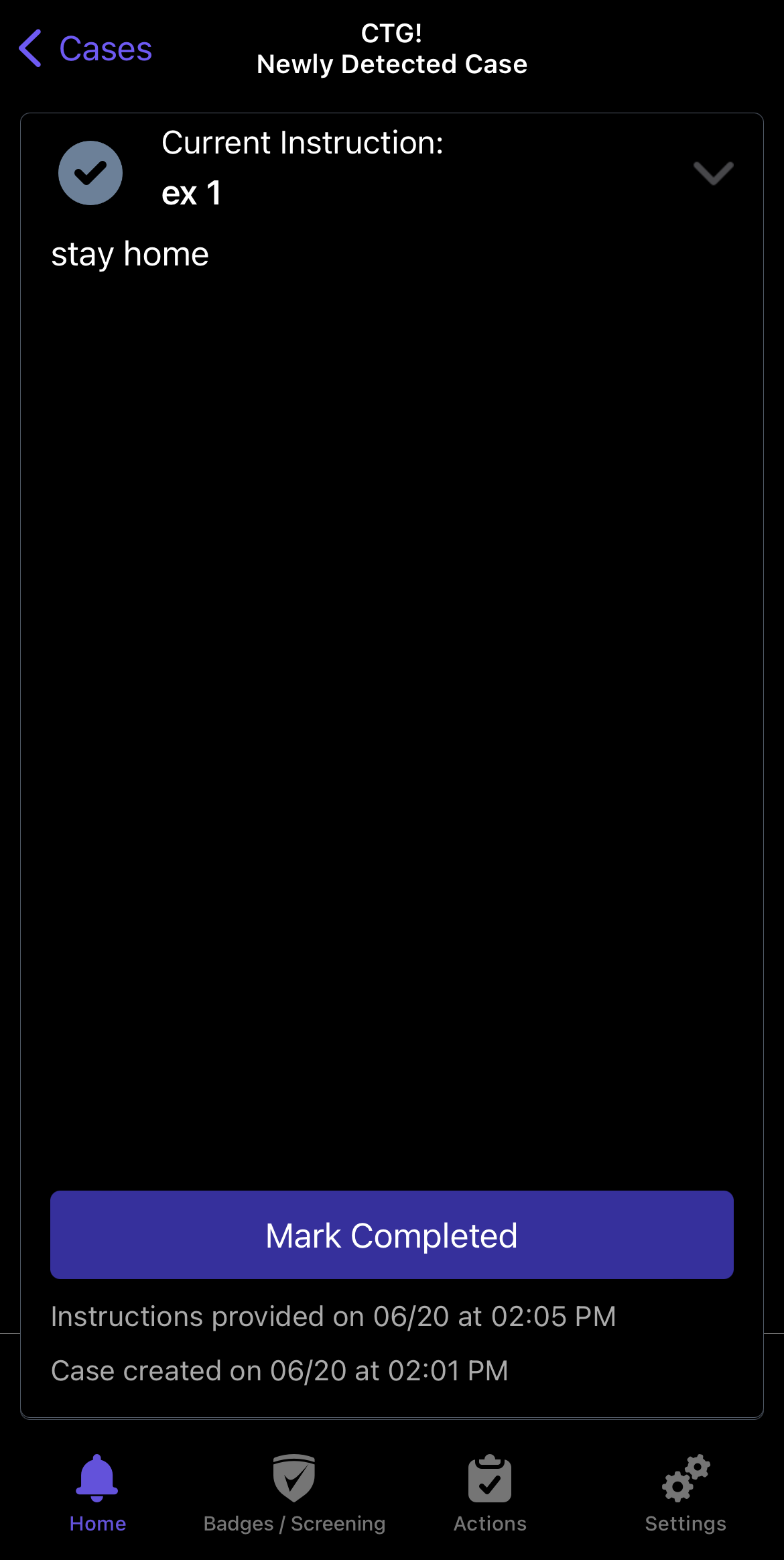
Mobile App Experience
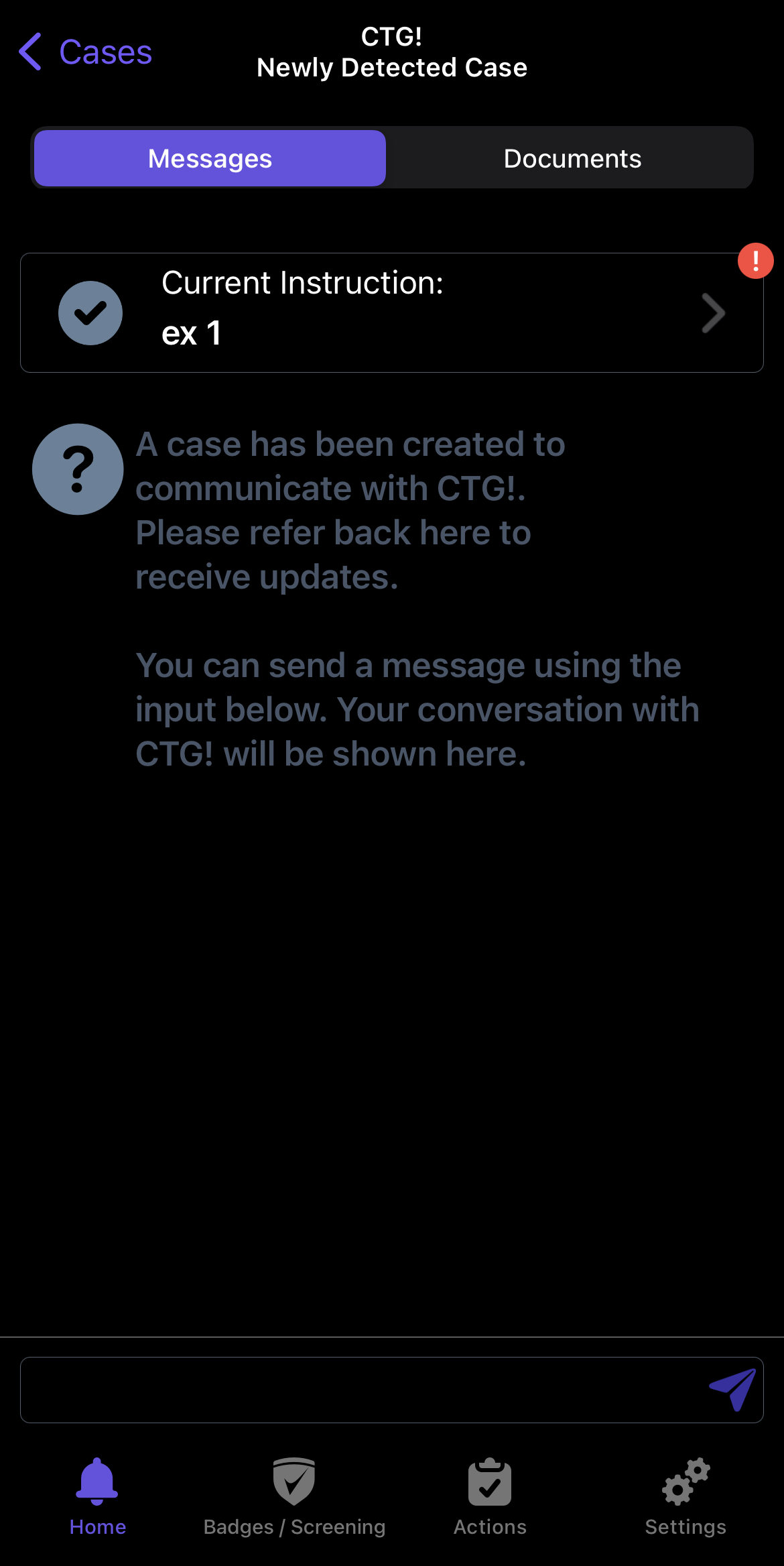
The Case Manager sends instructions and a push notification is received.
When the user taps the notification, they are taken to their case and instructions can be seen.
Once instructions have been completed, the user can mark the instructions as so, and the Case Manager will also receive an email notification of this.
Questions? Email us at support@cleartogo.co