
Problems Receiving Notifications?
How am I notified?
Clear to Go! notifies individuals on an ongoing basis via one of three possible channels, in this order of priority:
- Push Notification
- SMS
If one method is not present or fails, it will move on to the next possible route. We do not allow for more than one method at a time (i.e. a user cannot get a text and an email).
A User Reported They Did Not Receive a Notification:
- Head to the user's page (Workforce > Students/Employees/Contractors > the individual user > edit)
- First, if the SMS or email was undeliverable, you will see a large yellow box notifying you of this
- If that is not present, head to the "Compliance" tab of the user info. Here, you will see any and all linked devices, and a button for the notification log of the user.
- If a user has multiple linked devices, we typically recommend that linked devices are removed, and the user is instructed to re-link their current device.
- If there are no linked devices, then click on the "Notification Log" button. There, you will see the time, user, type of notification, notification log information, and if the notification was delivered or suppressed.
If the notification was suppressed, you should see the reason why it was suppressed, and this should help determine what the next steps are to help the user get notifications (i.e. if there is a case open, to close the case; if contact information was invalid, to confirm what is entered with the user; etc.).
| Example of the yellow error message | Example of an |
| CleanShot_2022-06-15_at_12.48.47_2x.png | CleanShot_2022-06-15_at_12.51.50_2x.png |
To Send A Test Notification as a User with Permissions:
- Find the user you'd like to send a notification to, then click on "Options" and "Send Screening." This will send a notification to the user's preferred contact method.
- If the notification was sent, you should see "Sent [TYPE] Notification" in a banner at the top of the page.
+ The types that could be listed are based on the type of communication channels, as listed above + The user should see the notification within a few seconds.
- If the notification was unable to be sent, you should see a red banner at the top of the page with an error message.
Need to see notifications concerning multiple users?
Head to Your Name > Settings > Notification Log.
If multiple users are having issues getting notifications, or you'd like to see how/which of your users are getting notifications, that can be found here. You'll also see all suppressed notifications, like you would on an individual user's Notification Log.
You'll also be able to filter these notifications by date.
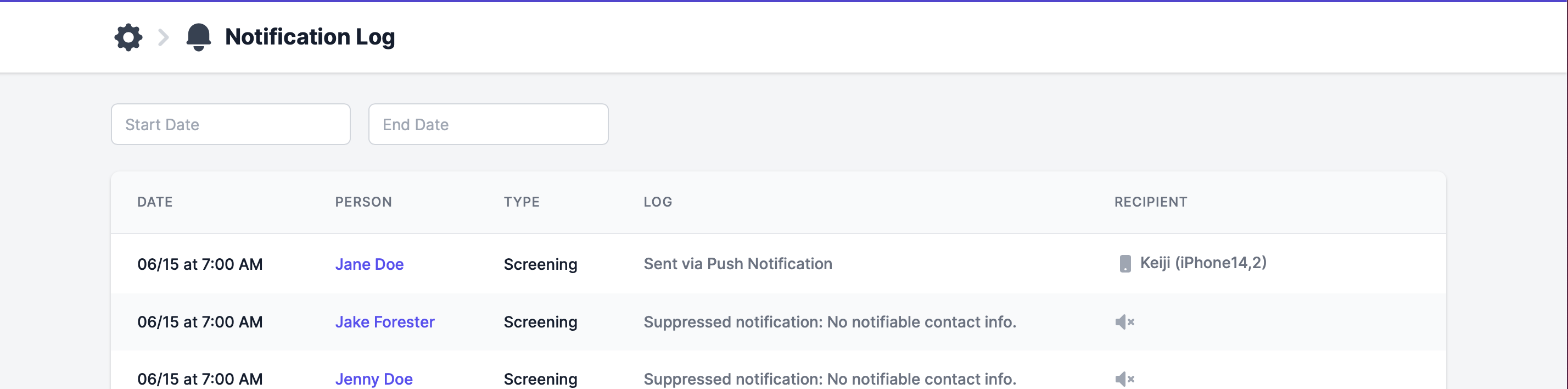
If you do not see "push notification" in the banner and were expecting to:
- Check that the app is installed
- Check that the app is linked to the account and with the correct information
- Check that push notifications are enabled for the app
If these are all correct, and you are still having trouble, you can create a support ticket by emailing support@cleartogo.co.
iOS Push Notifications
Apple's push notification services are opaque to third part systems, such as CTG. If you or your user(s) are having trouble getting them, follow these steps:
- Confirm that push notifications are enabled on the user's device, and that none of the OS specific preferences are turned off for our app.
- See here for more info: <https://support.apple.com/en-us/HT201925>
- (specifically, the section titled "If you don’t see notifications for a specific app").
- Know that push notifications aren't shown on the phone if our app is already open
- Confirm that other apps are able to send notifications to the device. Rara cases can be caused by network firewalls or VPNs. See more here: <https://support.apple.com/en-us/HT203609>
- Do you have the app installed on multiple devices? Only the most recently installed app will receive notifications.
- To send a test notification, see the above instructions.
Having Issues with iOS Devices?
If the iOS app is installed and uninstalled, our system does not recognize this without proper removal of the device from the account. If the user re-installs the app, then they will no longer get notifications, as the system still sees the original linking.
To resolve this, go to the user's page (via Workforce > Employees/Contractors/Students > Compliance tab) and click the "Remove" button next to the iOS device.
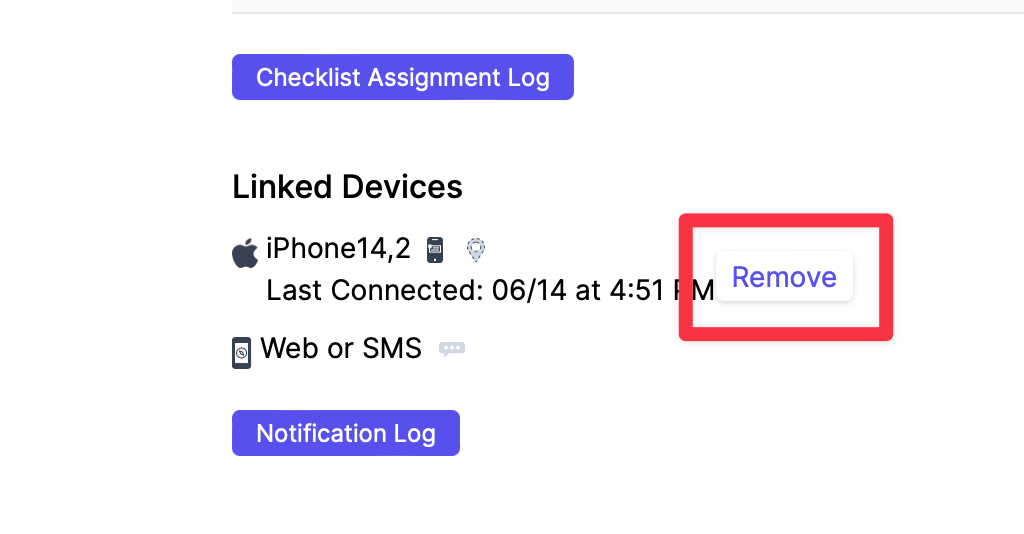
You will see a prompt asking if you are sure you want to remove the device. Once the device is cleared, the user will need to link the account again.
However, if the user does not want to continue receiving notifications via the app, nothing else needs to be done after removing the device. If no device is linked, then the system should switch to SMS email notifications.
Questions? Email us at support@cleartogo.co