
Adding Employees Individually
To add employees individually, head to Workforce > Employees.
Click the "Add Employee" button.
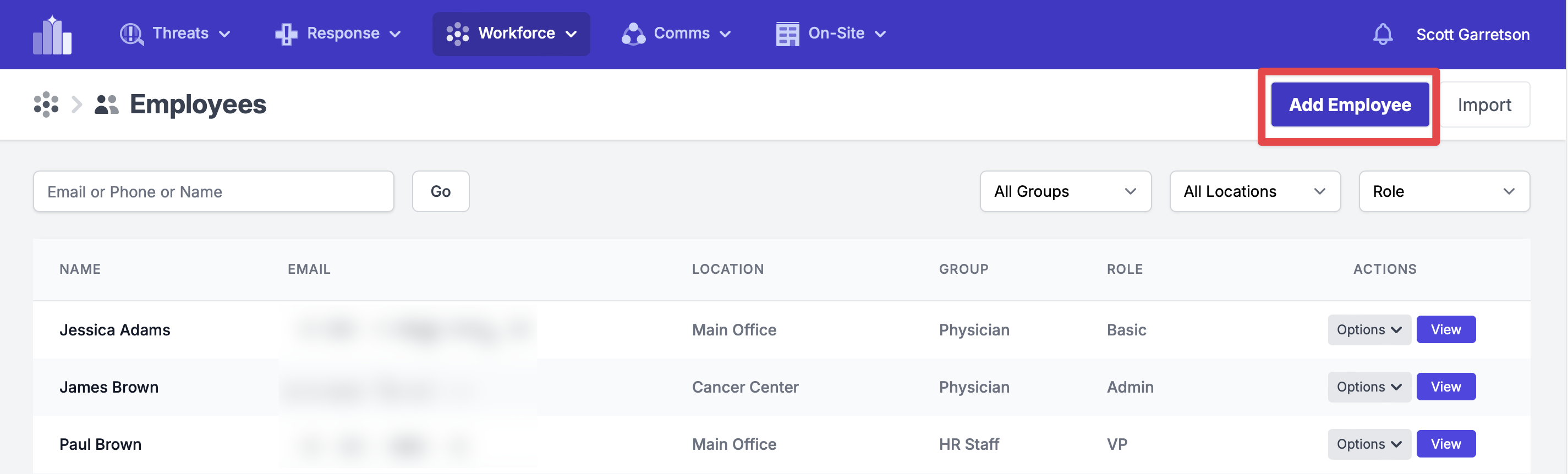
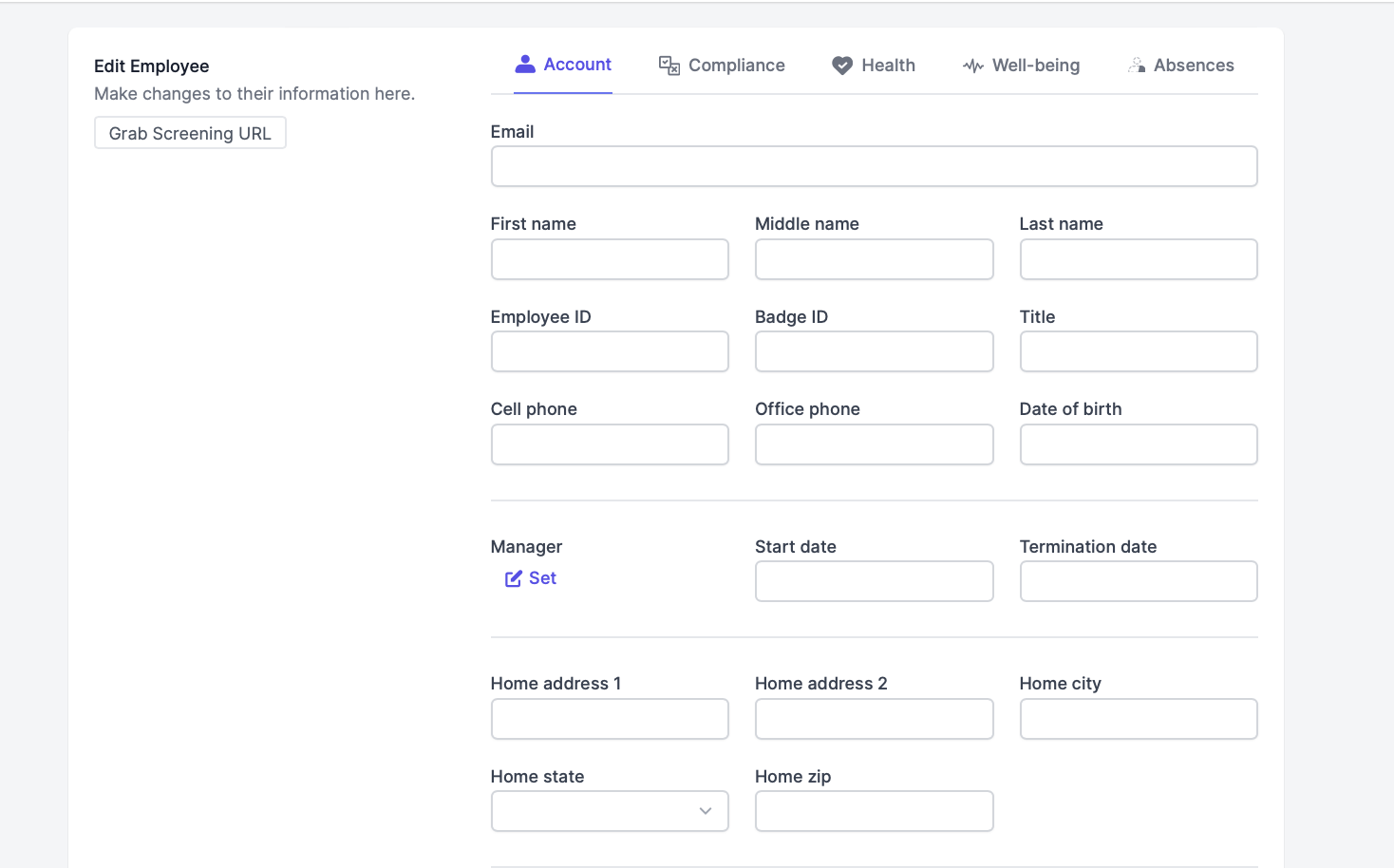
Then, complete the form with all the required information:
- First Name
- Middle Name
- Last Name
- Employee ID
- Badge ID
- Title
- Cell Phone
- Office Phone
- Address
- Manager (By clicking on this, you can enter a user that they report to, or should get specific notifications; see our Role page)
- Start Date
- Termination Date
- Role (Also see our Role page)
- Work Capacity
- Shift
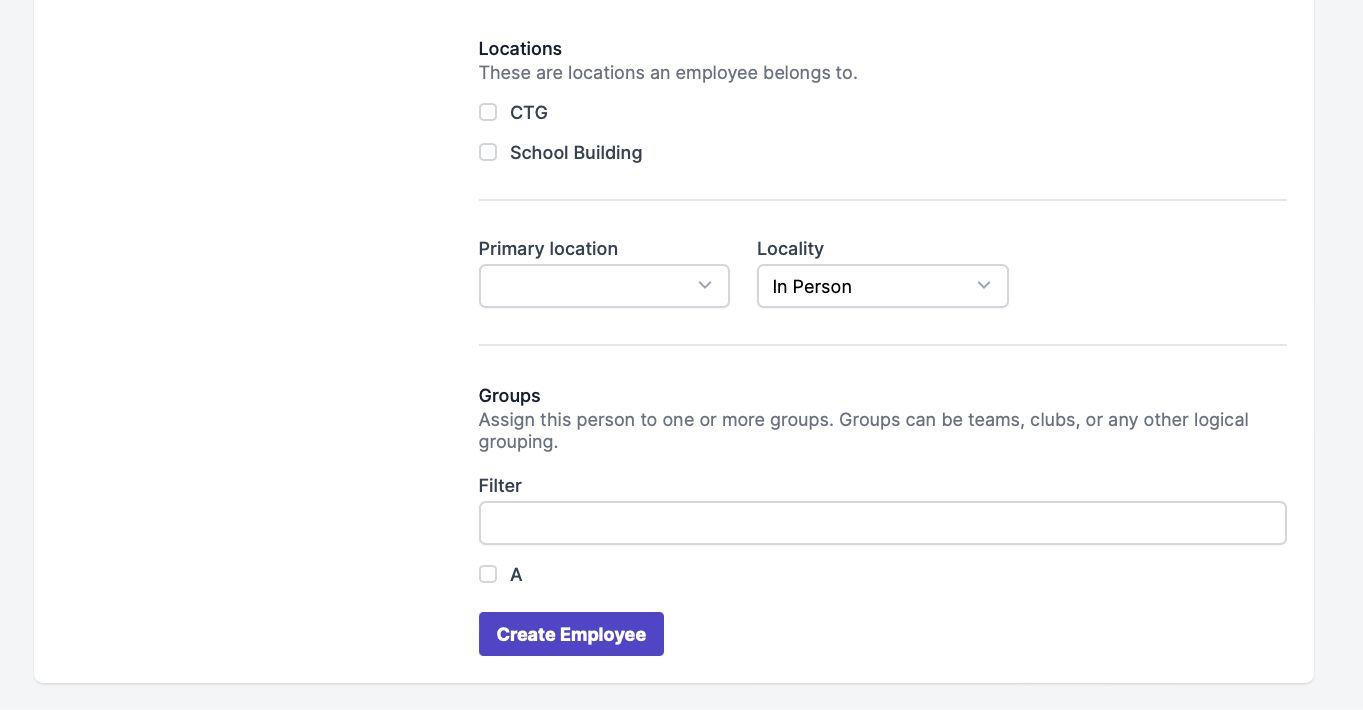
- Locations
- Primary Location
- Locality
- Groups
Please Note: Not all fields need to be populated to create an employee. The minimum requirements are:
- First and Last Name
- Role
- Location
- Cell phone and/or Email
Then, click "Create Employee"
Repeat this process as needed.
If you have users that will have any role above the basic preset role, they should receive an email inviting them to create a password with us. This only applies when adding users individually.
Basic employees are not given this email, as they do not need to create a password and log in to the website.
After users have been entered, they are welcome to download our mobile app (more info here).