
Rules Engine
Overview
Certain features of PrevailHQ require the selection of multiple people from your organization. Rather than forcing you to individually pick each person that should be added to a feature, we have a powerful rules engine that allows you to select people based on their properties.
Compliance Checklists, Screening Schedules, and Announcements are all set up by adding Rules. For example, if a person matches a rule in a Compliance Checklist, then they are assigned that compliance checklist.
Walkthrough
When working with a screening schedule, compliance checklist, or announcement, the first thing to consider when selecting who should be assigned is to consider the type of person. You can set your rules to only apply to Employees, Contractors, Students, or any combination of those three.
Click "Add Rule" to select a property (a specific attribute of a person's profile). For example, if they have the app installed, if they have a reservation, group membership, shift, vaccination status, etc. Once you have selected a property and set its match value, then click "Insert."
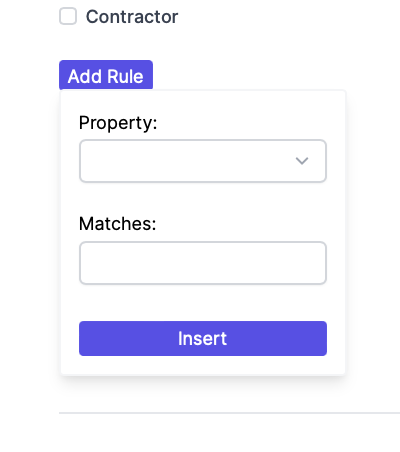
For Example…
- Property: App Installed, Matches: Yes
+ Users who have the app installed will get notifications based on this schedule; users who do not have the app installed will not be notified on this schedule.
- Property: Last Name, Matches: "Person|Someone"
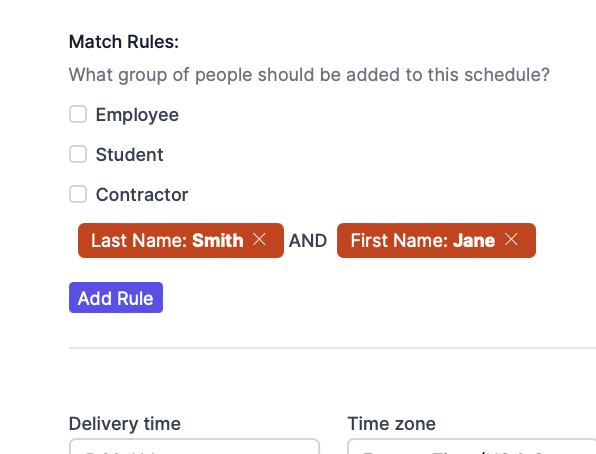
- Property: First Name, Matches: "Jane" AND Property: Last Name, Matches: "Smith"
+ All users with the last name Person or Someone will be notified based on this schedule; users who do not have those last names will not be notified by this schedule.
+ This means that only Jane Smith will be notified of this schedule, and no one else.
Please Note: To select multiple "Matches" under a rule, press SHIFT and to enter the | symbol. This will create an OR rule. Here is what that would look like with the above example:
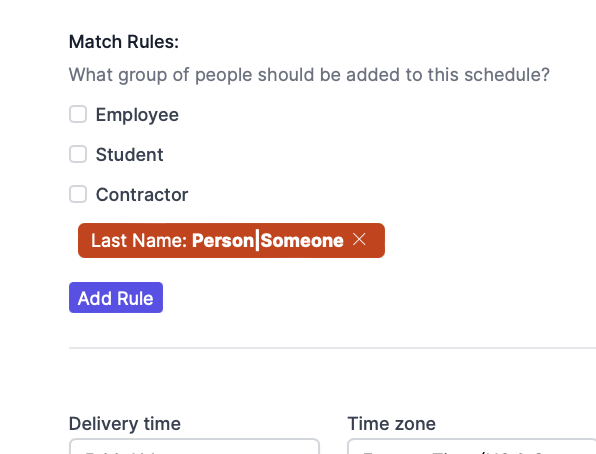
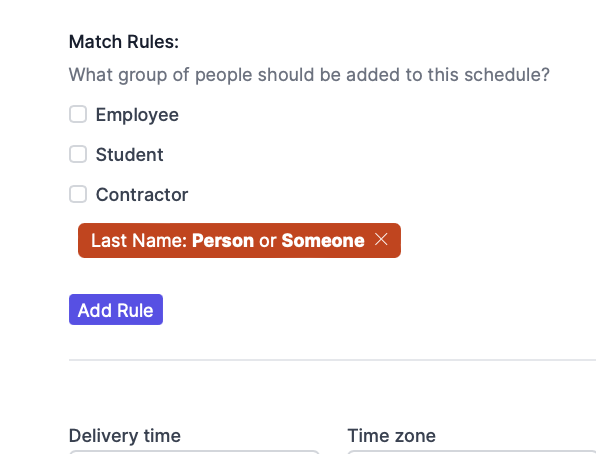
Before vs. After saving your schedule
Alternatively, if you'd like an AND rule, you will need to create separate matches, as the third example above shows. This example will be marked as:
Supported Attributes
| App Installed | Users who have the app installed will be selected; users who do not have the app installed will not be selected. | |
| Badge | Users with valid or invalid badges will be selected. | |
| Badge Id | Users with matched badge IDs will be selected. | |
| Cell Phone | Users with matched cell phone numbers will be selected. | |
| Users with matched emails will be selected. | ||
| Employee Id | Users with matched Employee IDs will be selected. | |
| First Name | Users with matched First Names will be selected. | |
| Grade (schools only) | Users with matched Grades will be selected. | |
| Groups | Users with matched Groups will be selected. | |
| Has Reservation | Users who have a valid reservation will be selected. Reservations have to be enabled under Organization Settings. | |
| Home City | Users with matched Home City will be selected. The home city can be set by editing the user's personal details. | |
| Home Room (schools only) | Students with matched main classrooms(Home Rooms) will be selected. Student Home Room can be set by editing the students' personal details. | |
| Home State | Users with matched Home State will be selected. The home state can be set by editing the user's personal details. | |
| Home Zip | Users with matched Home Zip will be selected. The home zip can be set by editing the user's personal details. | |
| Last Name | Users with matched Last Names will be selected. | |
| Locality | Users with matched Locality will be selected. Locality can be set by editing the user's personal details. | |
| Locations | Users with matched Locations will be selected. | |
| Office Phone | Users with matched Office Phone numbers will be selected. | |
| On-Site At | Users with matched locations and who are scheduled to come on-site via the [In/Out boar](In | Out (Team Status Board)_4457077075220.md)d will be selected. |
| Primary Location | Users with matched Primary Locations will be selected. Primary Location can be set by editing the user's personal details. | |
| Role | Users with matched roles will be selected. The role can be set up by editing the user's personal details. | |
| Screening | Users with Passed, Failed, or Expired screening statuses will be selected. | |
| Shift | Users with matched shifts will be selected. Shifts can be set by editing the user's personal details. | |
| Student Id (schools only) | Students with matched Student IDs will be selected. Student ID can be set by editing the students' personal details. | |
| Teacher (schools only) | Users with matched Teachers will be selected. Teachers can be set by editing the students' personal details. | |
| Title | Users with matched titles will be selected. Titles can be set by editing the user's personal details. | |
| Vaccination Status | Users with matched vaccination statuses will be selected. Click here to learn more about vaccines. | |
| Work Capacity | Users with matched work capacity will be selected. Users' work capacity can be modified by Case Managers or anyone with the Manage Employee's permission. |