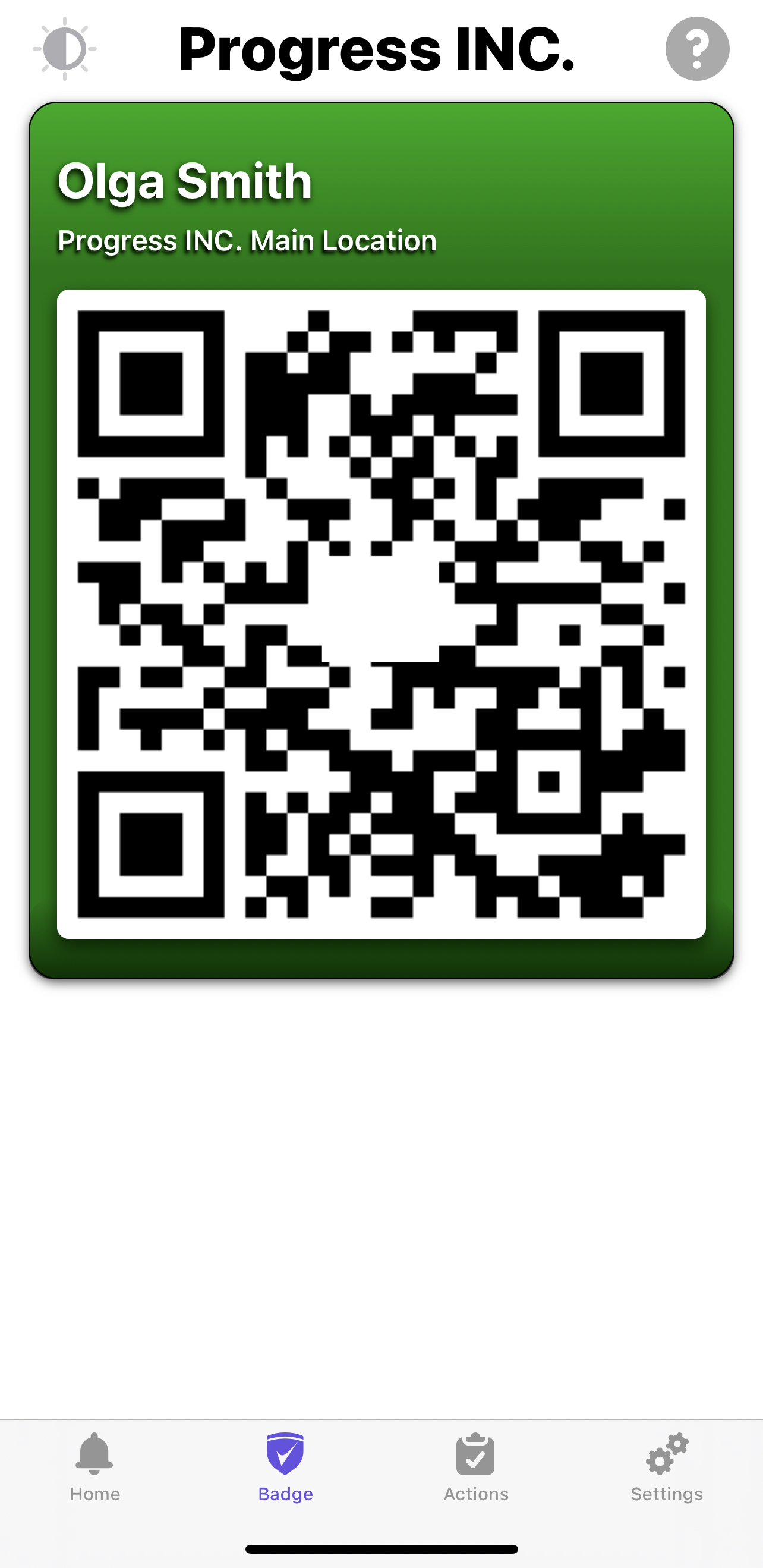
Compliance Checklists
Some county & state regulations require employees to meet certain criteria in order to be present on-site. You can customize what requirements will be put in place, based on your needs.
With the Compliance Checklist, you can designate a population of users that must meet certain requirements.
To find the Compliance Checklists, head to Your Name > Settings > Compliance Checklists.
Checklist Set Up
A default checklist is provided with the Health Screening setting required. This can be changed at any time, and new checklists can be made at any time. However, this default checklist will not be able to be removed.
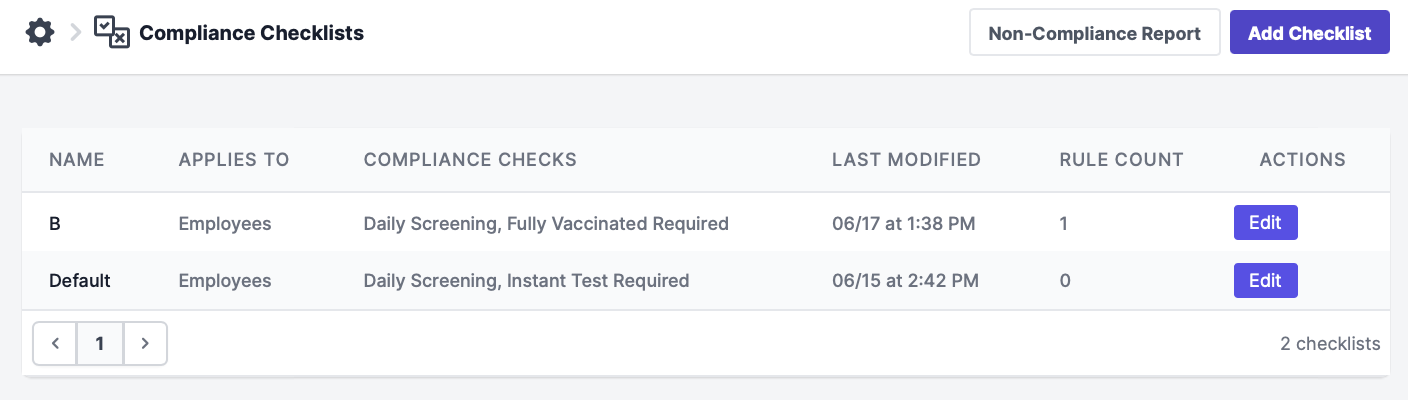
To create a new checklist, you can select "Add Checklist." Then, give the checklist a name and apply rules to the users who are going to be affected. This will include the user type (Employees/Students/Contractors) and then any rules you'd like to add under the "Add Rule" button.
Click here to learn how to add RULES to Compliance Checklists.
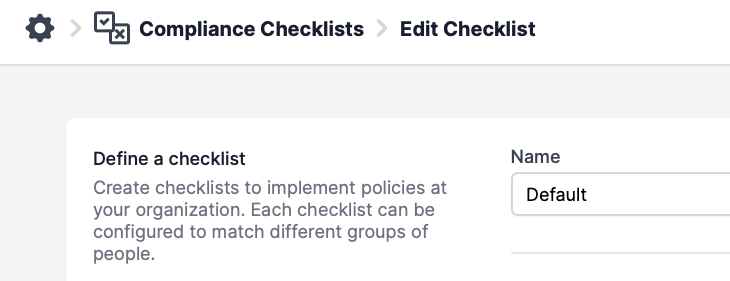
Next, you'll choose the compliance checks that the users will need to follow:
| Badge Color | Indicates the badge color users should see if they are compliant (i.e. a passing green badge) |
| Fully Vaccinated | Requires users to submit and maintain a fully vaccinated status to receive the designated badge color. |
If this is enabled, both toggles need to be on so that users will be able to submit their vaccination information. See also our page on Vaccinations. | | Instant Test Result | Requires users to have an approved and passing test result to receive the designated badge color. See also our Test Results page. You'll also be able to set how often the users will need to submit their passing test results to comply again.
To require test results to expire at the end of the submission day, enter 0 number of days.Decimals can be used to add more specific periods.Ex: 0.5 - 12 hours 0.75- 18 hours 1.5- 36 hours | | Temperature Test Result | Requires users to receive a passing temperature test to receive the designated badge color. | | Health Screening | Requires users to perform daily health screenings to receive the designated badge color. See also our Screening Questions page.
We do recommend that this is shown on the badge as well, so users can re-screen, should an error occur. | | Open Medical Case | Requires users to have no open cases to receive the designated badge color.
Another toggle for this setting can be found in the Organization Settings, to allow open case screening in general. | | Wearing a Mask | Users must have a mask on to receive the designated badge color and check in on-site. *Requires the Gatekeeper temperature kiosk. Email us at support@prevailhq.com for additional information. | | Has Approved Reservation | Requires users to submit and have an approved reservation. See also our Reservations page. |
For each of the compliance checks, the checks that are toggled on will require the selected users to meet the criteria listed before they will receive a passing badge. You may also choose to display this compliance check on the badge by toggling the "Display on Badge" switch on.
Please Note: Some of these functions (i.e. Test Results and Reservations) do require both toggles on, or an external setting to be enabled (i.e. Reservations). Please see the appropriate pages for your settings to learn more about each setting.
Example 1:
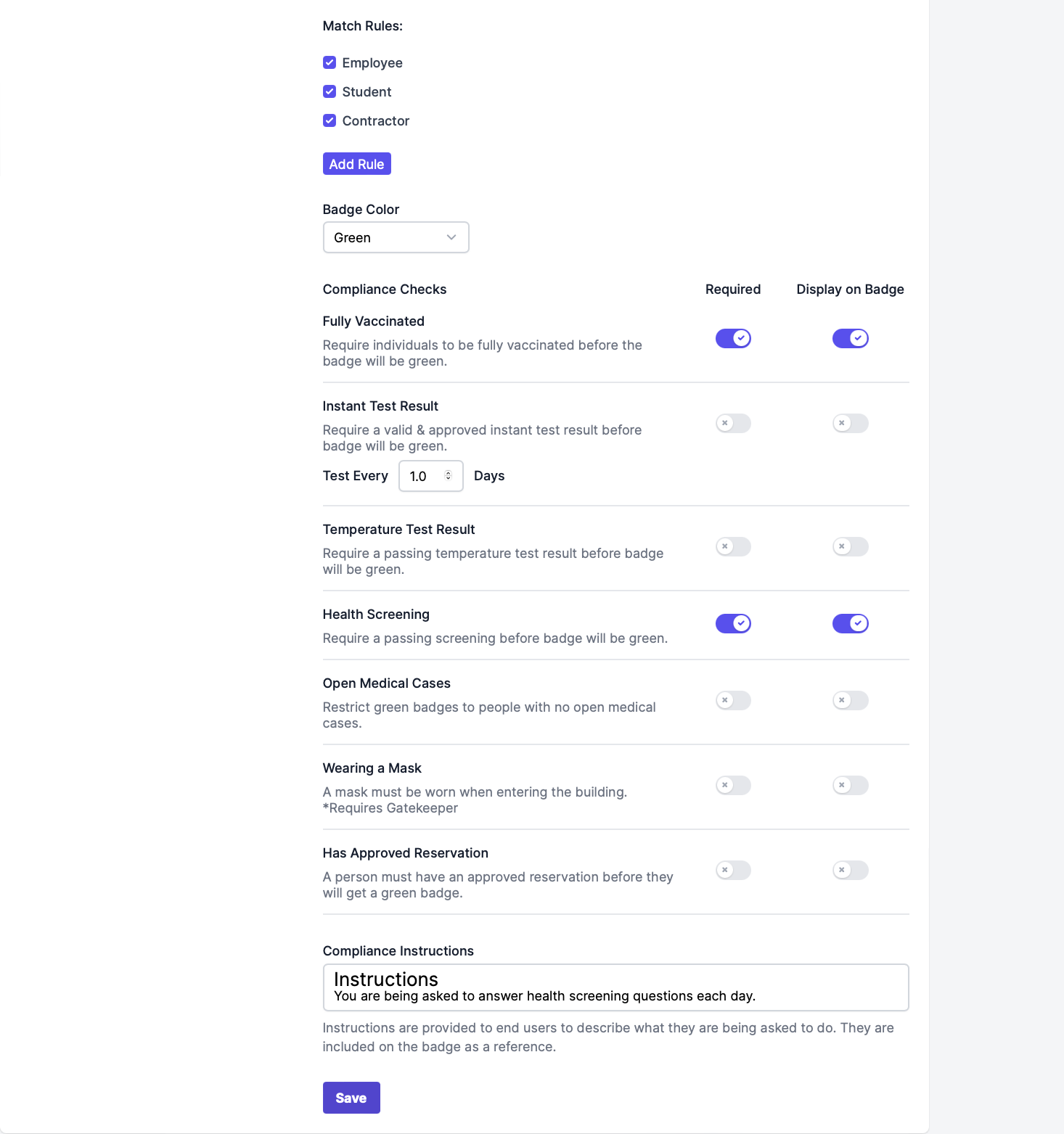
This checklist is for all fully vaccinated users. They only need to meet two requirements, and both will be displayed on their badge.
- Maintain a status of fully vaccinated
- Perform a daily health screening
Example 2:
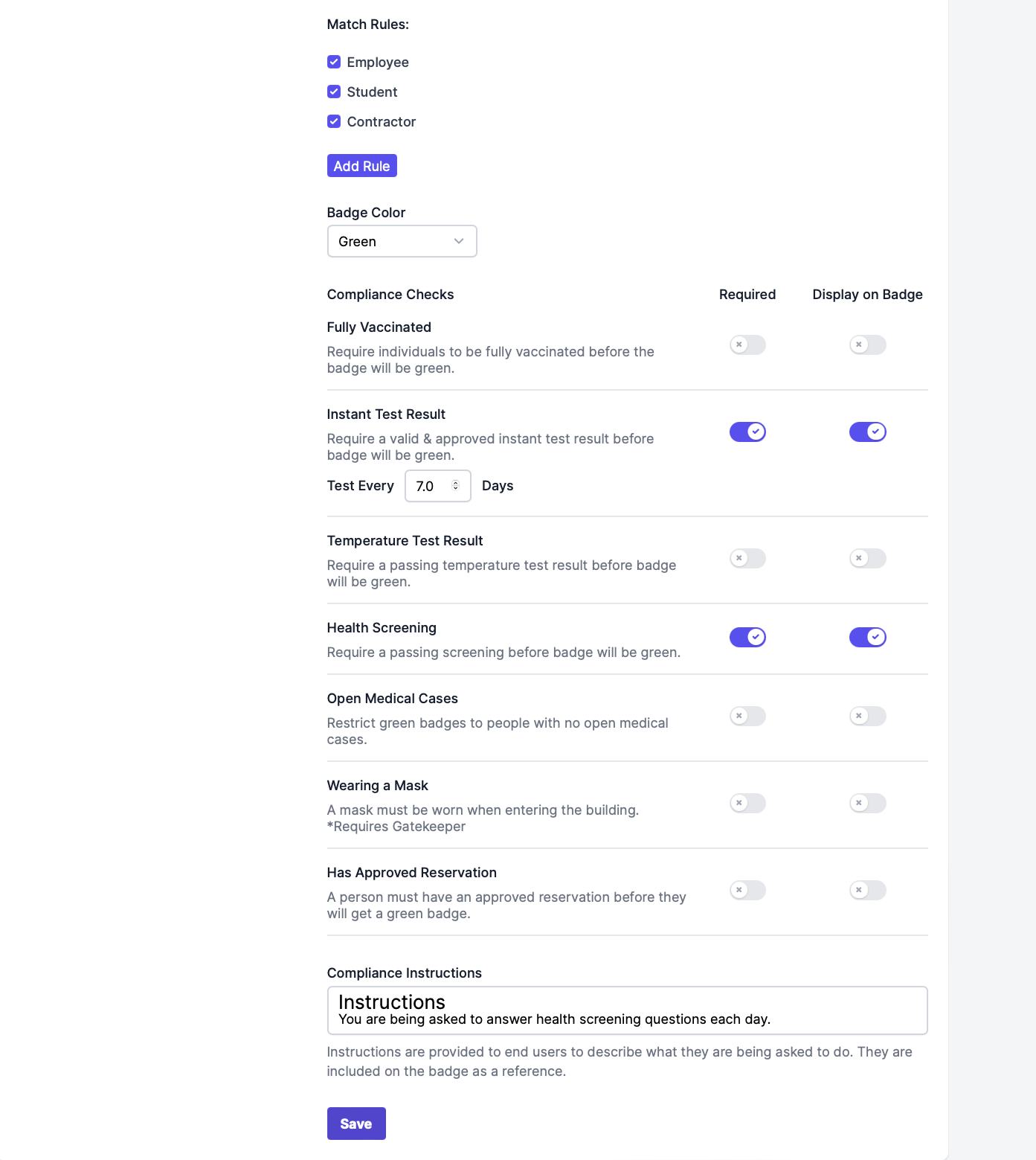
This checklist is for non-vaccinated users. They must meet two requirements and both will be displayed on their badge.
- Submit a valid test result every 7 days
- Perform a daily screening
Please Note: Not fully vaccinated users will be marked as not vaccinated for compliance settings. Once a user is fully vaccinated, the requirements of example 2 will no longer apply to them, and they will then be moved to example 1.
Viewing Compliance
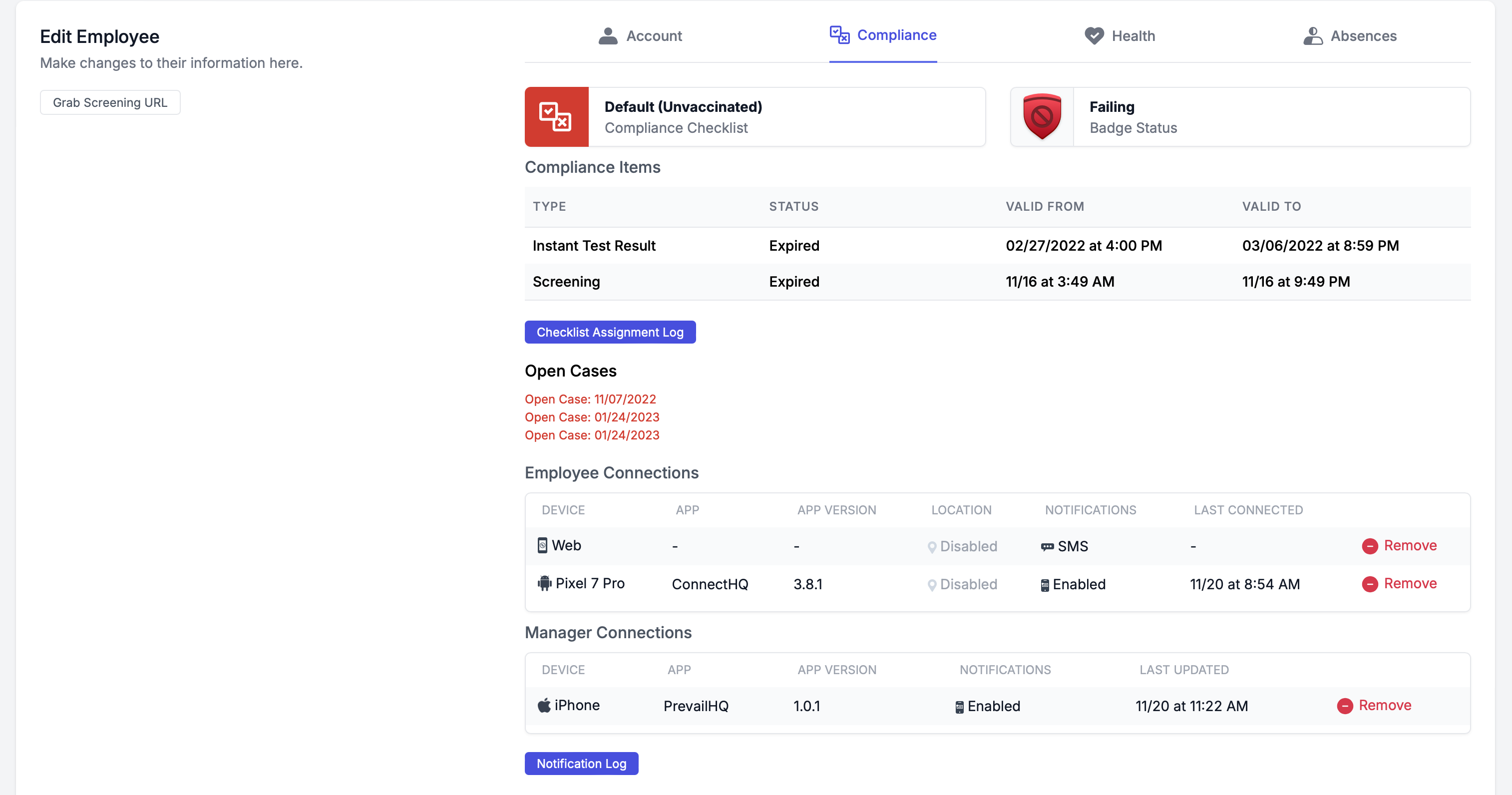
From within an employee/student/contractor record, click the Compliance tab to view which checklist they belong to, and whether or not they are compliant. You can also click on the "Checklist Assignment Log" to monitor when items were submitted and when users became compliant or fell out of compliance.
Employee Connections - shows a list of the devices that have CTG and ConnectHQ mobile apps installed.
Manager Connections -shows a list of the devices that have the Prevail HQ mobile app installed. This feature is available to the users with system-managing permission. This section can be helpful for security purposes to track all devices that were used to log in to your PrevailHQ account.
User Experience
Users with the mobile app downloaded can view their compliance instructions by going to "Badges/Screening" > Question mark in the top right corner.