
Scanning Badges for Check-in / Check-out
The Scanner allows badges to be scanned as users arrive on-site without the need for an attendant to check them in manually. Most Apple and Android tablets/smartphones have the ability to scan the QR code on the badge.
Currently, there are two ways to use tablets as scanners: with the scanner function, or with our CTG Kiosk app.
Recommended Devices:
- Apple
- Android
- Windows
+ iPad (7th generation or newer) + iPad Pro (any) + iPad Air (3rd generation or newer)
+ Samsung Galaxy S series + Samsung Note series + Samsung Galaxy Foldable devices: Galaxy Z Fold2 5G, Z Fold2, Z Flip 5G, Z Flip, Fold 5G, Fold and upcoming Z series devices + Samsung Tablets: Galaxy Tab S7+ 5G, Tab S7+, Tab S7 5G3, Tab S7, Tab S6 5G4, Tab S6, Tab S6 Lite and upcoming Tab S series devices
+ Most newer machines running Windows 10 using Google Chrome
Web-based Scanner Setup
- Navigate to app.prevailhq.com on the device that will be performing the scanning. Log in and click On-site> Scanner.
- Select the Location that the scanner will log the check-ins at.

- Click Start Scanning.
- You will then see the camera open. If you have multiple cameras (front or rear facing) you can select which camera to use.
- Have the user place their badge inside the viewing window on the camera and center it within the square.
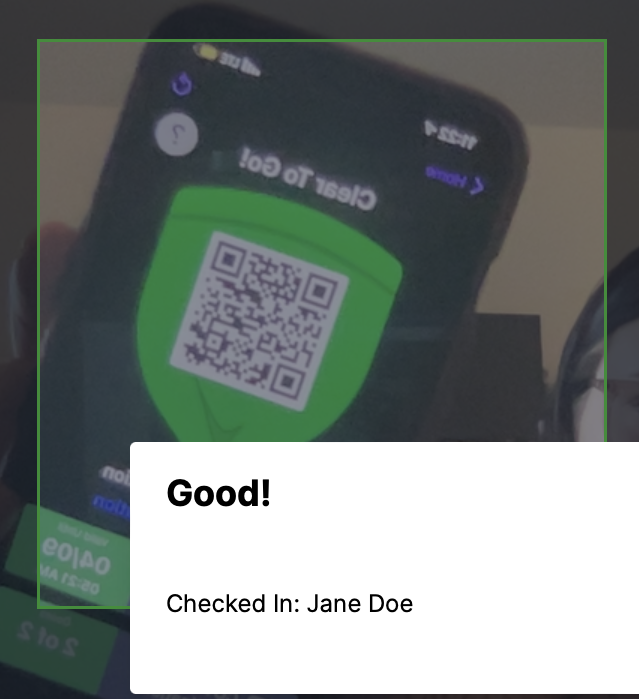
- The device will beep and the check-in is complete. The scanner can be kept open for the next user to check-in.
- To exit the scanner, click any button at the top of the page.
To set a separate login for only this function:
- Create a Scanner role with only one permission of Employee Roll Call.
- Create a Scanner employee record with the role you created in step 1 & an email address to receive an invitation to create a password. Assign this employee record to the appropriate location it will be checking users into.
- On the scanning device, log into app.prevailhq.com with the credentials.
- Click On-site > Scanner > click Start Scanning.
Using the CTG Kiosk App
With this app, you can have a tablet set up as a Kiosk, rather than a user.
Setup:
- Download the CTG Kiosk app via your tablet's app store
On the tablet, search the App Store for "CTG Kiosk", or click here:
iOS: <https://apps.apple.com/in/app/ctg-kiosk/id1580619562>
Android: <https://play.google.com/store/apps/details?id=com.ctg.kiosk>
- Set up your tablet as a kiosk, by going to <https://app.prevailhq.com/> Your name> Settings> Locations > "Options" on the desired location > Manage Kiosks.
- Click "Add Kiosk"
- Name your device, and click "Create Kiosk"
- Scan the QR code with your device, and click "Verify Camera"
You can now scan badges via the CTG Kiosk app!