Geofencing
Geofencing allows users to be automatically checked in and out of a location, based on a designated area. To use this feature, three things need to be done:
- Enable Geofencing to your location(s) and set the geographic region to monitor
- Assign employees to the location(s)
- Have employees install the app and opt-in to all location settings.
+ Please Note: the app needs to be installed and location settings need to be fully enabled, or else this feature will not work
Enable Geofencing
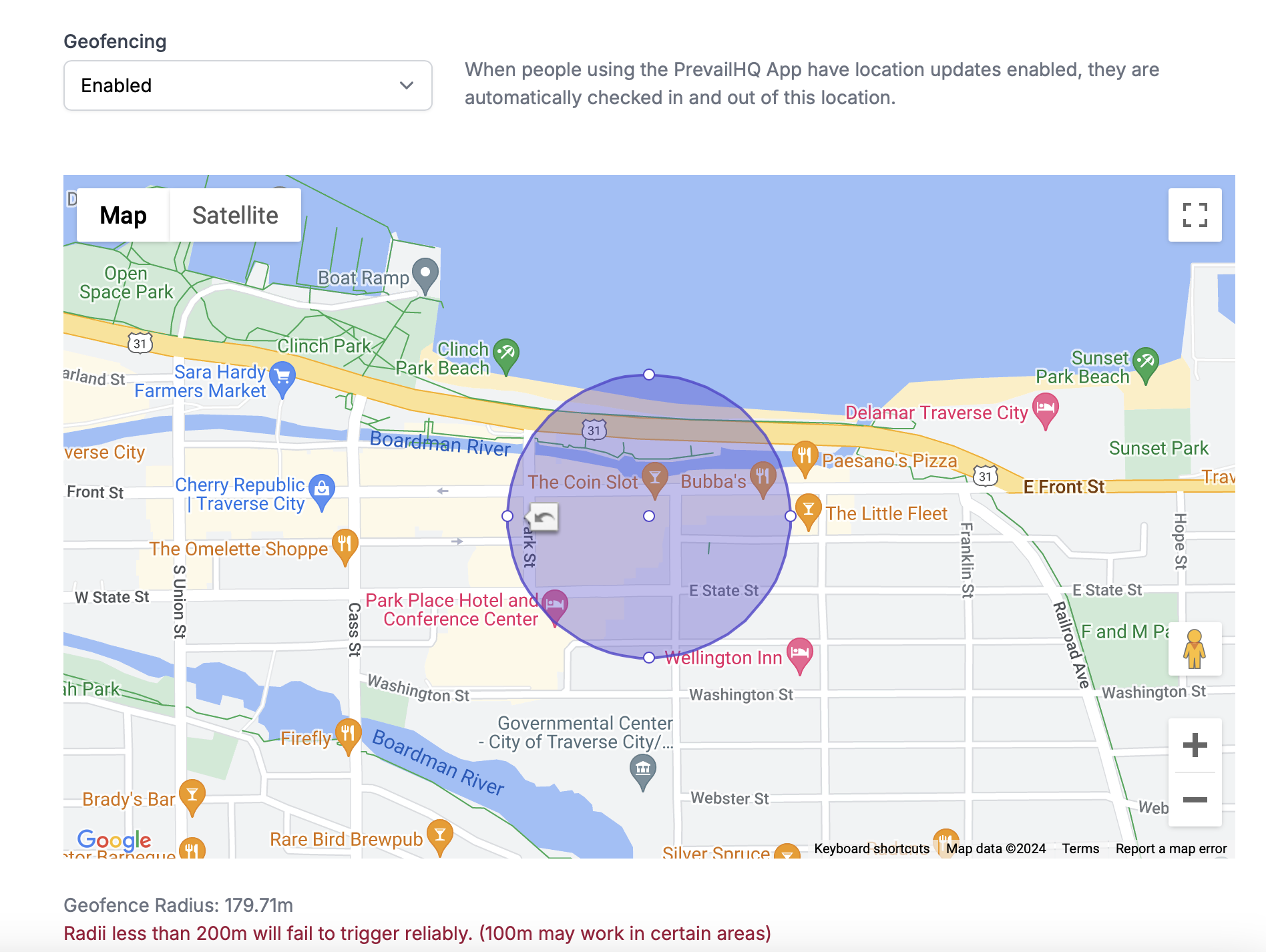
- Head to the Locations page and select "Edit" on the location you'd like to enable Geofencing on. Then, select "Enabled" from the Geofencing drop-down menu.
- Next, you can adjust the highlighted area to cover your facility. We recommend you include any parking lots associated with your site, and to be sure to include all entrances/exits.
- Lastly, click "Update Location."
Please note: Due to IOS and Android regulations geofence radii of less than 200m are not guaranteed to trigger reliably. Certain geographies (open areas with a clear line of sight to GPS satellites) have been reported to work down to 100m. The radius of the drawn geofence is shown below the map. When the value is less than 200m, a warning will be shown. Further, dense urban areas with tall buildings will require a larger geofence than in less dense areas. Interference, signals bouncing off buildings, and dead zones can all cause reported phone location to jump around. In the event geofencing appears inconsistent, admins should increase the size of the geofence until results appear consistent.
Assign Your Employees to the Location
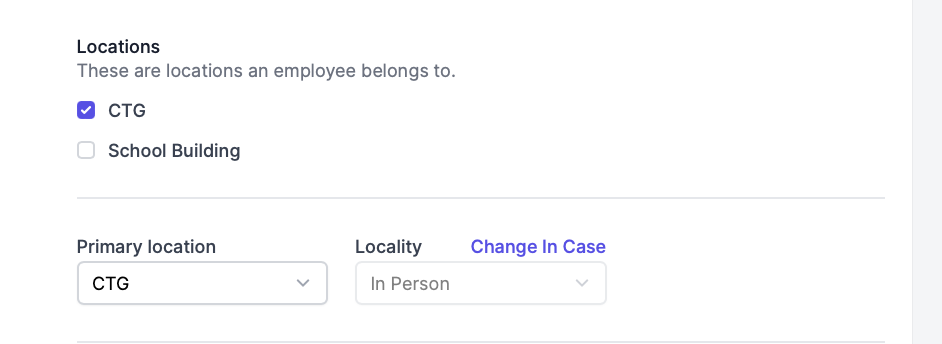
If an employee is not assigned to any location with Geofencing, they will not be automatically checked in or out of that location.
Please ensure that your users have at least one location selected on their profiles. If your users have multiple locations selected, also ensure that they have a Primary Location selected.
Opt-in to Background Location Updates
The Clear To Go app will only track your location as you enter or exit the defined boundaries set for the Location. Your location will not be tracked outside of the defined boundaries.
Location Services must be enabled on the user's device to allow the Geofencing detection to work. Below are links for a good starting point to ensure these services are enabled. Location Services for the app must also be set to 'Always Allow' for the system to work.
| | | --- | | Android: To reduce power consumption, Android 8.0 and higher limits how frequently background apps can retrieve the user’s current location. Apps can receive location updates only a few times each hour if the app was not recently active. |
User Experience
Users will receive a push notification, letting them know that they have either been automatically checked in or checked out.
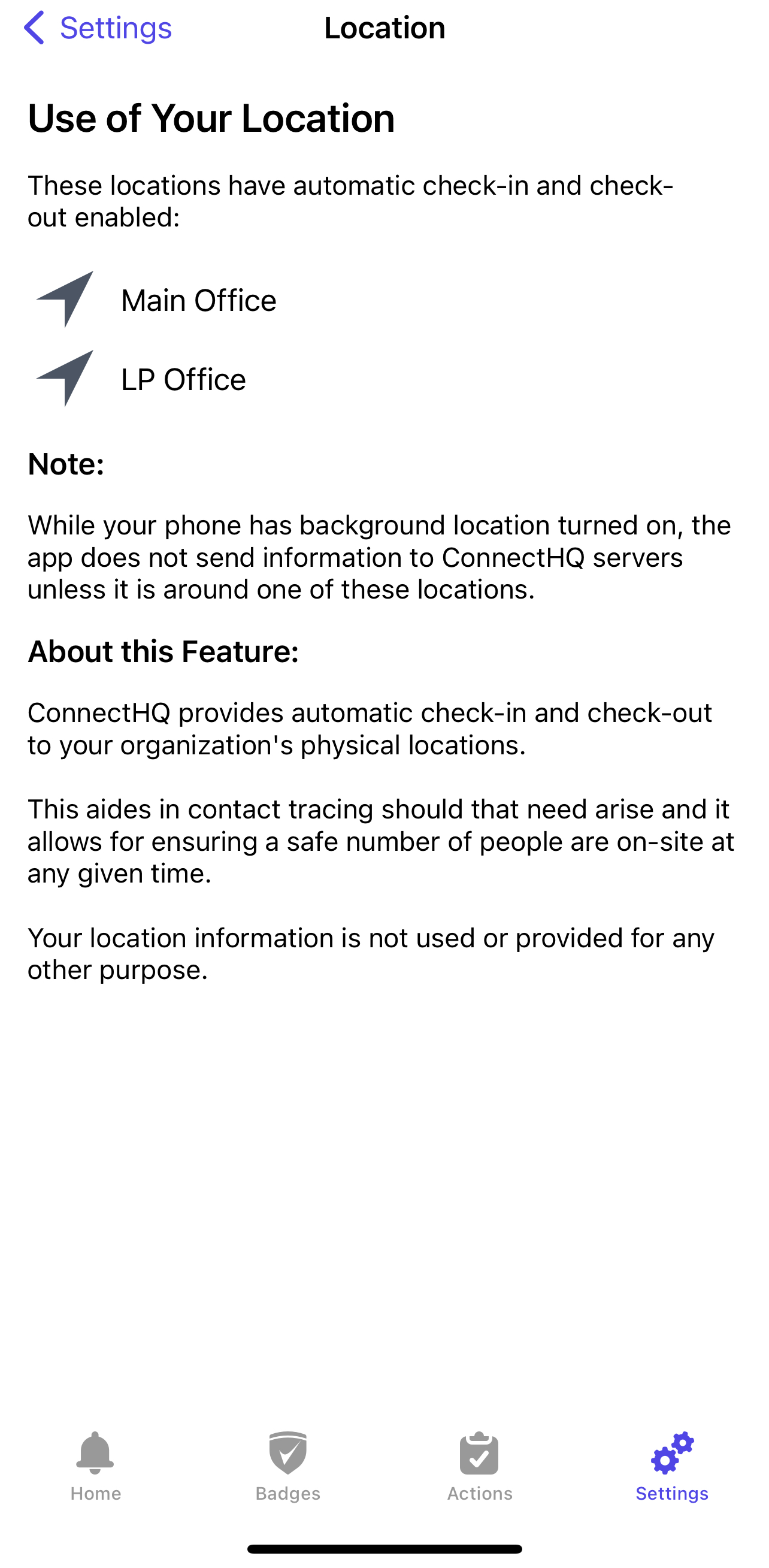
Additionally, users can see if Geofencing is enabled from within their app, under the "Settings" tab > "Location Information."
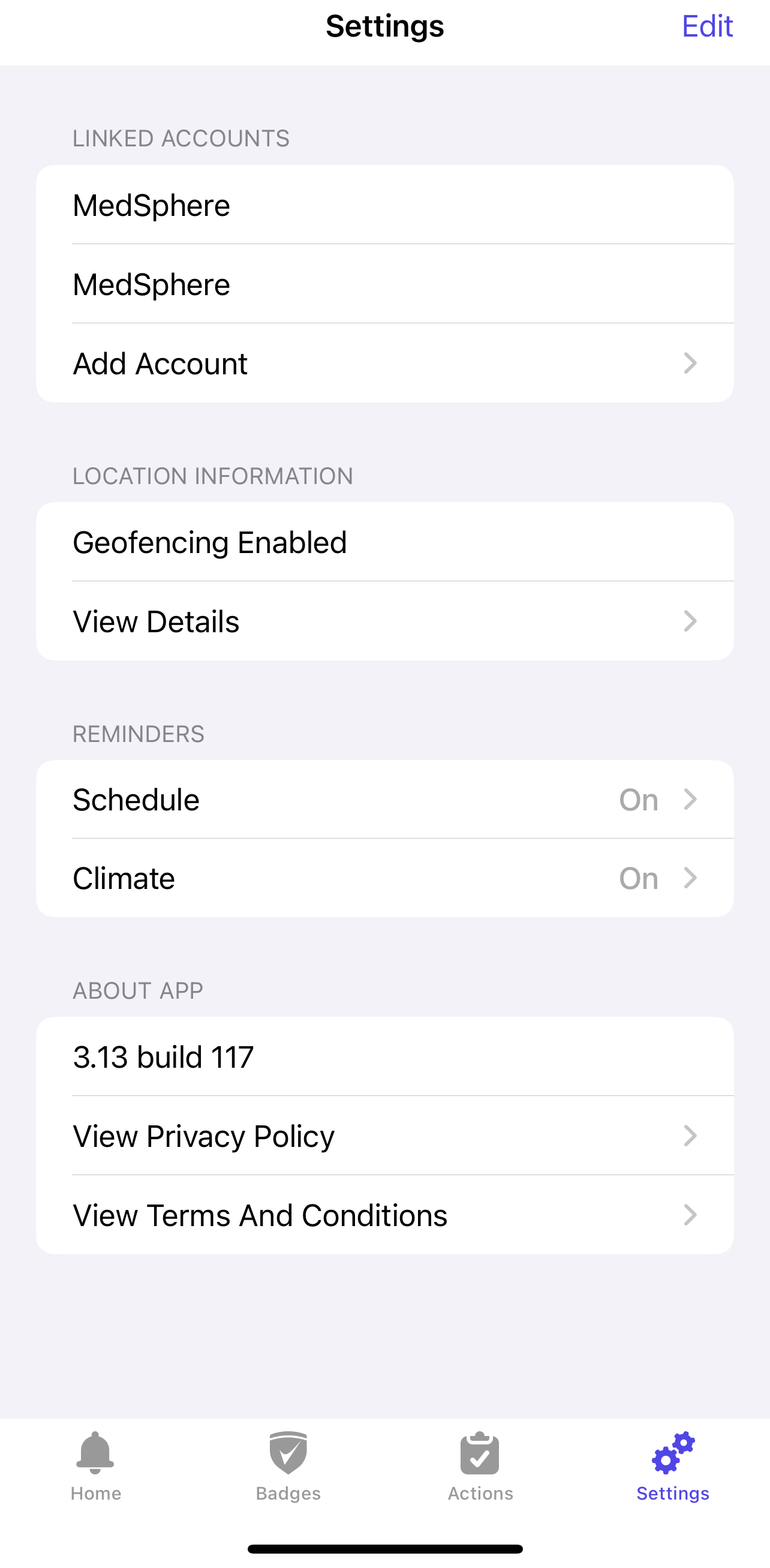
By clicking on "View Details," you will see what location is using your location information in particular, as well as additional user information about this feature.
Manager/Admin Experience
You can view your user's check-in data under the Roll Call, Activity Log, and the Team Status Board.
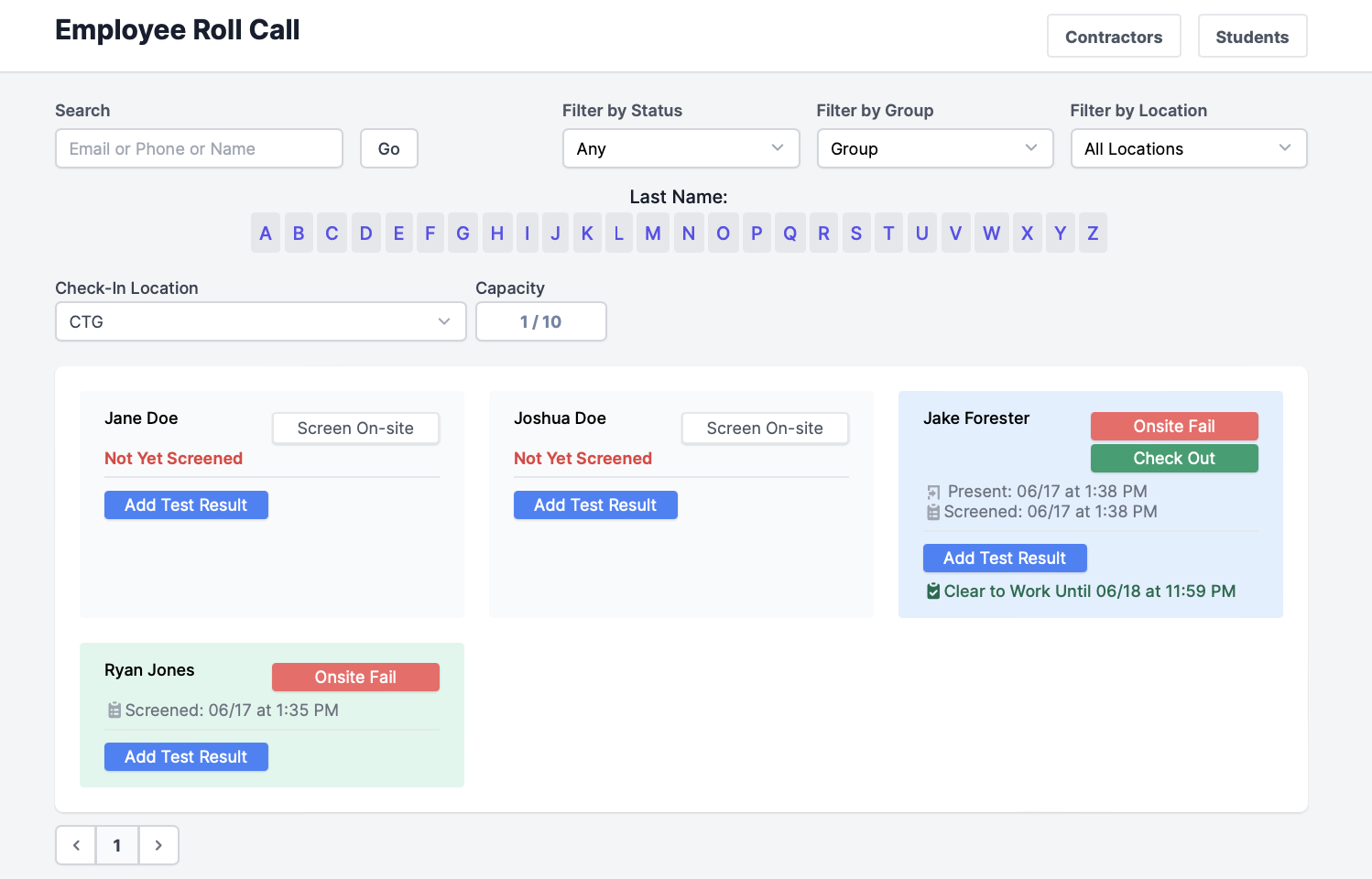
- On the Roll Call page (On-Site > Roll Call > User Type Page) timestamps are reflected for when users screened and when they were checked in (marked as "Present").
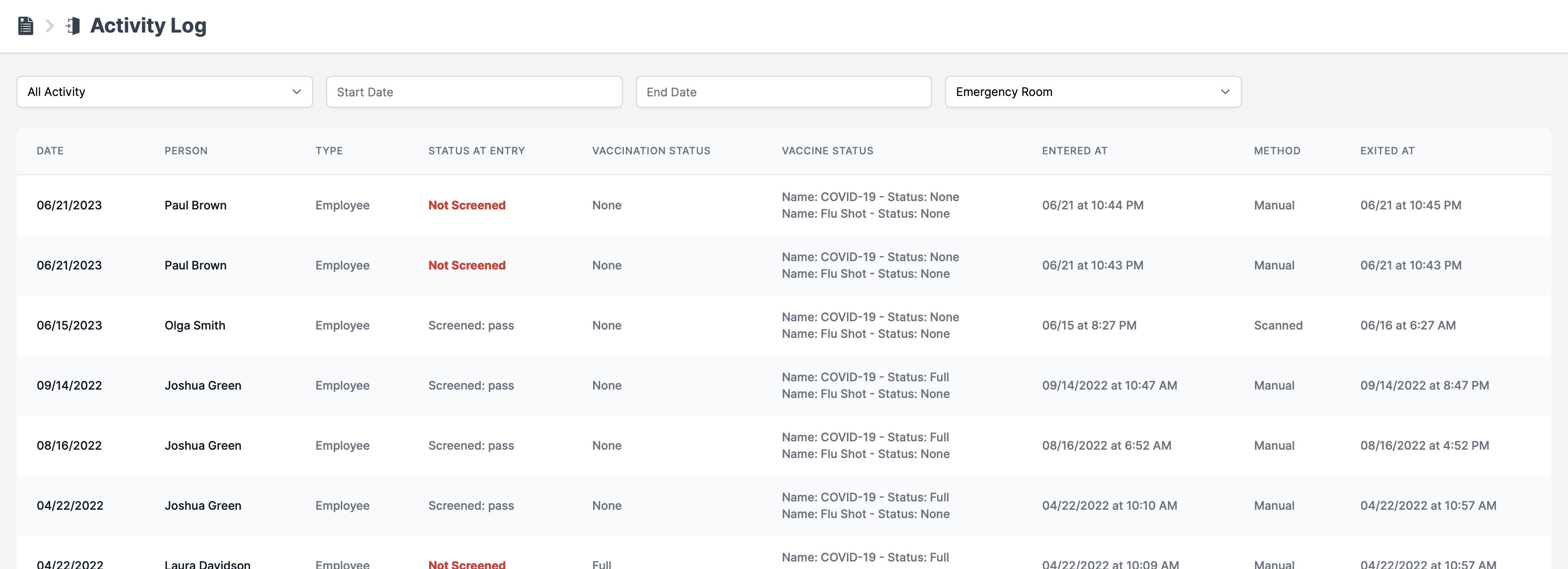
- On the Activity Log page ( Click on your name> Reports> Activity Log), you can see a log of everyone's entered and exited times for a particular location. It can be filtered by date range and/or the user's status as the entry.
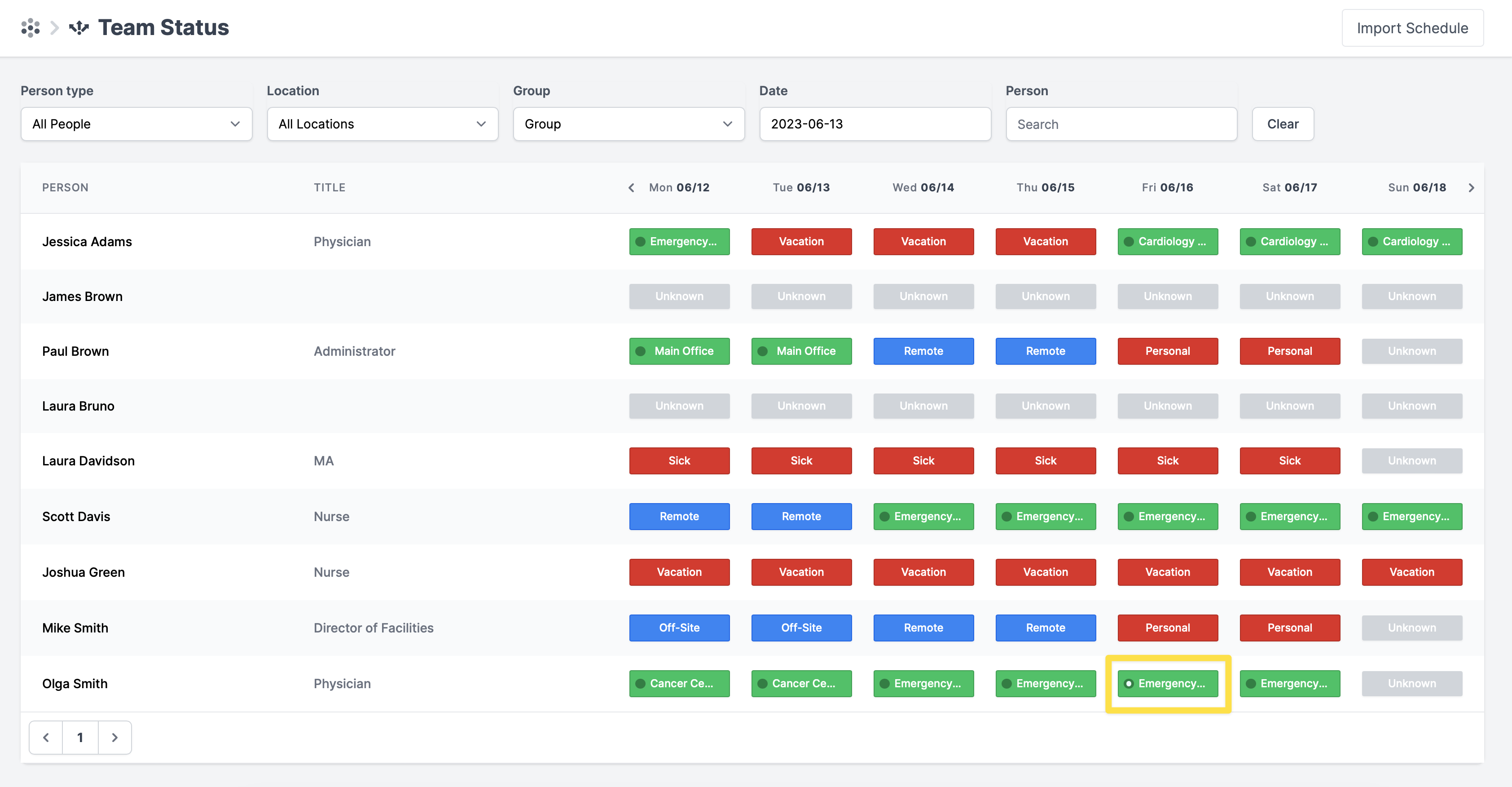
- On the Team Status Board (go to Workforce > Team Status) you can see green windows that indicate the user's intent to come on-site. The filled circle inside the green window indicates that the user checked in at the location.