Setting Your Screening Schedule
To find your screening schedules, head to Your Name > Settings > Screening Schedules.
Adding a Schedule
On the Schedules page, click "Add Schedule."
Then, give the schedule a name. And start selecting your settings:
- Match Rules (more on this below)
- Select a type of user you'd like to get the notification
- Select delivery time
- Select time zone
- Select the days active (which days you'd like your users to get notified)
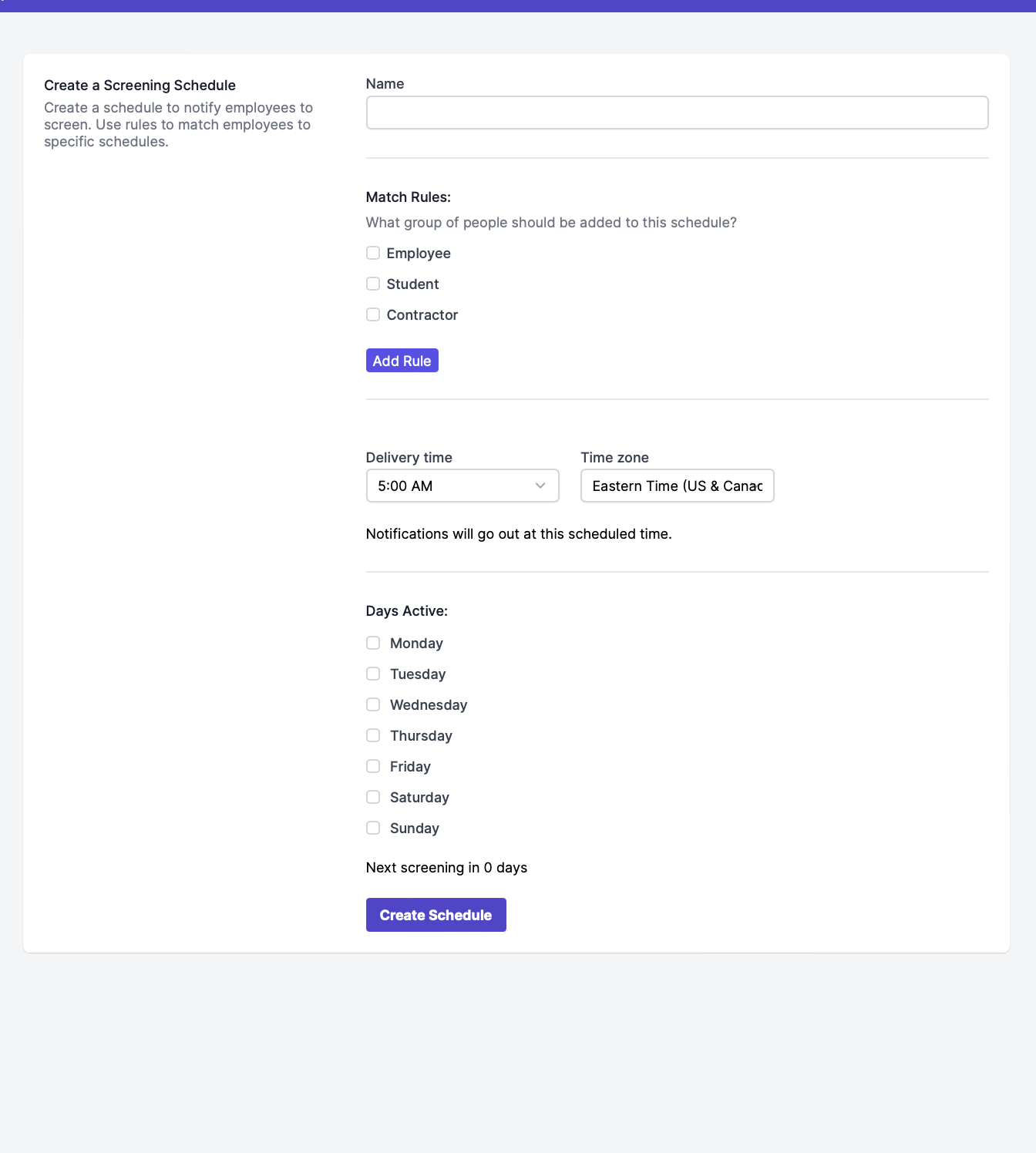
Then, click "Create Schedule."
Please Note: On the Schedules page, the "Notified" column will show the count of how many notifications will be sent. If this number is higher or lower than expected, please review your schedule settings and your users' settings.
**Click here to learn how to add RULES to your schedule.**
---
Sending reminders to unscreened employees
In some cases, it might be important to send automatic reminders to users who haven't screened for the day.
It is required to create an additional screening schedule for each screening reminder with a Screening or Badge property rule.
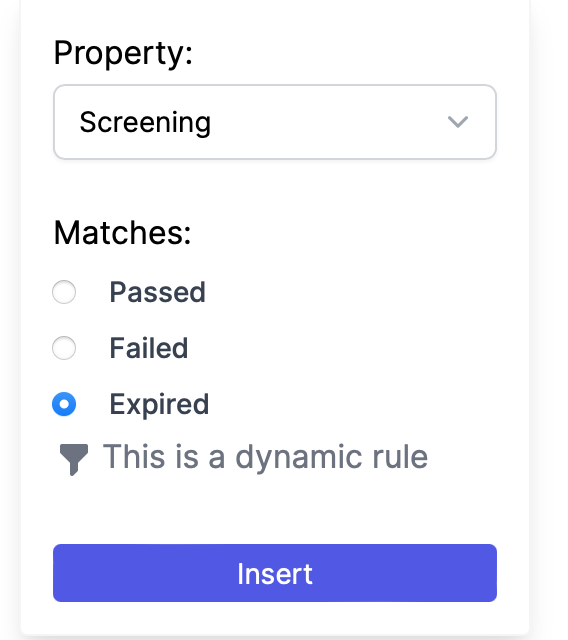
Screening property rule can be used to remind users to screen if their screening status is Expired.
** **
**
Expired -Users with expired screening.
Failed - Users who failed the screening.
Passed- Screened users.
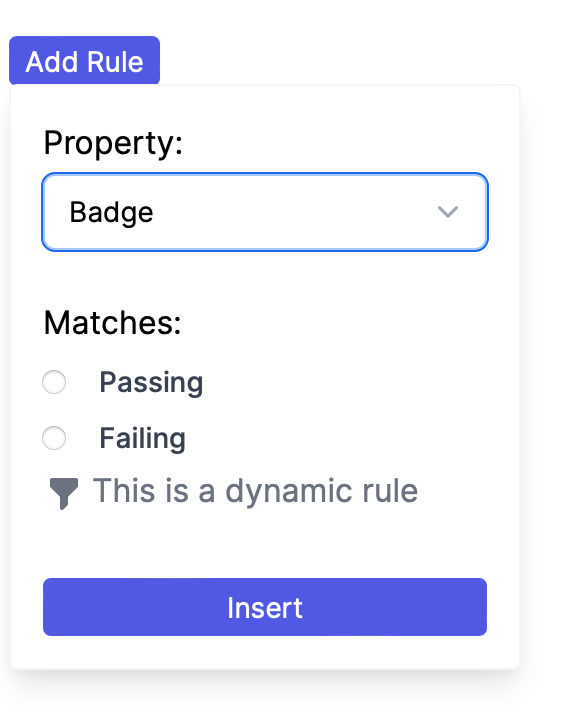
Badge property rule allows reminding users to screen if their badge didn't turn green for the day yet.
Please note: the badge will remain red until all the compliance requirements are fulfilled.