Unannounced Visitors
Not all visitors are going to be announced or planned. Here is how to navigate the visitor system to suit your needs for these users.
Setup
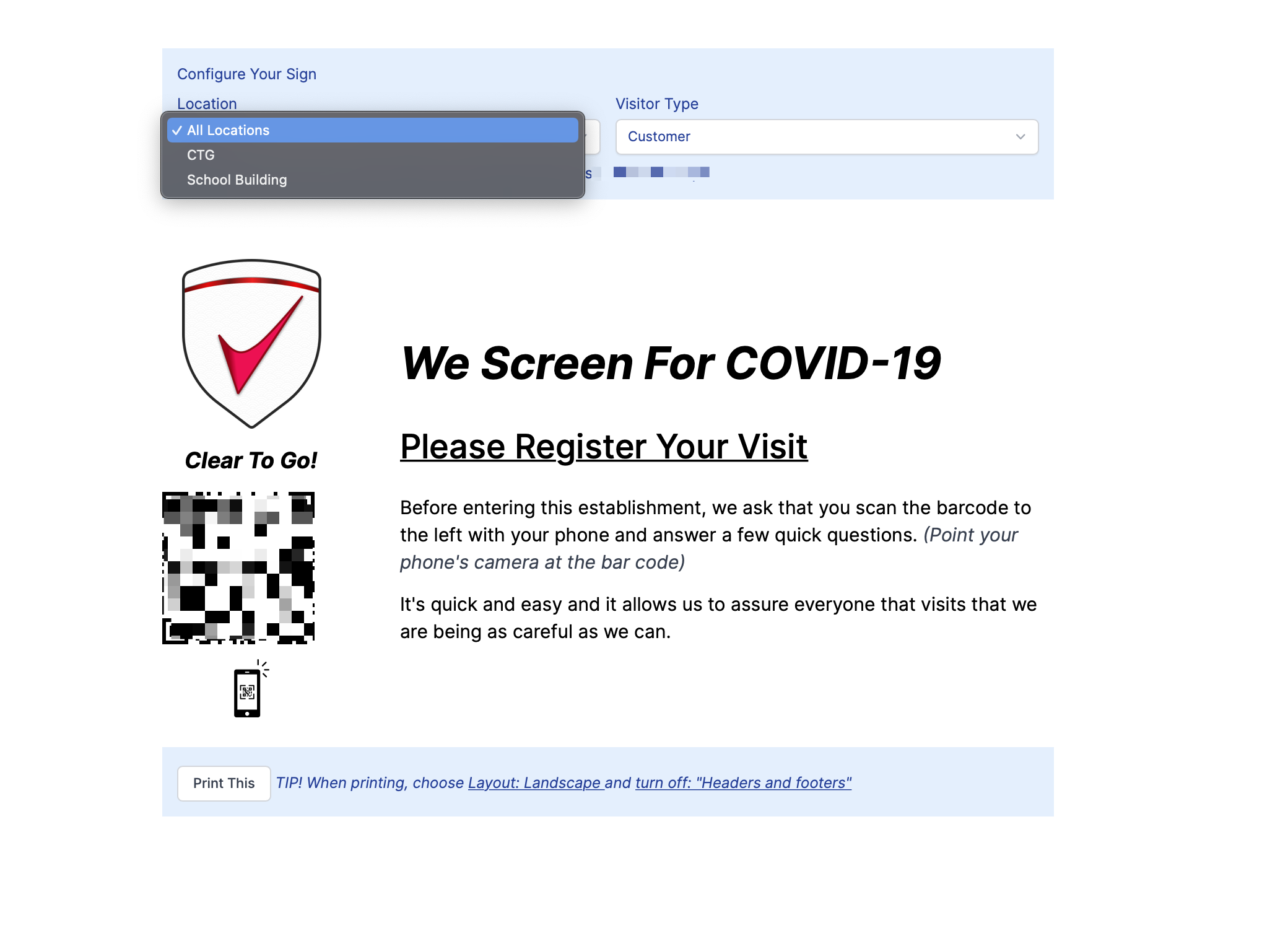
- To start this process you will print signage for each of your locations or visitor types. More on types. This signage will allow visitors to scan a QR code and enter their information before answering the screening questions.
- To access these signs, navigate to the Visitors page.
- Select the "Print a Sign" button on the bottom right.
- You will be taken to a page showing an image of the sign. Select the appropriate location and visitor type.
- Connect to a printer and click Print This.
| | | --- | | Please Note: For best printing results select Layout: Landscape and turn off headers and footers in your printing options. |
- Once you have printed signs for each of your locations you can hang them at the location entrance for Visitors to use.
How It Works
- To start the Visitor will open the camera app on their smartphone, and view the QR code through the camera to scan it. Once scanned they will be prompted to open a Clear To Go! link.
| | | --- | | Please Note: All iPhones and most Android phones support QR reading through their camera app. For specific information on your device's ability to scan QR codes, please consult the manufacturer. |
Alternatively, if the user does not have a smartphone, you can click the link that is on the sign, and fill out the form with them on a computer, or hand them a tablet device and have them fill it out themselves.
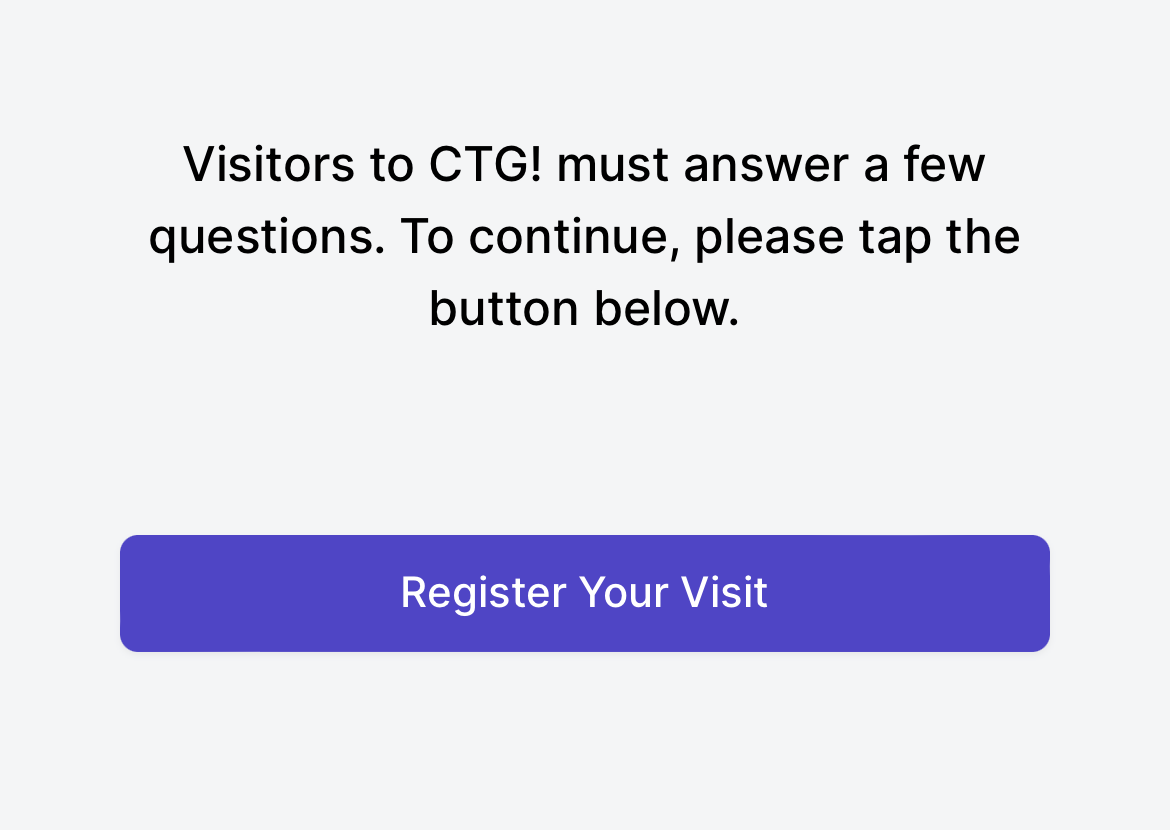
- The Visitor will be prompted to register their visit. Selecting "Register Your Visit" will take them to a form to fill in their info.
- Visitors will be prompted to enter the information required, as indicated in the visitor type settings (See our Visitor Set Up guide).
- Once this information is submitted they will be taken to your organization's screening questionnaire, and can answer questions as normal. This is also the point at which the Visitor's information will show up on your organizations Visitors page.
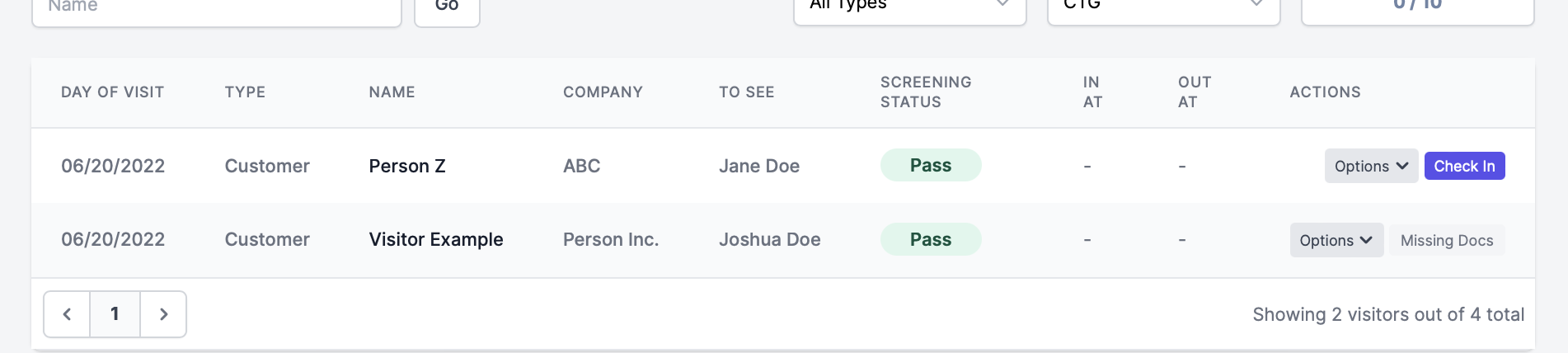
- When a visitor completes screening, the result will be displayed under Screening Status. You will then have the option to Check In the Visitor. Once checked in, you will have the option to check out the Visitor.