
Roll Call
To get to the Roll Call page, go to On-Site > Roll Call.
This page is a 24-hour view that is used to check in on the status of your users as they arrive throughout the day.
You can cycle between your user pages:
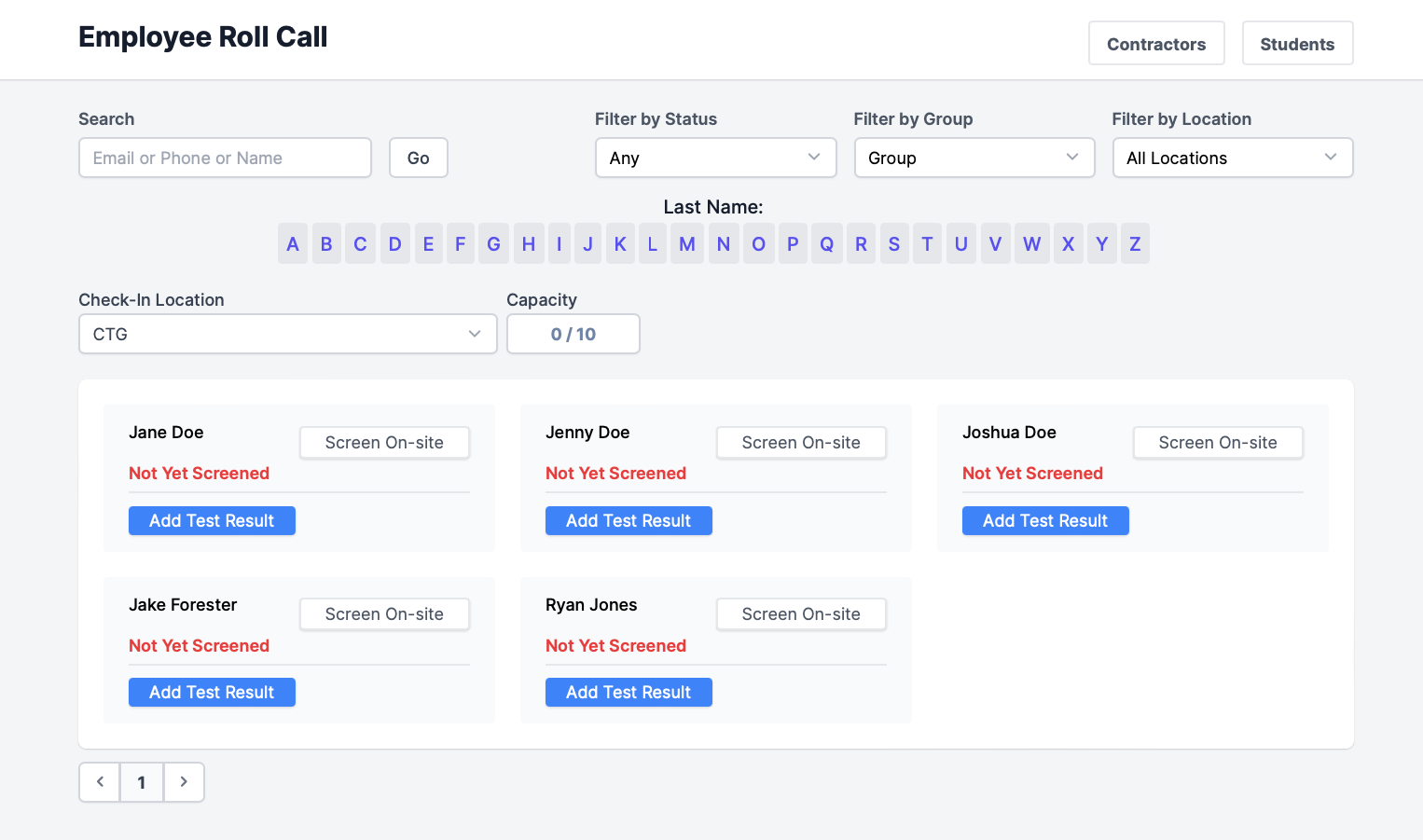
On this page, you'll see a list of your users. For each person, you can see if they screened, their result, and whether or not they have been checked in. You also have access to filters on this page.
Performing Check-Ins
When someone arrives for the day, the user responsible for checking users in will be able to see if they have passed their screening for the day.
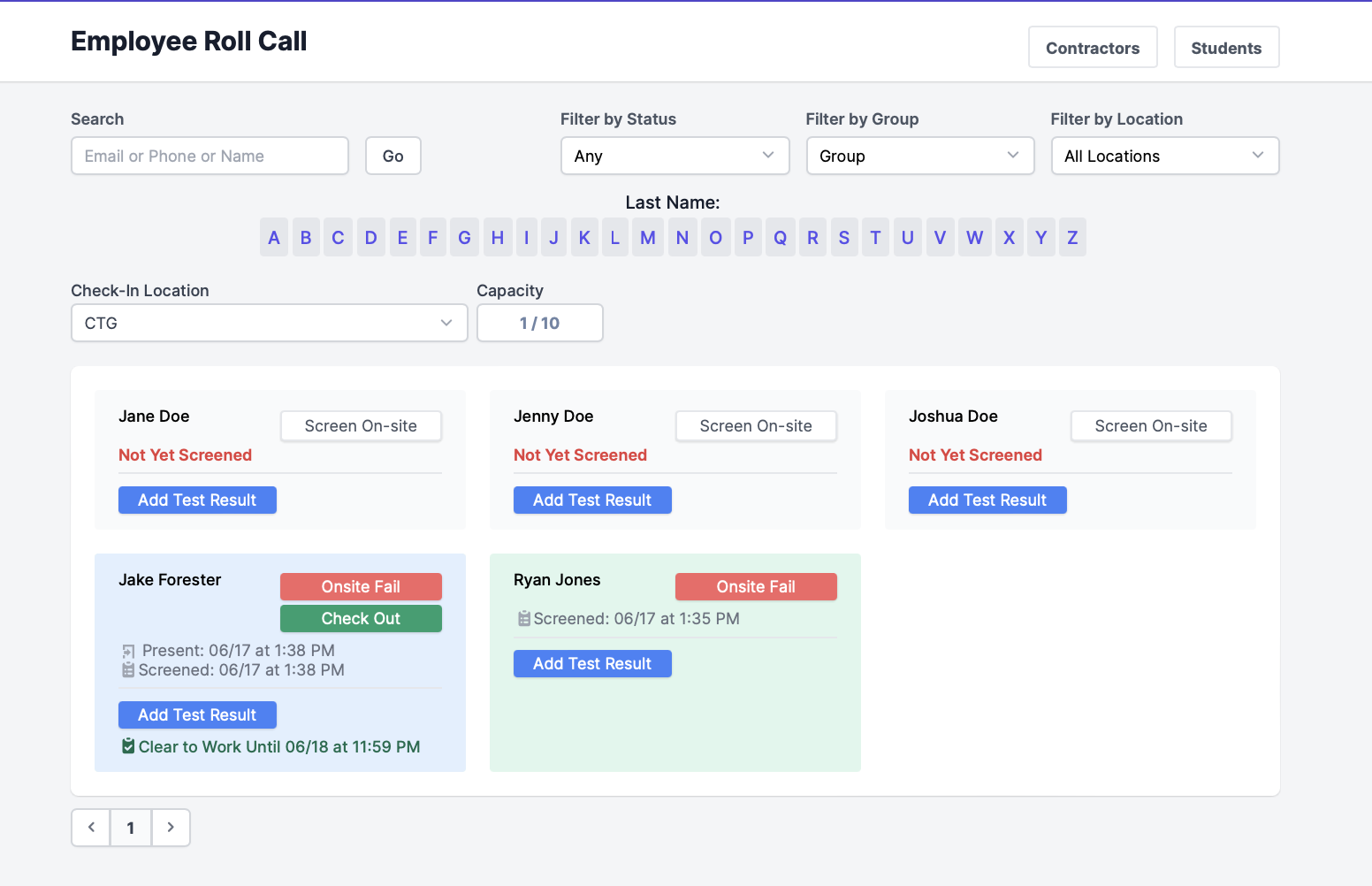
If an employee has screened and passed any onsite requirements (via their compliance checklist), the user that manages the page can check the employee in by licking "Mark Present."
Alternatively, users can be checked in via one of the other five check-in methods.
Please Note: The "Onsite Fail" button you see does not mean that the user failed their screening. That button is there for managing users, to mark someone as a failing screening, in the case that a user passes their screening but is deemed unfit to be on-site.
Once users are checked in via one of the six available methods, their square should turn blue. This indicates that the person is on-site. The check-in time stamp will be visible in the blue box.
Please note: the check-out time stamp is never shown on the Roll call. It can only be viewed under Reports> Activity log.
Please also note: if the user has not screened yet, the check-in time stamp will not be visible on the Roll Call.
If someone arrives and attempts to check-in, but they have not completed a screening for the day, they will show up as grey with red "Not Yet Screened" text at the bottom of their square. If you'd like them to screen on-site, they don't use the mobile app, etc., you can select the "Screen On-Site" button, which will prompt you to screen with them, on their behalf.
Note: Users who are not compliant with their respective checklist will be indicated with "Clearance Expired" text. Users will still be able to screen, but this message is to indicate who is out of compliance, outside of screening.
- If an employee's compliance and/or screening has expired, users will still be able to be checked out, but will not be able to screen on their behalf; they will need to be checked out before they are able to be screened on-site again.
- Users that are compliant will be indicated as so until components of their checklists expire, shown with green text.