Vaccine Submission and Review
Many employers and organizations may ask for proof of vaccination. Our submission and review features offer a simple solution to these needs and allow employers to internally validate whether employees have been vaccinated, or have met other vaccination needs.
Default vaccinations are already set for your organization, but are not automatically enabled. You can edit these at any time, or create your own vaccination settings via Your Name > Settings >Vaccines, where you can create new vaccines. More on your Vaccine Settings here.
Vaccine Tracking
To use the Vaccines feature, you will need to enable Vaccine Tracking, via Your Name > Settings > Vaccines. Toggling this on will allow your organization to start receiving vaccination submissions. You will also need to have at least one vaccination active, which can be the default vaccination.
Please Note: You will need to make sure that the Vaccine settings are enabled in the Compliance Checklist(s) of your users. See our Compliance Checklist guide on these settings.
Mobile Submission
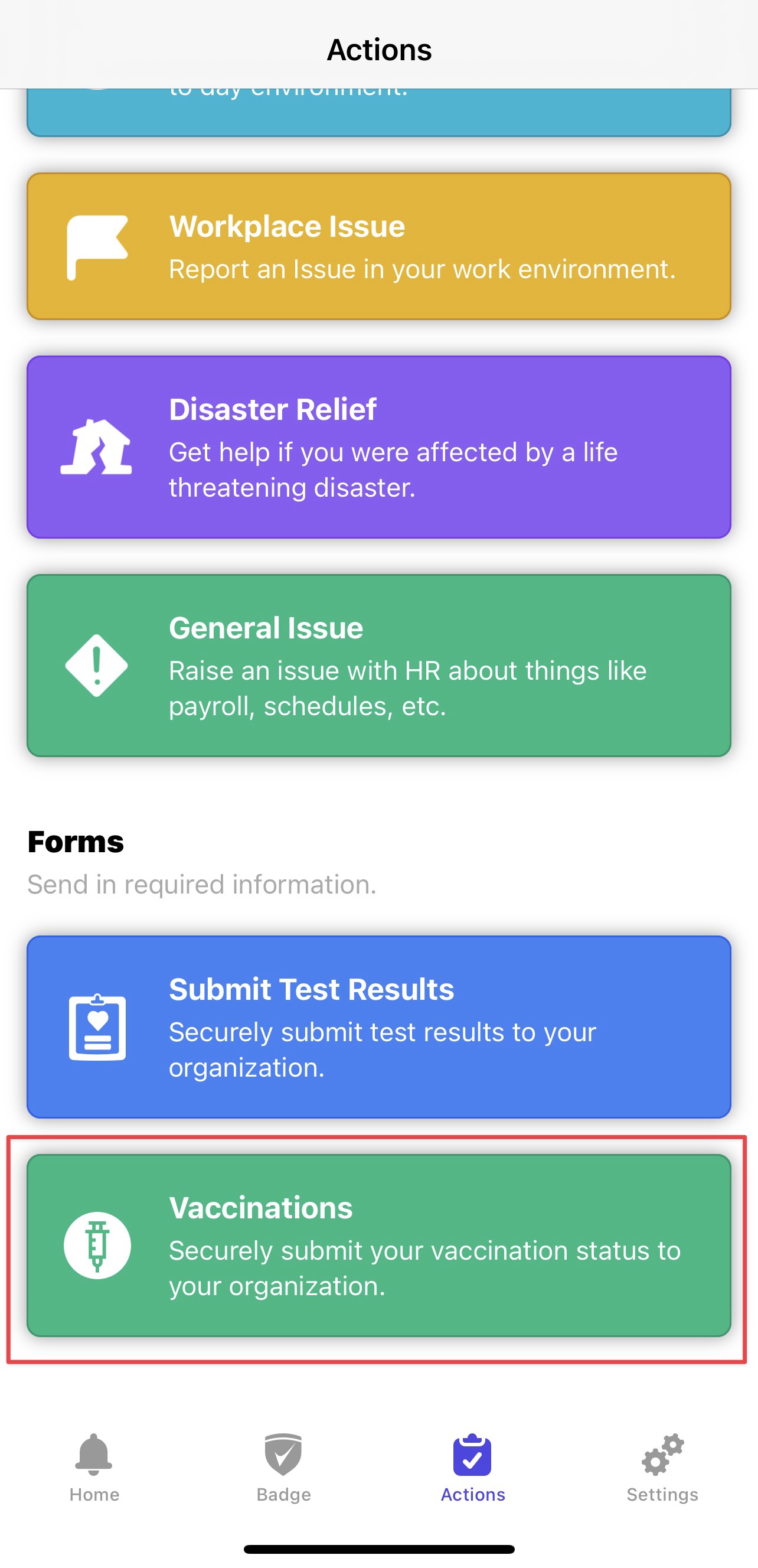
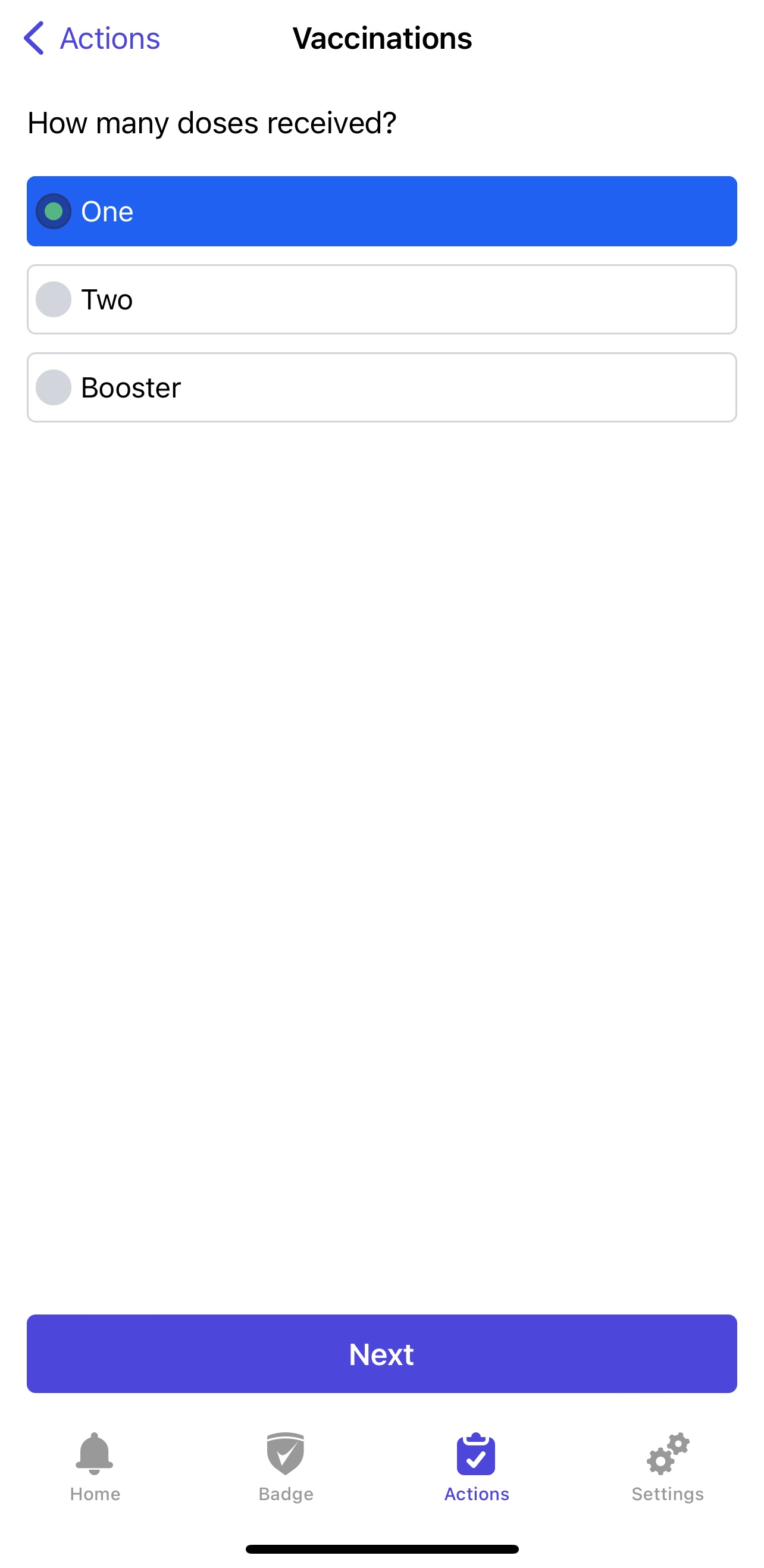
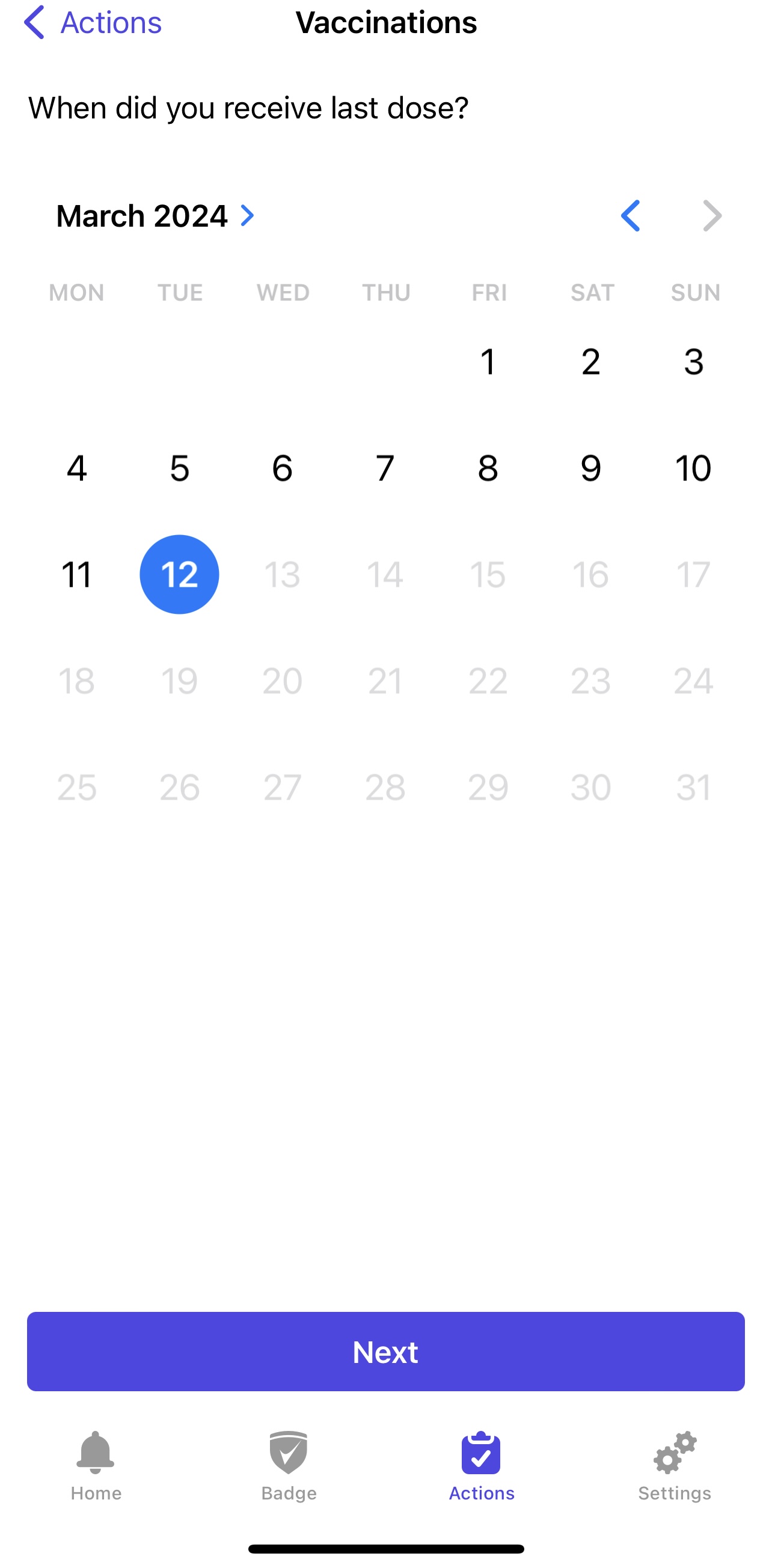
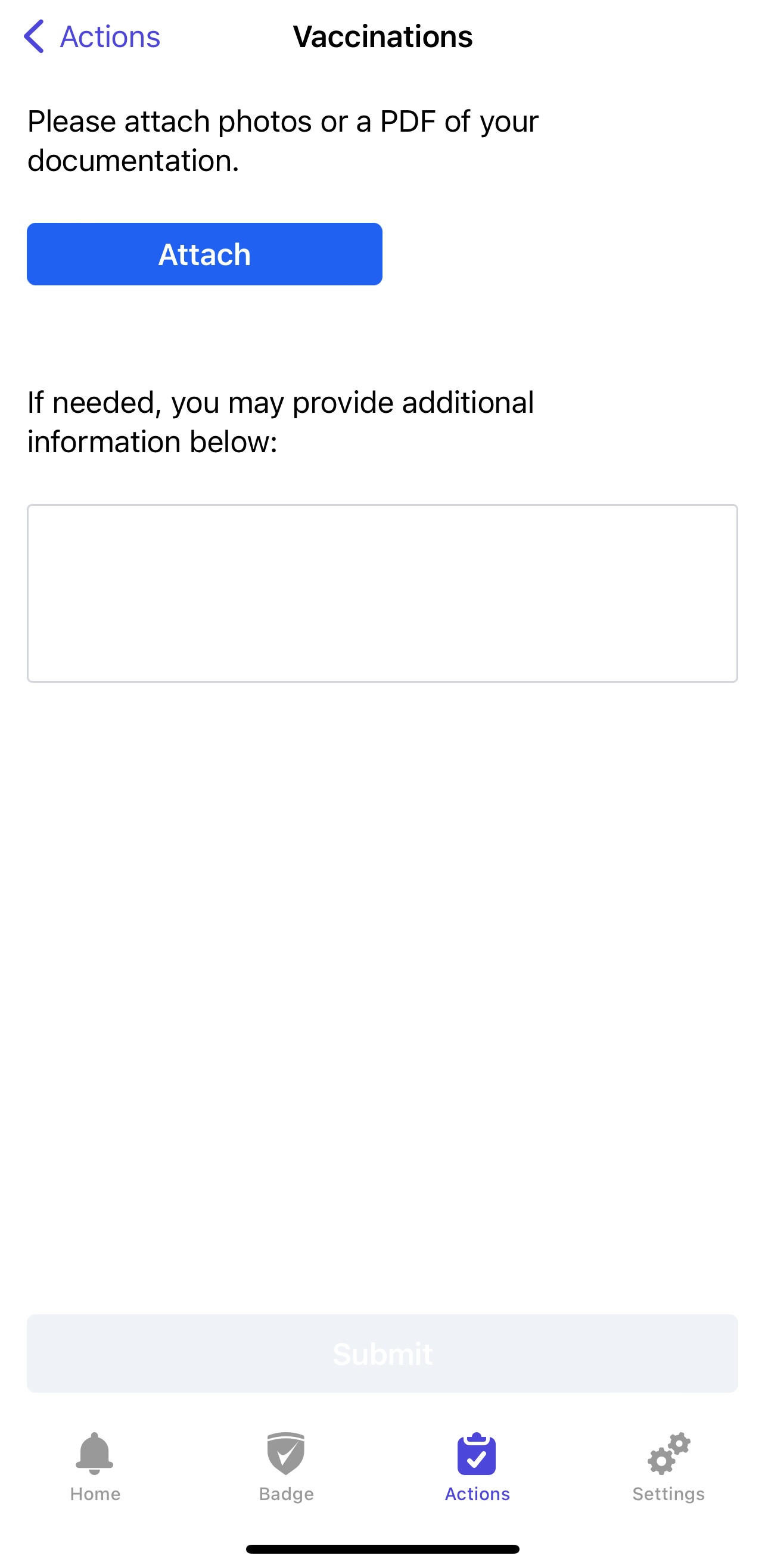
Users can find the page to submit their vaccination information via their mobile app > the "Actions" tab > the Green Vaccinations button.
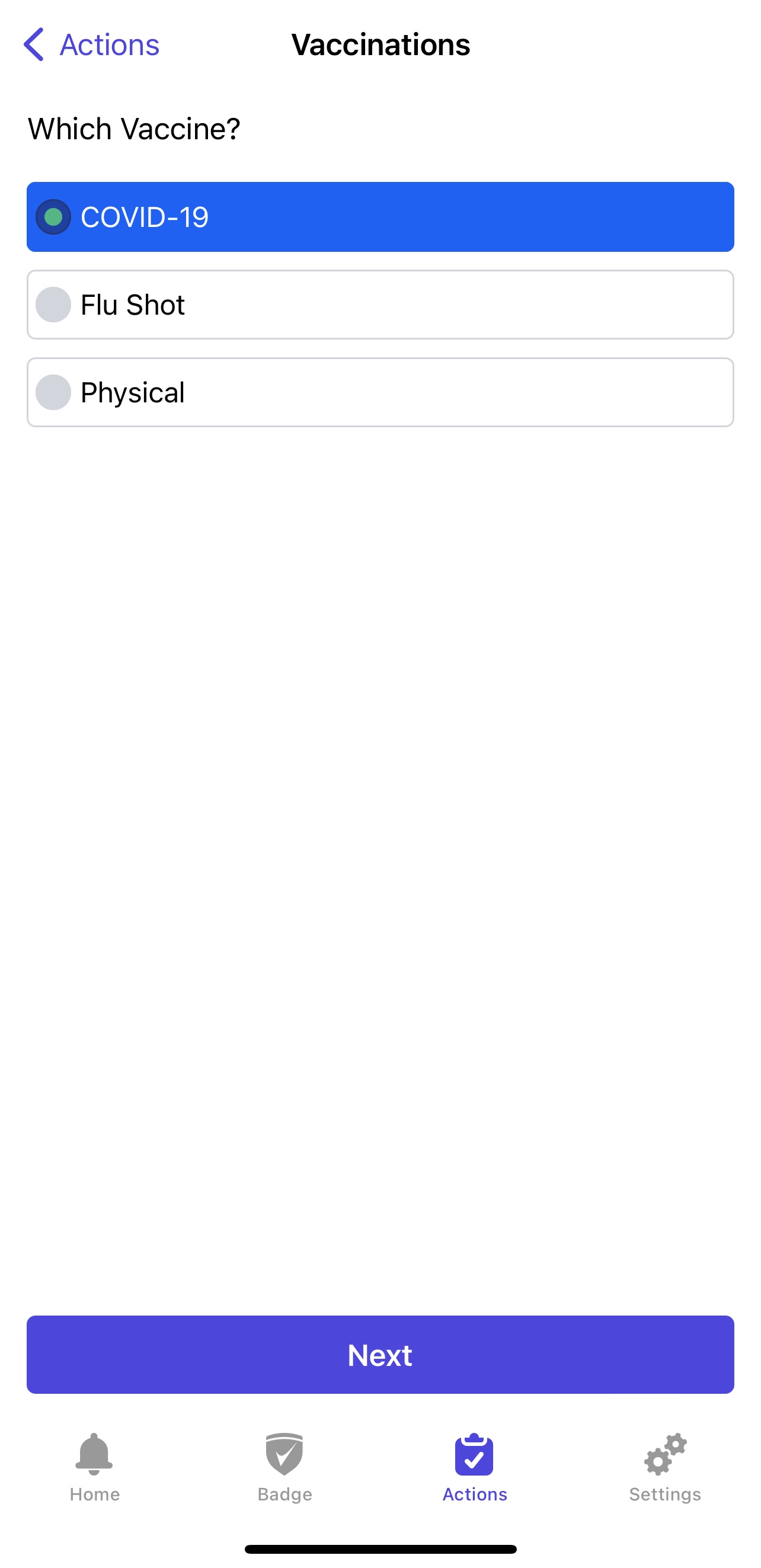
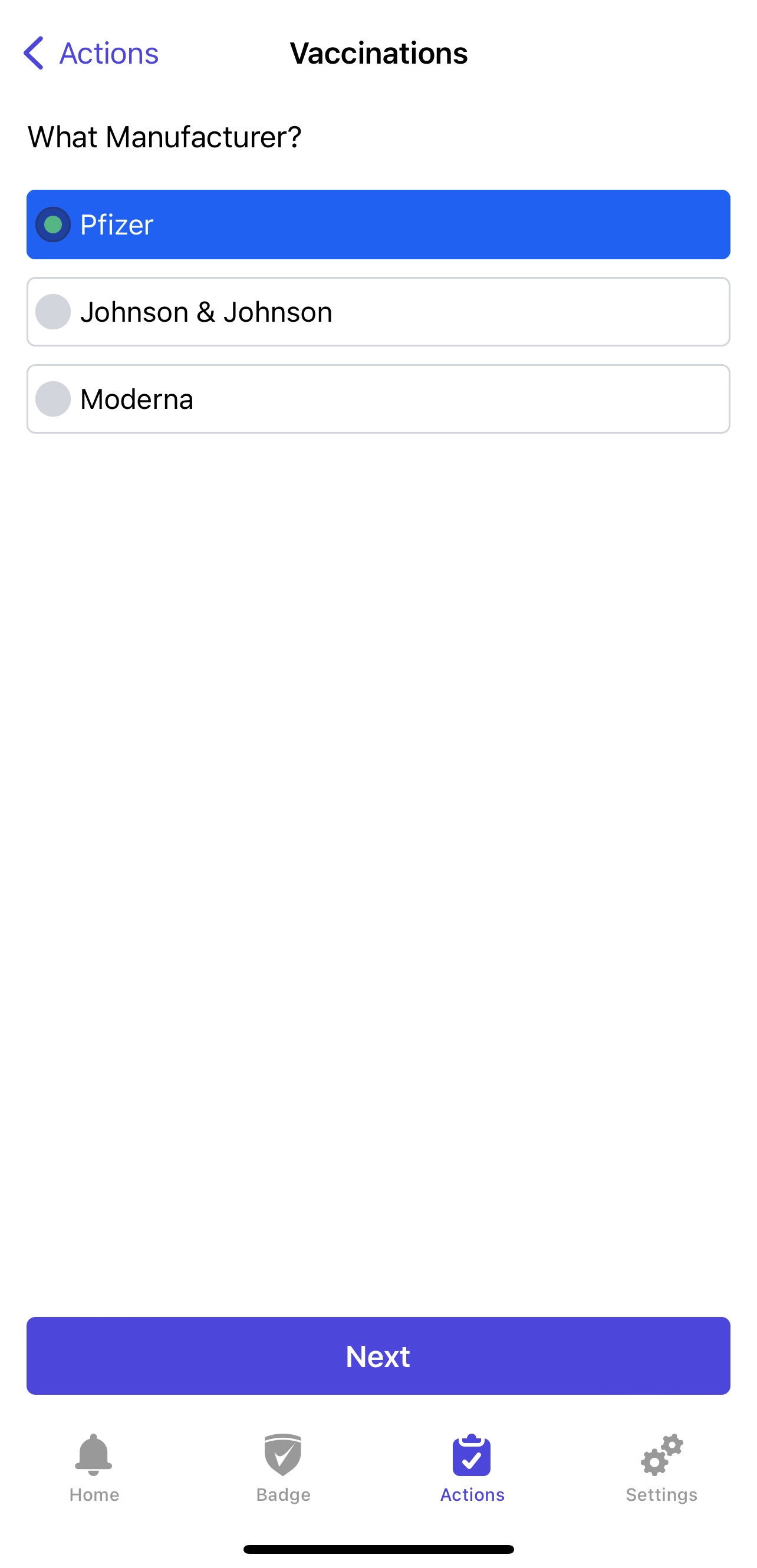
Through this, users can select which vaccine they are submitting, or choose to opt out (more on this below), what manufacturer, how many doses were received, when the most recent dose or booster was taken, documentation, and any additional information.
Note: If a user has multiple organizations linked to their app (i.e. a parent who works and is screening on behalf of their student), they may need to select which organization they are uploading their information to.
The user should receive a notification stating that the submission has been sent, and then a notification based on whether the submission was accepted or rejected.
Browser Submission
If users are unable to use the mobile app or would prefer uploading their information from their computer, via a link.
Users with appropriate vaccine permissions enabled can find the link to send users via Your Name > Settings > Vaccines.
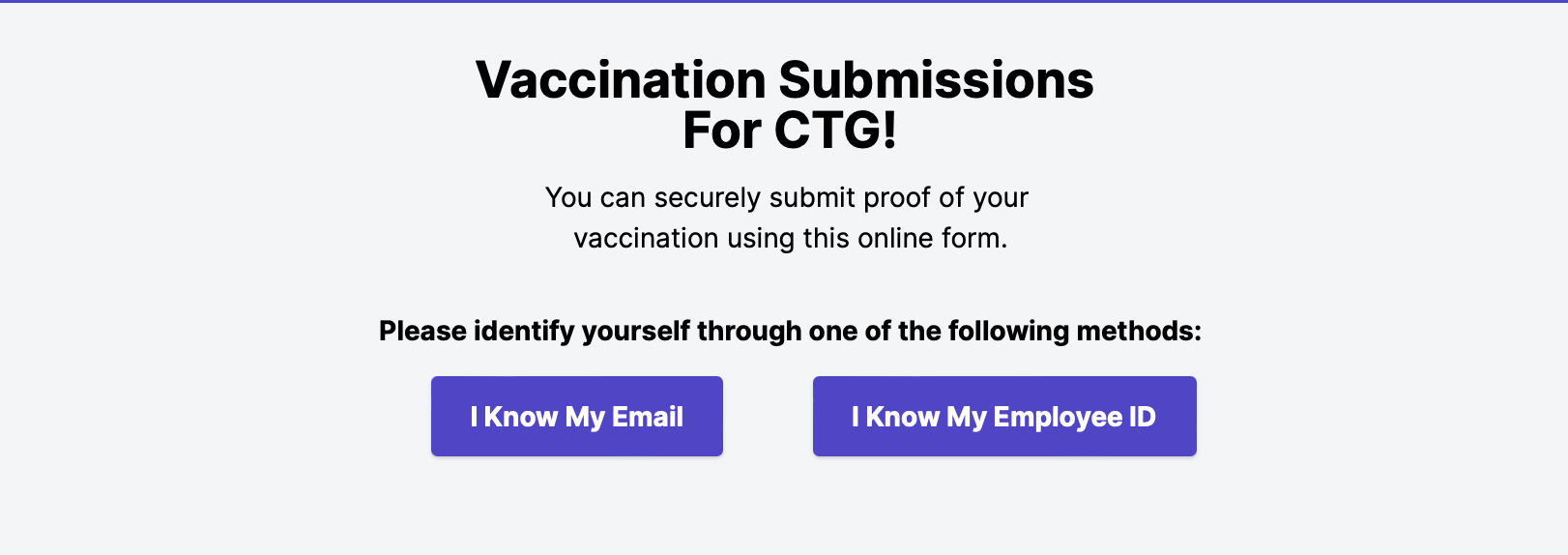
After clicking on the link for their Vaccination information, users will be asked how they would like to identify themselves. We recommend using the email they use to screen. After they enter their email, they will be sent an email to submit their information
If users select "I Know My Employee ID," they will be asked to enter their ID and Last name. Then, users will be prompted to fill in their information.
Either way, they will be prompted to follow the following questionnaire:
First, click "Start Submission" and follow the steps shown below.
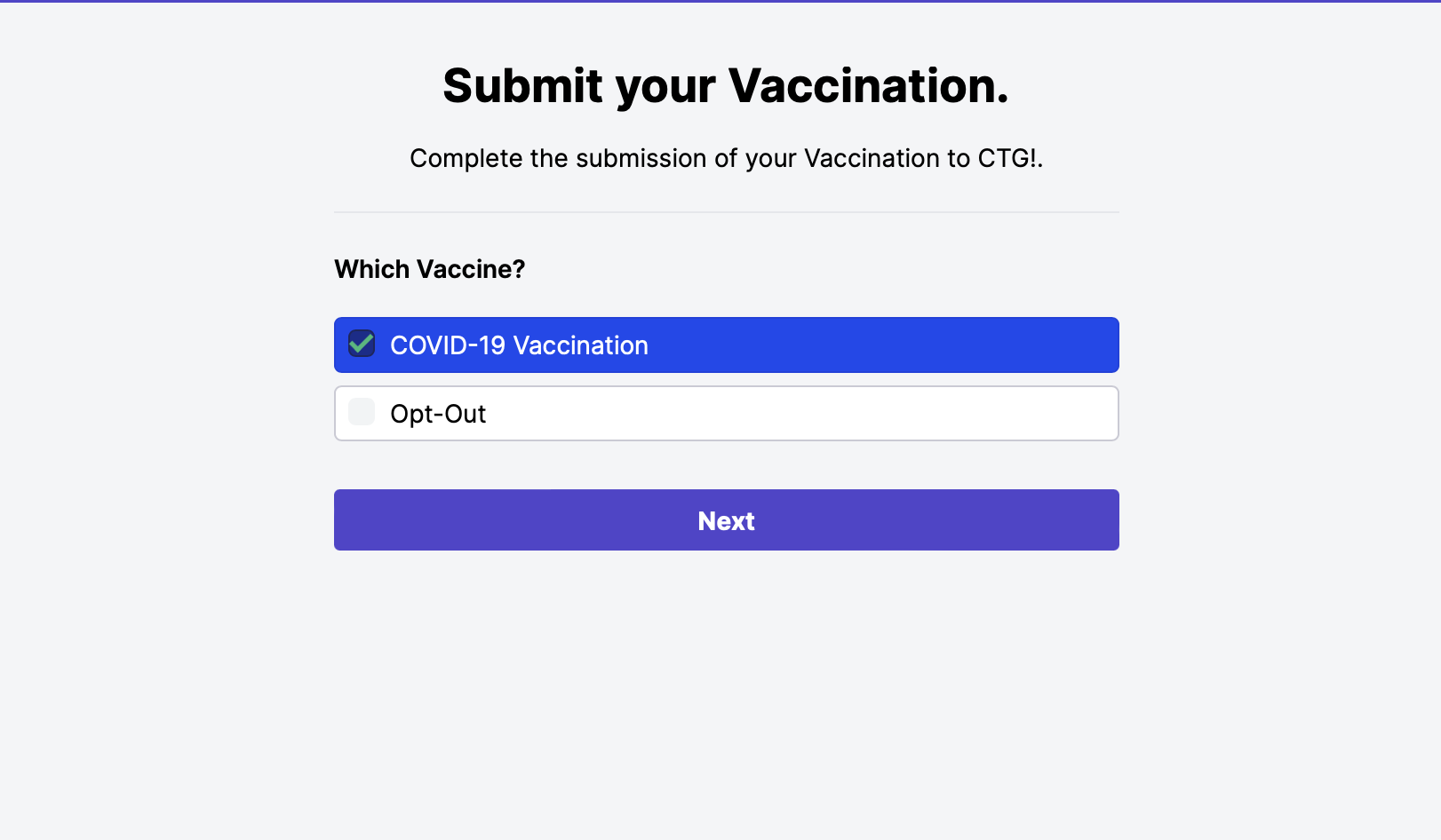
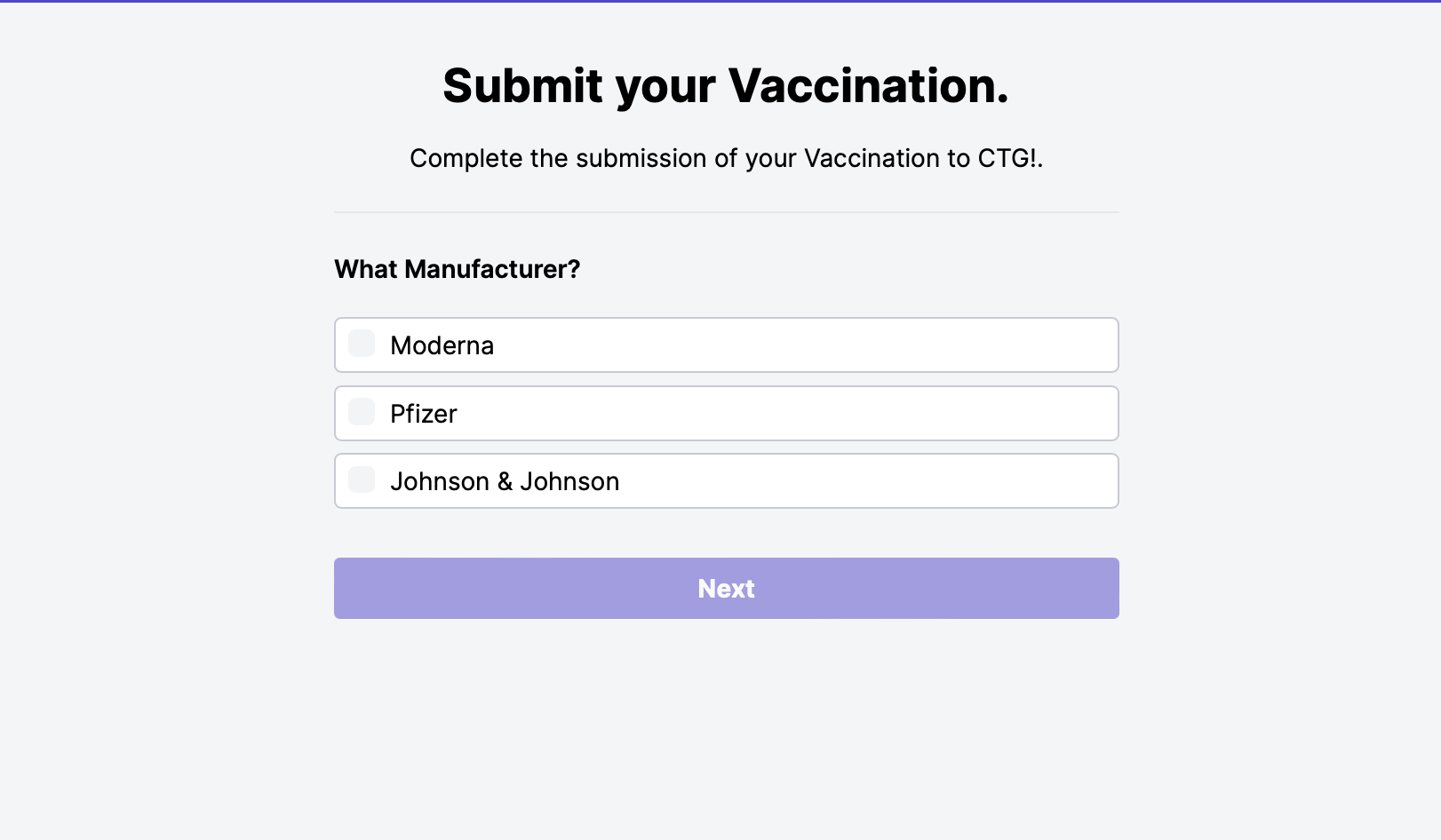
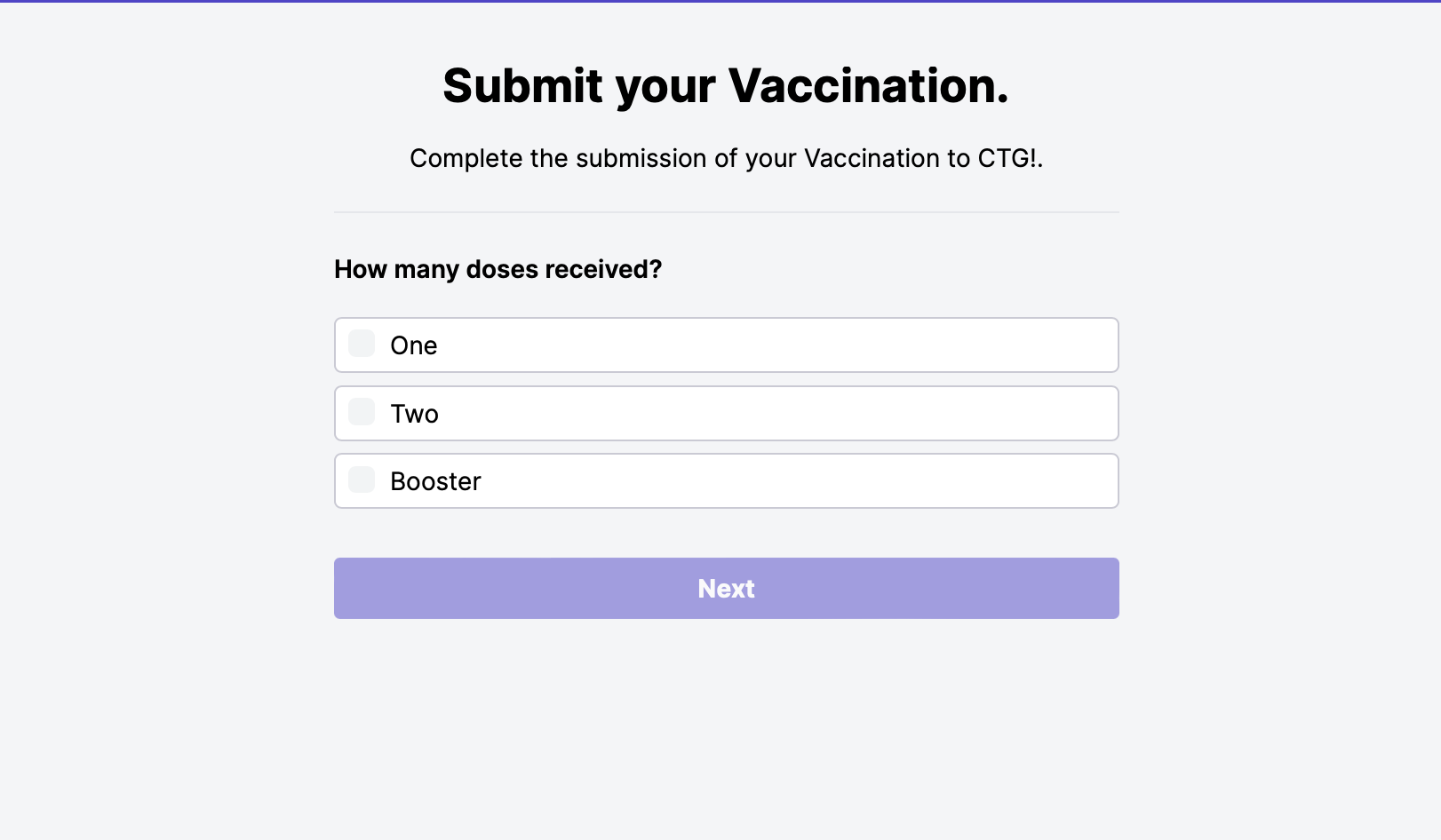
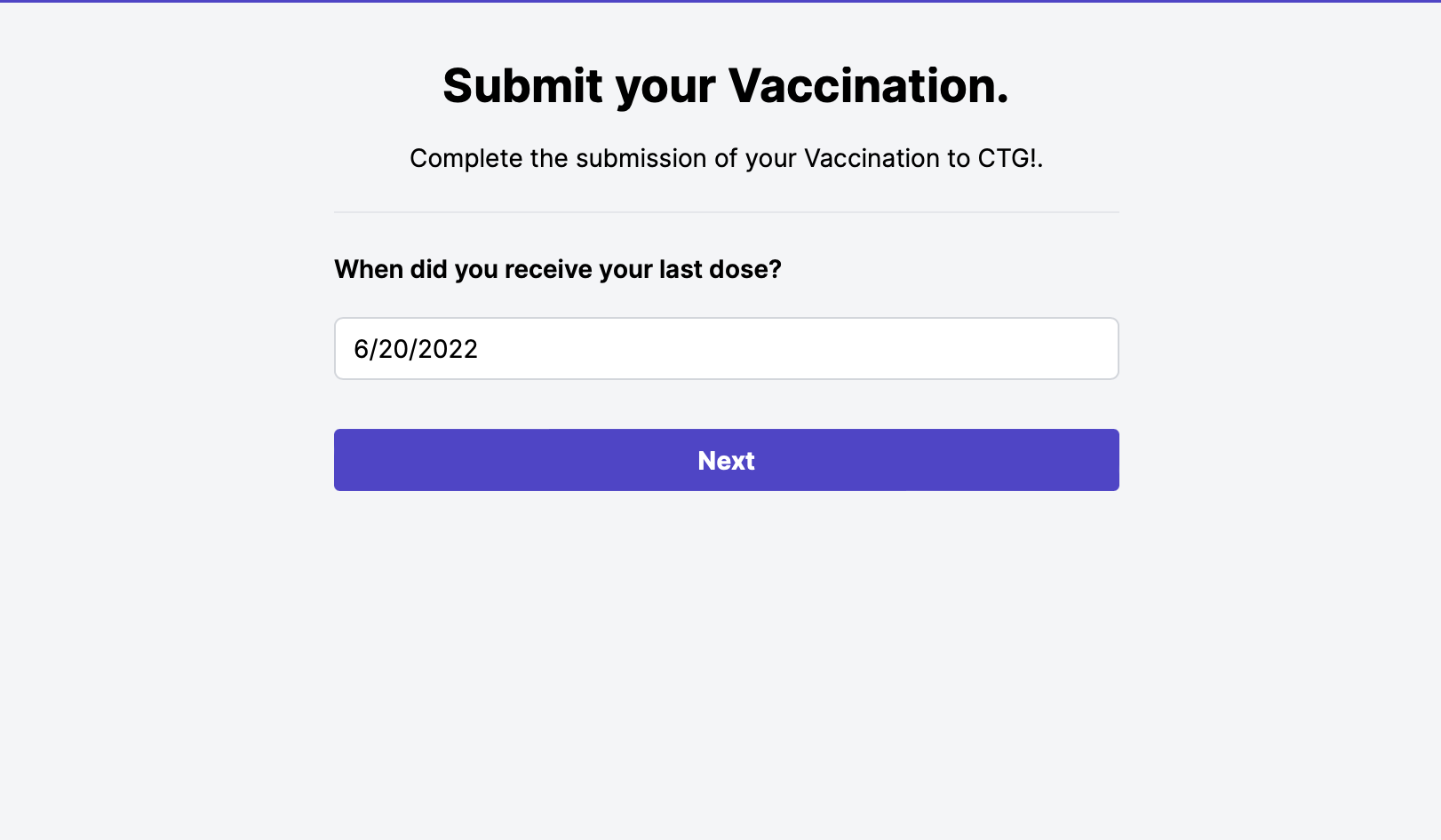
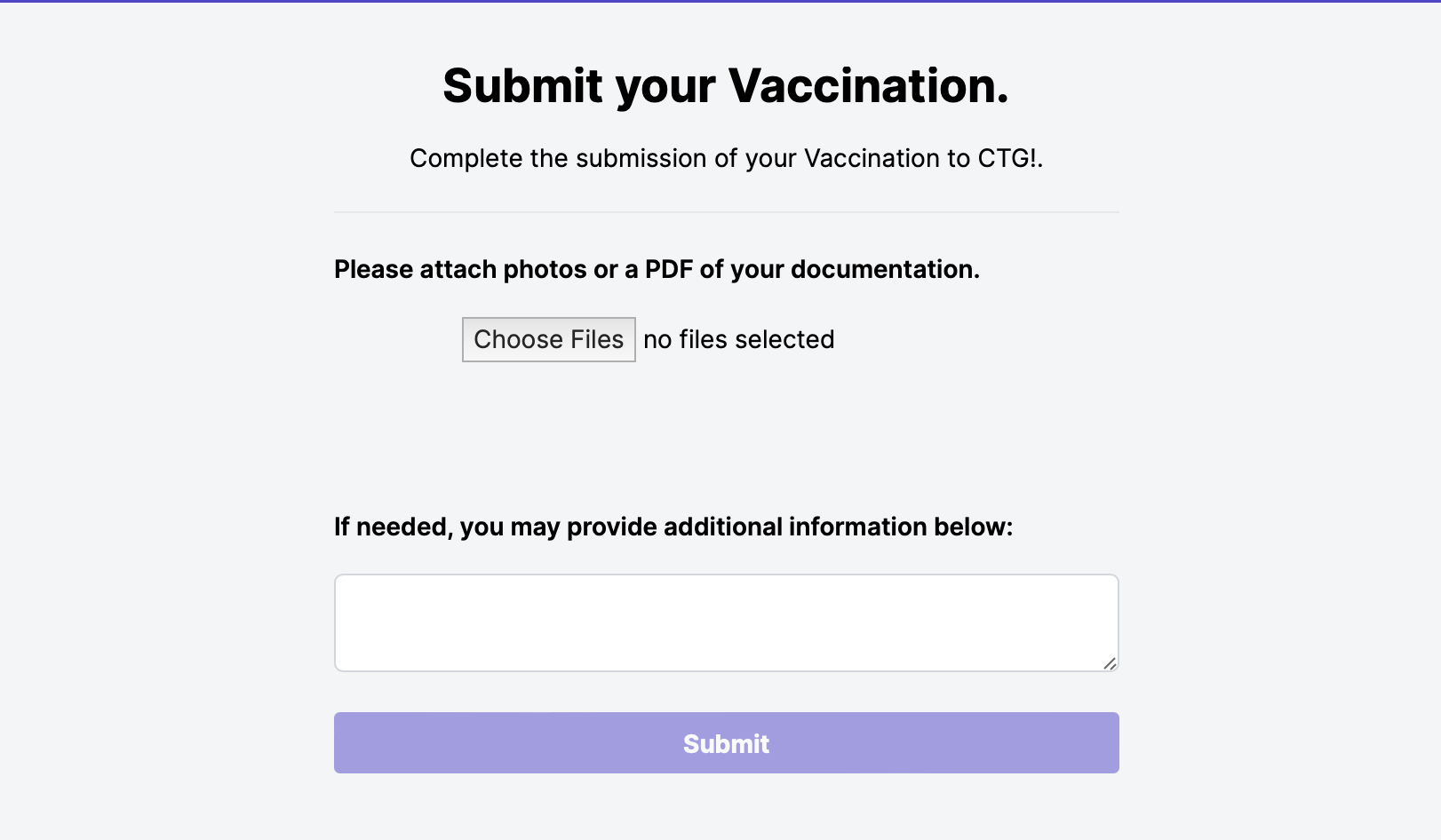
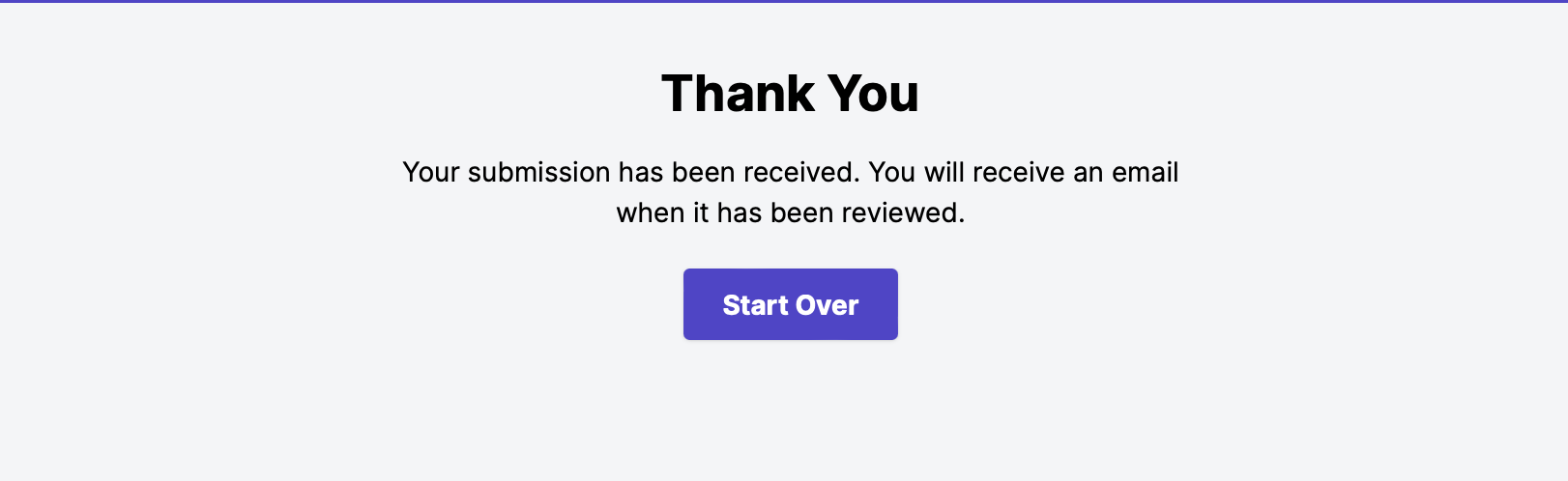
Finally, after clicking "Submit," you'll receive the following message:
Manually Entering a Submission
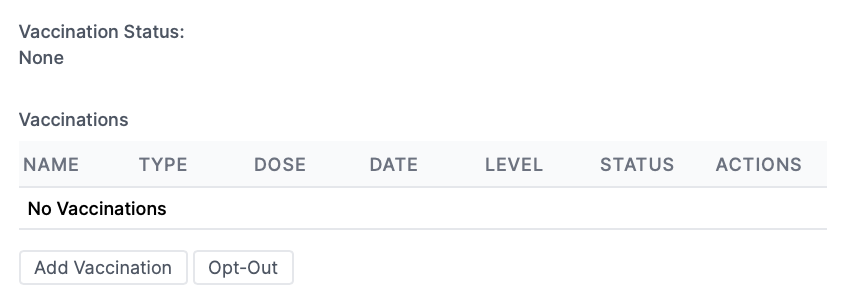
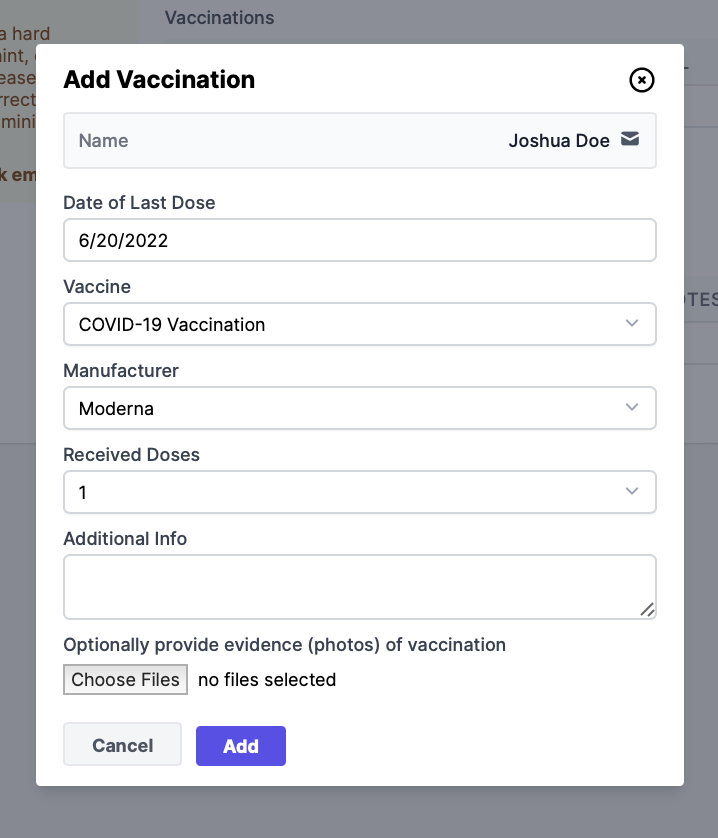
Users with permission to Manage Vaccinations & Manage Employees, Students, or Contractors can add a vaccination record by going to Workforce > Employees or Students > Edit on a user > "Health" tab > "Add Vaccination."
Select the vaccine name, and number of doses received, upload documentation if needed, then click "Add."
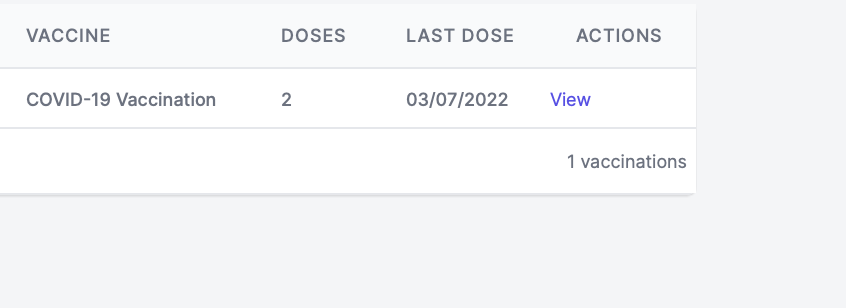
The vaccinations will then be listed and show the number of doses received, and the level of vaccination (none, partial, fully, expired, or exempt). This can be modified by clicking Edit. To remove a vaccination, click the X under Actions.
Reviewing a Submission
After an employee has submitted their vaccination, the vaccination will be available for review via the Vaccinations page (Your Name > Settings > Vaccinations). Users with the permission to Manage Vaccinations should receive an email alert that a user has submitted proof and will be able to review the submission.