
Screening Questions
There is a default questionnaire provided to you for screening and can be sent to all types of users. However, this screening can be customized to fit the needs of the organization.
Modifying the Questions
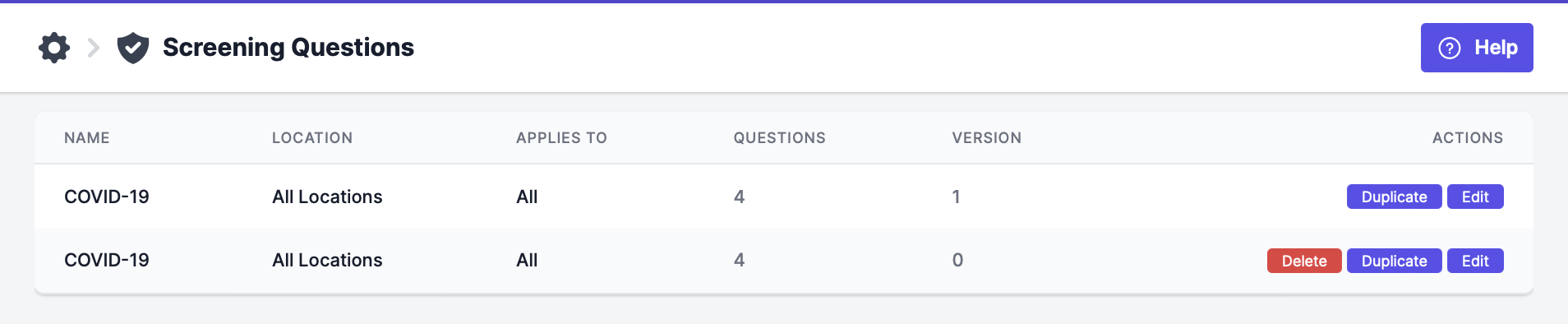
Go to Your Name > Settings > Screening Questions.
Then, you have two options: edit the default questionnaire or duplicate it. If you select "Edit":
- You are able to add/remove questions
- You are able to add/remove answers
- You can modify the questions and answer as you see fit.
- You can select how long you'd like the screening to be valid after completion
If you select "Duplicate," you get all of the above settings available, as well as:
- You can set a specific location to get this questionnaire
- You can select a person type to get this questionnaire
- You can select a vaccination status to get this questionnaire
+ Please Note: the two options shown in this menu will be "All" or "Fully Vaccinated." For this setting, "Fully Vaccinated" means all users who are marked as fully vaccinated, and "All" is everyone else (i.e. not vaccinated, missing doses, no booster, etc.)
Also Note: If users are not assigned to the duplicated questionnaire, then they will be automatically assigned to the default questionnaire. Please ensure that all settings match between the user(s) and the questionnaire.
How to Add a Question
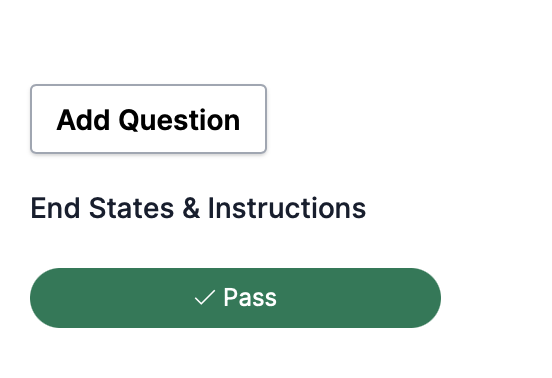
Head to the end of the questionnaire, before the end state instructions. Then, select "Add Question."
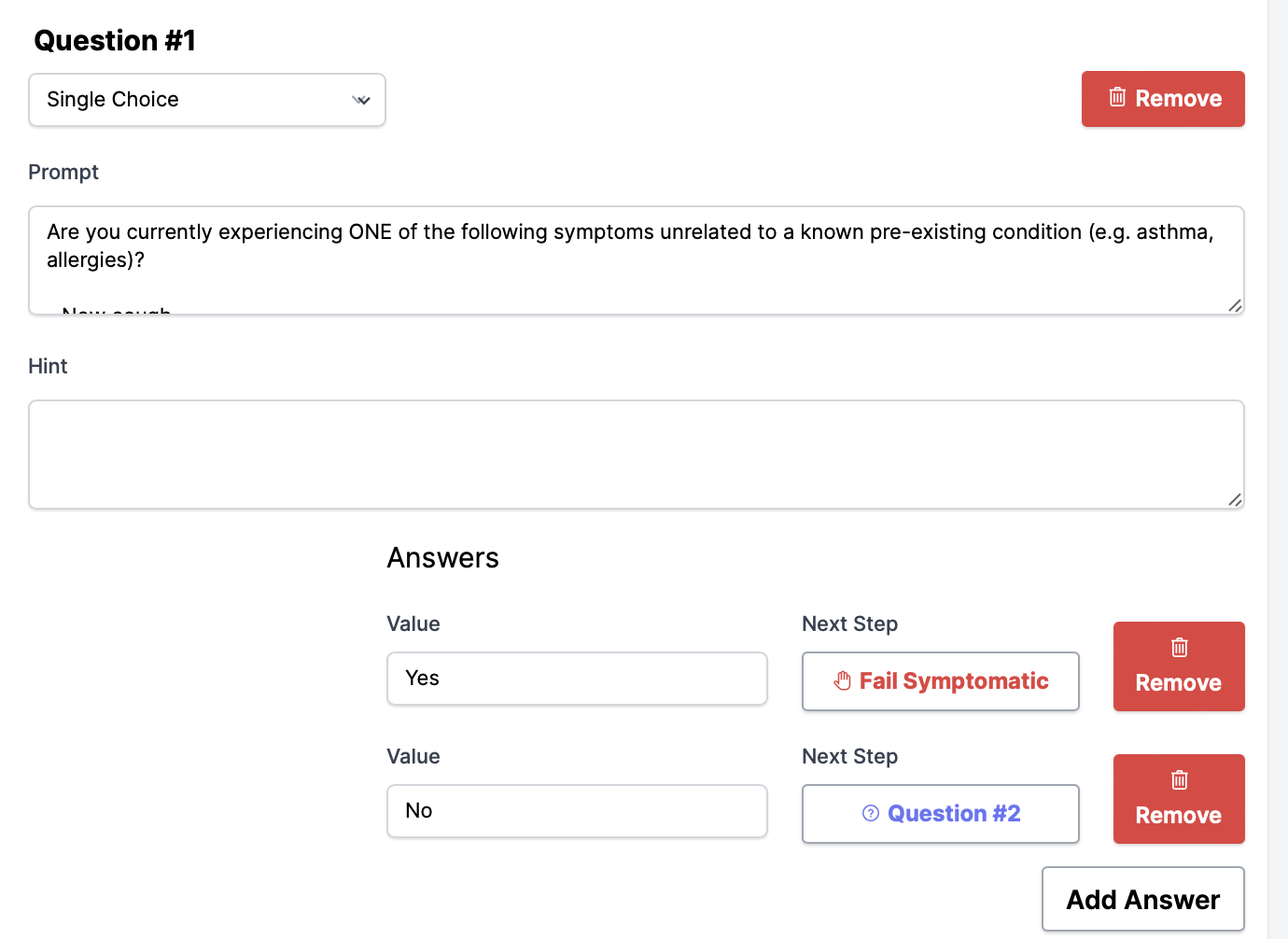
Then, you'll be able to enter what you'd like the question to be, the answers, as well as any additional information you'd like in the "Prompt" section.
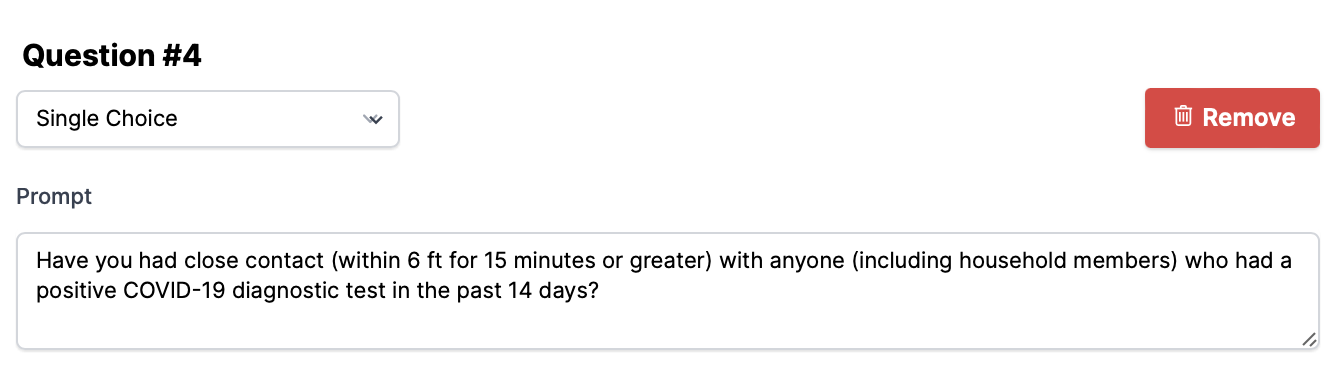
Please Note: You are not able to add questions in between other questions. We recommend having a Word document or note of your desired questionnaire, just in case new questions need to be added. If you need to add a question between two existing questions, you'll need to delete any questions coming after the new one, and then add them back in.
How to Remove a Question
To remove a question that is no longer needed, simply click "Remove" and the beginning of the individual question.
Next Steps
When adding or removing a question, you'll need to renavigate your questionnaire. If you remove questions without reconfiguring them, you will not be able to publish the new version of your questions.
To reconfigure your questionnaire, select an answer to any question and click either "Choose Next…" or the existing next step. From here, you can do two things: move to another question or move to an end state.
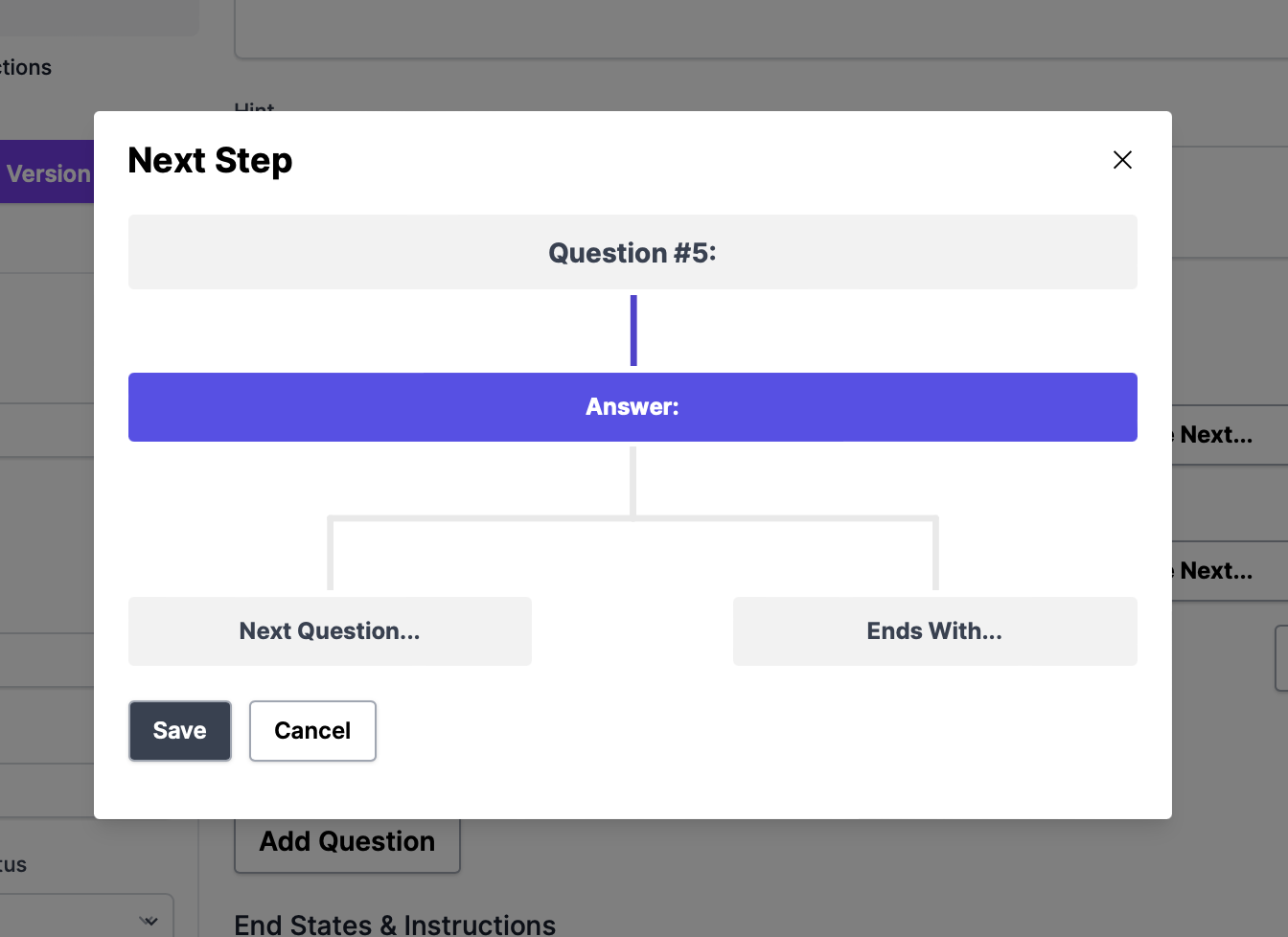
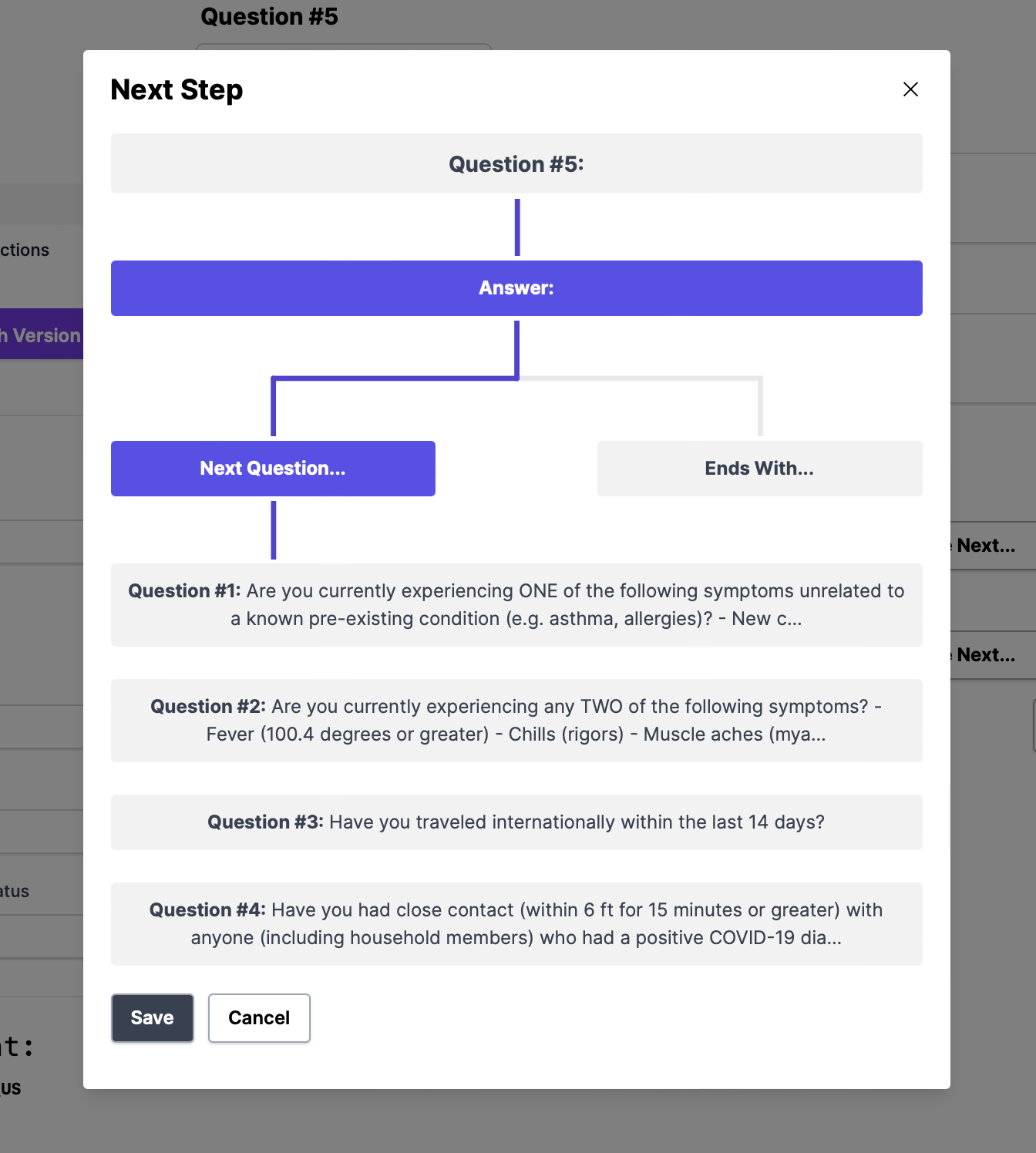
Moving to Another Question:
- After clicking an answer's next step button, select "Next Question…"
- Then, select which question you'd like the answer to lead to.
- Click "Save."
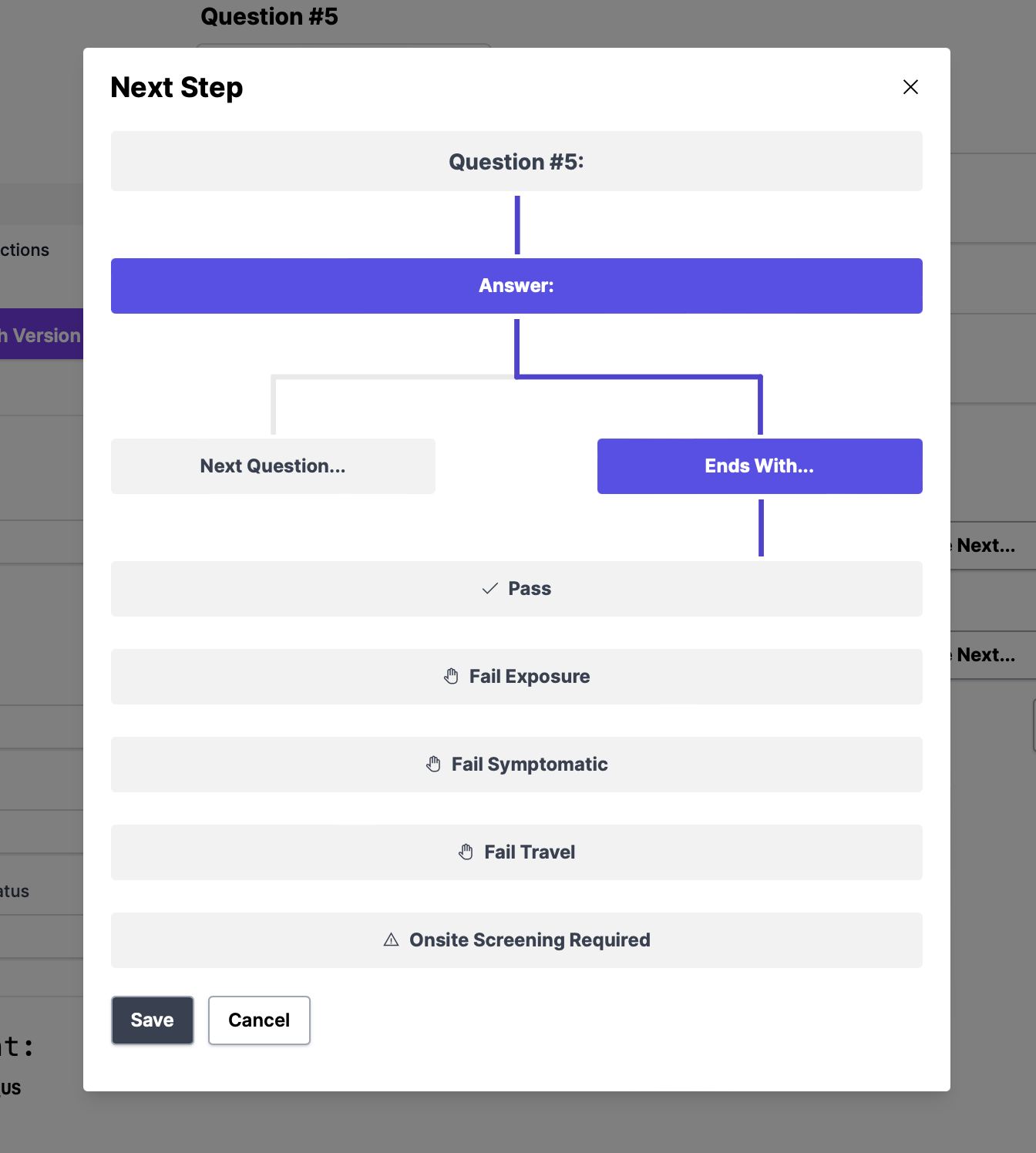
Moving to an End State:
- After clicking an answer's next step button, select "Ends With…"
- Then, select the end state you'd like this answer to lead to.
- Click "Save."
Once you are satisfied with your questions, answers, route, and end-state instructions, click "Publish Version [x]."
Note: Publishing your questionnaire automatically saves your current version and publishes it - there are not two different buttons. Any errors within your questionnaire should be highlighted in red, but you'll also be able to reveal/remove any errors under the "Development" section of your questionnaire settings.