
In/Out (Team Status Board)
With the In/Out Board feature, located primarily on the mobile app, users will be able to see who is currently on-site, as well as update their work status.
To turn on this feature, go to your Organization settings and enable "Who's In/Out."
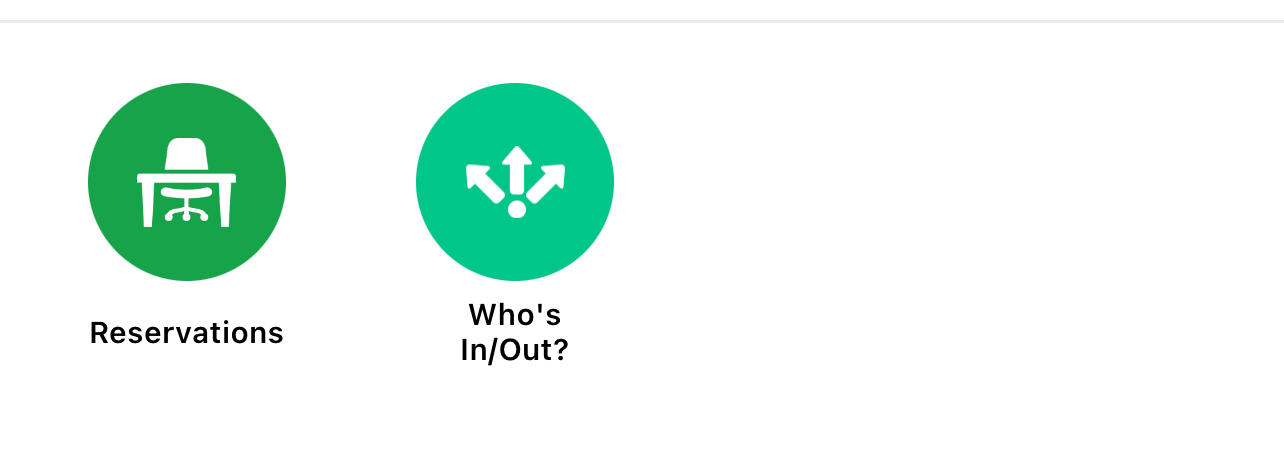
After enabling this feature, mobile app users will see their app's home page have the "Who's In/Out?" button addition:
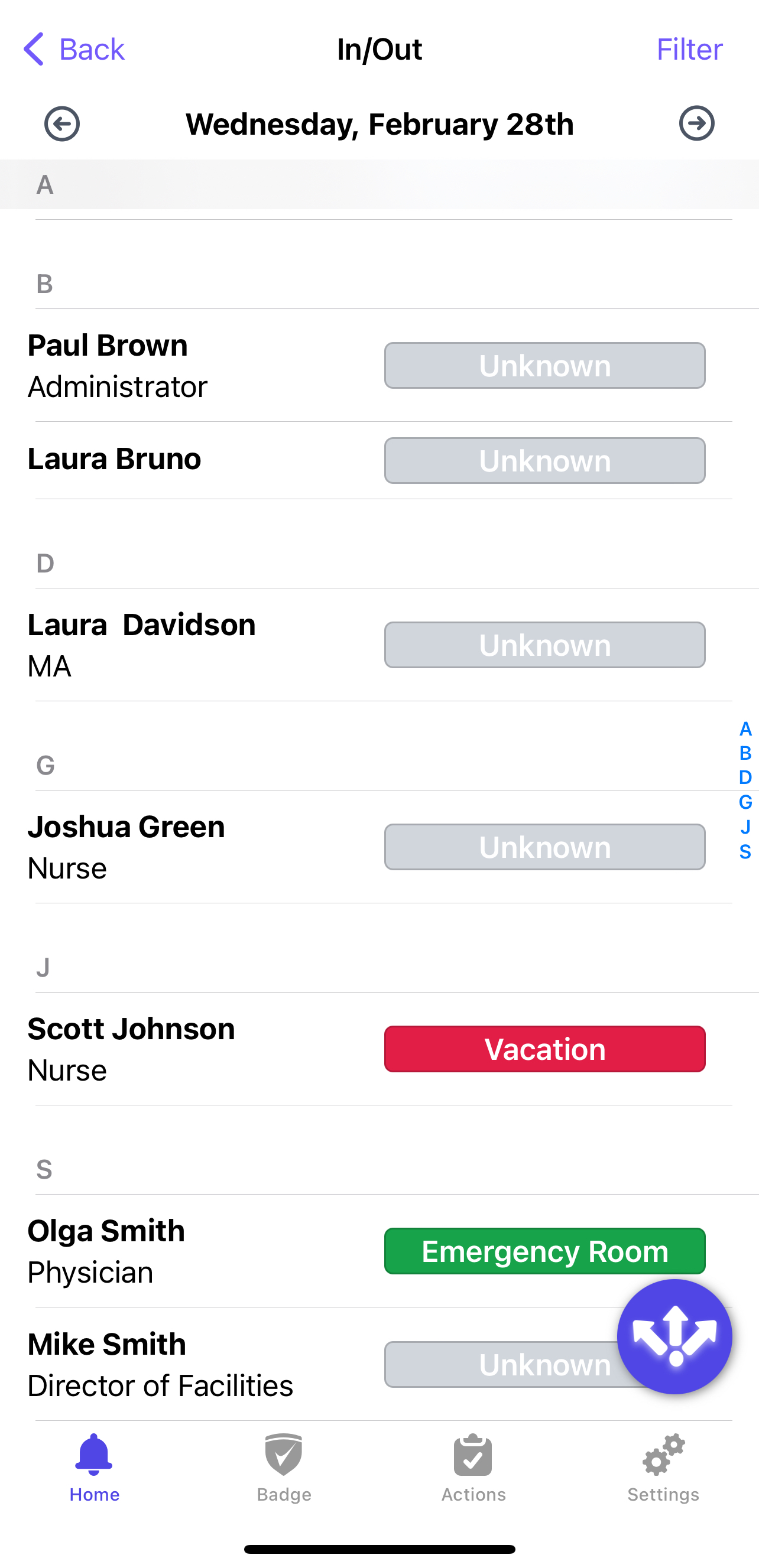
By pressing the purple icon with three arrows, users can submit their locality for a specific day.
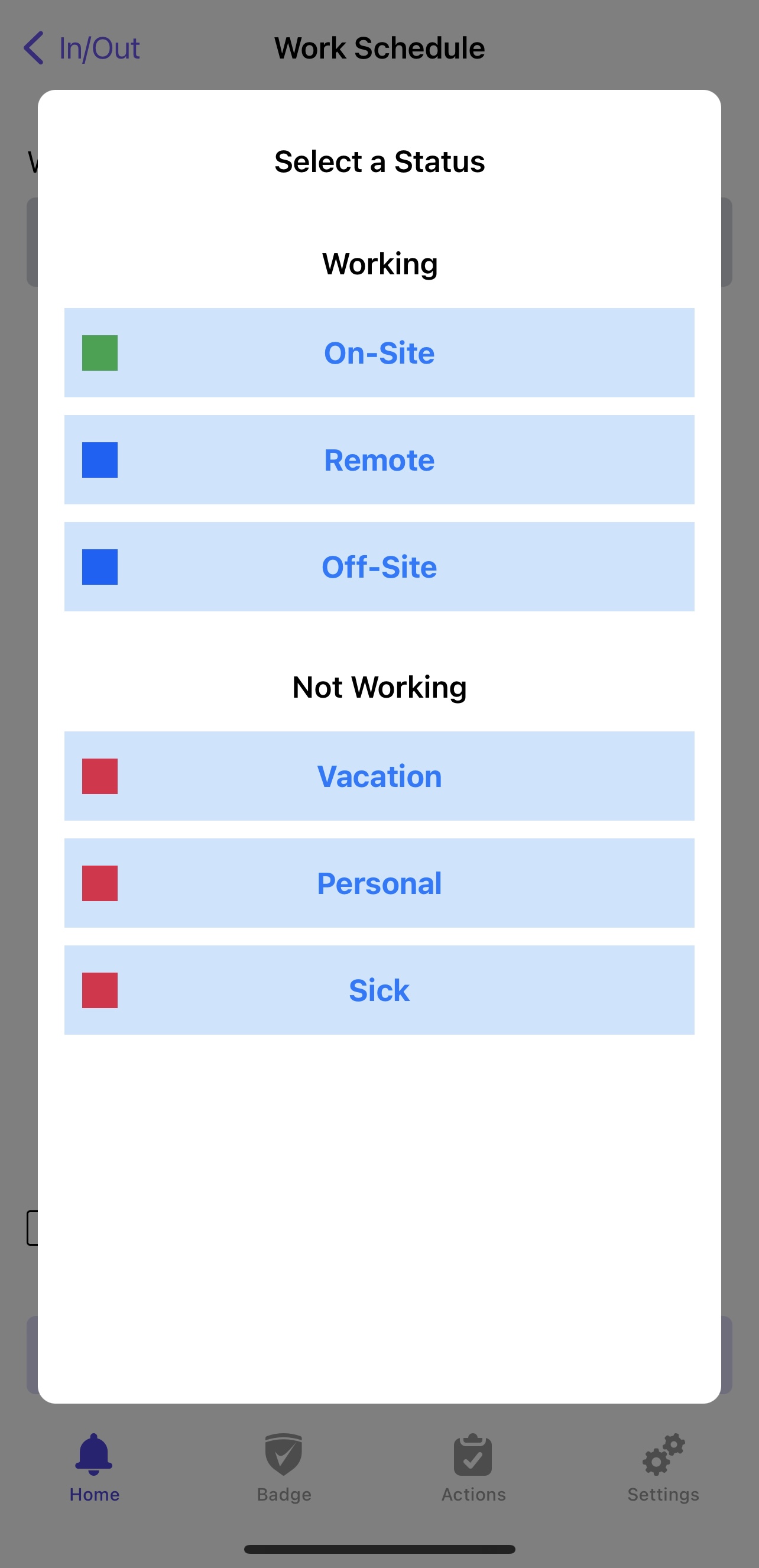
First, users will be asked how and where they will be working, and by pressing "Select," they can choose from Working and Not Working options.
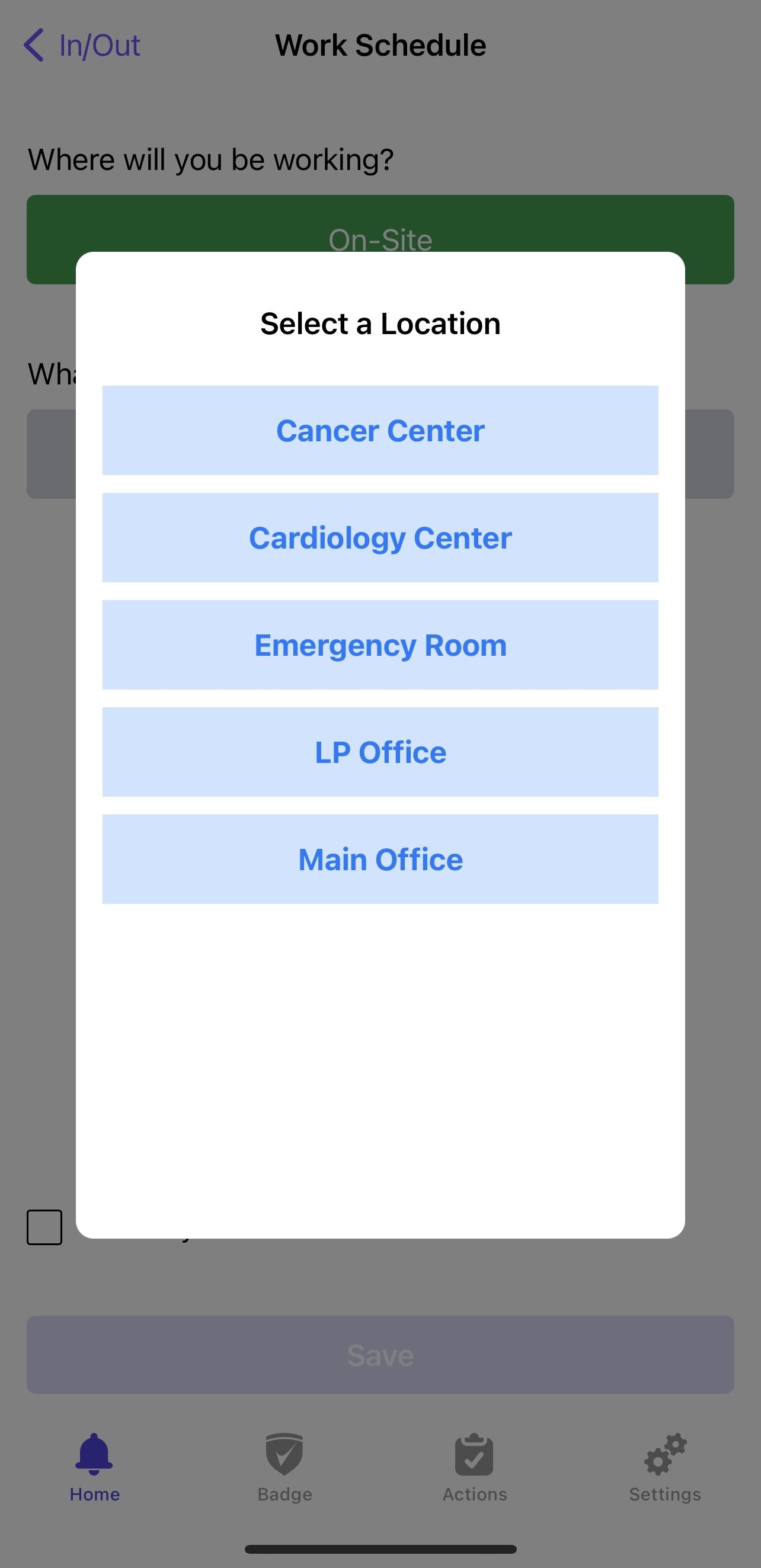
Then, users can select the day they are reporting their locality for.
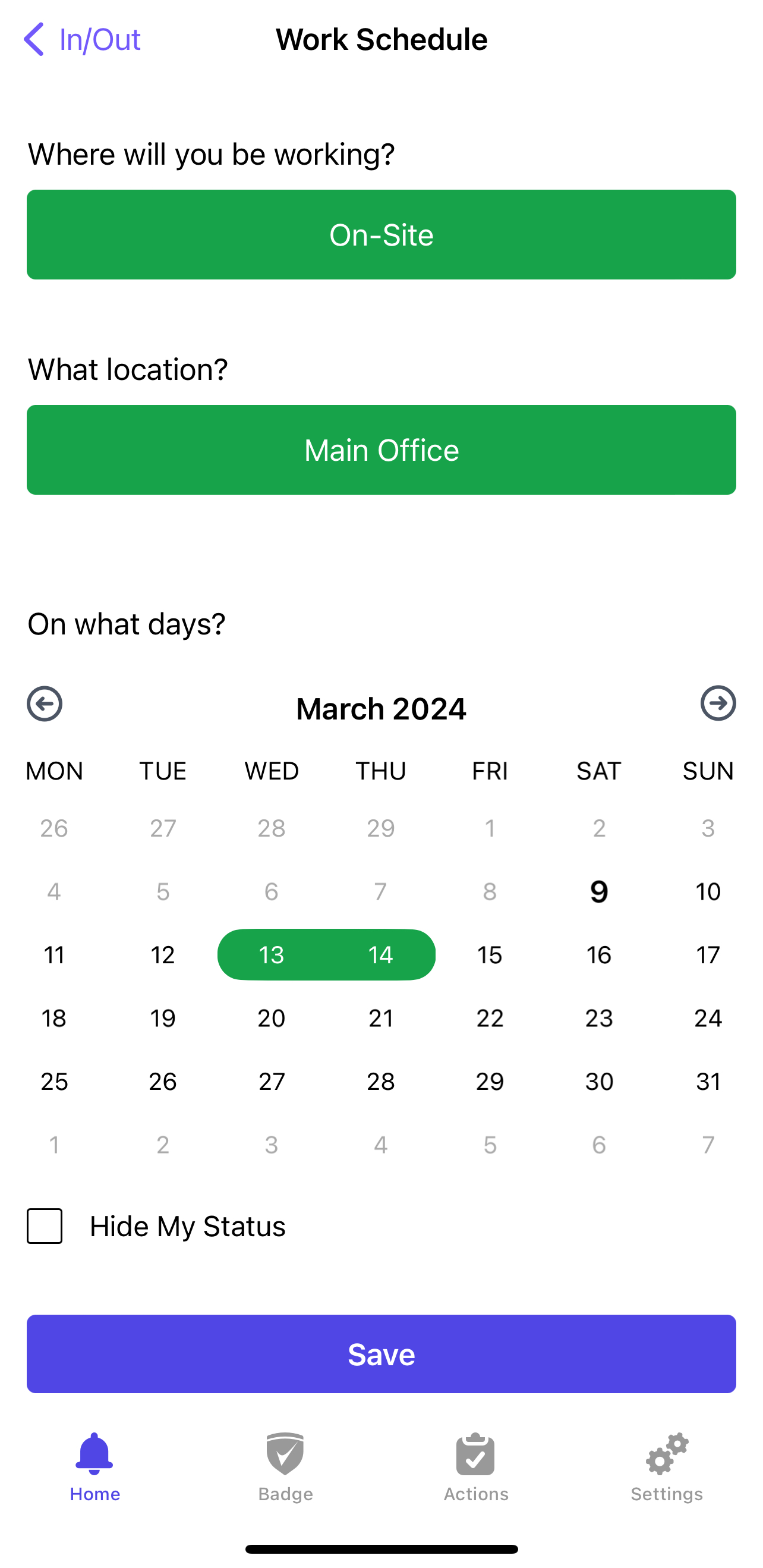
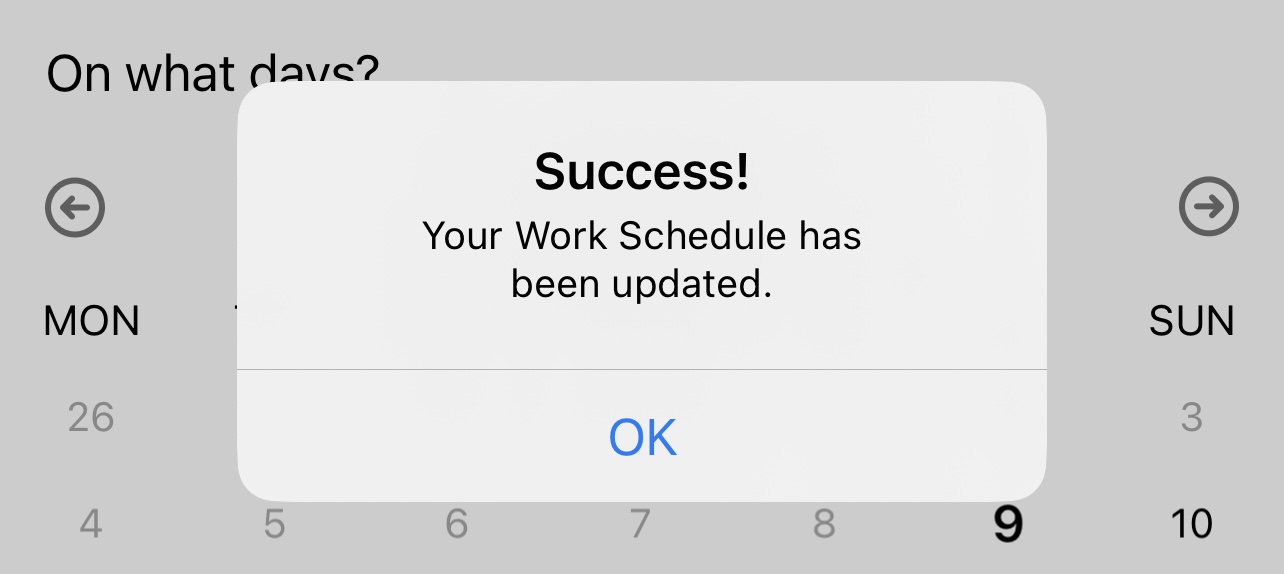
Finally, click "Save," and this message will appear, indicating that the submission has been finalized:
If you'd like users to see the locality of all locations, simply enable All Locations Visible, found within your Organization Settings.
After selecting "Who's In/Out?" the user will be prompted to select a location and will be able to see who is on-site, as well as filter what they see by location, group, and locality.
To see a comprehensive schedule of when people are going to be on-site, head to Workforce > Team Status.
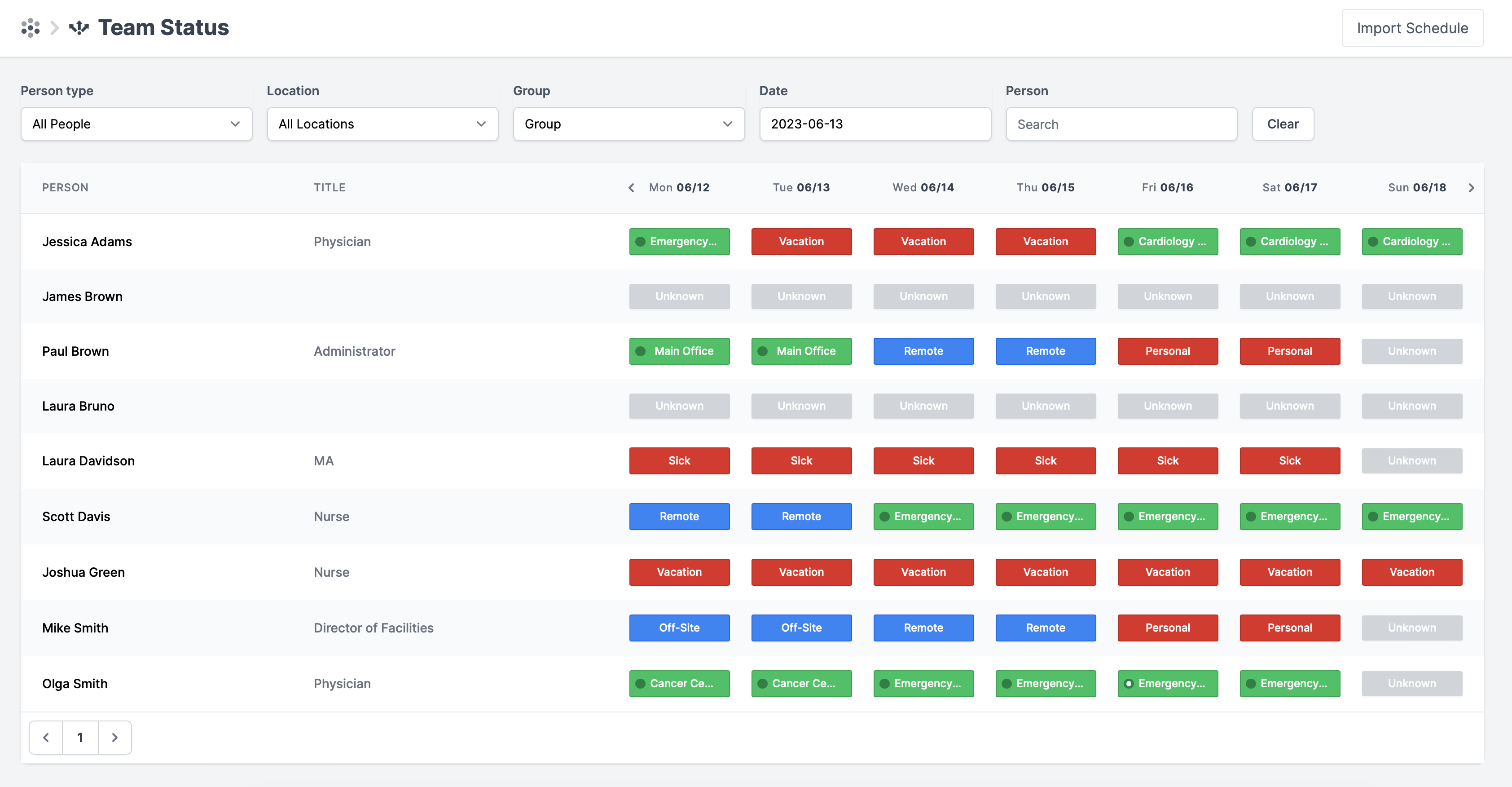
Here, you will also be able to Import a schedule for your users. Similar to importing a Reservation schedule, you should be able to upload relevant information about who is going to be on-site vs who isn't.
For a successful upload, please be sure to enter all listed information about the users:
- Employee ID
- Contractor ID
- User Type
- Location Name
- Start Date
- End Date
- Hidden (True/False)