Illness Reporting/ I'm not feeling well
The illness reporting feature can help your organization track employees' illness-related cases, create illness-related absences, and generate OSHA reports to comply with regulations.
The feature allows you to have all the illness case-related data in one place. You can directly communicate with the employee, assign a required team member to manage/watch the illness case, create an absence, request any required documents, and perform contact tracing.
This function is useful to automate the HR/ Benefits team's daily operations and have an all-in-one place to track the employee's illness.
There are two ways to record an Illness within the system:
- Users can report an Illness via the mobile App.
- Admins can create an illness case for the employee under the Cases tab.
Illness Reporting must be enabled from Settings>Organization Settings.
***Please note. Illness case type is fully customizable, It can be adjusted to fit your organization's requirements under the Case types.***
Mobile App experience
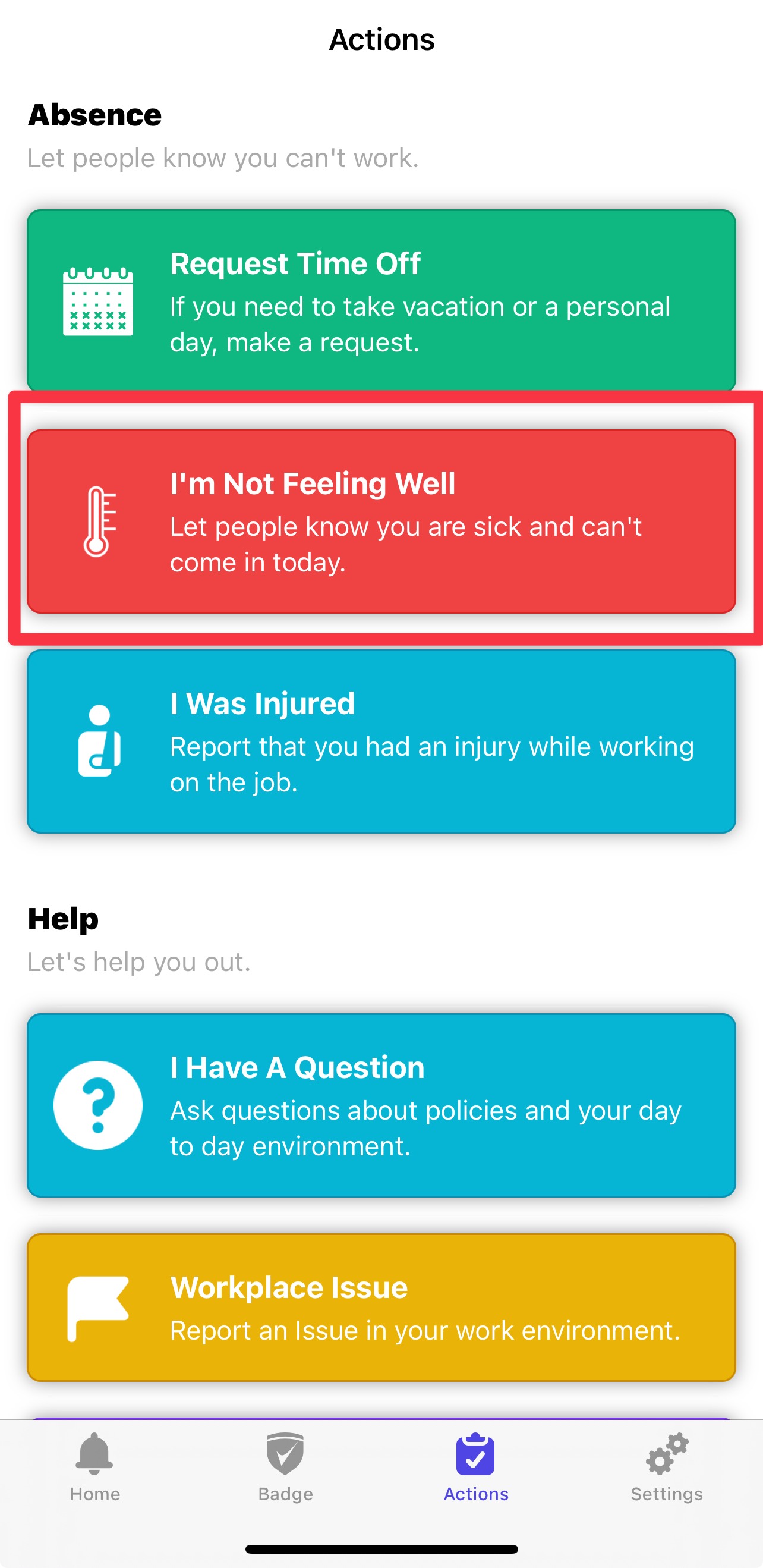
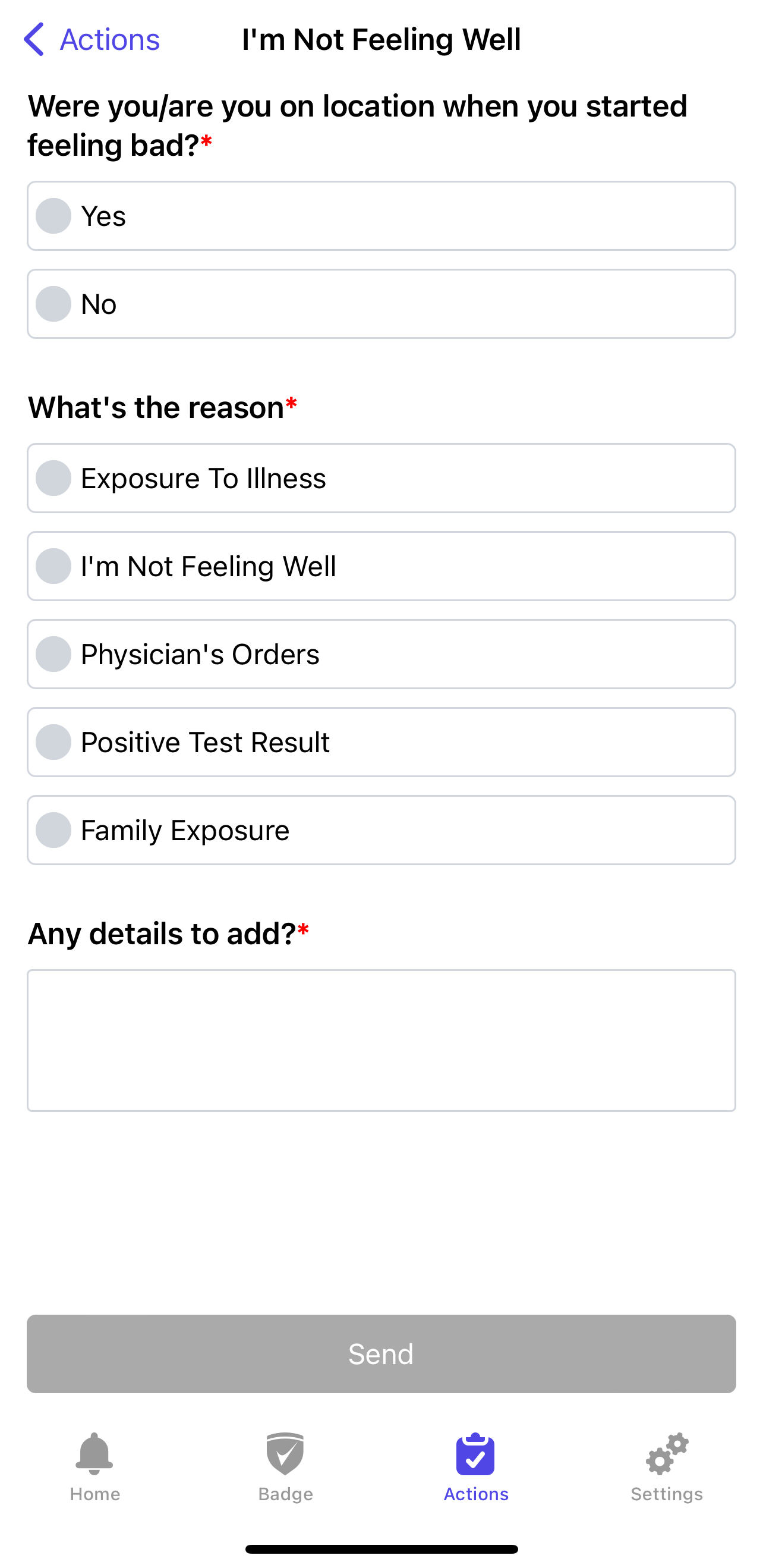
Users can head to the mobile app > "Actions" page > "I'm Not Feeling Well" button." They can select the appropriate details, and a case will be created against them upon submission. A line of communication is also opened automatically.
This is what the user's app will look like, and these details will be reflected in the new case (fields shown in the example below can be customized):
Conversation
As a Case Manager:
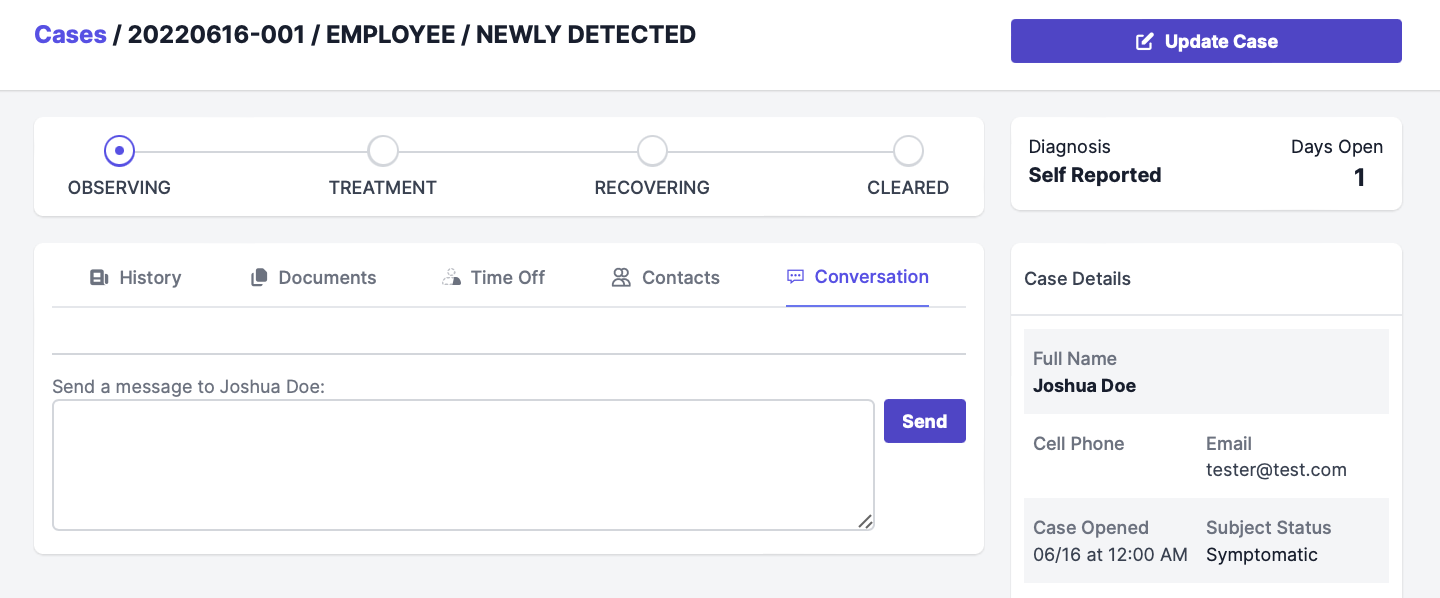
When viewing a case, click "Conversation" (more on this interface here).
You can then send a message to the user, and they should receive a push notification, similar to a text or a direct message notification.
When the user responds, you should get an email notification. Clicking the "Conversation" tab again should refresh the page, or you can manually refresh the page from your browser's refresh button.
From the Mobile App:
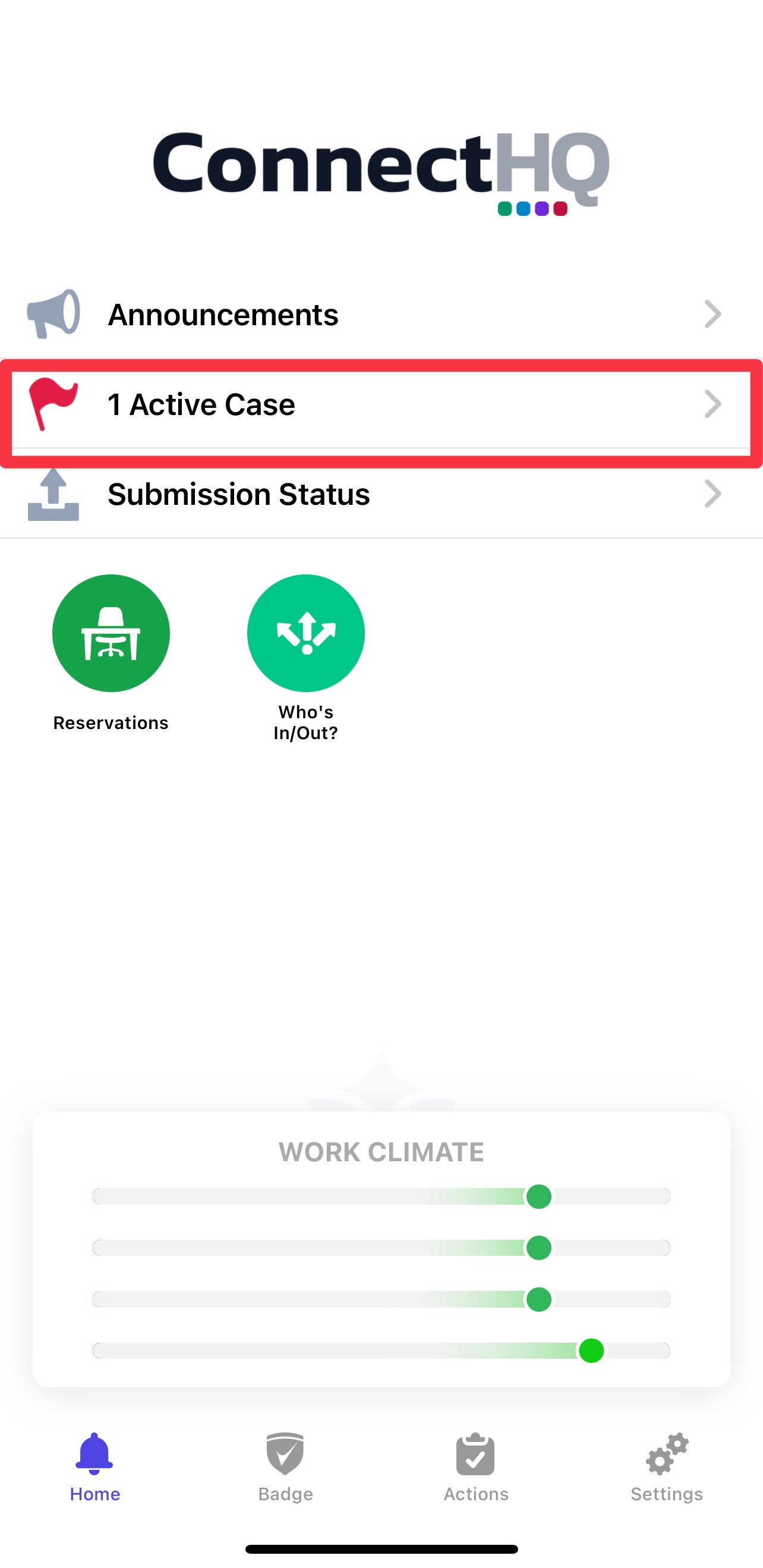
Once the user has completed their form on the mobile app, they are taken to a list of their cases (alternatively, they can select the "x Active Case" button on the home page of the app).
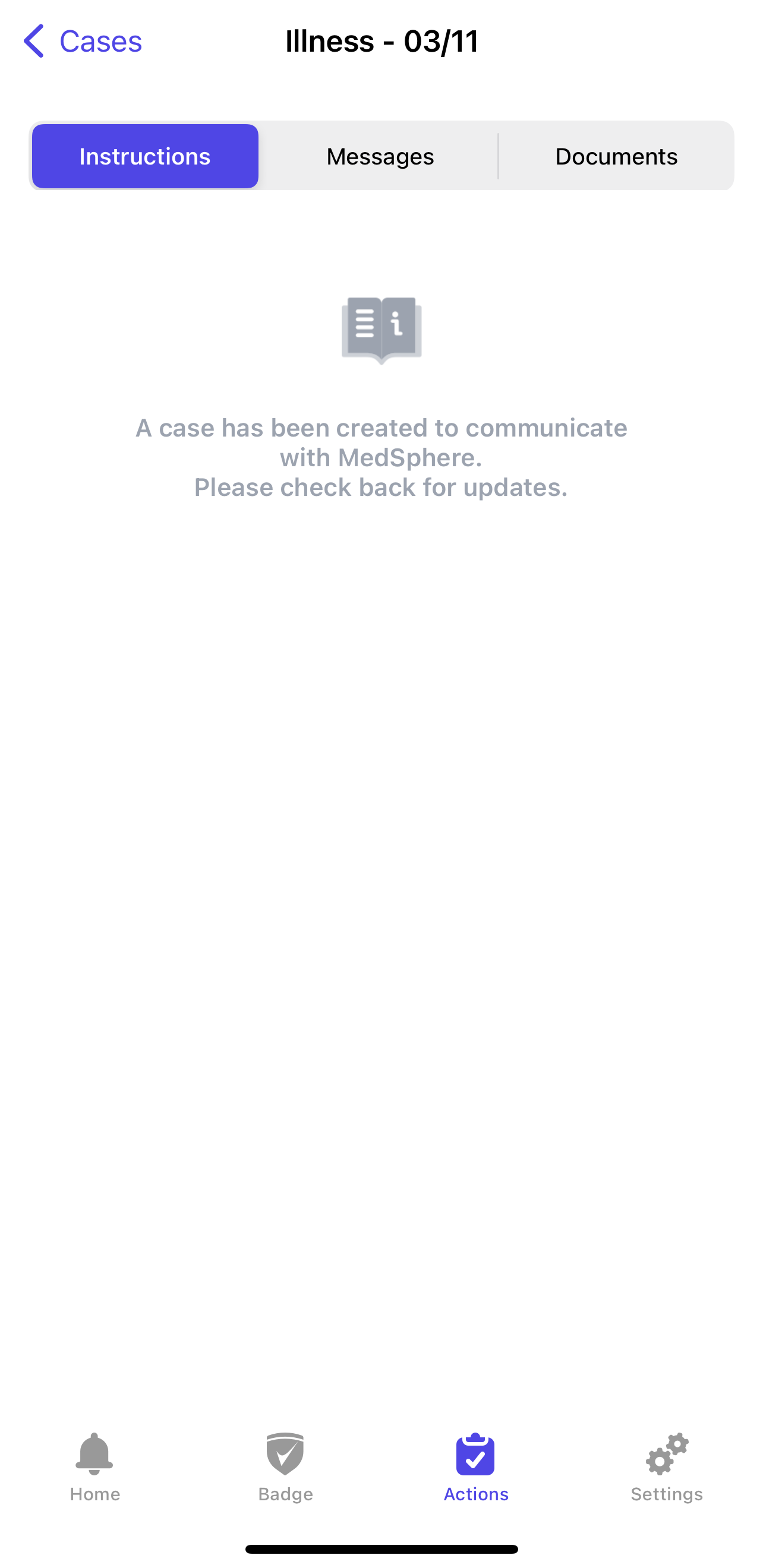
They can click the active case, indicated with a red flag, and open the conversation screen. Here, users can review instructions, send messages to Case Managers, upload documents (i.e. test results, doctor's notes, etc.), and see their case progress.