Questions
The Questions feature allows employees to directly communicate with their supervisors. This feature can be enabled via Your Name > Settings > Organization Settings.
Once enabled, you will see a new page appear under your "Comms" menu in the navigation bar.
Users with appropriate permissions enabled will be able to click on this page, and thus view, respond to, and close questions.
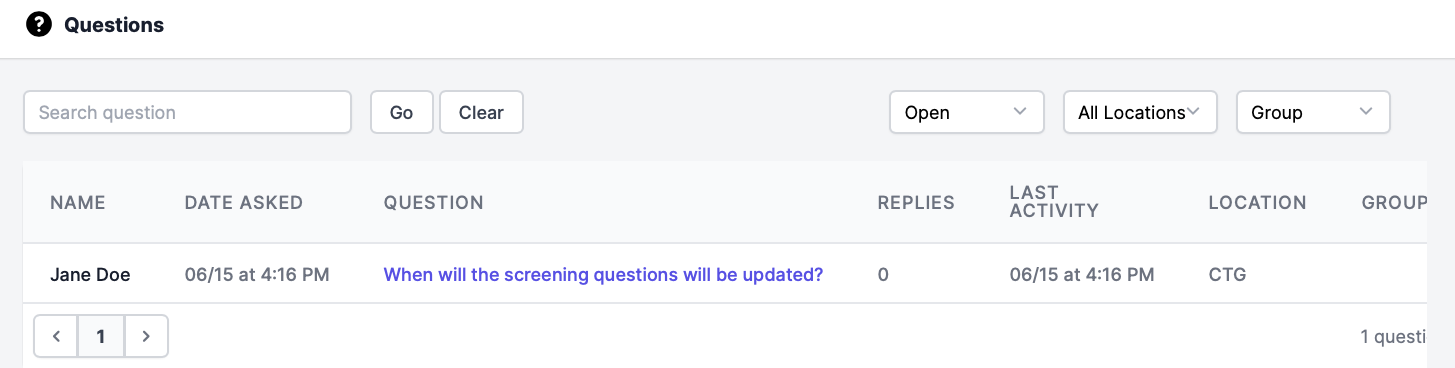
To view a specific question, click on the text in the "Question" column, which will be indicated with purple text.
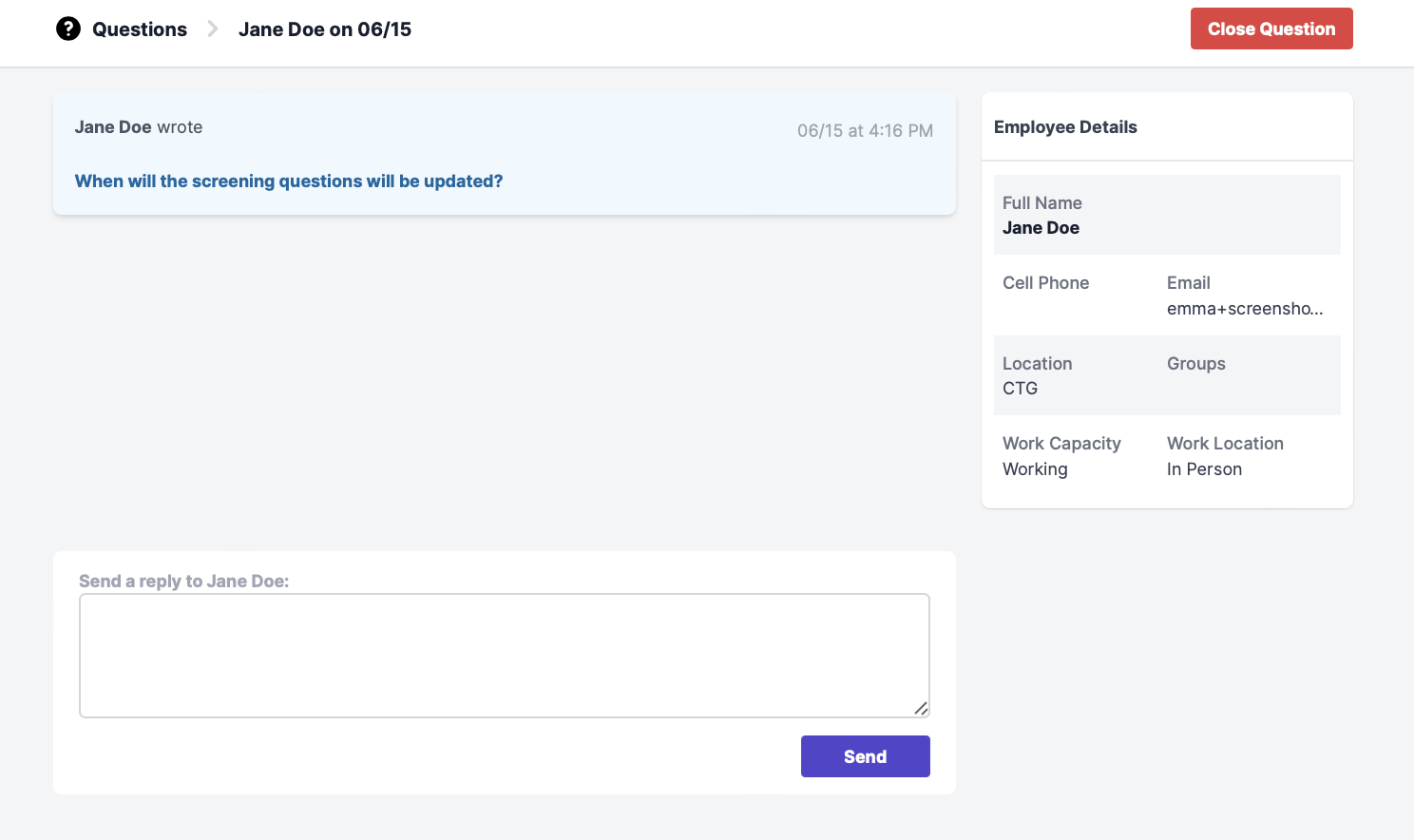
Within the question, you will see a red "Close Question" button, and a text box to respond to the question asked.
On the Mobile App
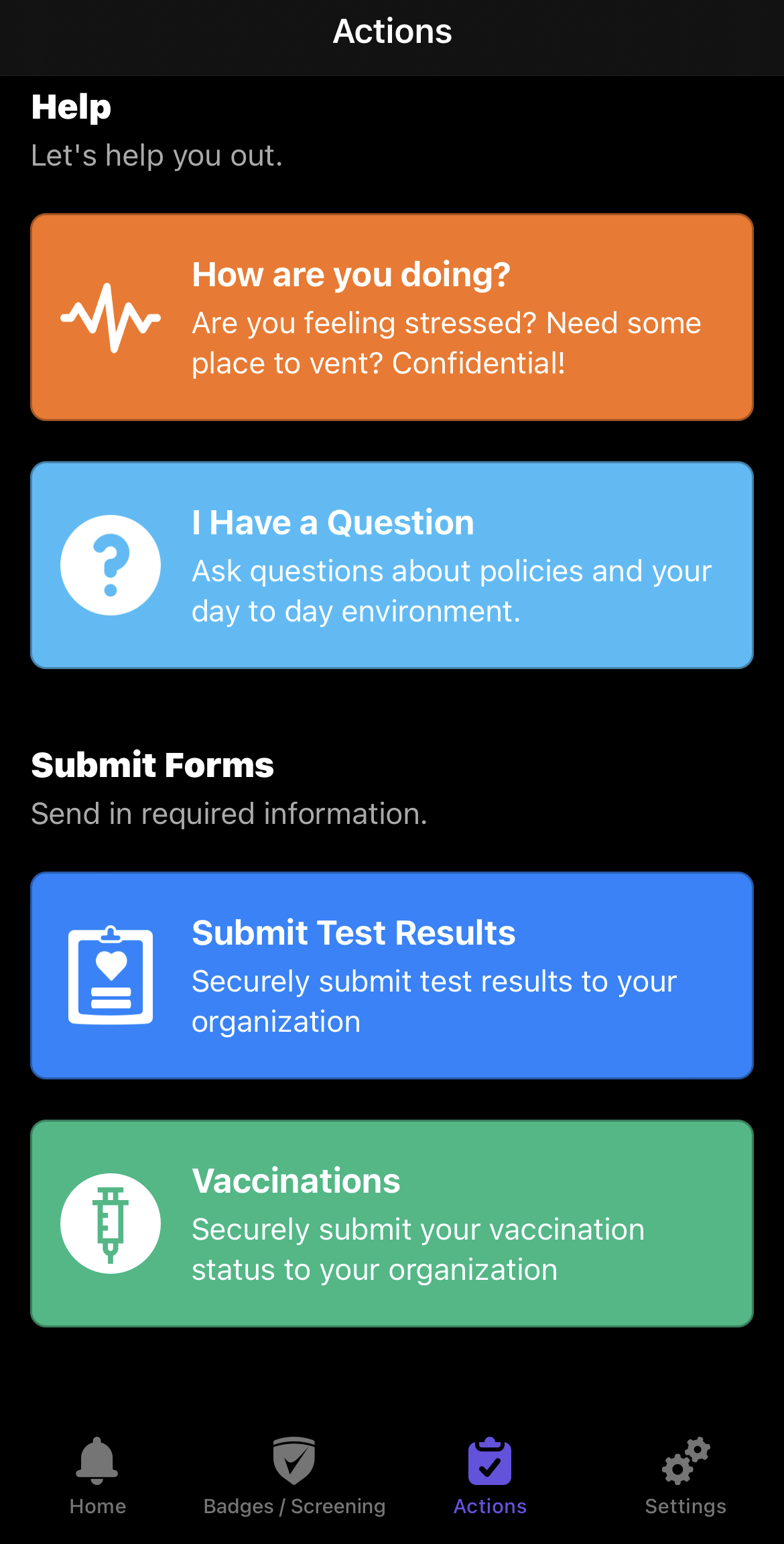
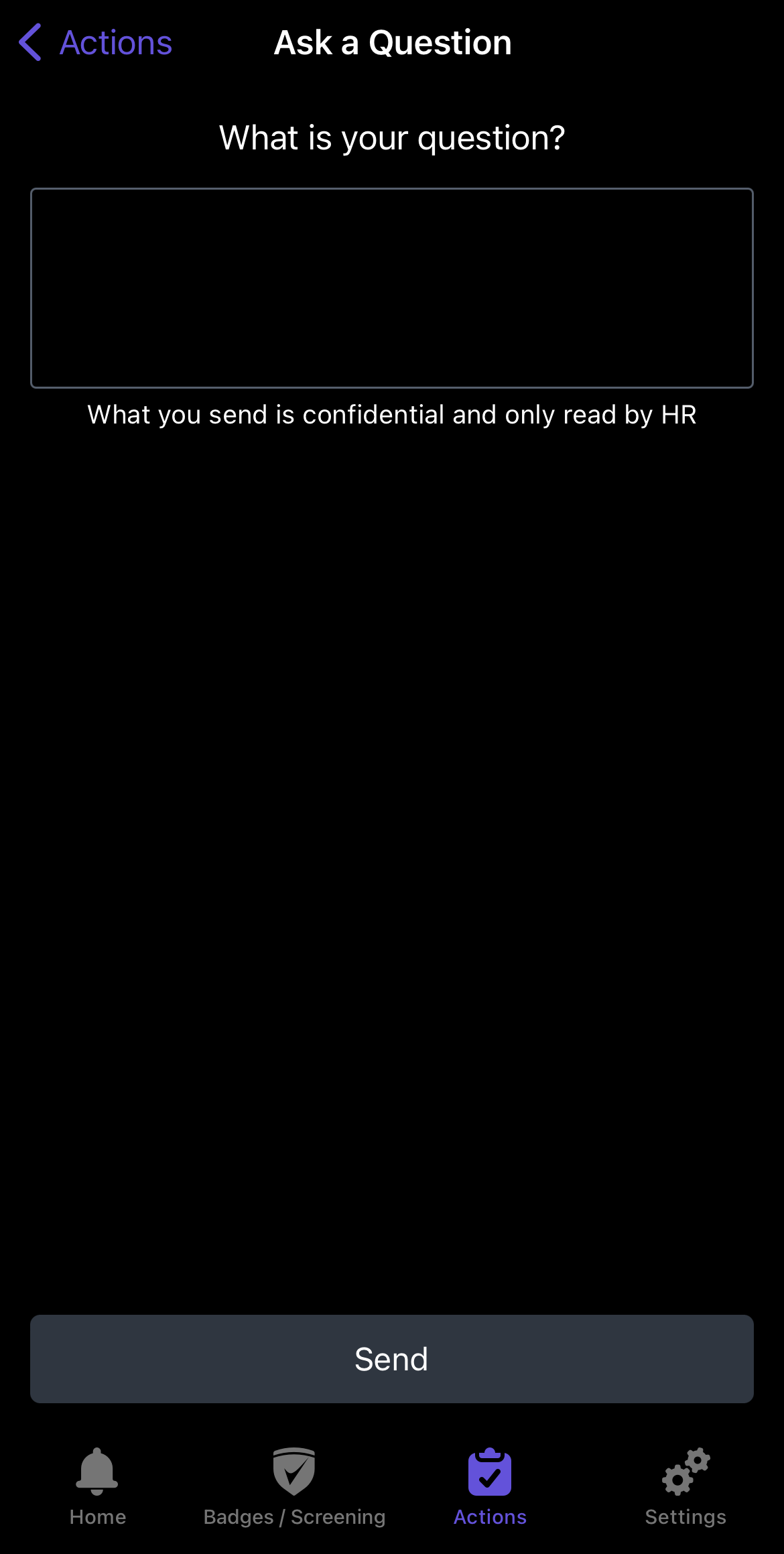
When this feature is enabled, users will see a Light Blue "I Have a Question" button under the "Actions" tab of the mobile app. There, they will be able to submit questions to your organization (specifically those users who can get to this page). They can also correspond to a manager or supervisor, similar to how a direct message or text would function.
To view a question you've asked, respond to a question, or make a reply, select the active question marker on the home page of the app. Then, select the question you'd like to view.