Deactivating Users
There are two ways to deactivate users:
- Individually. Navigate to Worforce> Employees/ Students> Select the user>View>Scroll to the bottom of the Page> Deactivate This Employee/ Student.

You will be asked if you are sure, click OK.
- Using the bulk import function. Export a CSV file with your users. Edit the removed column with TRUE. Then import your file.
Viewing Deactivated Users
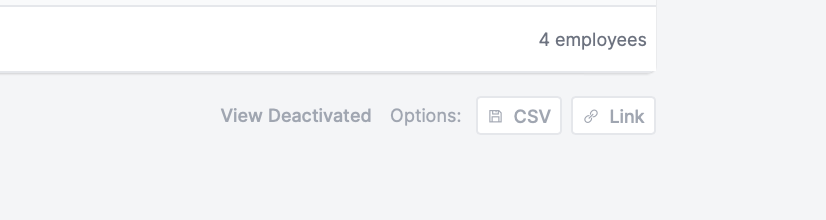
Once users are deactivated they will only show up in the deactivated list. This list can be accessed by selecting View Deactivated from the lower right of the Students/Employees page.
Reactivating a User
You can reactivate a user using the import function. Export your deactivated users. Edit the removed column with FALSE. Then import your file.
Or you can reactivate individually:
- Navigate to your Deactivated list of users.
- Find the user in question and click Edit.
- Select Reactivate This Employee at the bottom.