
Notifications
Here is a comprehensive guide to our notifications and what they mean for your organization:
General Notifications
These are the most common notifications that users will receive about their employees.
Screening Reminders and Announcements
To get these notifications, users will simply need to be in our system within your organization and match the rules set from within the Screening Schedule and Announcement pages.
Someone Has Failed a Screening
If you have a user that should get email notifications whenever someone fails a screening, you'll need to enable the "Notify of Failed Screening" permission from within their Role.
- If you'd like these users to get notifications about all employees, contractors, and/or students, enable the "All Locations" permission.
- If you'd like these users to get notifications about who they are responsible for only (i.e. those who are at the same location or group), you'll need to ensure that all users are assigned to the correct location (and primary location if more than one are selected) and/or group(s).
When a Case is Created
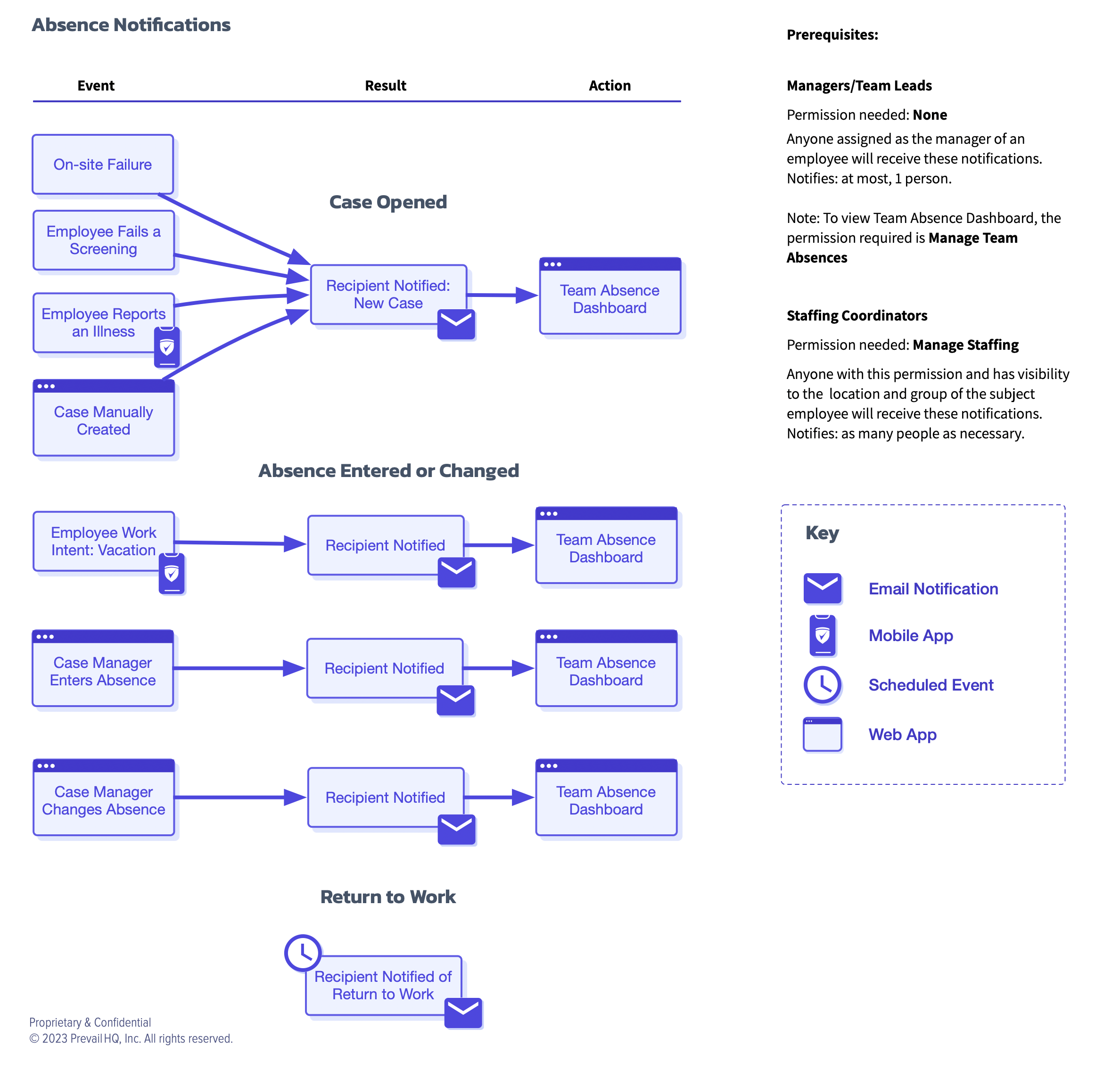
To get users to receive notifications about cases being made, regardless if someone has failed a screening, submitted an illness report, etc., those users will need to be assigned as managers to other employees.
- For example, if Sarah needs to get these notifications about Emily, then Emily needs to have Sarah set as a manager from within Emily's employee profile.
Alternatively, if someone has the role of "Case Manager," they will already be notified of case submissions/creation, based on the default settings as seen on our Roles page.
Absences
To get these notifications sent to managers, users will need to have a Manager set within their employee profile. For more on this, head to our Employees page.
Absence Recorded
When a user submits an absence via the Who's In/Out Board, users will be notified when the absence is submitted via email. A start date, end date, and user should be noted in the email and more information can be seen within the employee's information, under "Absences."
Absence Modified
After an absence is submitted and there is a change made to said absence, users will be sent an email notification that the absence was modified.
Person Returning Tomorrow
When someone's absence is coming to an end, users will be notified that the user will be returning tomorrow. For example, if a user is scheduled to be out Monday-Friday, then on Friday, a notification will be sent out to remind managers.
Manager/ Team Lead Notifications
Location-Based Notifications
These notifications are sent to users who have the same location(s) listed as the users triggering the notifications (i.e. creating the case, registering as a visitor, checking in without a valid screening).
Case Notifications
If there are updates to a case, you'll need to assign appropriate Case Management and Locations permissions to the role, so that they are sent email notifications about these updates. These updates should include documents uploaded, conversation replies, instructions completed, etc.
Visitor Notifications
To ensure users get notifications about visitor updates, you'll need to enable the "Manage Visitors" and "Notify of Visitor Registration" permissions. This will give the user permission to invite visitors, view their uploaded documents, and get notifications about visitors self-registering on-site to their location.
Check-In Issues
Typically, these notifications are triggered with Geofencing enabled from within your Location settings, and automatic check-in/out enabled. With these enabled, the Roll Call Page permissions, and location(s) set to users, if someone is on-site and automatically checked-in without a valid screening, users will get an email notification.
- For example, if Sarah has these permissions set up and Emily is automatically checked-in, Sarah should receive a notification that Emily is on-site without a valid screening.