Managing Contractors
To get to the Contractors page, head to Workforce > Contractors.
Contractors in our system are different from employees, in that they are temporarily active in your organization, whereas employees are permanently active.
You are only billed for those contractors that are active.
We strongly recommend adding an end date for "Scheduled Dates" to avoid additional charges.
You can add contractors individually or via import.
Adding Individually
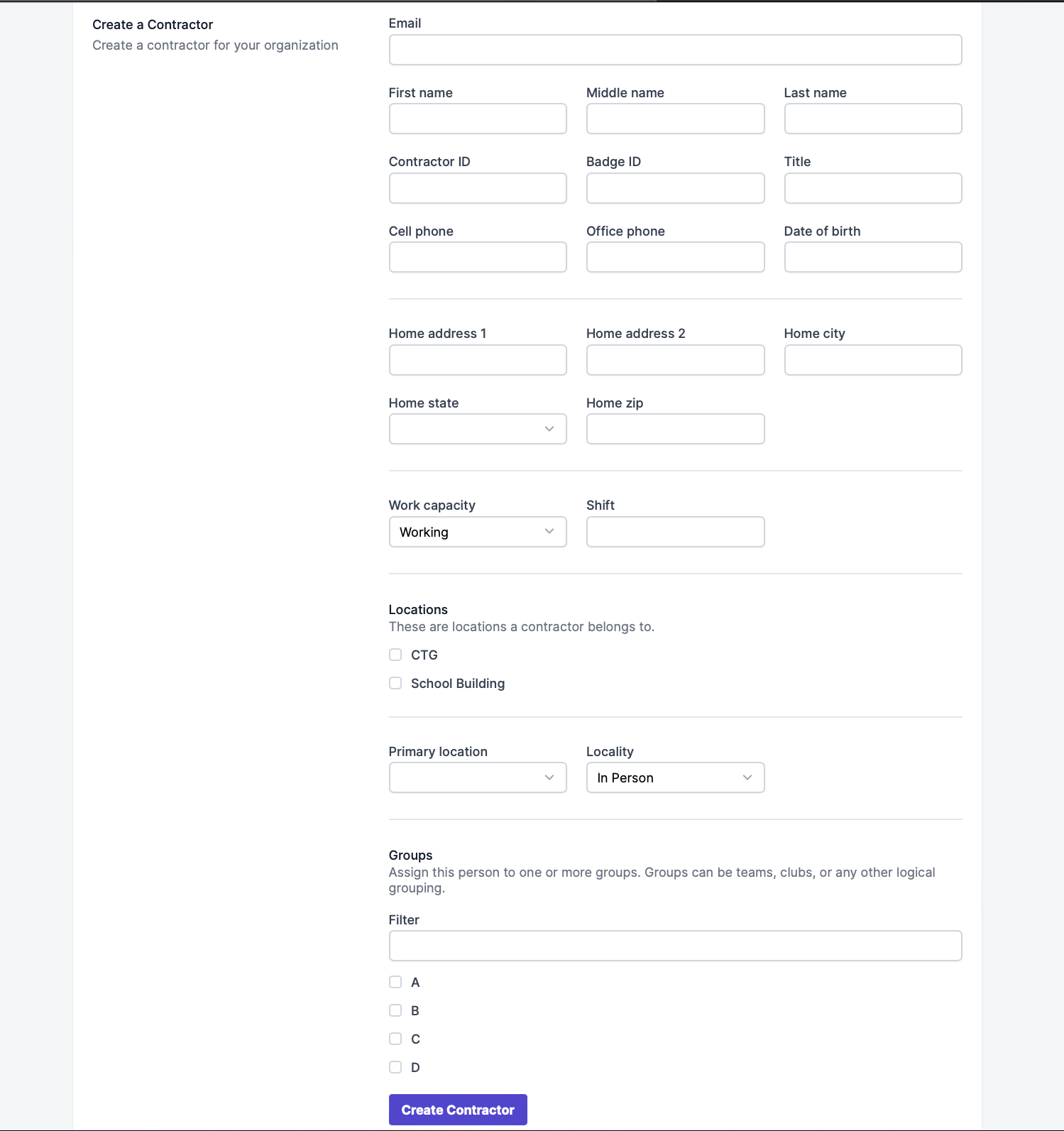
First, select "Add Contractor" and fill out the appropriate information (*required):
- Email*
- First Name*
- Middle Name
- Last Name*
- Location*
- Cell Phone
- Contractor ID
- Badge ID
- Title
- Office Phone
- Shift
- Home Address
- Home City
- Home State
- Home Zip
- Groups
Next, after saving, you will be prompted to select dates that the contractor will be working. These can be set to the current date, or scheduled to become active in the future.
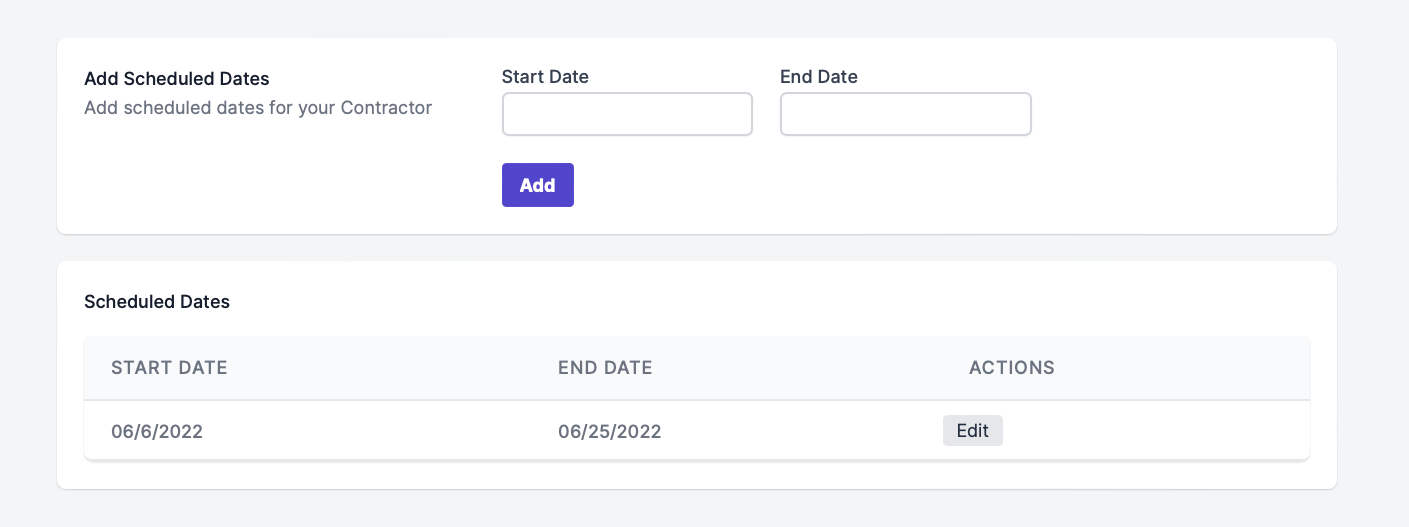
Please Note: We strongly recommend you add an end date either the day of scheduling, or the day before the are scheduled to leave. You may experience an error if you attempt to set an end date that has surpassed.
Then, click "Add."
Multiple scheduled dates can be saved, but you will need to select "Scheduled Dates" on the contractor to add additional dates.
Also by clicking "Scheduled Dates" on a contractor, you will be able to see all scheduled dates, previous and future.
Using an Import
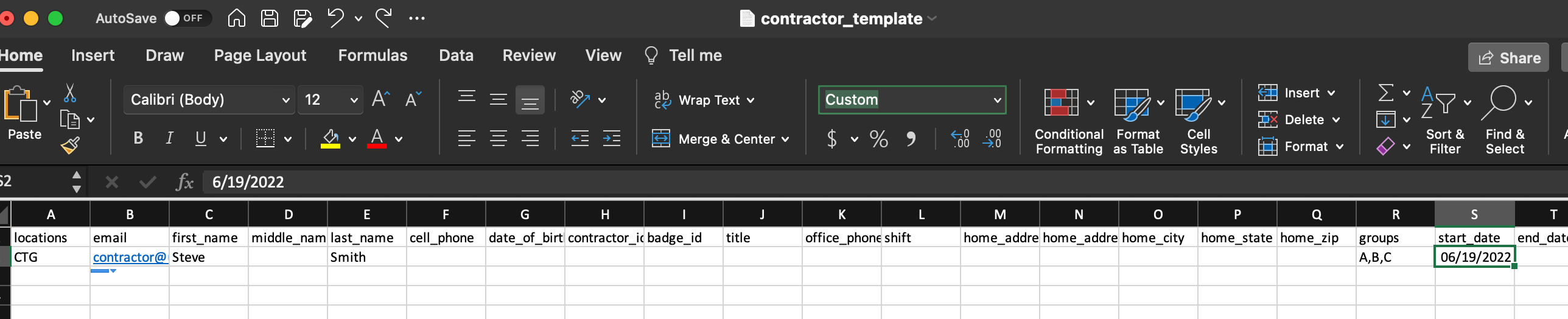
First, select "Import" from the Contractors page and download our CSV template.
Then, open the file and fill out the following information (*required):
- Location*
- Email*
- First Name*
- Middle Name
- Last Name*
- Cell Phone
- Contractor ID
- Badge ID
- Title
- Office Phone
- Shift
- Home Address
- Home City
- Home State
- Home Zip
- Groups
- Manager
- Start Date (MM/DD/YYYY)
- End Date (MM/DD/YYYY)
- Removed (leave the column blank for active contractors)
Please Note: If no start/end date is entered, the contractor will be active upon import, and thus billing for this contractor will begin. Please be sure to enter a start and end date for contractors scheduled in the future.
Note: If your spreadsheet software is giving issues when trying to put dates in, we recommend creating a custom date setting, that can also be used in future use.
To do this in Excel, highlight the cell(s) you'd like to reformat > click the drop-down menu near the top of your spreadsheet, just above the dollar sign, percentage sign, etc. > click "more number formats" > Custom > delete any existing text and type mm/dd/yyyy into the text box > "OK"
Next, save the file and upload it to (Contractors > Import > Choose File > Import CSV).
Similar to employees, you can edit the contractor information at any time by clicking "Edit."