
Personal Settings
Users with access to the Prevail HQ web platform can use the Personal Settings Page to adjust notification settings, set a backup for when they are absent, or change the password.
Click on your name> Personal Settings to access the Personal Settings page.
Notifications
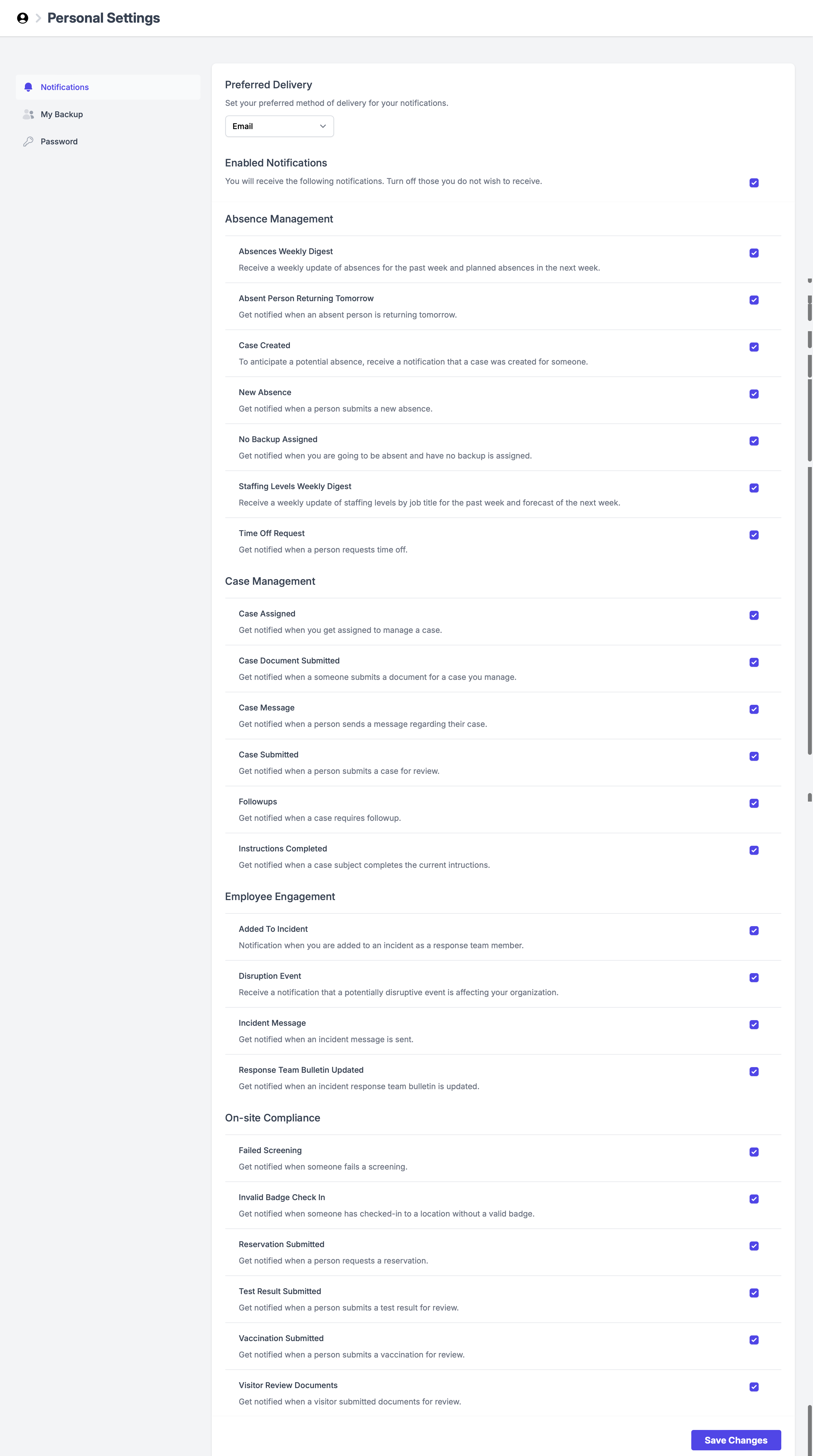
Here you can set the preferred method of delivery for your notifications- Push, Email, or SMS.
These settings apply to the Prevail HQ web and Prevail HQ mobile app users.
The system prioritizes notifications in the following order: Push, SMS, Email.
The notifications marked under each checkbox will ONLY be delivered via the selected preferred method.
Note
Push notifications:
- the PrevailHQ mobile app must be installed and notifications enabled
- if a user installs the PrevailHQ mobile app and enables push notifications, their preferred channel will be automatically updated to Push
- If a user disables the PrevailHQ mobile app push notifications, their preferred channel will be automatically updated to email
- If the user deletes the PrevailHQ mobile app from their phone the notifications channel won't be updated automatically. Users need to update their preferred channel manually in Personal Settings > Notifications
SMS notifications - a cell phone number must be added to your profile.
Also note: Different checkboxes will be visible depending on the product purchased and the permissions you have.
*** ***
***
Manager Connections
Here you can see all your devices that have the PrevailHQ mobile app installed.
This section can be helpful for security purposes to track all devices that were used to log in to your PrevailHQ account.
Note: This section will not be visible if the PrevailHQ mobile app is not installed on any mobile device.
Also note: If all Manager Connections with push notifications enabled are removed the preferred notifications channel will be automatically updated to email.

My Backup
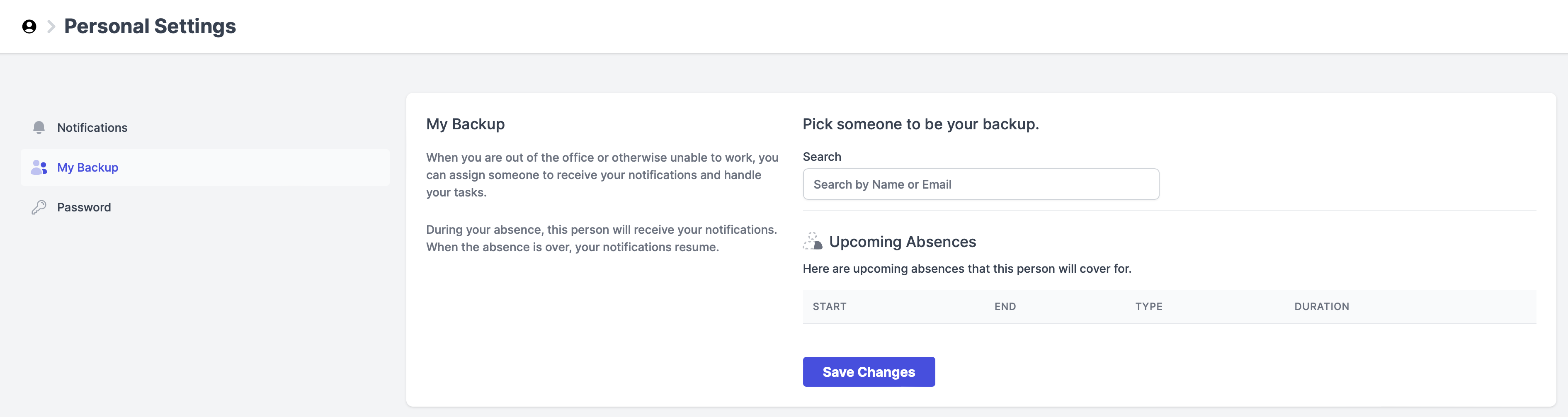
When you have duties to perform on a daily basis, you can assign someone to back you up while you are absent.
Go to Your Name> Personal Settings> My Backup.
This person will receive your notifications every time you are absent. You can change the backup person here at any time.
Note: The person acting as your backup, must have similar permissions as you. Assigning a backup does not guarantee they can see what you see.
Password
Here you can reset your password.
Go to Your Name> Personal Settings> Password
Follow this guide if you have trouble signing into the system.