Your Team's Climate
Team Climate Dashboard
To quickly understand the feelings of your team members that you directly manage, use the Team Climate Dashboard.
To access, go to: Workforce> Team Climate
Here you can see your team's work climate submissions around the facets selected by your organization. Managers can use this dashboard to overview team climate and take required actions based on the employee's responses.
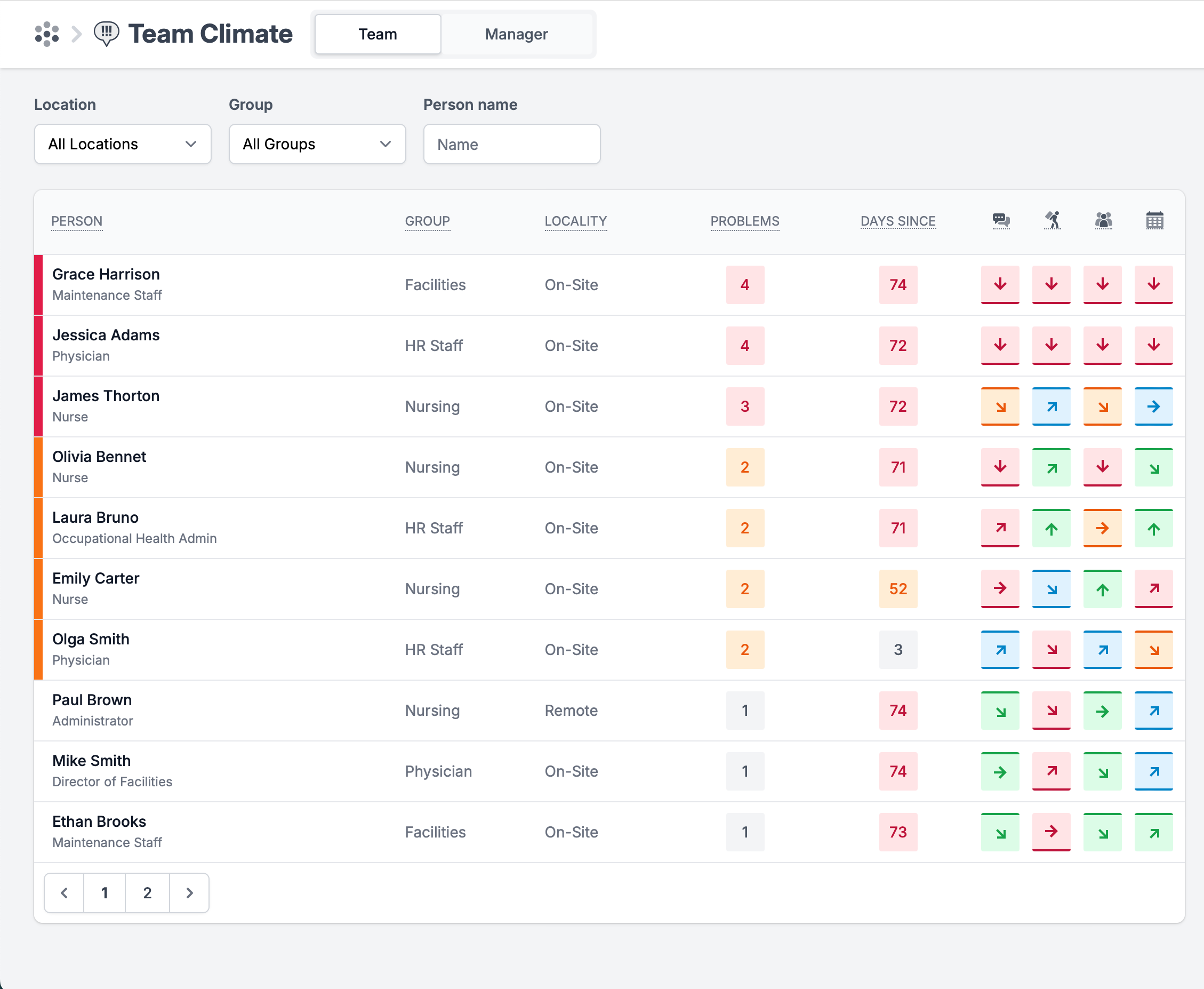
Filter Options: Click on any column title to filter by the desired category.
Color Indicators:
Hotspot - Red
Negative - Orange
Neutral - Blue
Good - Green
Problems: Displays the number of negative submissions (issues) for a specific user that require attention from a manager.
Days Since Last Submission: Indicates how many days have passed since the user's last submission.
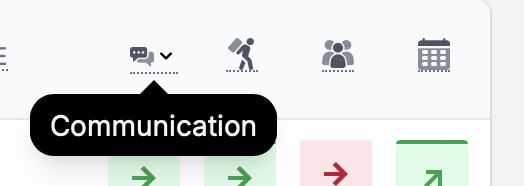
Facets are represented by icons; hover over them to see the facet name. Color coding indicates whether attention is required. Arrows show trend lines and appear when there are multiple submissions for the employee.
Climate Journal
The journal is a tool that allows you as a manager to keep track of your interactions with your team members. Issues can take days or weeks to resolve. The journal allows you to remember the important conversations and actions taken.
Click on the submission on the team climate dashboard to see additional details and take action in the Employees Climate Journal.
Here you can see the employee contact details, title, locality (on-site, remote, or hybrid), primary group, and primary location.
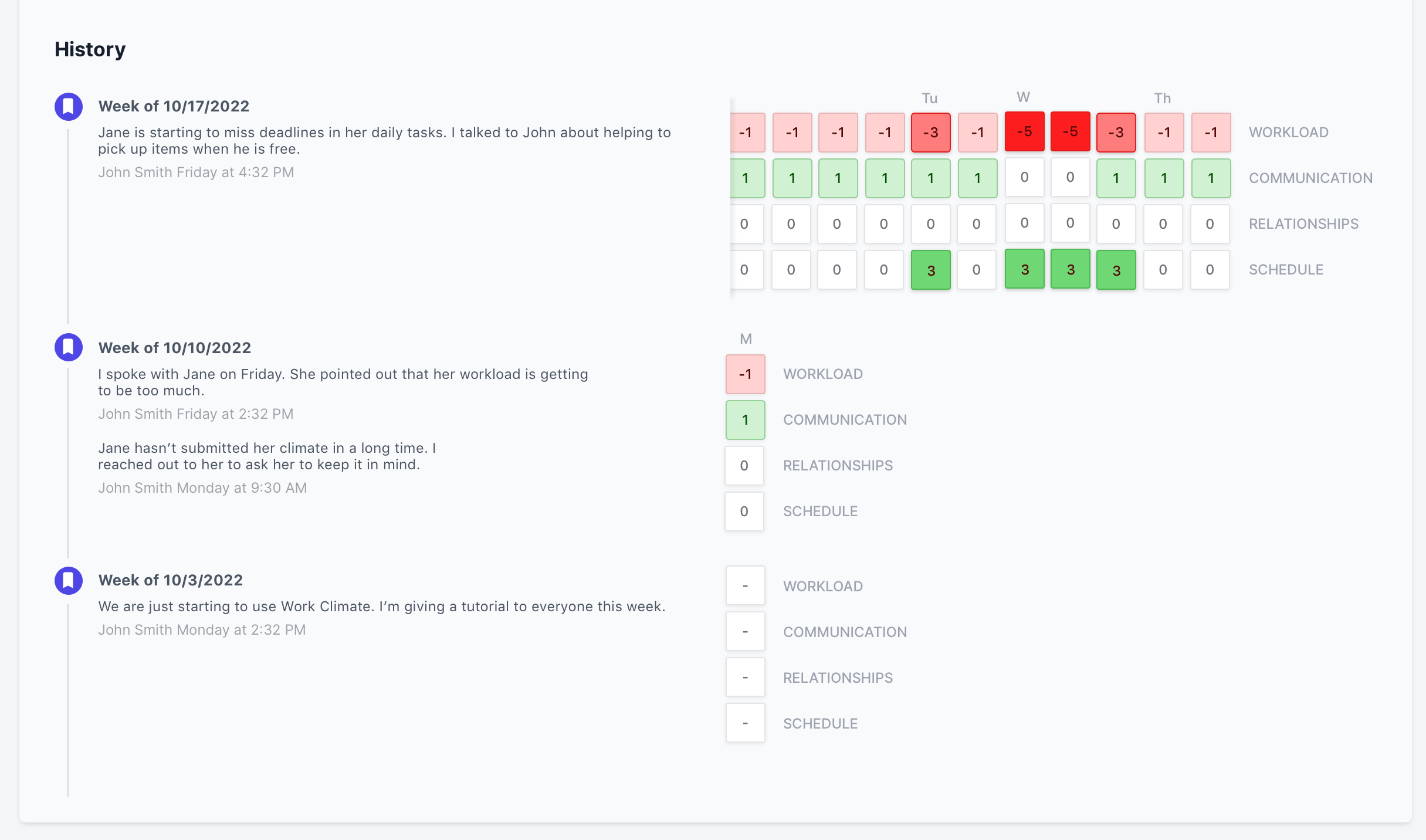
The responses are presented on a scale from -5 to 5. Where 5 is the highest and -5 is the lowest employee satisfaction score for that particular facet. Submissions are set in chronological order from the left to the right. Hover the mouse over or tap on the window to see when that submission was made.
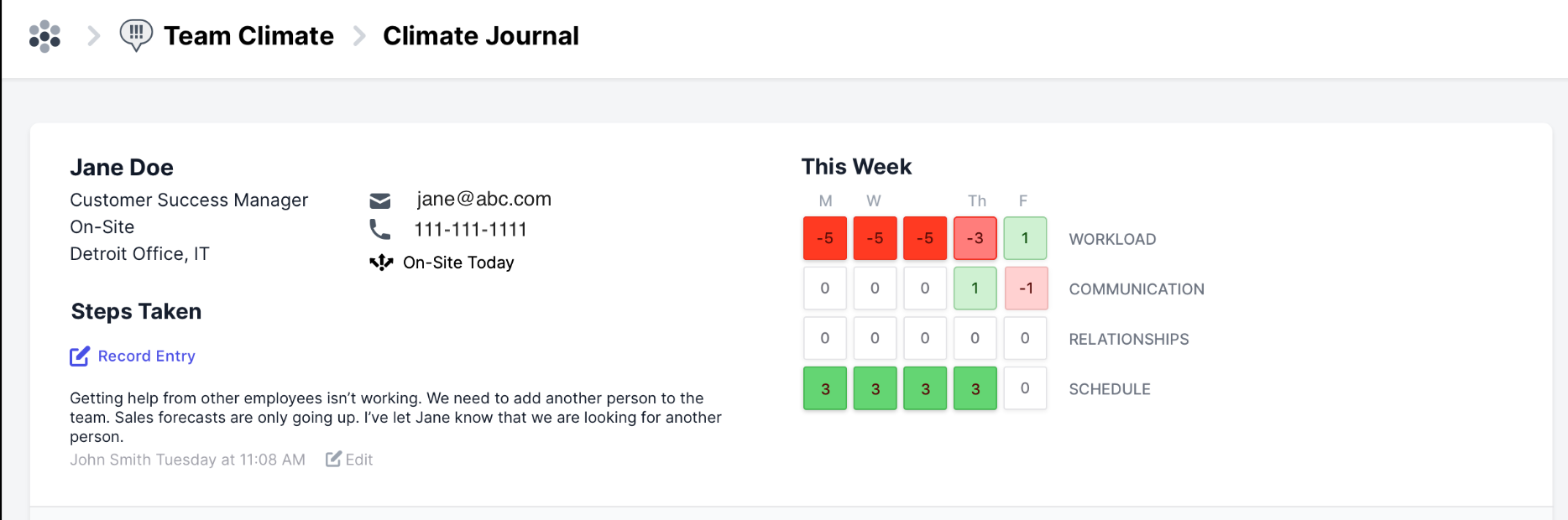
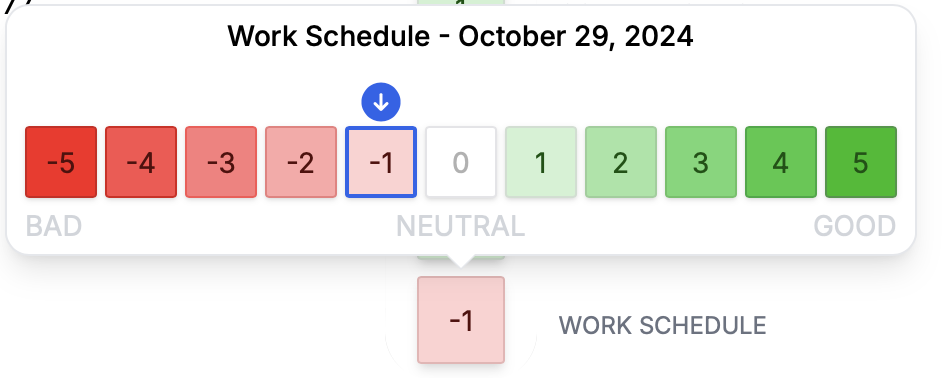
The Record Entry function allows managers to record all the important information and steps that were taken to work through the problem with the employee. Multiple managers can be working with the same employee and recording data can help them to coordinate on the issue. Executives can overview managers' records and track the HR department's work progress.
Please note: You can only edit the current week's notes.
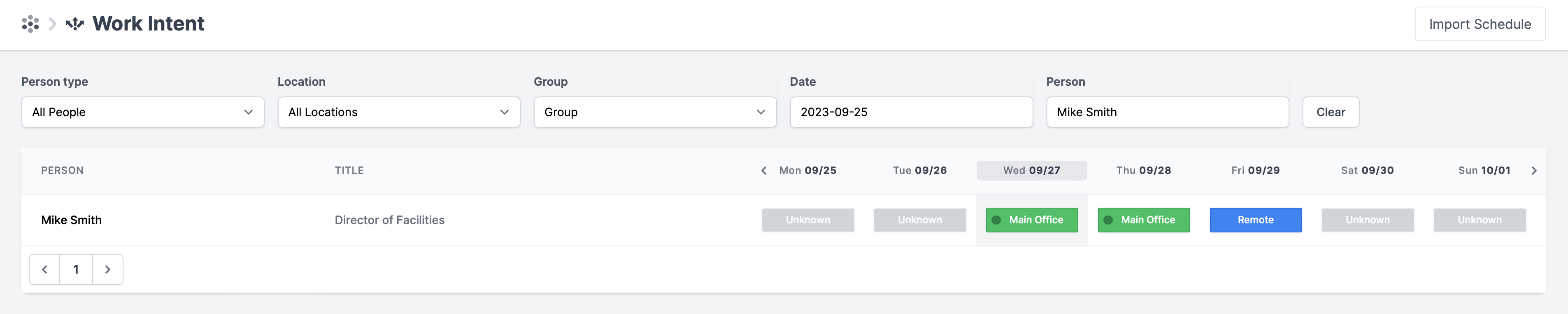
Click on the IN/OUT _4457077075220.md) and find the best time to communicate.

Please note: the IN/OUT feature is only available if you have Apex Vision in your plan.
Below you can also see the employee work climate submissions history.
Email Notifications
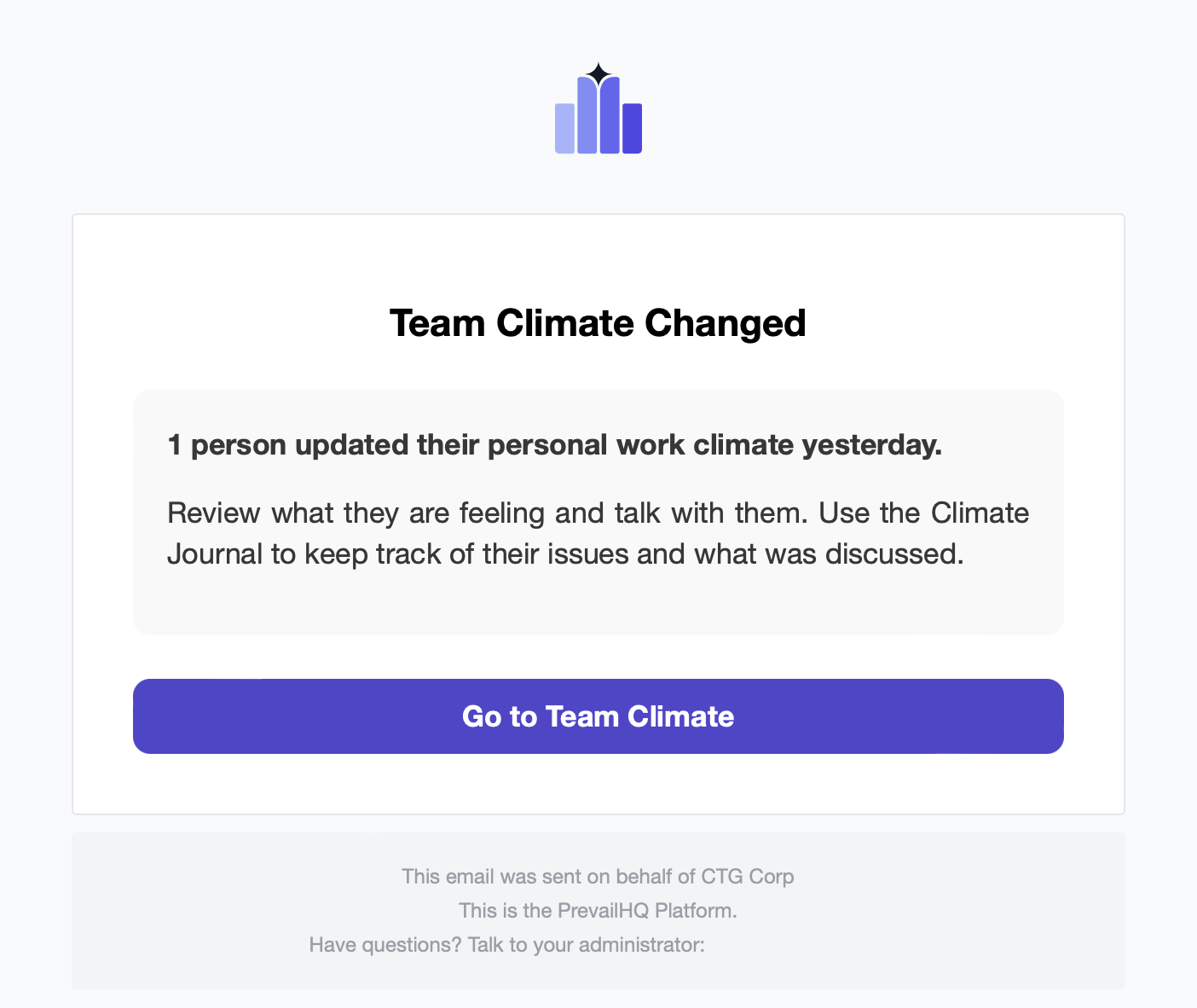
Managers receive a work climate submission email notification the morning after the submission is made. The email includes the number of people who submitted the work climate yesterday. Click on "Go to Team Climate" to see the submission details.