Alerts
You can use the alert feature for effective emergency communication with your team. By utilizing this functionality, you can ensure that your team receives critical information promptly during emergencies. This timely communication helps keep everyone informed, reduces confusion, and enhances the overall response to urgent situations.
There are four ways to send an alert:
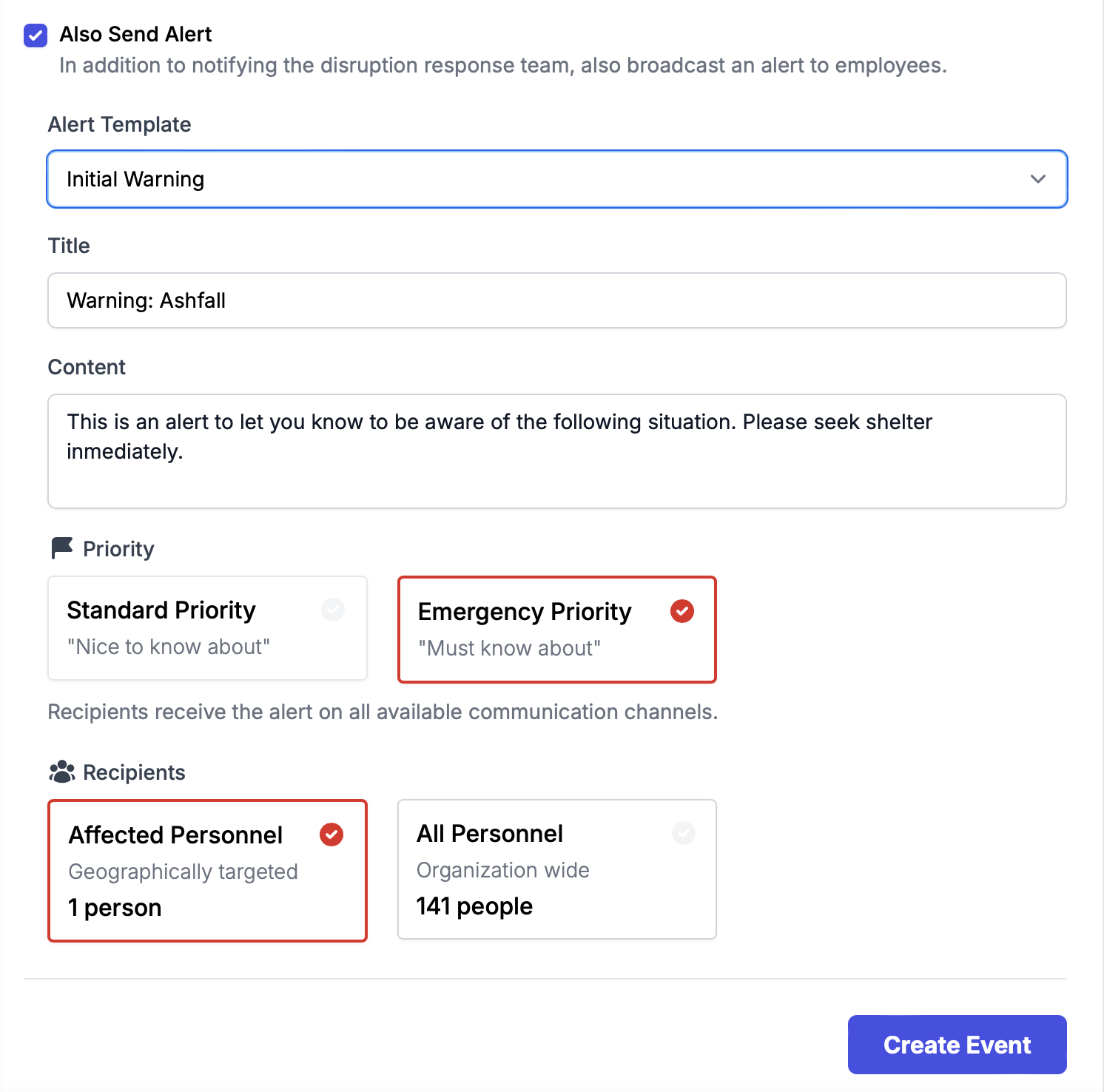
- From the Radar page: Create Event > Send Alert
- From the Radar page, select the event from the map or list view > Communicate > Send Alert
- From an Incident Response
- From the Radar page without creating an event. Note: Template variables will not populate in this case, since there is no event associated with this alert.
Access the alert setup window via one of the methods mentioned above, fill in all the required information, and select the locations where staff needs to be alerted (staff assigned to those locations will receive the alert). You will also have an option to select one of the alert templates.
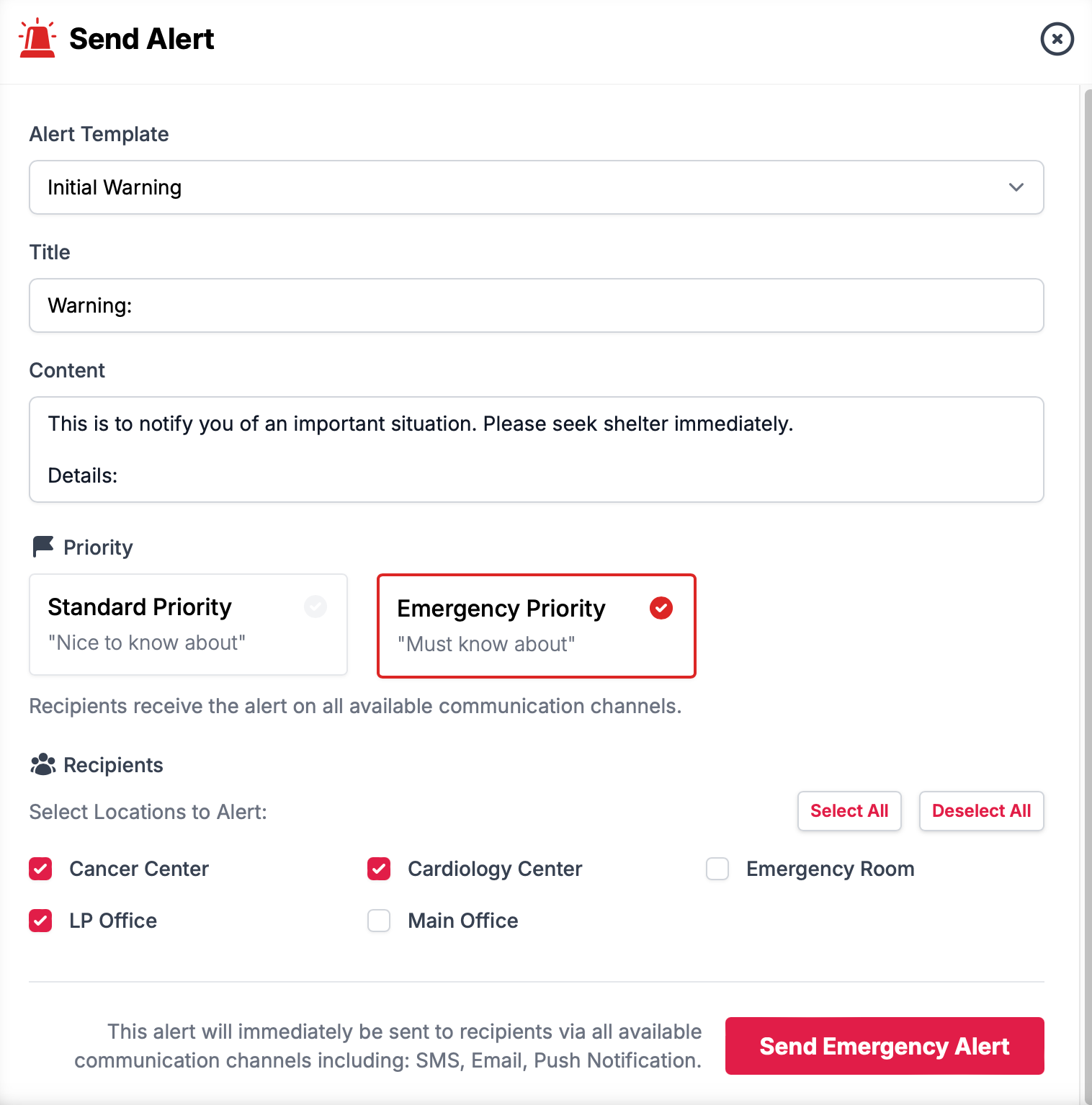
Emergency Priority: through ALL available channels (Push, SMS, Email).
Standard Priority:Alerts will be sent through the FIRST available channel only (Push, SMS, Email - notification via ONE channel in this priority order).
When sending an alert associated with an event, you will not need to select a location but will be prompted to choose whether to alert everyone in the organization or only those assigned to the location where the event occurred.