
Radar
Prevail HQ’s 24/7 Disruptive Events Radar enables you to monitor external threats to your workforce.
To see these, click on Threats > Radar.
On this page, you can see any and all the events that may disrupt your workflow in map and list views.
You can view disruptive events that affect your locations in Map and List views.
Map View
** **
**
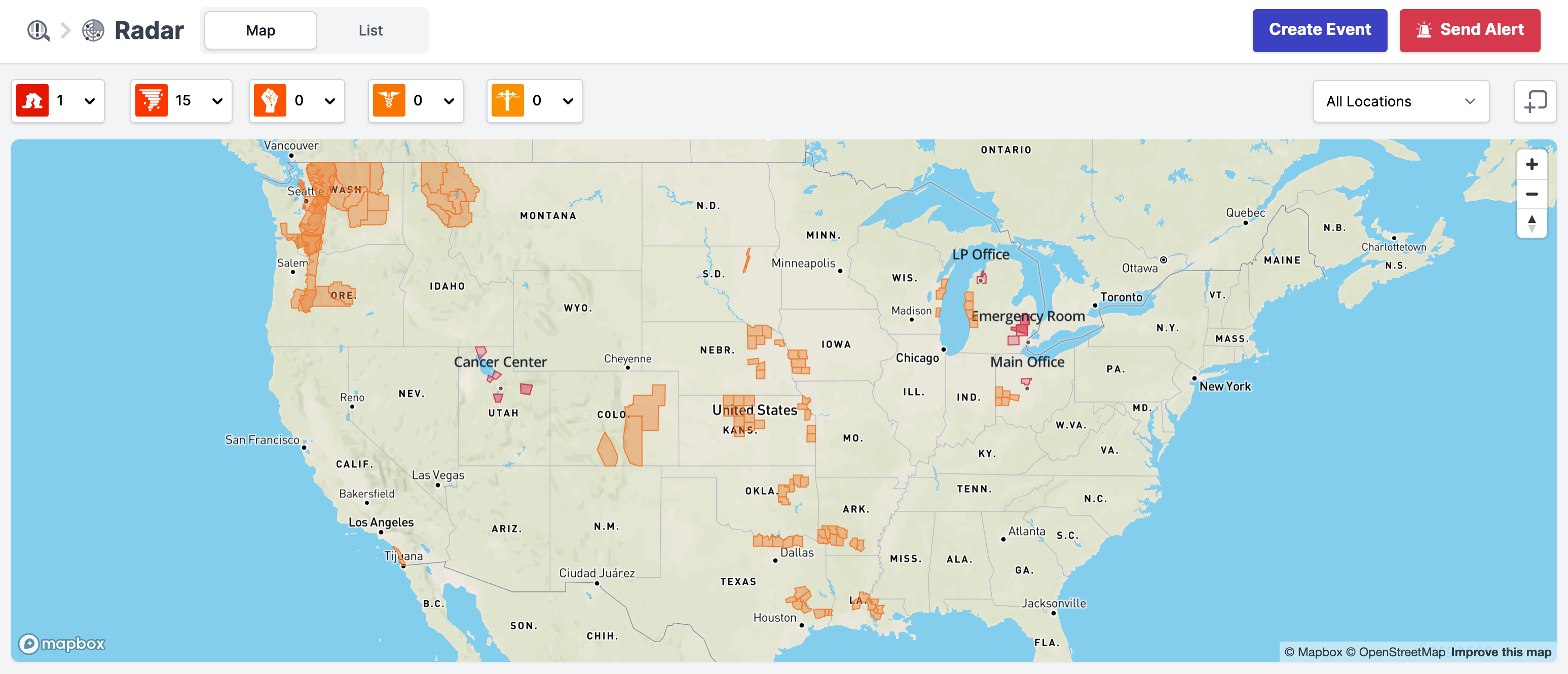
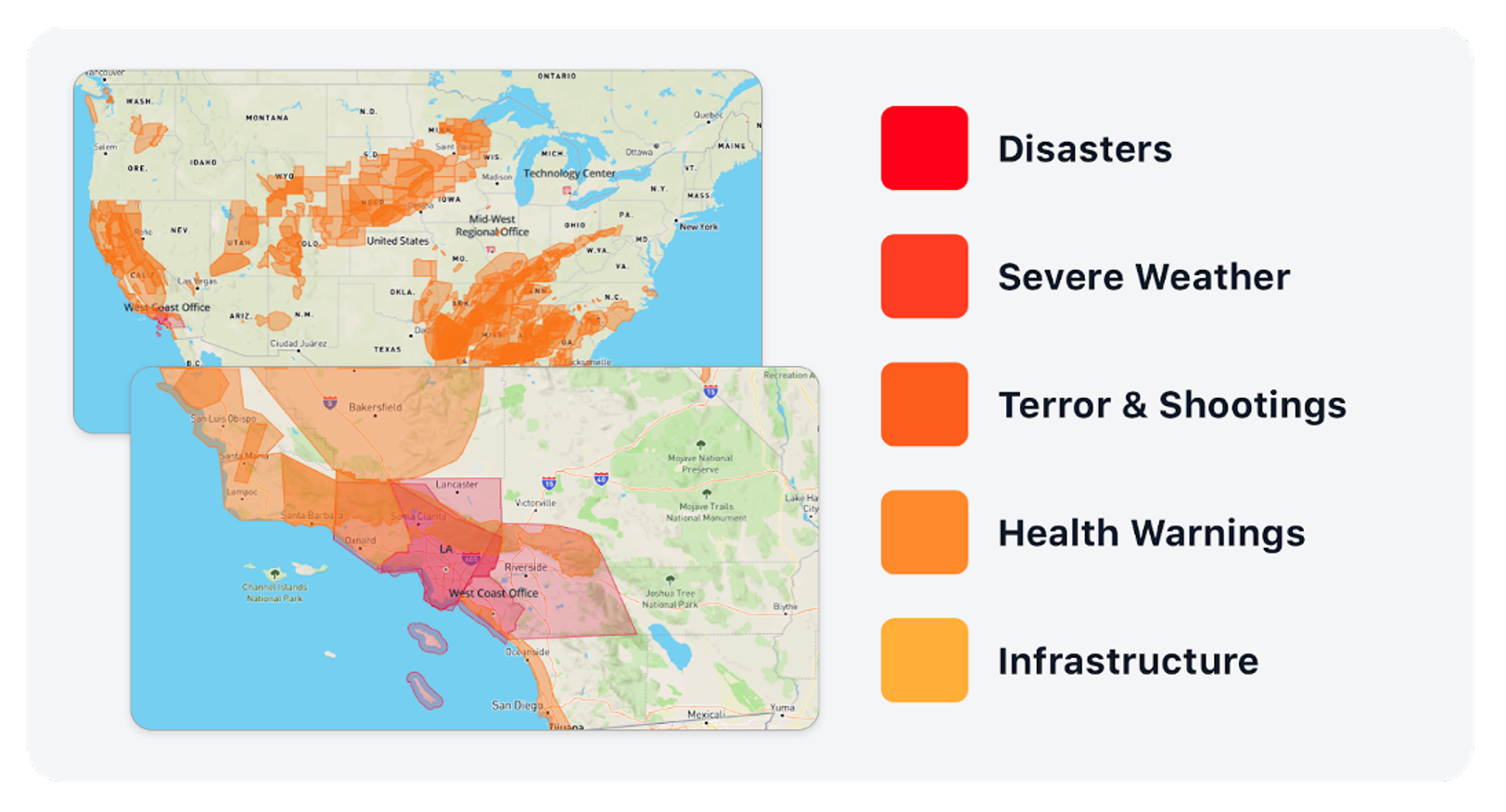
You can see health warnings, severe weather, terror & shooting, disaster, and infrastructure disruptive events happening in your area, as well as all over the United States and Canada.
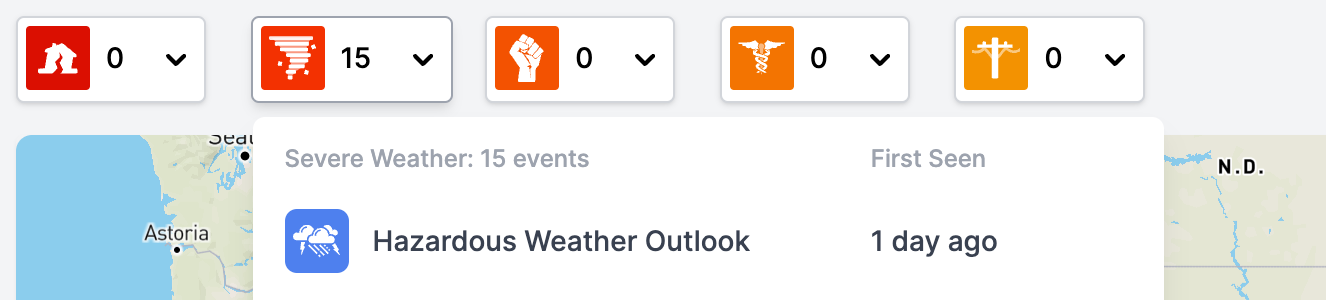
Select the category of the disruptive event from the drop-down menu to see all the events in that category that affect your location.
** **
**
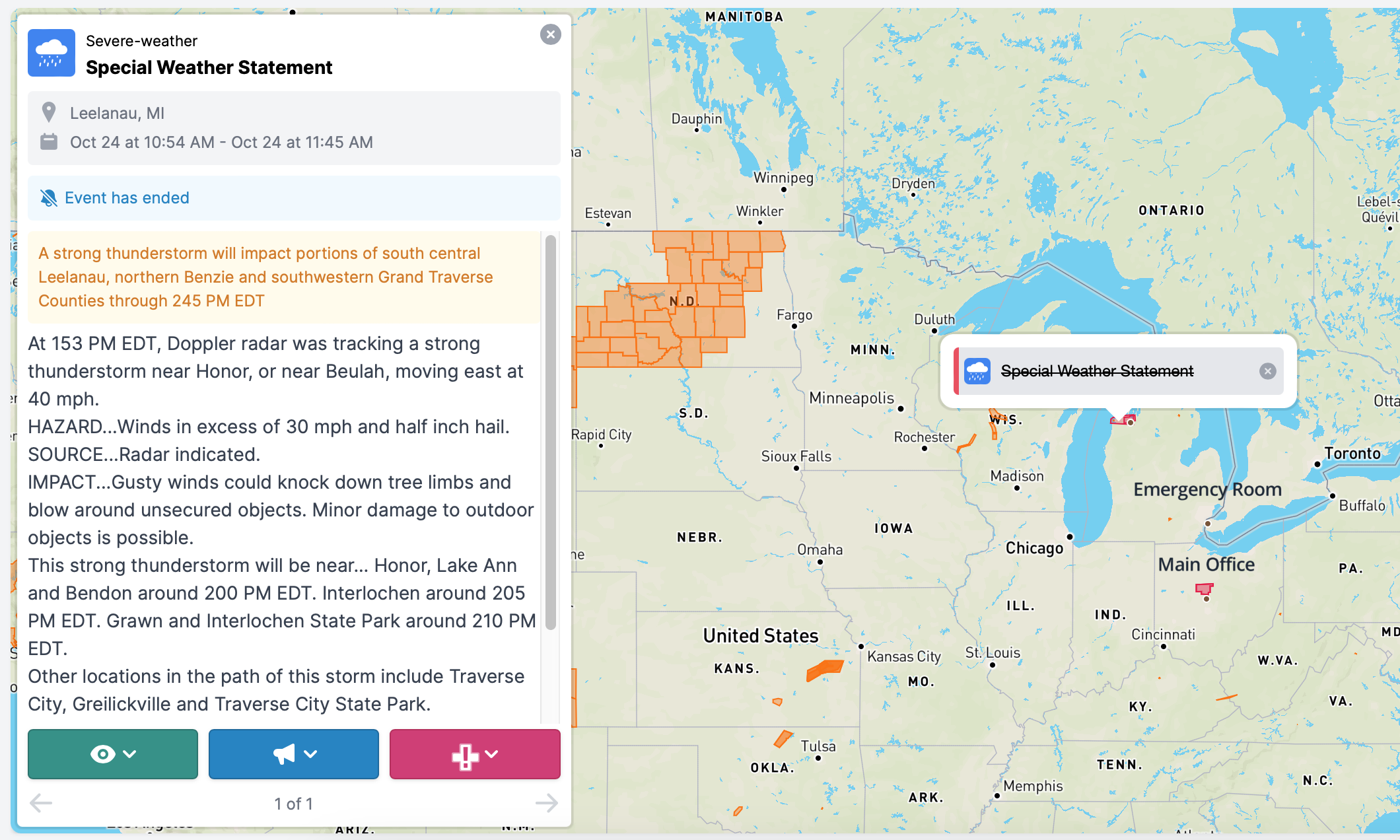
Click on the specific event and the map will be automatically zoomed in to that location with the details of the event shown on the left side. Events that ended are crossed out.
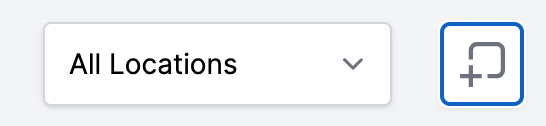
You can filter the map by viewing events associated with your locations only by using this tool  .
.
** **
**
List View
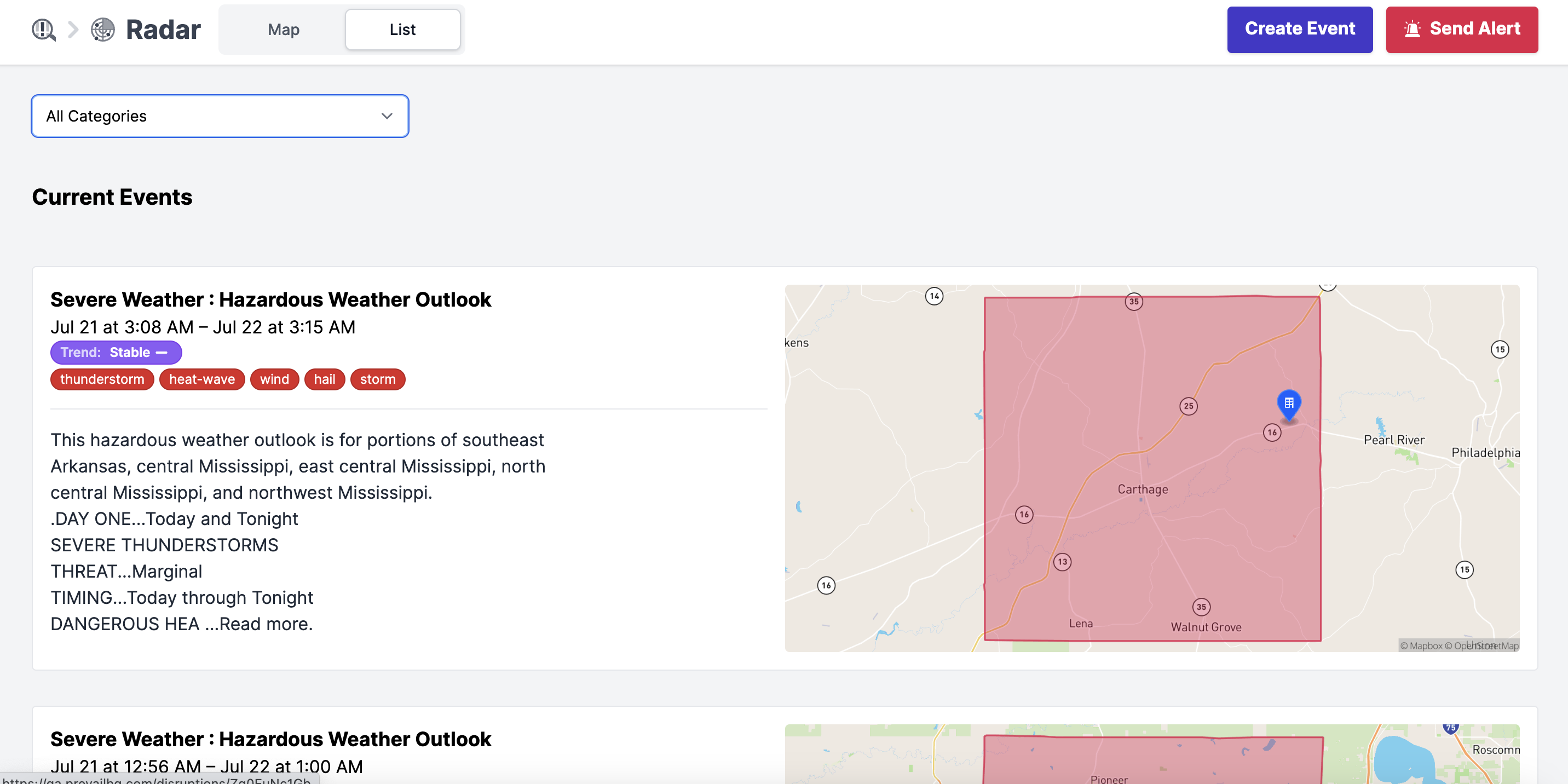
Use the list view to see current and past events that affect your locations.
** **
**
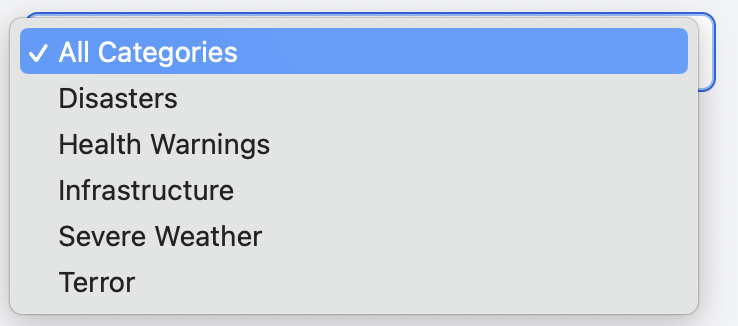
Simply select a required event type from the drop-down menu to filter the events.
Past Events
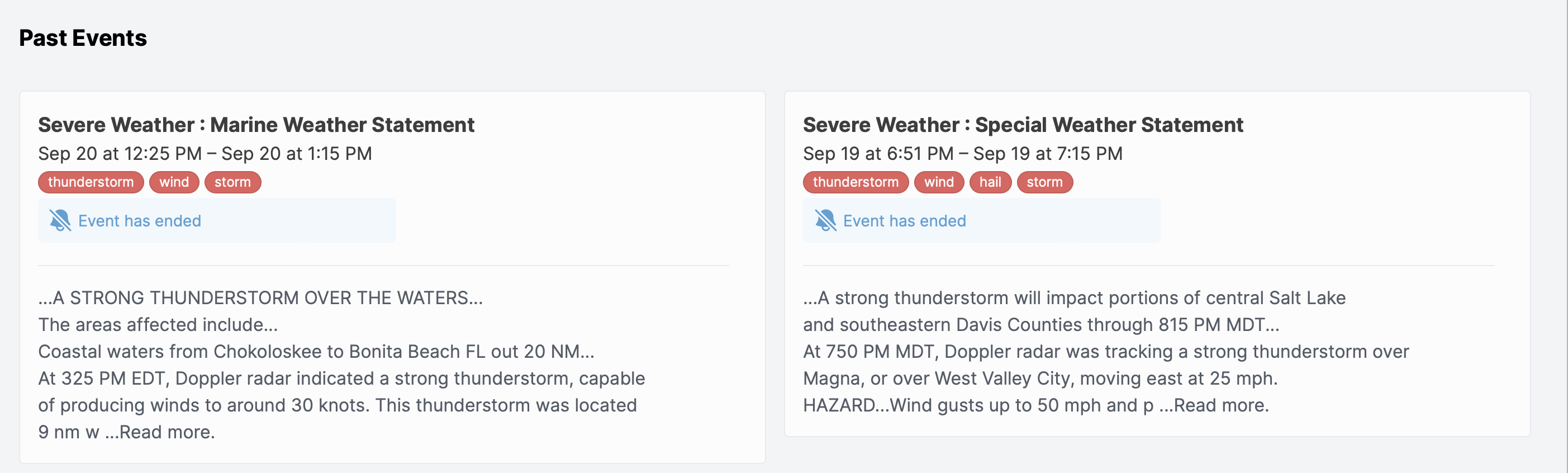
Scroll down the list view to see past disruptive events. The eventhas endedindicator will be shown next to the past events.
Adding events manually
Need to add an additional event that was not automatically generated on the threat map?
Click "Create Event" on the top right corner, fill in all the required details, and click " Create Event". Your event will be added to the system.
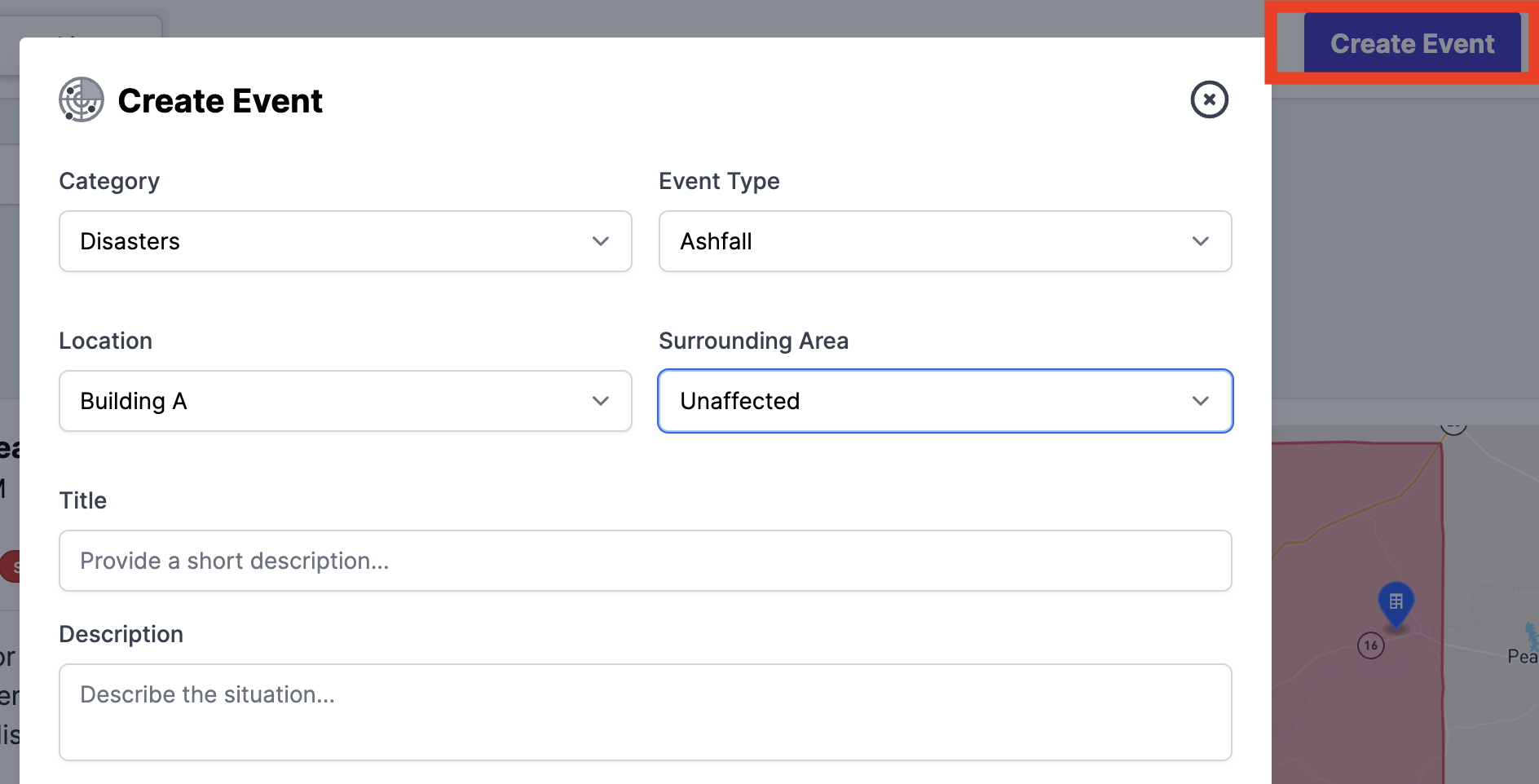
You can also select an option to send an alert with the choice of selecting one of the alert templates to inform your team about the event once it has been created. Learn more about alerts here. 

Sending Alert
Need to send an emergency message to your staff?
You can use the "Send Alert" function for emergency communication with your workforce.
Click "Send Alert on the top of the right corner> fill in all the required information, select locations where staff needs to be alerted ( staff that is assigned to those locations will be alerted) > click "Send Alert". Learn more about alerts here.

How To Create an Incident
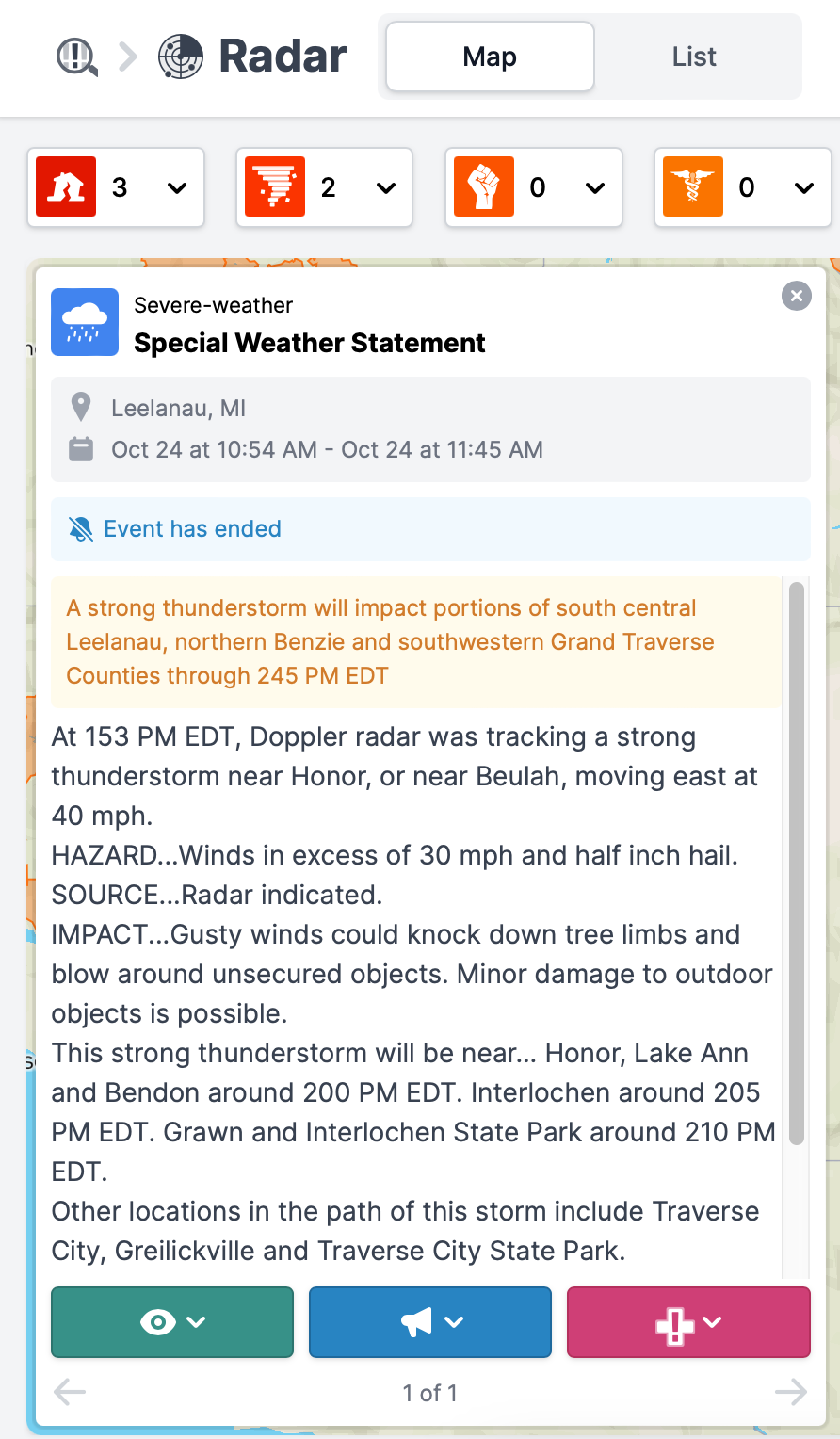
Click on the event to take further steps in assisting your workforce. Here you can see details of the event, the percentage of possibly affected workforce, and take further actions.
The actions tab is available in both Radar Map and List views.
Map View
List View
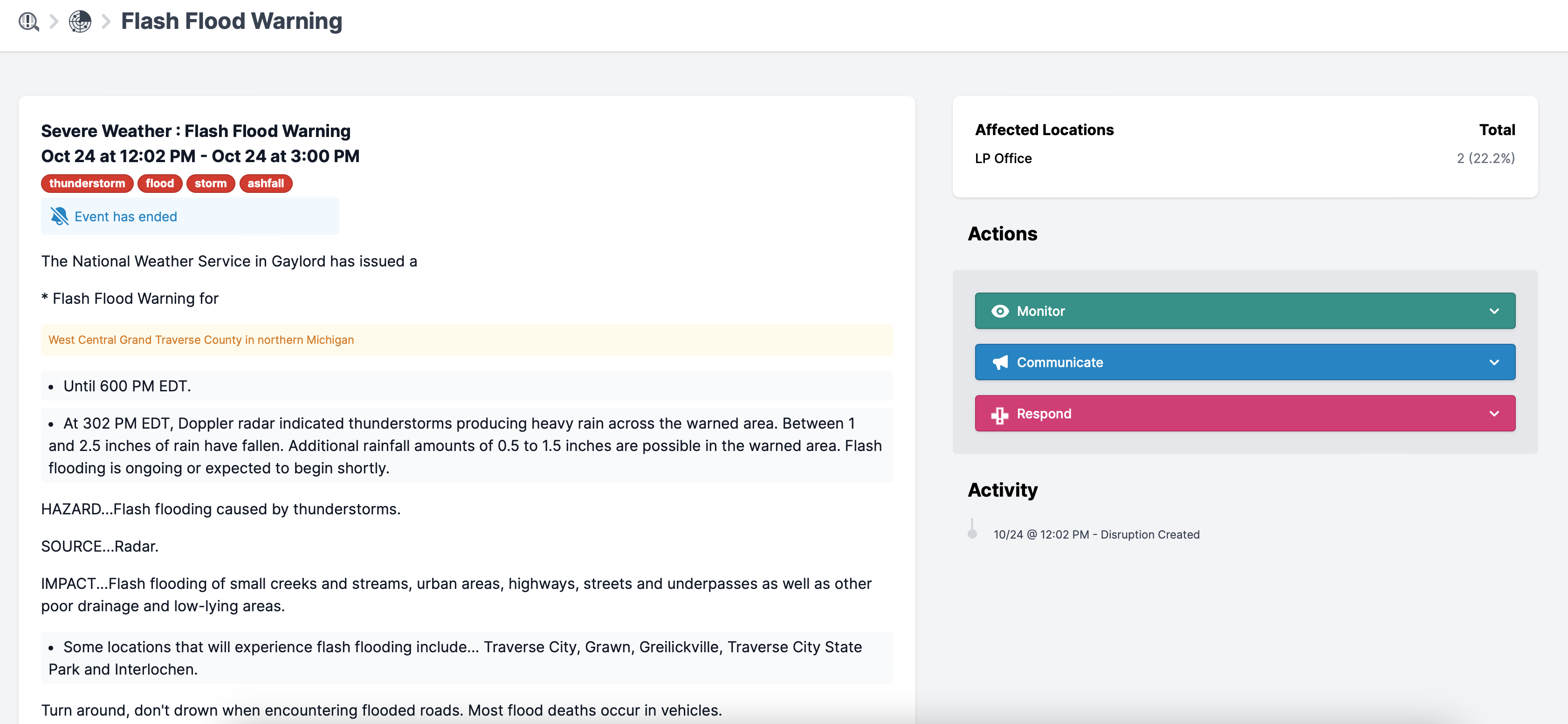
Click Monitor to receive a shareable event link to keep everyone on the same page.
Click Communicate to send an Announcement to possibly affected personnel. The list of recipients will be automatically generated based on the affected location assignment for your convenience. It can also be modified.
Click Respond to Create Incident Responseso you and your team can manage the situation as it unfolds.
Disruptions Notifications
As the system detects disruptive events, users with Notify of Disruptions Permission will receive a PUSH (PrevailHQ mobile app must be installed), SMS, or EMAIL notification to let them know what’s happening. The preferred notification method can be selected under Personal Settings.
Please note: When the PrevailHQ mobile app is installed for the first time - the system will automatically switch your notifications to the PUSH method. You can switch it back to any other method under Personal Settings.
Monitor Disruptions Permission enables users access to the Radar page.