
Incident Management
Overview
Your organization can face a surge of absences when severe events affect many employees at the same time. Such events can include severe weather, natural disasters, virus outbreaks, and infrastructure outages.
Incident Management helps you manage such disruptions and reduce the impact of many simultaneous absences. You can respond to a disruption, assess its impact, and help employees return to work so that you can quickly restore your staffing levels.
Incident Management works hand in hand with the 24/7 threat mapping found in Radar, which allows you to monitor these threats to your workforce.
As the system detects disruptive events, users with Notify of Disruptions Permission will receive an SMS notification to let them know what’s happening.
***Manage Incidents*Permission must be enabled to access the Incidents page.**
Creating an Incident
There are 3 ways to create an Incident:
- Navigate to Threats> Radar > Map> Click on the specific event and the map will be automatically zoomed in to that location with the details of the event shown on the left side> Create an Incident
Screenshot 2023-07-21 at 12.45.38 PM.png
2.Navigate to Threats> Radar > List > Select disruptive event > Respond> Create Incident Response. 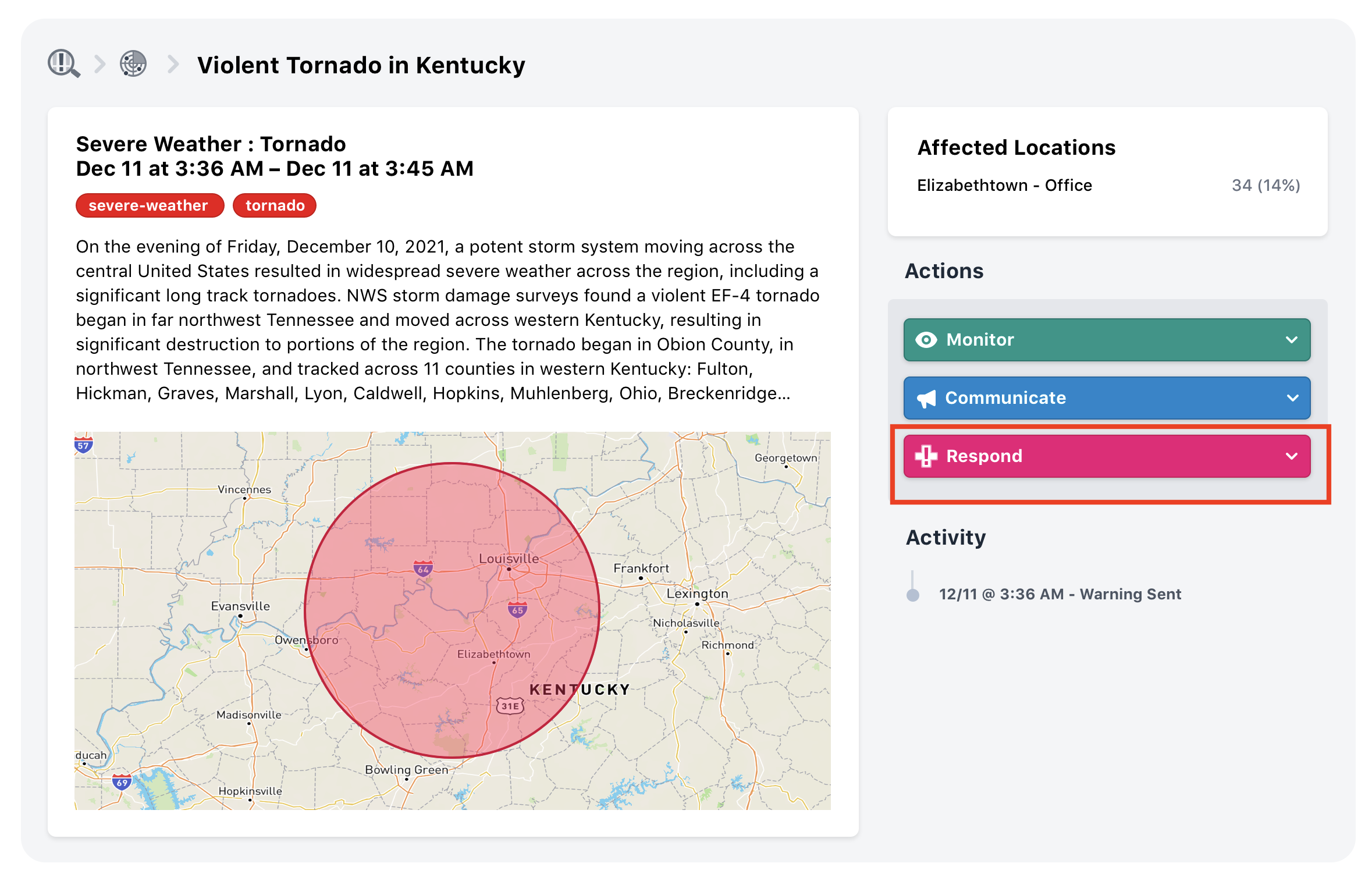
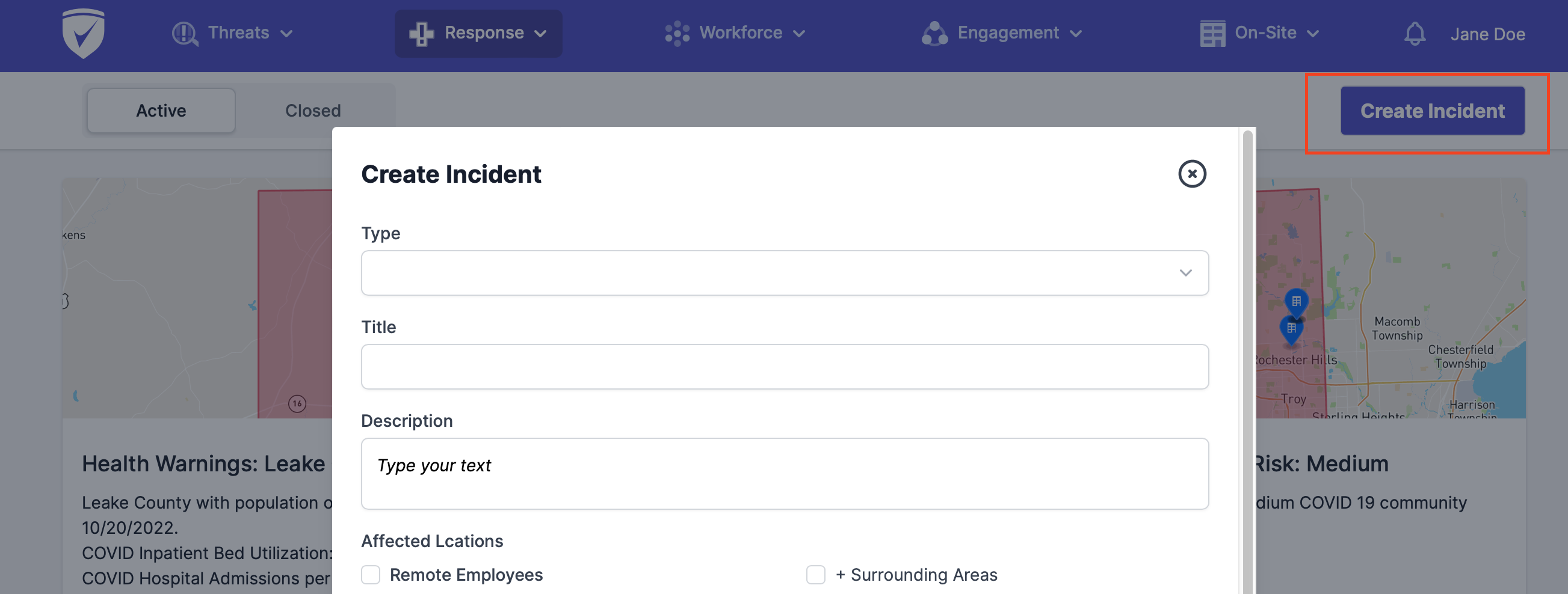
- Incidents can also be created without an automatically generated Disruption. In this case to create an Incident navigate to Response > Incidents > Create Incident.
Incident Overview
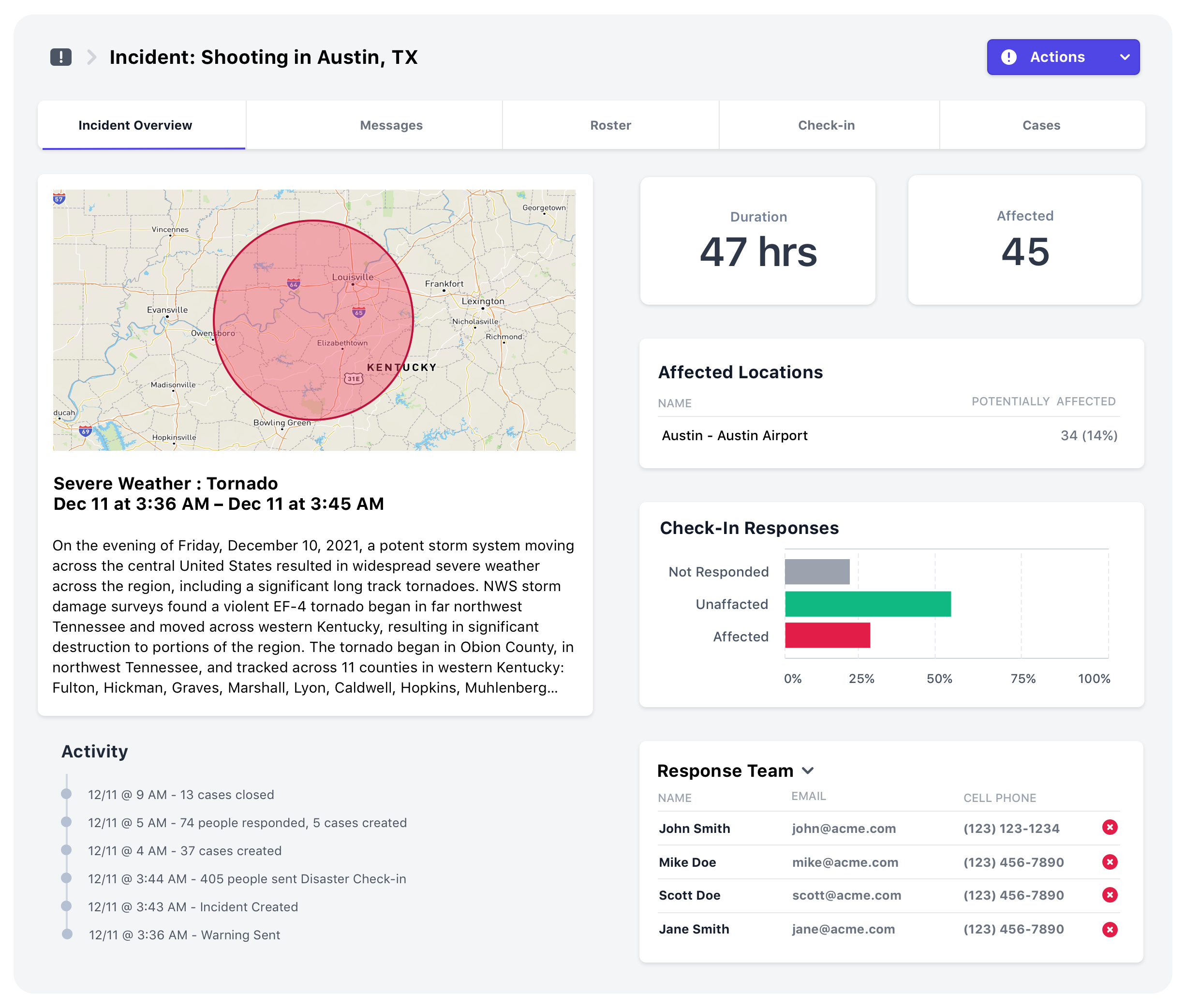
All current and closed Incidents can be viewed under Response > Incidents.
The Incident Overview reports information on the status of the incident, its duration, the percentage of the potentially affected workforce, and check-ins. Here you can also track incident management activity and response team assignments. Use the drop-down menu next to Response Team to add responders for the Incident. Anyone on the Response Team will receive notifications about the incident.
Incident Actions
Actions Tab can be used for multiple communication tools and Incident status updates.
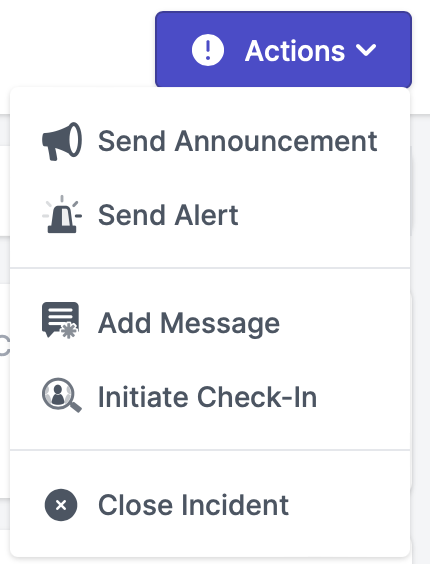
| Send Announcement | Send an announcement to a specific group of employees regarding this incident using the Announcement function with a powerful Rules Engine. |
| Send Alert | Recipients will receive your critical message on all available communication channels. You can select if the alert should be delivered only to the likely affected or all the personnel. Learn more about Alerts here. |
| Add Message | Messages allow you to keep your response team on the same page. Each message posted gets sent to every member of the response team. All the messages for this incident can be viewed under the Messages tab. |
| Initiate Check-in | By initiating a Check-In, your personnel will attempt to be contacted on a regular basis via all available communication (SMS, Email, App, Phone Call) channels until they respond. |
They will be asked if they are affected by this incident, and if so, a case will be created to track their situation and help get them back to normal status. You can select if the Check-In should be delivered only to likely affected or all the personnel. Learn more here. | | Close Incident | Closing an incident will transfer it to the Closed Incidents section. You will still be able to view it but no further notifications will be sent. |
Messages
To effectively coordinate with your incident response team, use the Messages Tab to share important updates and information. You can select all teams for broader communication or choose specific response teams to discuss details relevant only to those involved. This ensures that everyone stays informed and can collaborate efficiently.
CleanShot 2024-10-22 at 16.37.11@2x.png
Roster
Use Roster to view a complete record of everyone at the affected locations (both employees and visitors). Here you can open a case to assist a specific individual.
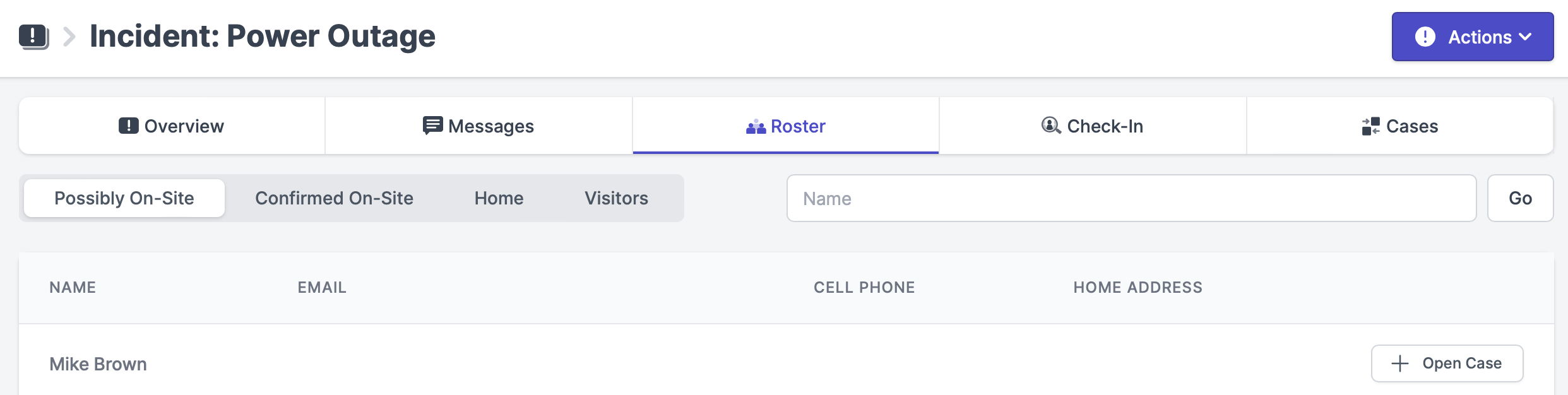
| Possibly On-Site | The employee is assigned to this location. |
| Confirmed On-Site | The employee checked in at the location using one of check-in methods. |
| Home | Employee home address area was affected. The home address must be pre-entered in the system. |
| Visitors | Visitors who are scheduled to be at the affected location. If ENTERED AT time is shown - the visitor has checked in on-site. |
Disaster Check-Ins
If the worst happens, you can use Automated Check-Ins to prompt personnel to report on their status. If they were affected a case is created to manage the individual response. Learn more about that here.
Incident Cases
Certain situations might affect employees' availability to work, require assistance, or create absences. Click Open Case next to the affected individual name to monitor his status and assist him in getting back to work. You can select to view the case for each person individually or navigate to the Cases tab to see all the cases for this Incident.
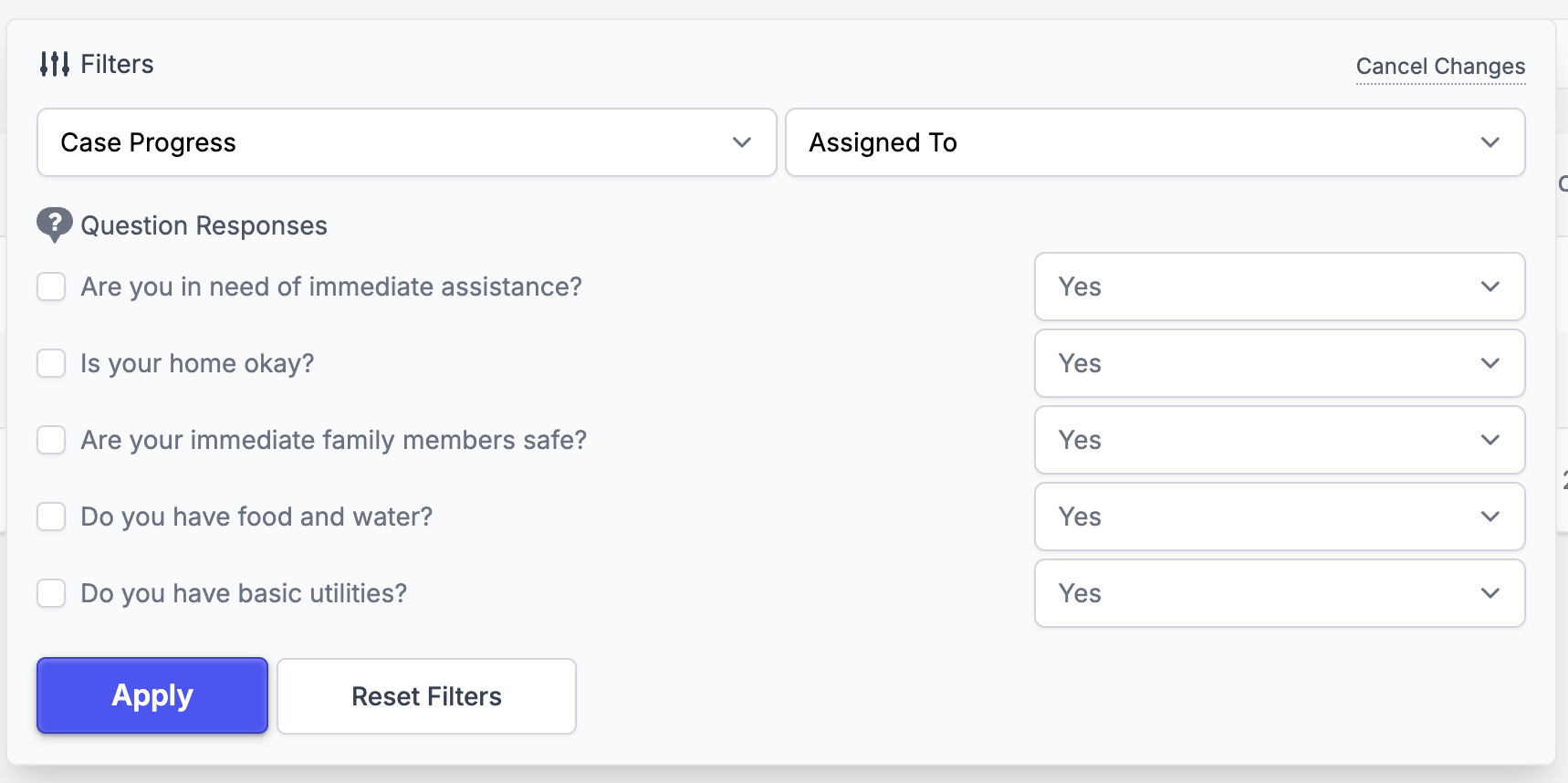
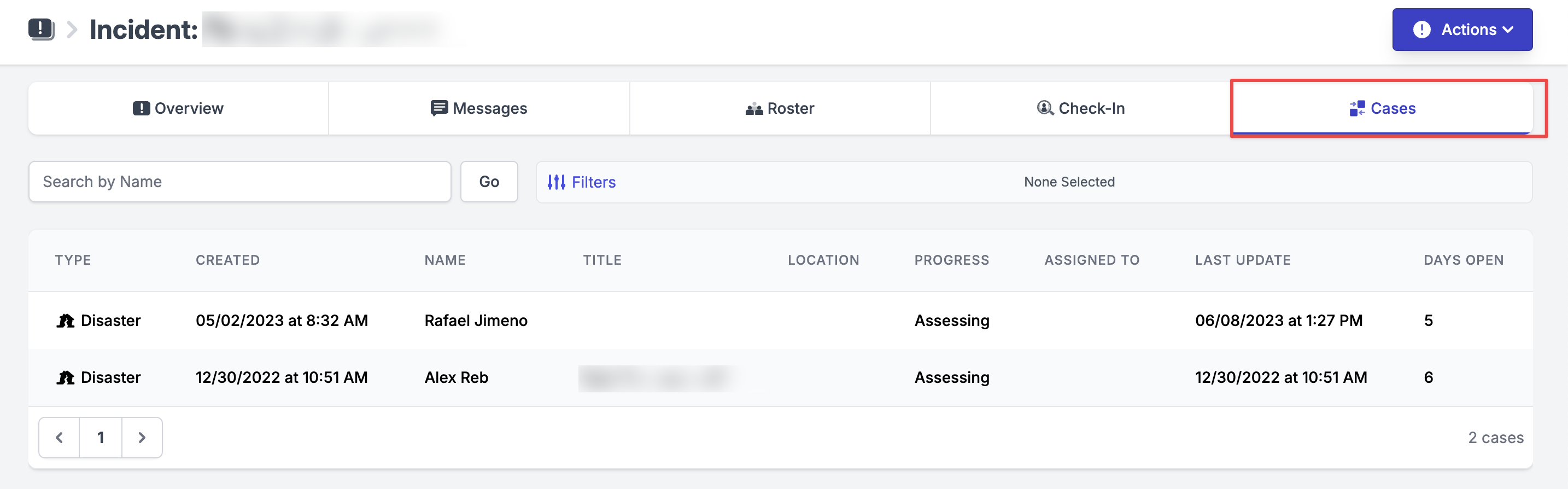 Apply filters to view cases that meet specific question responses, case progress, and assignment status.
Learn more about Case Management and Absences here.