
Incident Check-In
Use Automated Check-Ins to contact employees who may be impacted by the disaster event and prompt them to report their status.
Initiate Check-In
There are two ways to Initiate a Check-In:
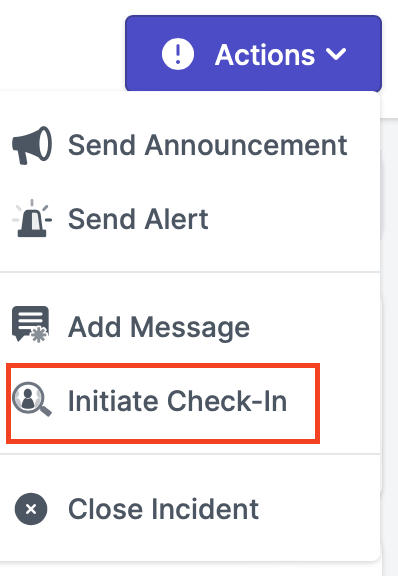
- Click on the Actions tab > Initiate Check-In.
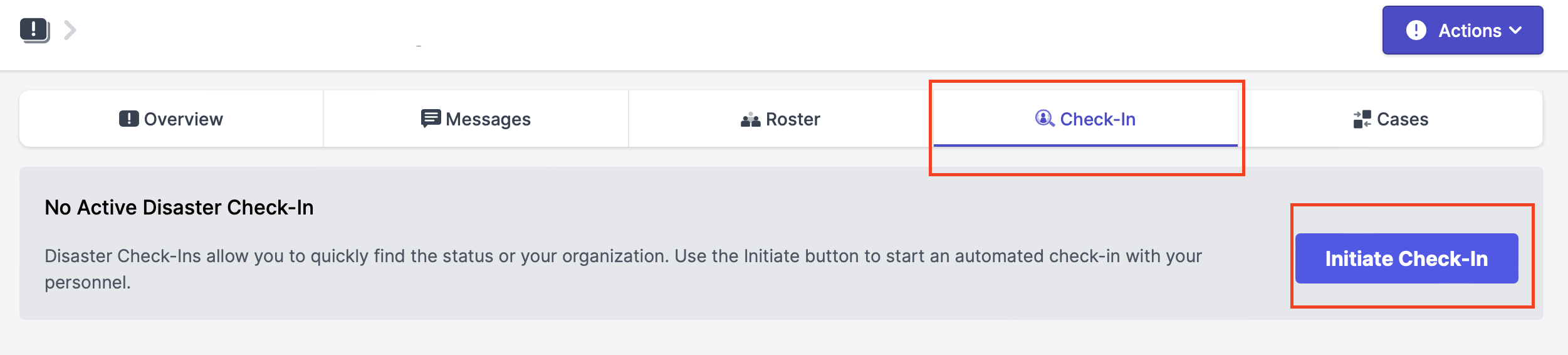
- If no Check-In was initiated yet, it can also be initiated by clicking on the Check-In tab > Initiate Check-In.
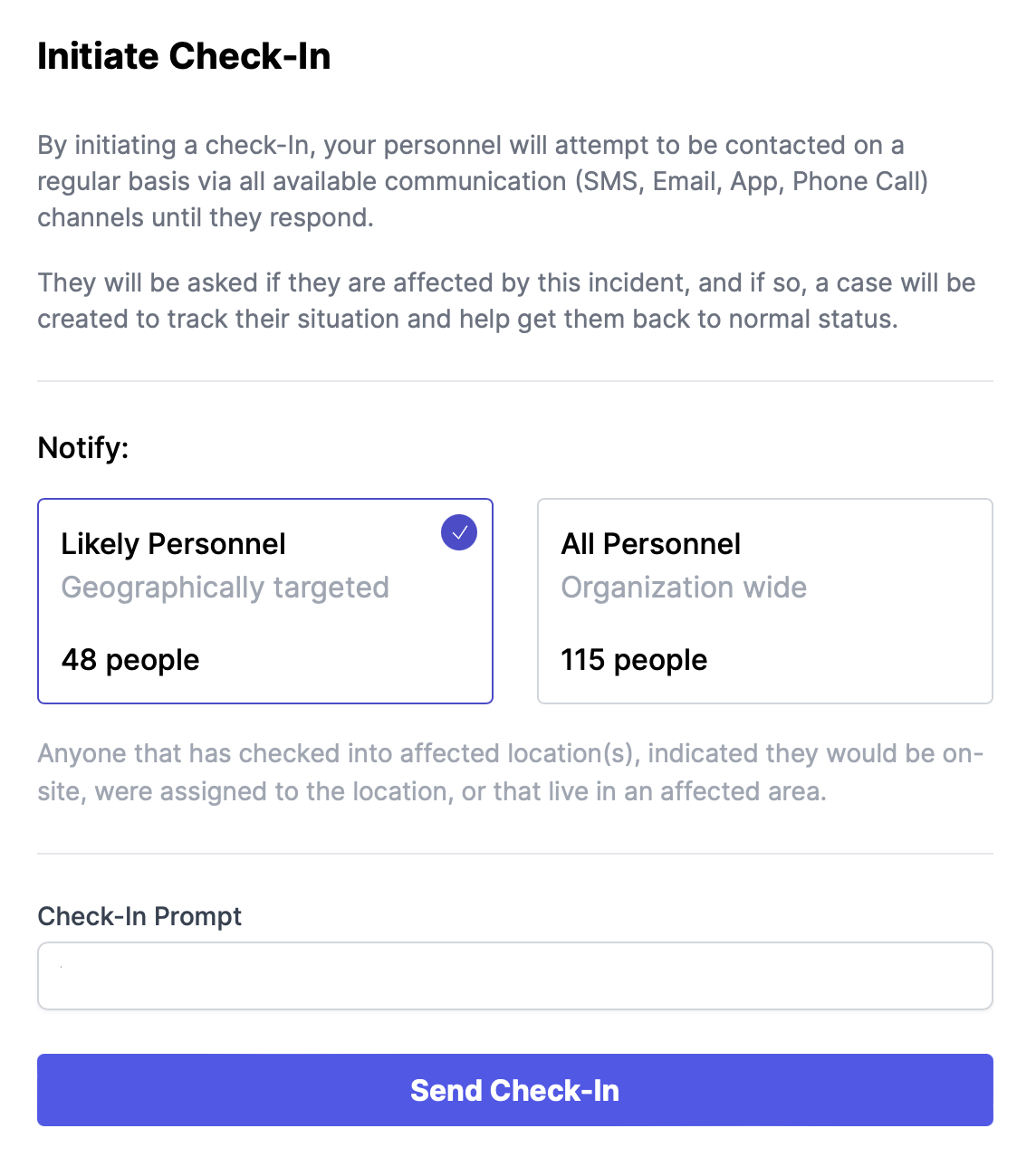
You can choose to notify Likely Personnel or All Personnel. A customizable Check-In Prompt message can be added.
Incident Check-In Notifications
Once Incident Check-In is initiated your personnel will attempt to be contacted on a regular basis via all available communication (SMS, Email, App, Phone Call) channels until they respond. They will be asked if they are affected by this incident, and if so, a case will be created to track their situation and help get them back to normal status.
Notifications will be sent in the following order:
| 1st Check-In | When the Check-In Is Initiated ( e.g. 10 AM) |
| 2nd and 3rd | 1 and 2 hours after initial Notification (e.g. 11 AM and 12 PM) |
| 4th, 5th and 6th | 8 hours apart from the previous notification( e.g. 8 PM, 4 AM, 12PM) |
| All the following notifications | 24 hours after the last notification within daylight hours (8 AM-6 PM) (e.g.12 PM) |
Automatic Check-In notifications will be sent until a possibly affected employee, contractor or visitor responds. No more notifications will be sent once the Check-In status is provided.
Mobile App Incident Check-In Experience
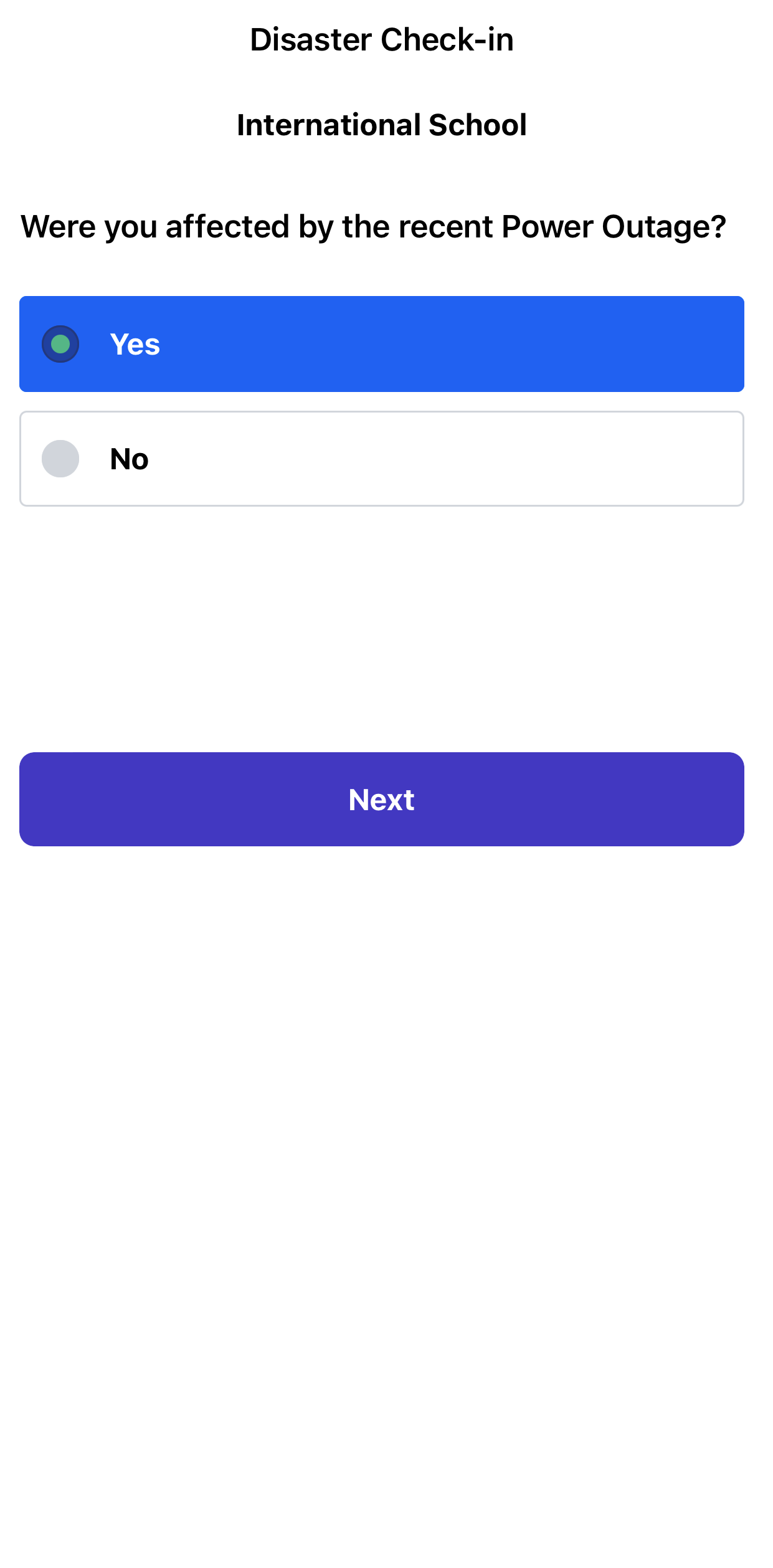
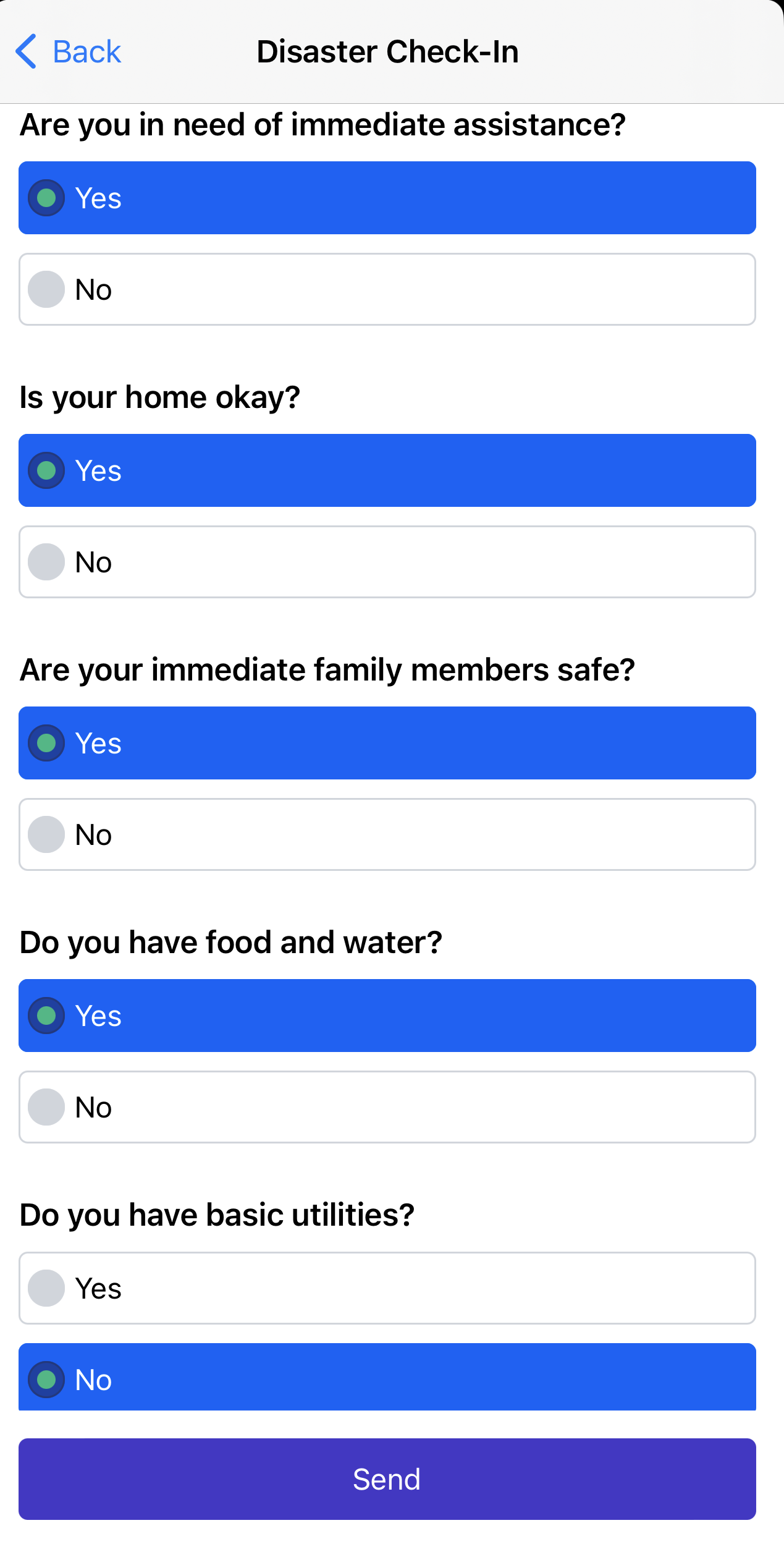
Once Check-In is initiated by the response team, personnel will receive a notification to update their status. The notification will be delivered via the available communication channel. The example below illustrates Mobile App Incident Check-In notification. In this case, users are prompted to respond to the questions to confirm their Check-In status. Questions and instructions are fully customizable under the Case Types.
Incident Check-In Overview
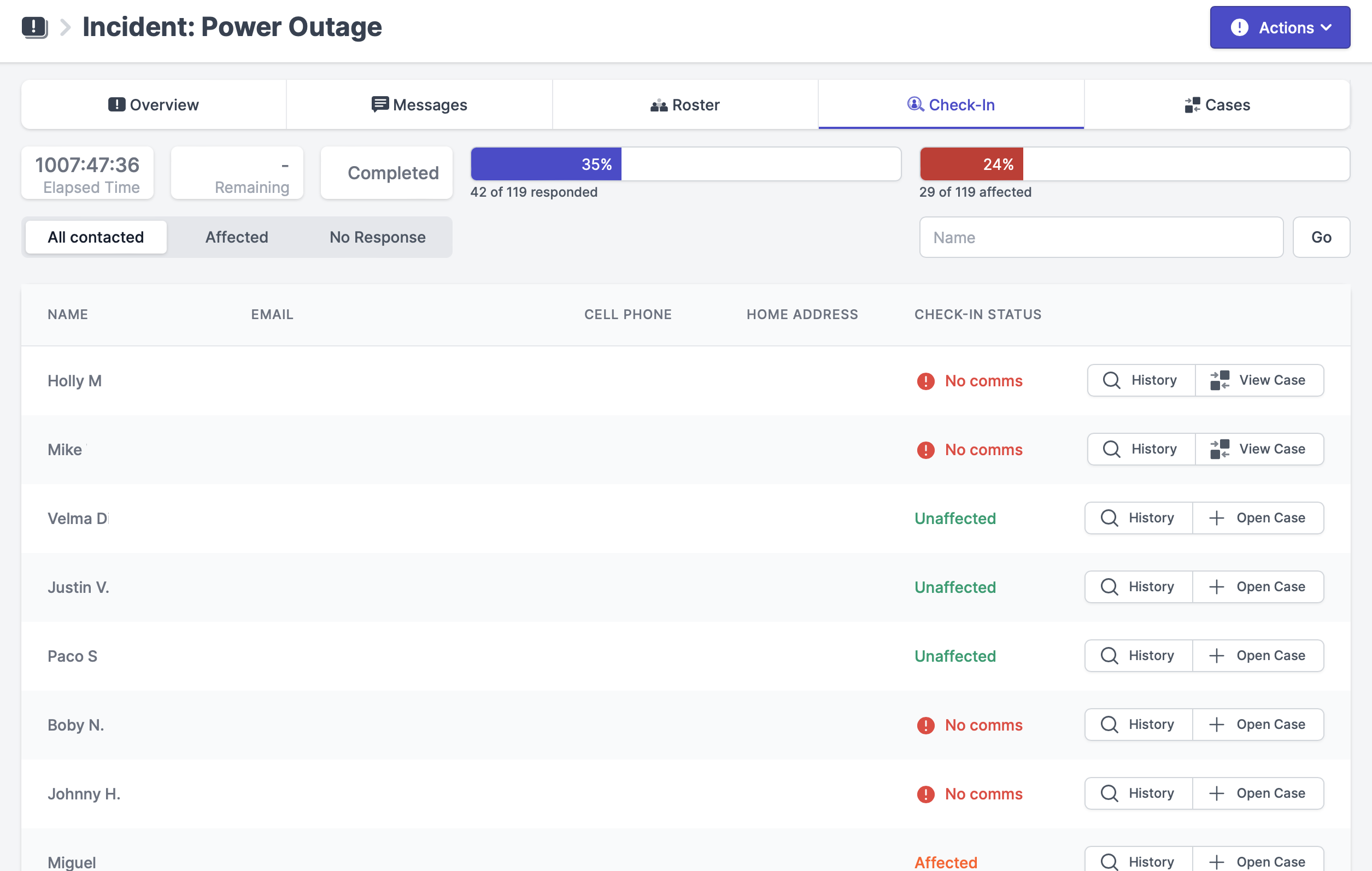
The Incident Check-In page overviews the percentage and number of responded and affected personnel, as well as the duration of the Check-in and its status.
Check-In Statuses provided by personnel include Affected, Unaffected, Unknown ( no response was provided), No comms ( individual could not be reached via provided communication channels).
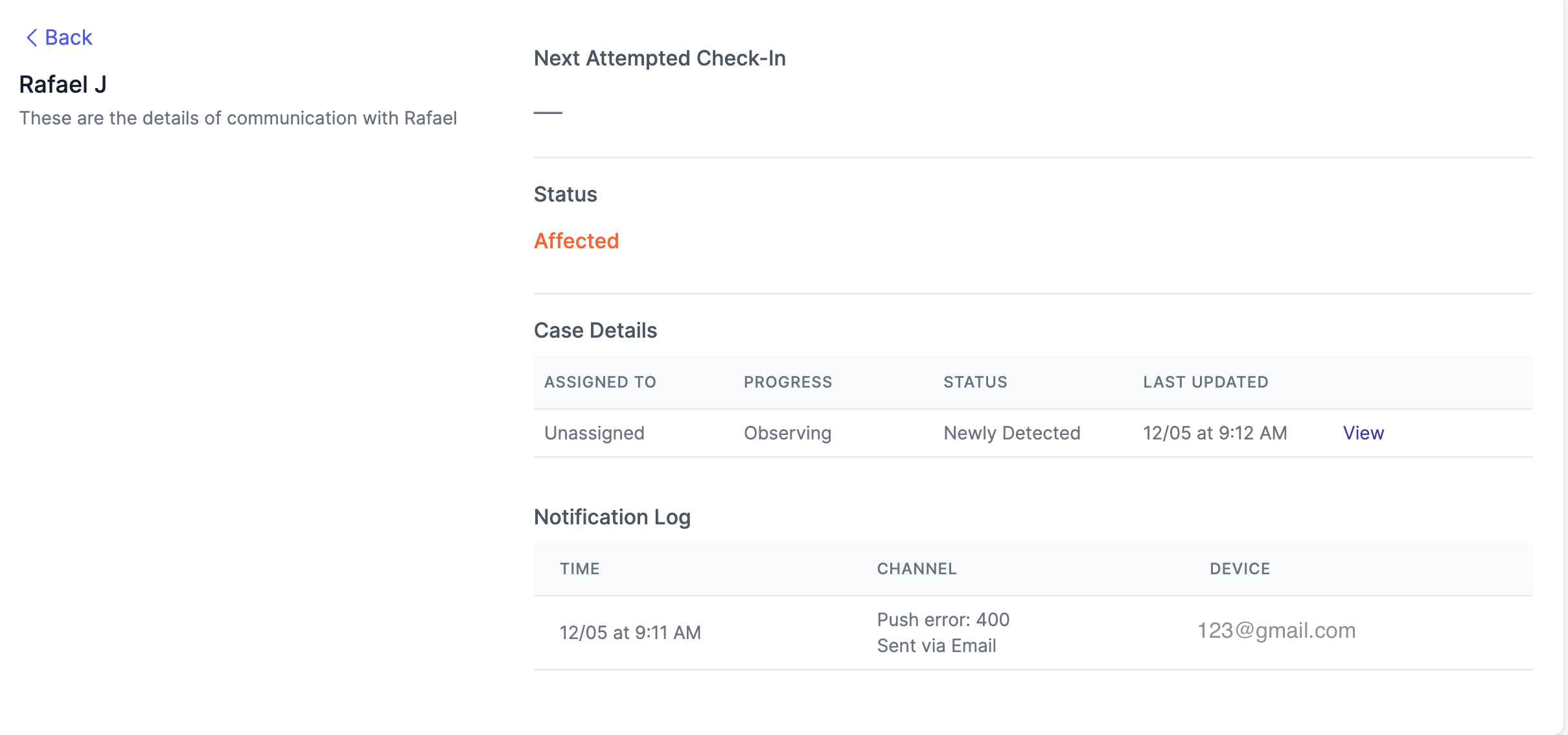
To view specific individual Incident Check-In details click on History. Here you can view the notification log history, the open case if the individual was affected, the Check-In status, and the time of the next notification if no response was received.
The screenshot below illustrates that Check-In was sent to Rafael via Push Notification and could not be delivered, so the system tried the next available contact method - Email and it was successfully delivered. Rafael responded that he was Affected by the Disruptive event and the response team opened a case for him. Now, this case is awaiting a response team assignment to be reviewed. There is no Next Attempted Check-In shown since Rafael responded and no further Check-In notifications will be sent to him.
Incident Cases
Certain situations might affect employees' availability to work, require assistance, or create absences. Click Open Case next to the affected individual name to monitor his status and assist him in getting back to work. You can select to view the case for each person individually or navigate to the Cases tab to see all the cases for this Incident. 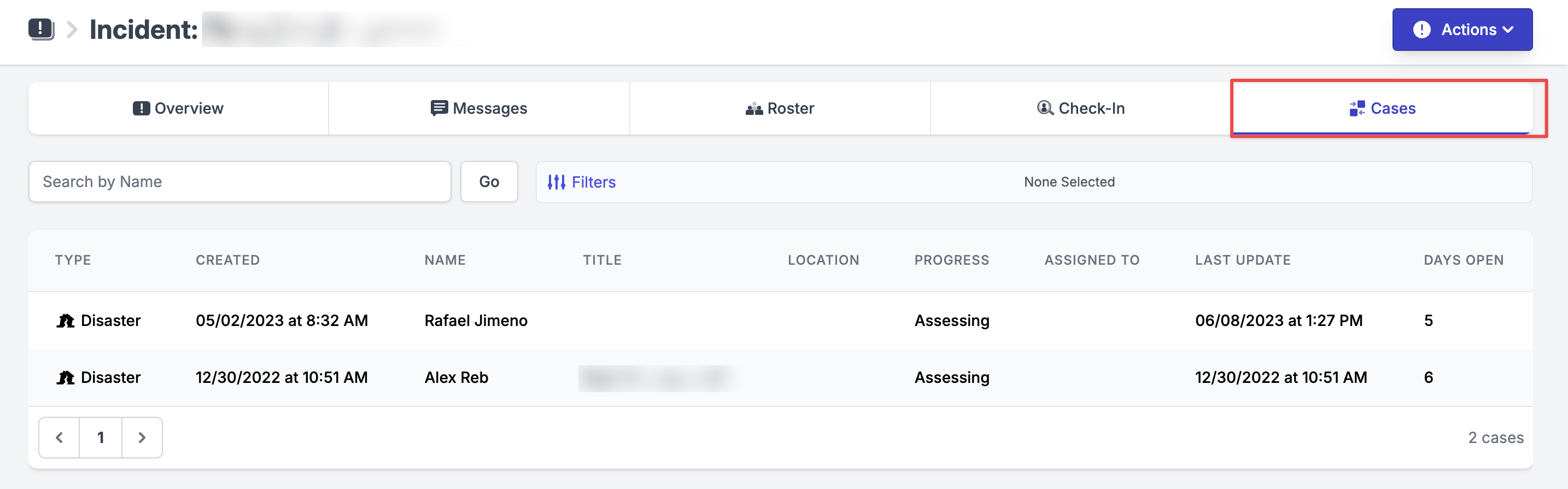
Apply filters to view cases that meet specific question responses, case progress, and assignment status.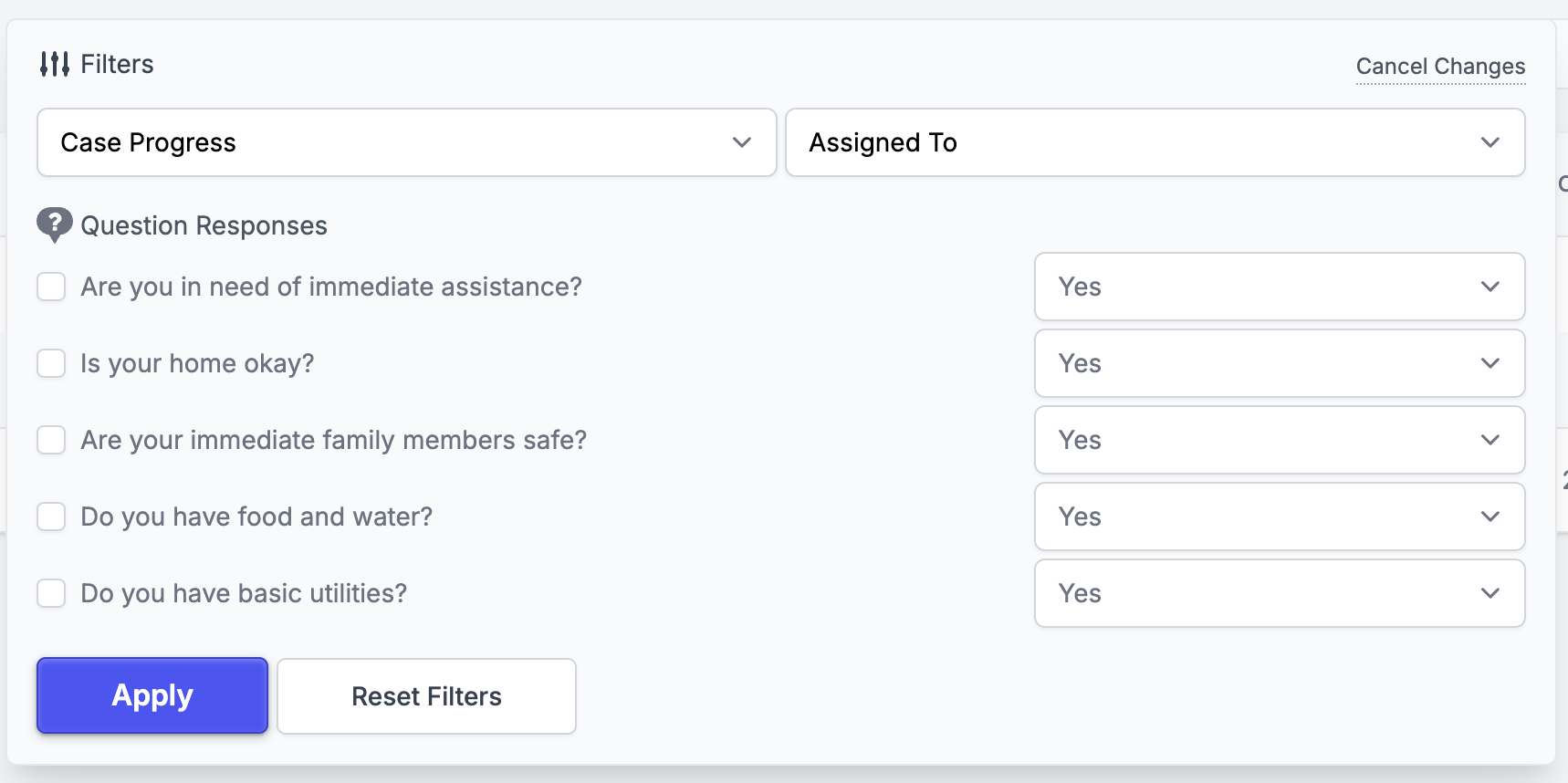
Learn more about Case Management and Absences here.